

WooCommerce product personalization options allow you to offer customers extra choices such as text fields, date pickers or checkboxes directly on the product page. With the free Flexible Product Fields plugin, you can quickly add 18 types of custom fields and create personalized products in WooCommerce without coding.
Contents
- How to personalize WooCommerce products using a free plugin
- How to customize WooCommerce products (step-by-step)
- Examples of WooCommerce product customization fields
- Fields & options available in the PRO version of the customizer
- What happens to personalized options after the customer orders?
- Free/ premium WooCommerce product customizer plugin - summary
- FAQ
- Is there a free WooCommerce product customizer plugin?
- Can I use a product customizer on variable WooCommerce products?
- What's the difference between the free and PRO product customizer?
- Where do personalized field values show up after the order?
- Does product personalization work with the block cart and checkout?
- Related Articles
- How to add a custom product field in WooCommerce? (free plugin)
- 25 eCommerce Tips to eCommerce Personalization: Customize WooCommerce Product Page in 2026
- WooCommerce advanced custom fields: a FREE product & checkout customizer
- Create Custom Fields in WooCommerce Checkout and Product Pages
- WooCommerce Product Configurator with a free WordPress plugin!
Flexible Product Fields WooCommerce
Create a product wizard to sell engravings, gift wrapping, gift messages, business cards, stamps and optionally charge for it (fixed or percentage).
💾 Active Installations: 10,000+ | WordPress Rating:
By default, you can't give customers product personalization in WooCommerce above variable products & attributes. But usually, that's not enough!
Today, you'll learn how to sell a personalized product in WooCommerce using a FREE plugin, add custom fields, and customize the product page design easily ⭐!
Flexible Product Fields →How to personalize WooCommerce products using a free plugin
We have already created several dozen plugins used and loved by 239,762+ customers worldwide 💪. Based on the clients' feedback we understand how important it is for shop owners to be able to add additional options to WooCommerce products.
Looking for a free WooCommerce product customizer that doesn't require touching a single line of code? Flexible Product Fields lets you turn any standard product page into a fully personalized shopping experience — customers can pick colors, add engraving text, choose delivery dates, or leave a gift message, all directly from the product page. Unlike heavier, paid-only solutions, this WooCommerce product customizer is free to install and use right away, and it works seamlessly with both simple and variable products, so you don't need to rebuild your existing catalog to start offering personalization.
In many cases, product variations are just not enough! That's why we have created this easy-to-use Flexible Product Fields plugin for product customization in WooCommerce.
Take a look at the overview of the plugin features:
See how to personalize WooCommerce products with Flexible Product Fields. The video gives an overview of the plugin and shows how custom fields can be used to add extra product options without coding.
The plugin smoothly integrates with your WooCommerce so you don't have to code anything. The free version is rich enough for WooCommerce product personalization / customization, but the PRO version adds the options most stores reach for next 🚀.
How to customize WooCommerce products (step-by-step)
Adding new fields with the free product customizer is possible after installing the extension. The plugin as a WooCommerce product builder (configurator) also allows:
- Assigning a group of custom fields to a specific product
- Choosing from 18 custom field types
- Showing labels and field values in cart and checkout pages
- Setting fields as required or not
- Editing options, placeholder, tooltip, and css class
WooCommerce product customization with a free plugin
Let's see how to personalize WooCommerce products following a few simple steps!
-
Install a WooCommerce product customizer plugin
Download Flexible Product Fields
✅ Once you have installed and activated the plugin, let's start with the product customization. -
How to customize WooCommerce product options
First, select products that you want to personalize with the Flexible Product Fields plugin:
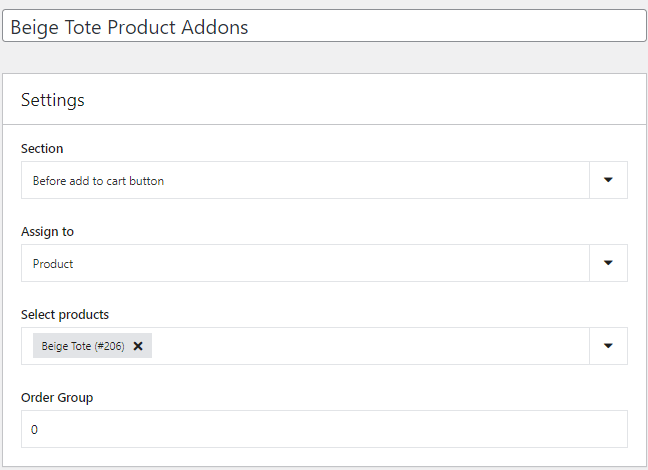
First, select products that you want to personalize -
Configure product custom fields in WooCommerce
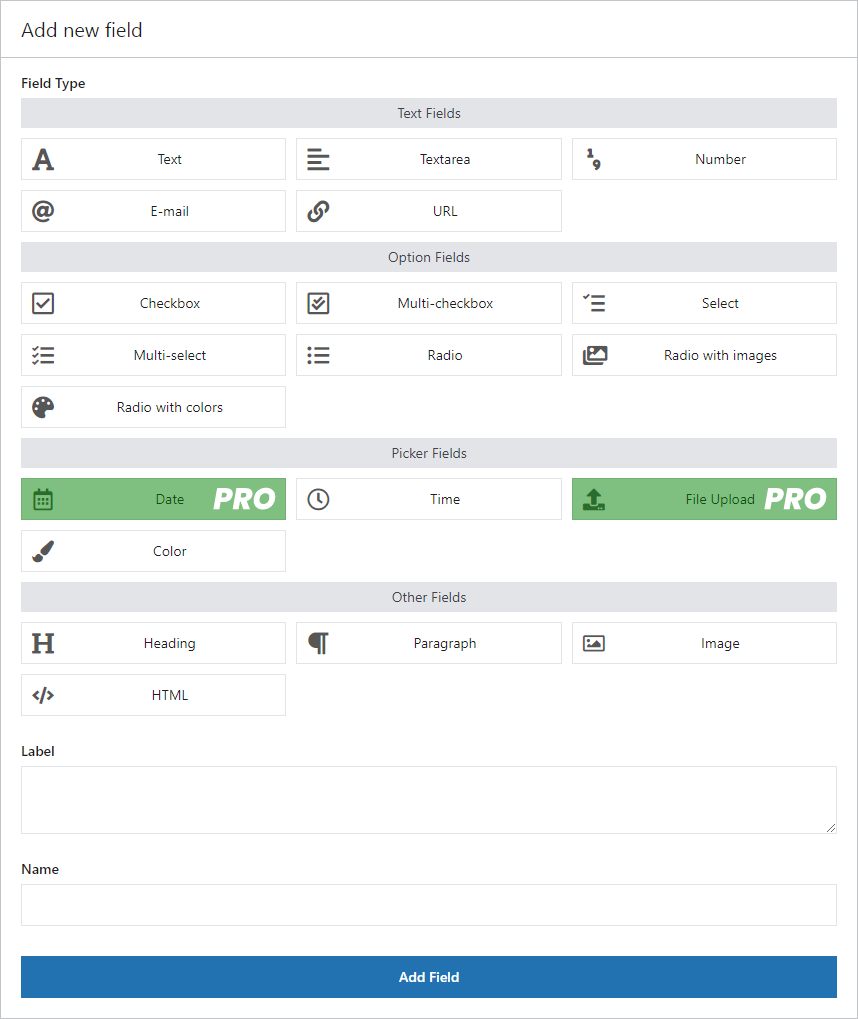
Then, start adding as many fields as you wish. As you can see in the screenshot below, there are plenty to choose from. On the screen below, I have chosen the Checkbox field, which I will show you in detail in the next paragraph.
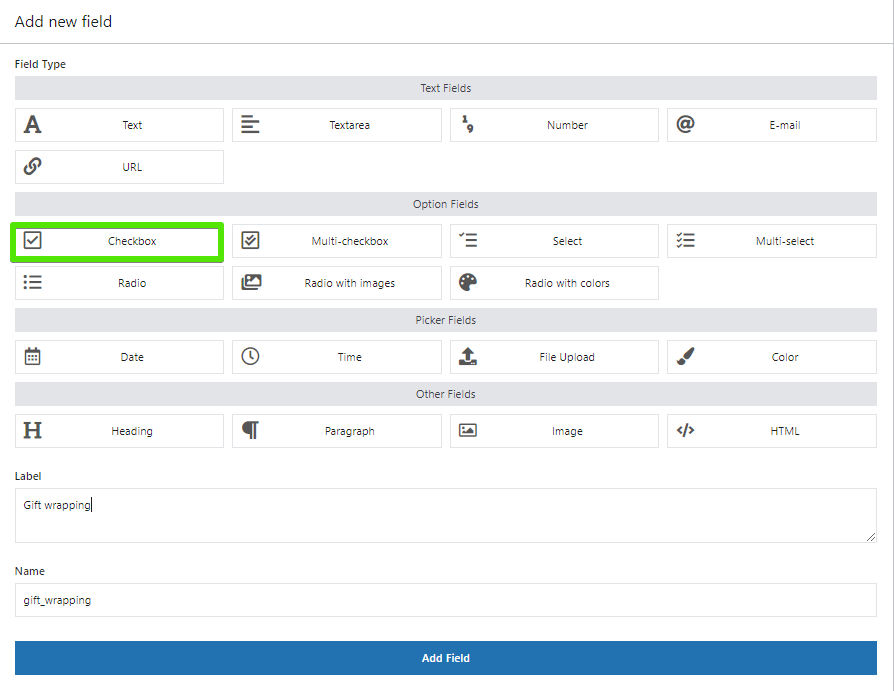
Product Custom fields
Examples of WooCommerce product customization fields
Now, I want to show you what kind of extra options you can add to products in your store. I have created use cases to show you when and how you can prepare your WooCommerce personalized product using new fields.
Let's see some of the custom fields you may use in the free version of the plugin!
WooCommerce personalized product & new fields with a free customizer
It's possible to customize a WooCommerce product without coding using the Flexible Product Fields plugin.
Some examples of custom product fields in the plugin.
-
Checkbox
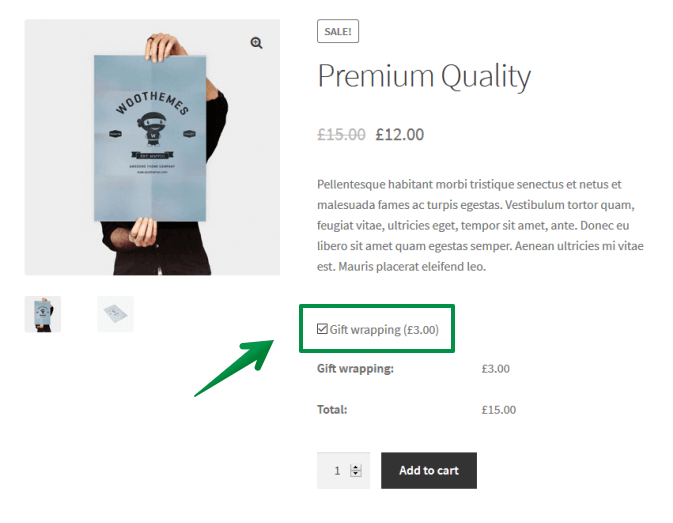
Checkbox (extra pricing in PRO) 💡 Check out this type of field in the WooCommerce Add Gift Wrapping Guide →🔴 Note that the checkbox field is available in the free version of the plugin, but the Pricing feature is available only in the PRO version of the plugin. -
Customize product with text field
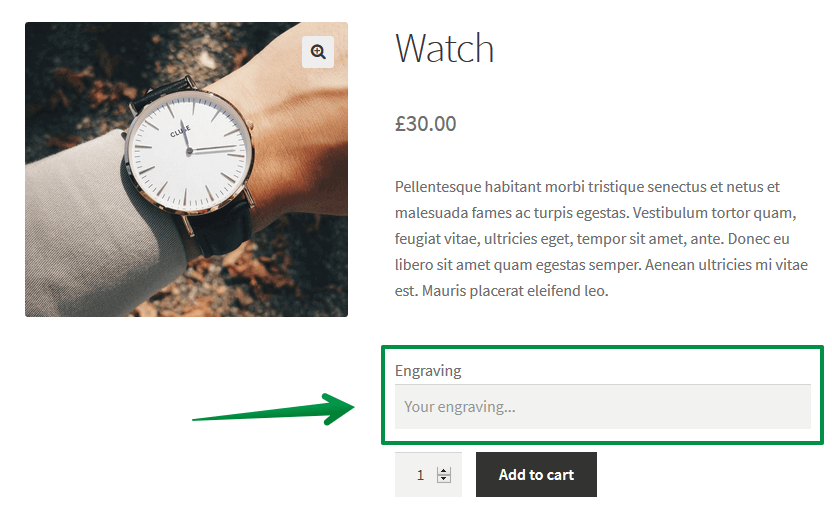
Text field on the WooCommerce product page 💡 Learn by example, and check out our WooCommerce Product Engraving → -
Add multiline text field to product page
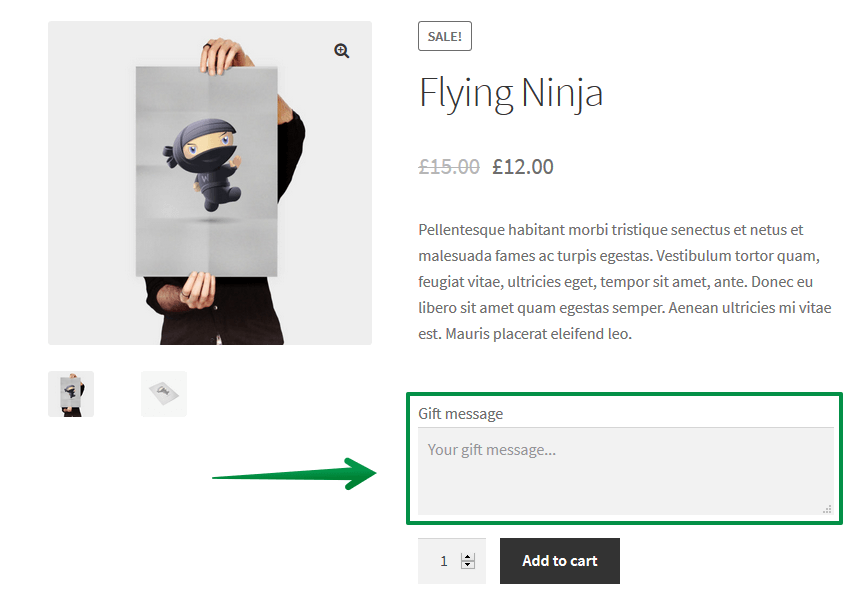
Textarea on the product page 💡 We used paragraph text in our WooCommerce Gift Message Guide → -
Add radio button options for personalization
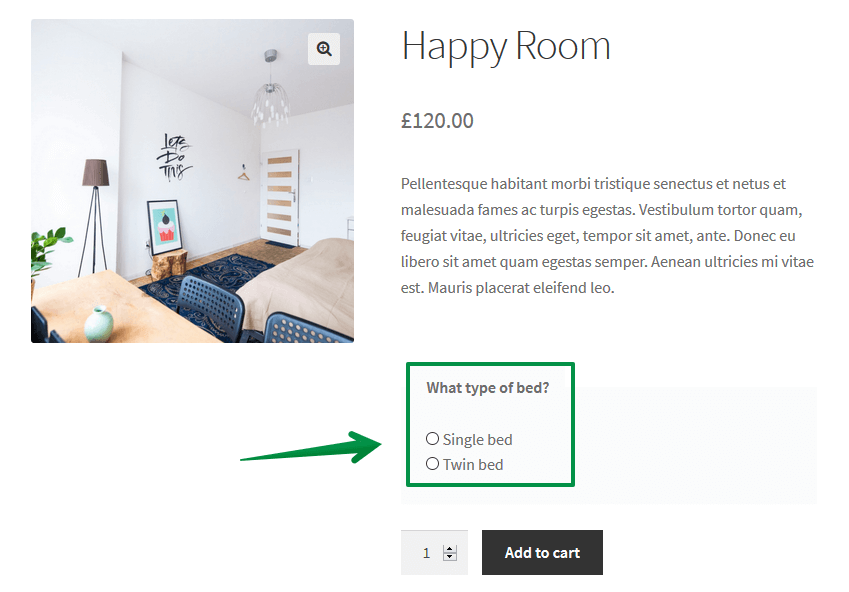
Radio buttons on the WooCommerce product page 💡 This type of field can be used for bookings. Do you want to check it out? Read our WooCommerce Booking Alternative → -
Add dropdown select options to product page
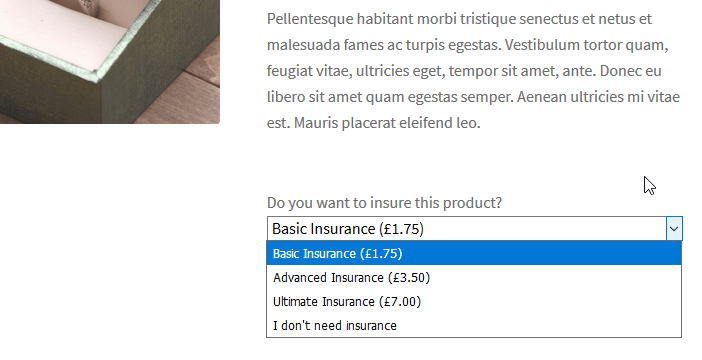
Select field added on a WooCommerce product page 💡 An example of the select field: WooCommerce Insurance Guide → -
Insert custom heading to organize product form
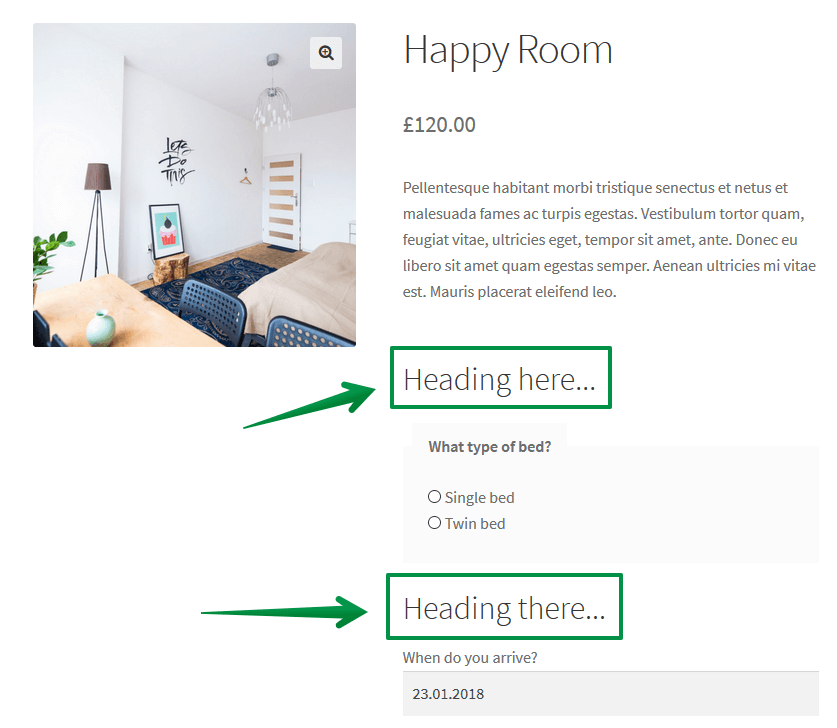
Headings added with Flexible Product Fields
Fields & options available in the PRO version of the customizer
We have also created a PRO version of the plugin to give you additional 2 fields, more advanced WooCommerce product personalization options, and priority one-on-one email support!
Flexible Product Fields - WooCommerce Product Page Editor - pro features
-
Date Picker
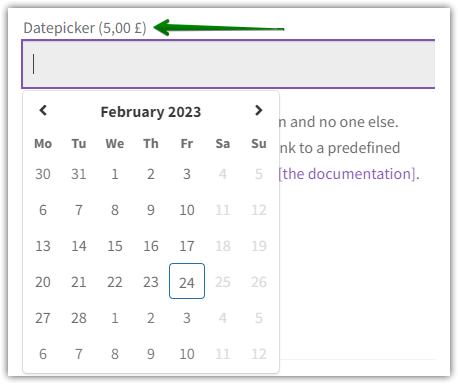
Date picker field with extra pricing (PRO) -
File Upload
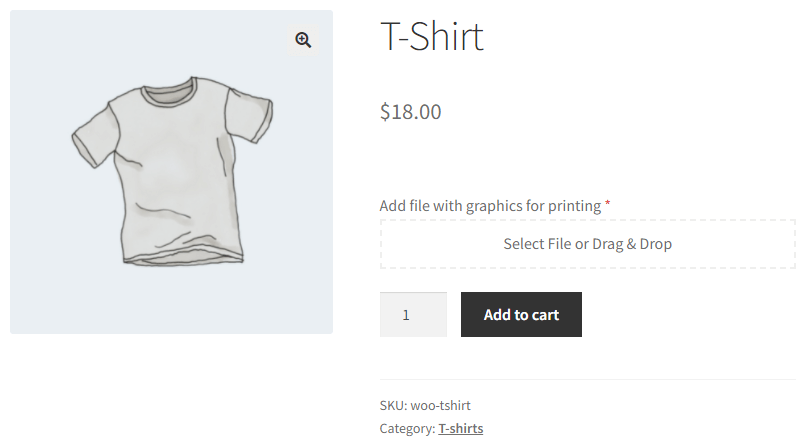
File Upload on the WooCommerce product page -
Conditional Logic

Conditional logic added with Flexible Product Fields (PRO) -
Pricing
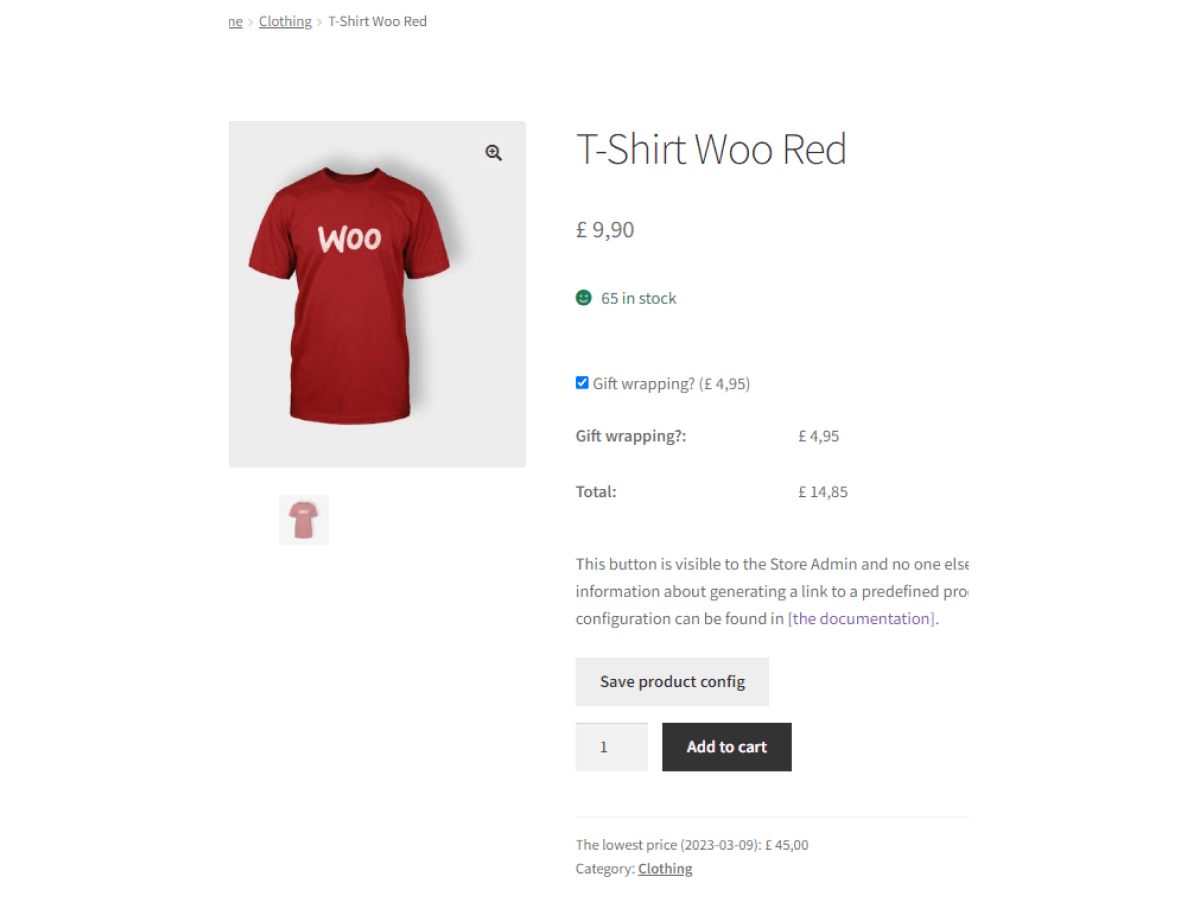
Extra pricing for custom fields (PRO)
Check out all features of the plugin (Click on View details) or buy the PRO ⤵️⤵️⤵️
You can also try the PRO in a free demo! It's possible to test the free version of the WooCommerce product customizer there.
What happens to personalized options after the customer orders?
Adding fields to the product page is the visible half of WooCommerce product personalization. The half that decides whether it works in practice is what the store does with those values afterwards. Everything the customer types carries through the whole order: the labels and values appear in the cart, at checkout, in the confirmation email and on the order edit screen in the WooCommerce admin. Nobody has to copy an engraving text out of a support message, because it sits on the order with the product it belongs to.
That matters most for fulfillment. A packer preparing a personalized order needs the gift message and the delivery date in the same place as the shipping address, not in a second system. Because the values live on the order, they also reach the documents you generate from it, so a custom field can be printed on the packing slip or shown to the person picking the item. For made-to-order products this is usually the difference between personalization that scales and personalization that quietly generates mistakes.
Pricing behaves the same way. When a paid option is selected, the extra cost is added to the product price before the order total is calculated, so taxes, discounts and shipping rules all see the correct amount. This is worth testing before launch on a real order, especially if your store applies coupons or free shipping thresholds, because a personalization fee that lands outside the product price changes what the customer sees at checkout.
Flexible Product Fields is an awesome WooCommerce product personalization options plugin. You should check it out, especially since you risk nothing with the free version available →
Flexible Product Fields WooCommerce
Create a product wizard to sell engravings, gift wrapping, gift messages, business cards, stamps and optionally charge for it (fixed or percentage).
💾 Active Installations: 10,000+ | WordPress Rating:
Are you ready to start with your WooCommerce personalized product?
Finally, if you have any questions, let us know in the comments section below.
FAQ
Is there a free WooCommerce product customizer plugin?
Yes. Flexible Product Fields is free to download from WordPress.org and includes 18 custom field types, so most stores can personalize products without ever needing the PRO version.
Can I use a product customizer on variable WooCommerce products?
Yes. The plugin works on both simple and variable products, letting you add custom fields on top of existing product variations without conflicts.
What's the difference between the free and PRO product customizer?
The free version covers field types like text, textarea, checkbox, radio, select and headings. The PRO version adds a date picker, file upload, conditional logic and extra pricing per field.
Where do personalized field values show up after the order?
Values entered by the customer follow the order through the whole process: they appear in the cart, at checkout, in the order confirmation email and on the order screen in the WooCommerce admin, so your team sees the engraving text or gift message without asking for it separately.
Does product personalization work with the block cart and checkout?
Yes. The plugin supports both the classic cart and checkout and the newer block-based versions, so the fields keep working after you switch your store to blocks.




Leave a Reply