
This guide lists WooCommerce shortcodes with screenshots and attributes for cart, checkout, account, products and categories. You will also see when a Gutenberg block is a better fit, and what to check when a shortcode appears as plain text instead of content.
Contents
- WooCommerce shortcodes - Basics
- Shortcode or block: which one should you use?
- WooCommerce shortcodes do not work: five checks
- WooCommerce shortcodes list
- WooCommerce Cart & Checkout shortcodes
- General shortcodes
- WooCommerce Product shortcodes
- WooCommerce Products shortcodes
- WooCommerce Product Category shortcodes
- Bonus 1: WooCommerce Gutenberg blocks
- Bonus 2: WordPress shortcodes
- Compatible WooCommerce plugins
- Custom shortcodes in WordPress and WooCommerce
- FAQ – WooCommerce shortcodes
- WooCommerce shortcodes summary
- 5 essential WooCommerce tips to boost your sales
- How to change the WooCommerce shop page (options & customization)
- WooCommerce Products - The basics of e-commerce product management
- Professional WordPress design and development (learning, tools & plugins)
- WooCommerce Checkout - Settings, Shortcode & Configuration Guide
WooCommerce shortcodes - Basics
What are the WooCommerce shortcodes?
In short, they are shortcuts that let you add something without touching PHP code.
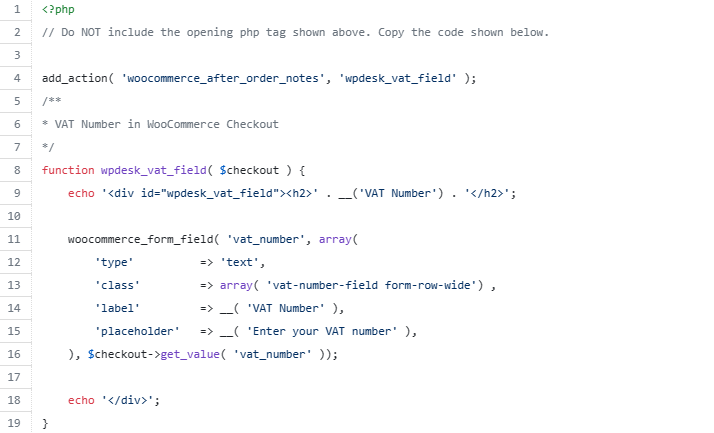
WooCommerce registers its built-in shortcodes when the plugin is active. The classic cart, checkout and My Account shortcodes remain available, even when a store uses blocks elsewhere.
Also, many WooCommerce shortcodes have additional shortcode parameters (attributes) to customize the output. These attributes let you adjust the output without editing PHP.
Where to use WooCommerce shortcodes?
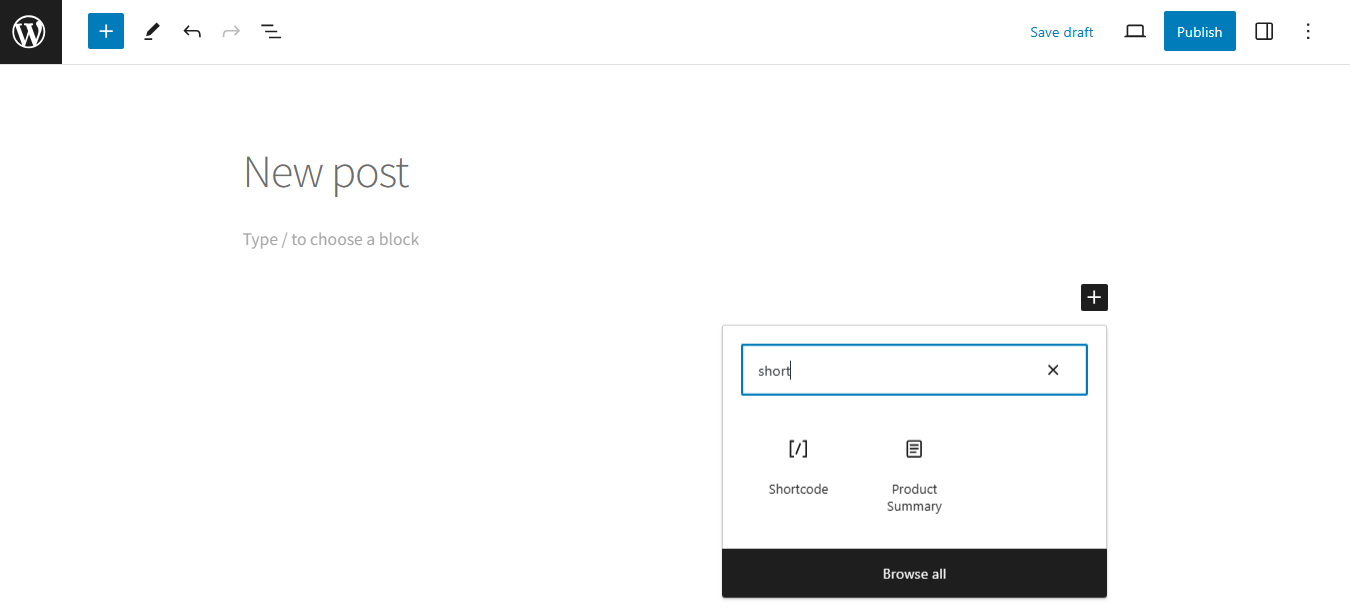
Add the shortcode, including its square brackets and any attributes, to a Shortcode block in the WordPress block editor.
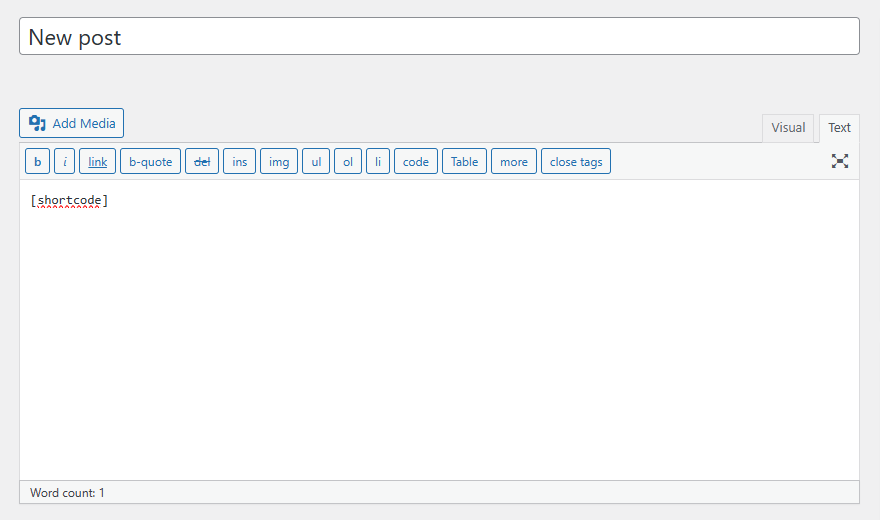
With the Classic Editor it is even simpler.
How to add WooCommerce shortcodes?
You don't need special plugins to add a shortcode. The plain post/ page editor will suffice.
- Edit a page or a post
- Add a WordPress or WooCommerce shortcode inside square brackets
- Update the changes and check the page in the browser
- If you can't see any effects, you may start troubleshooting
A dedicated plugin can help you manage shortcodes or browse the ones available in your store, but it is not required.
Why use WooCommerce shortcodes?
They will save you a lot of time! And you can customize posts and pages. For example, you may create landing pages with a specific layout, products, advanced category or product view, login form, or even checkout.
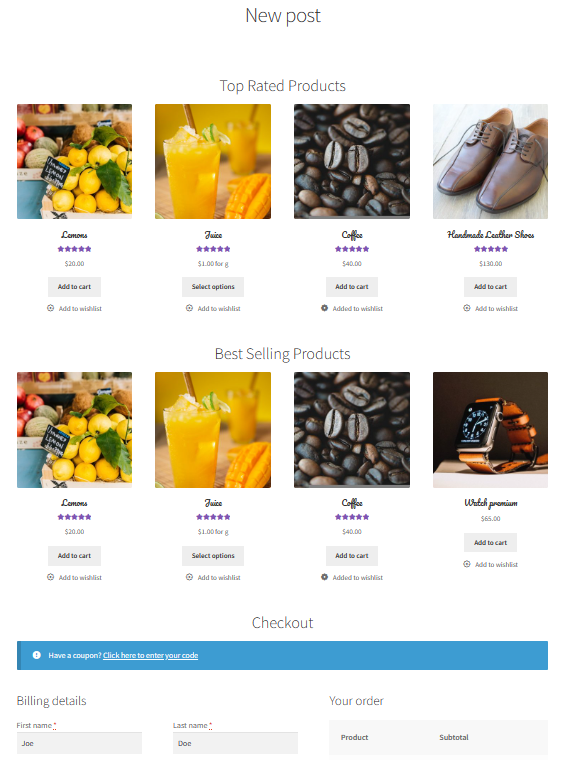
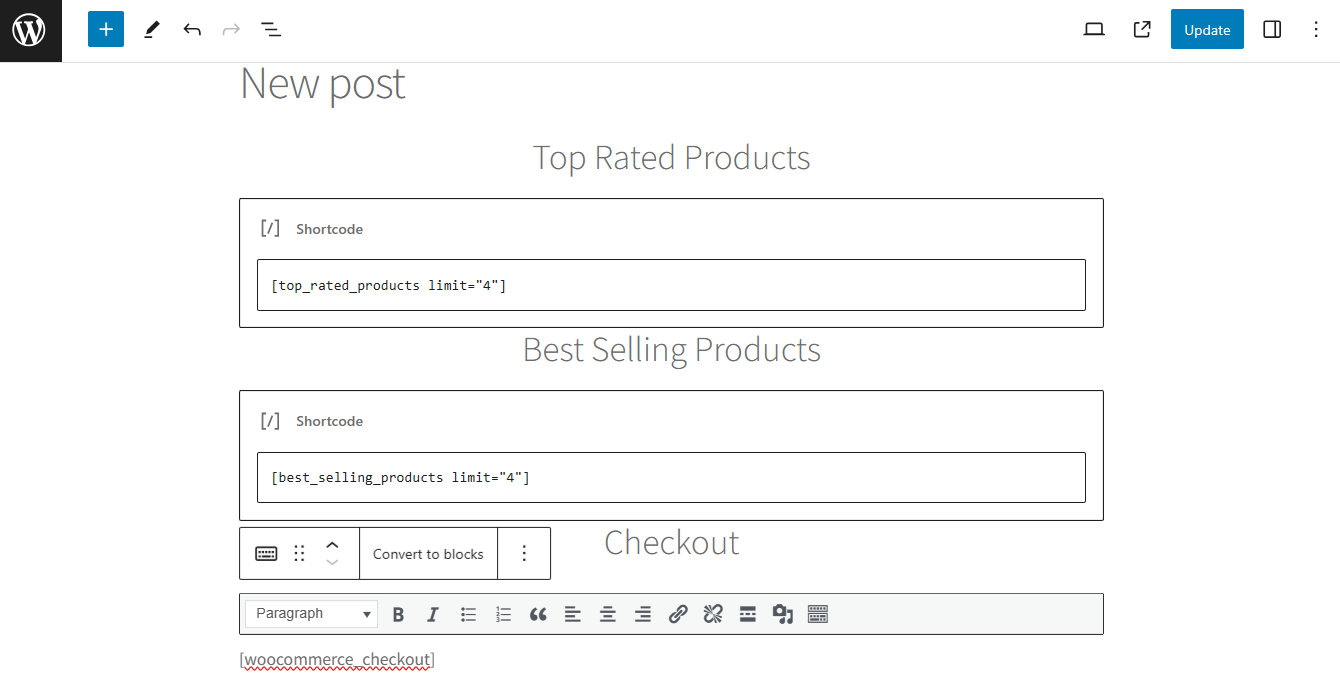
The page above uses two shortcodes added in the Gutenberg block and one typed directly with square brackets, to show both ways of inserting them. Three shortcodes did the whole job.
What shortcodes can I find in WooCommerce?
WooCommerce comes with built-in shortcodes that you can use right after installing the plugin. Most WooCommerce shortcodes help generate products, product information, or specific functionality of the store quickly.
WooCommerce setup creates Cart, Checkout and My Account pages. New stores use Cart and Checkout blocks by default; the screenshots below show a classic shortcode setup. My Account still uses its shortcode.
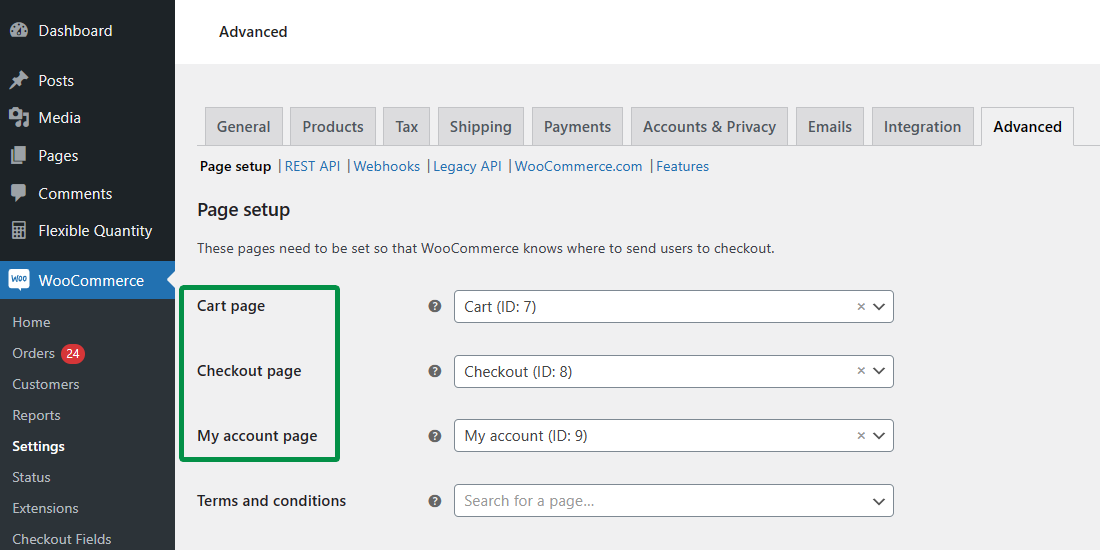
You can change the assigned pages under WooCommerce → Settings → Advanced → Page setup. Each needs the appropriate block or classic shortcode. Do not put both versions of the same cart or checkout on one page.
Shortcode or block: which one should you use?
Use a block when building a page visually in the editor. Use a shortcode for compact, reusable settings or a classic workflow. Outside post content, confirm that the widget, plugin field or template processes shortcodes; plain text in a PHP template will not execute itself.
WP Desk telemetry supplied for this article, covering 19,803 WooCommerce stores in August 2026 reported 87% using the classic checkout and 13.8% using the block cart. These measure different components, so they are not complementary percentages of checkout usage.
New WooCommerce stores use Cart and Checkout blocks by default. Existing stores can retain their classic shortcodes. My Account still uses its shortcode. Choose based on your current integrations, and test the purchase flow before switching.
WooCommerce shortcodes do not work: five checks
- Check the name and brackets. Remove spaces immediately inside the brackets and confirm the shortcode is spelled correctly.
- Use straight quotation marks. Attribute values should look like
limit="8", not typographic quotes copied from formatted text. - Check the insertion point. Use a Shortcode block to execute the shortcode. A Code block is intended to display code. Widgets and plugin fields only execute shortcodes if they support them.
- Check registration and data. WooCommerce or the plugin providing the shortcode must be active. For an empty result, check IDs, category slugs and visibility settings.
- Isolate conflicts. On staging, test with WooCommerce and a default theme, then restore other plugins one at a time. Clear relevant caches and check template overrides.
WooCommerce shortcodes list
| Shortcode | Use |
|---|---|
woocommerce_cart |
Classic cart |
woocommerce_checkout |
Classic checkout |
woocommerce_my_account |
Account and login area |
woocommerce_order_tracking |
Order lookup form |
products |
Filtered product grid |
product_page |
Full single-product view |
product_categories |
Category listing |
product_category |
Products in one category |
add_to_cart |
Product purchase button |
add_to_cart_url |
Product add-to-cart URL |
shop_messages |
Store notices |
Shortcode or block? · Troubleshooting · FAQ
- WooCommerce Cart & Checkout shortcodes
- WooCommerce General shortcodes
- WooCommerce Product shortcodes
- WooCommerce Products shortcodes
- WooCommerce Product Category shortcodes
- Bonus 1: WooCommerce Gutenberg blocks - alternative to shortcodes?
- Bonus 2: WordPress shortcodes
There are many types of WooCommerce shortcodes - for products, shop, cart, checkout, login, and My Account pages. The below shortcode examples give some insight into their possible usage.
WooCommerce Cart & Checkout shortcodes
Apart from the default WooCommerce cart & checkout pages (set in WooCommerce → Settings → Advanced → Page setup), you may use the appropriate shortcodes on other pages and posts.
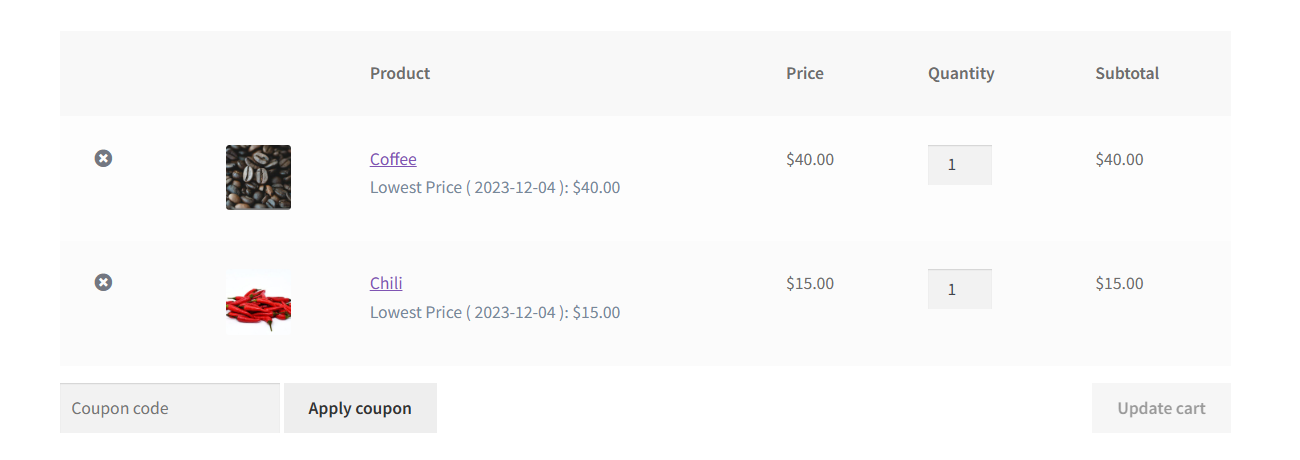
woocommerce_cart
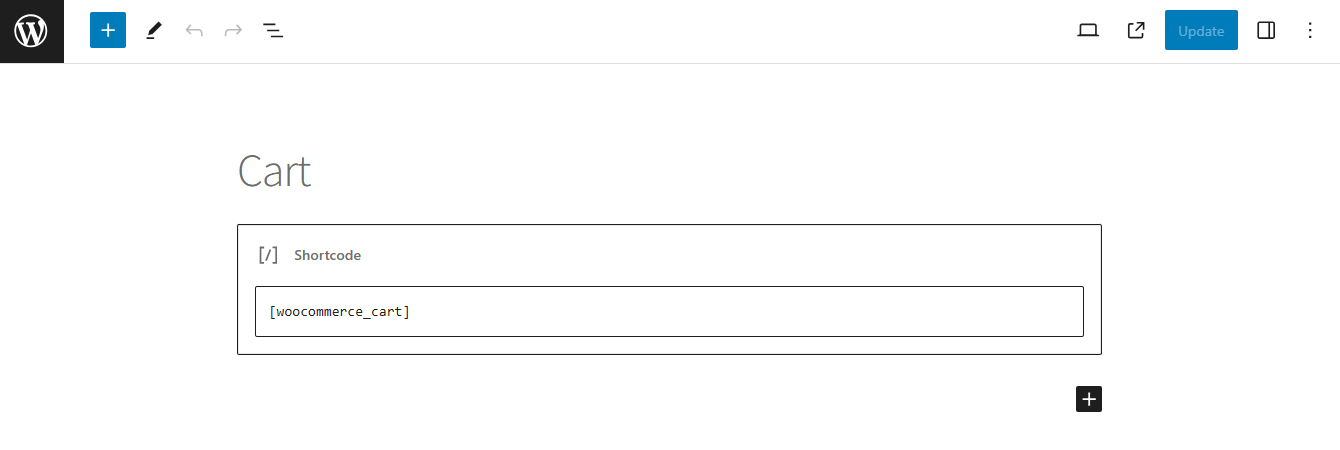
The shortcode simply adds a WooCommerce cart with cart content, a place for a discount coupon, and the Update cart button. No additional arguments.
add_to_cart
WooCommerce lets you use the add_to_cart shortcode to place the Add to Cart button on a single post or page.

The shortcode accepts attributes. For example:
[add_to_cart id="46" show_price="true" style="border:10px solid blue; padding:20px;" class="css-class" quantity="1"]Replace 46 with your product ID. Alternatively, replace id="46" with your product's sku="YOUR-SKU".
add_to_cart_url
This shortcode takes only two arguments (id or sku) and gives you the URL on the Add to Cart button of a specific product (id or sku).

woocommerce_checkout
This shortcode renders the classic WooCommerce checkout form. It is an alternative to the Checkout block, with different extension and customization support.
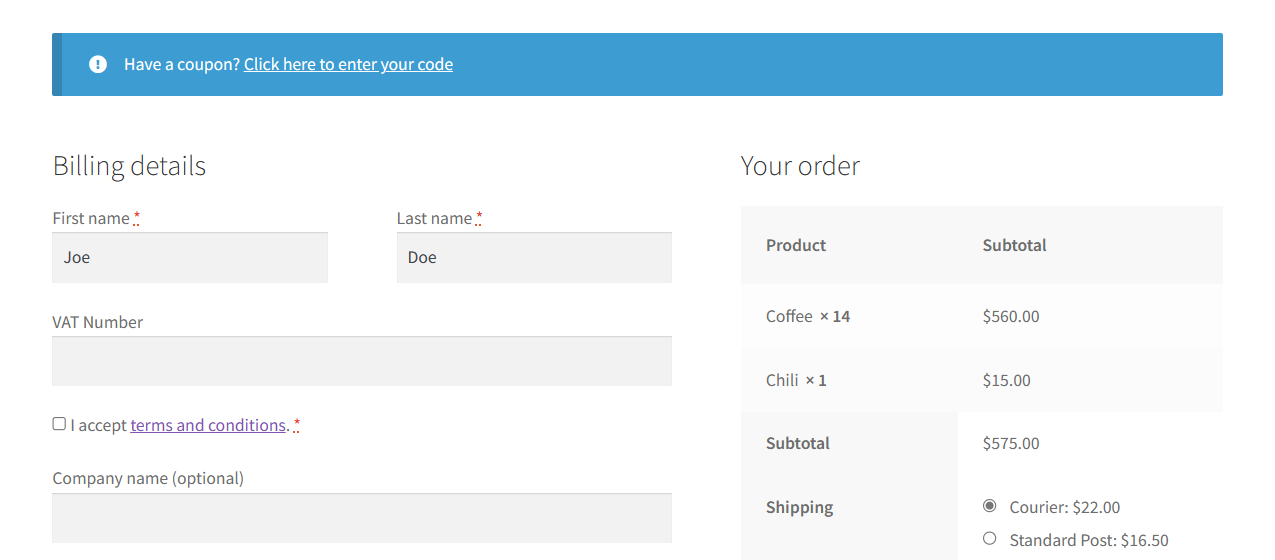
For setup examples, see our guide to adding custom checkout fields. The classic checkout can be customised with a free checkout customizer.
General shortcodes
These are additional WooCommerce shortcodes you may want to use to customize a store.
shop_messages
You may use the first one to show the store messages on non-WooCommerce pages (according to WooCommerce). For example, when you create custom product lists or use the add_to_cart shortcode so that your customer can see the notifications right away.
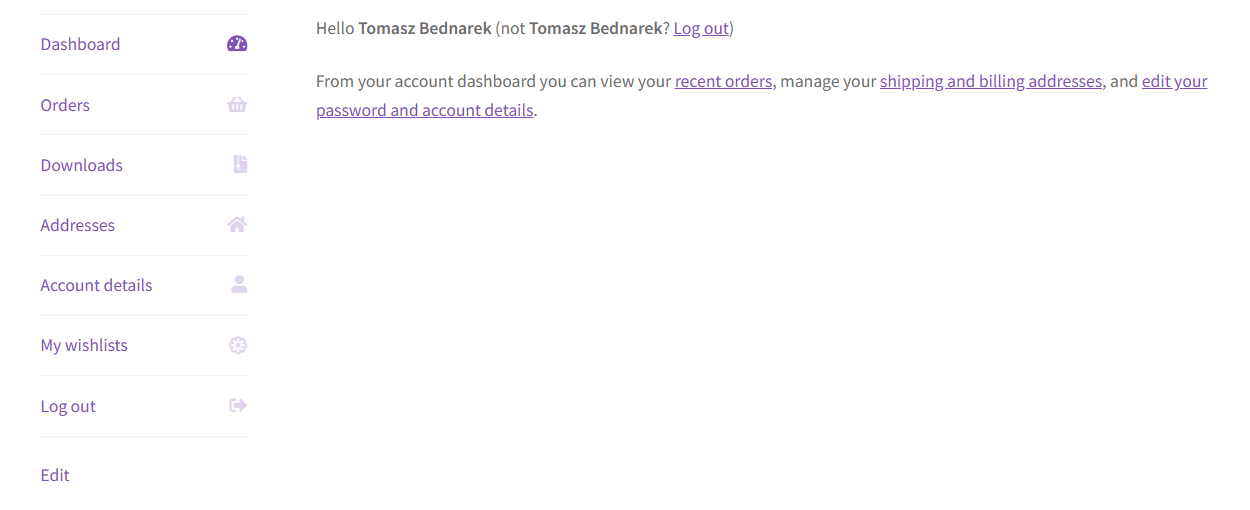
woocommerce_my_account
The second general shortcode will generate the WooCommerce My Account page. It’s useful to show customers previous orders and let them manage their accounts.
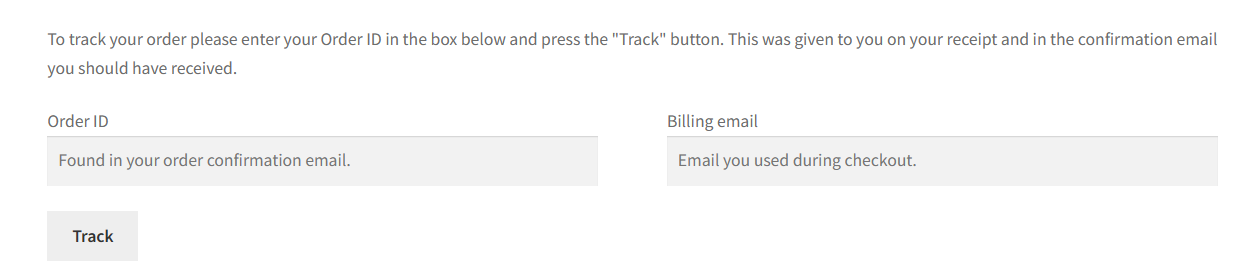
woocommerce_order_tracking
Finally, this shortcode lets your customers track their orders by inserting the order number and email address. WooCommerce order tracking can be a useful feature for users that may reduce support workload.
WooCommerce Product shortcodes
WooCommerce also comes with many shortcodes for displaying products. You can use them to build a page with selected products and a custom layout.
First the single-product shortcodes, then the ones that display several products.
The product ID is visible on the product edit screen (inside the URL, for example, wp-admin/post.php?post=46&action=edit). Note: I will use this ID in my shortcodes below. You see the ID when you hover over the product on the WooCommerce product list too.
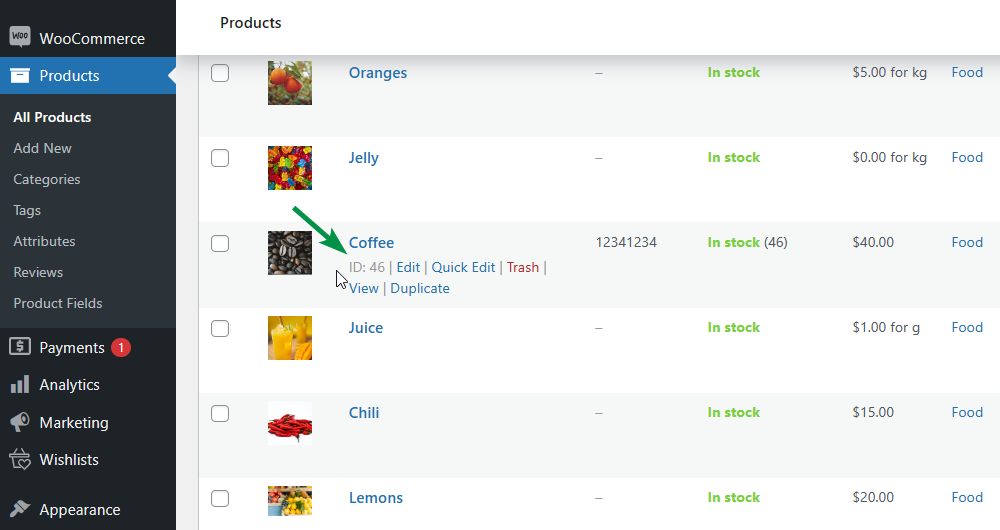
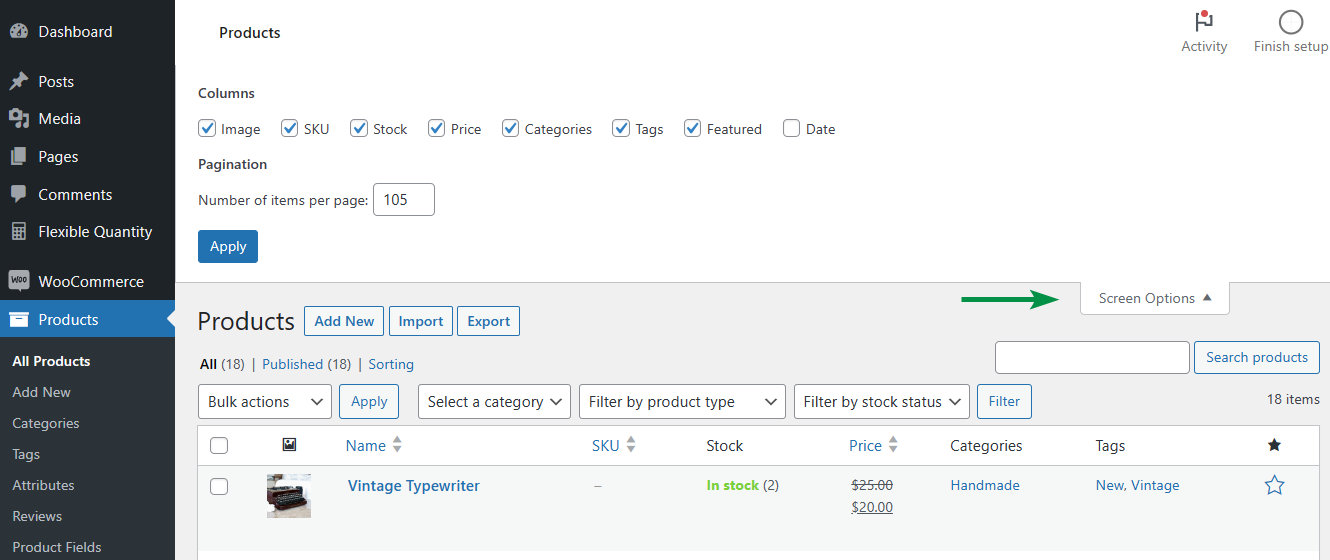
You may find the SKU next to the product ID and before the product quantity. In my example, 12341234. If you don’t see the column for the product SKU, enable it in the Screen Options.
You may also find the product SKU in the Edit Product screen → Product data → Inventory → SKU.
product
This shortcode looks very simple, yet it’s quite powerful. It shows one product with basic information (name, image, review stars, price, Add to Cart button) so you may point to a specific product fast.
[products ids="46" limit="1" columns="1"] to show a single product card. See the official product shortcode documentation. The older product shortcode is included here for existing pages.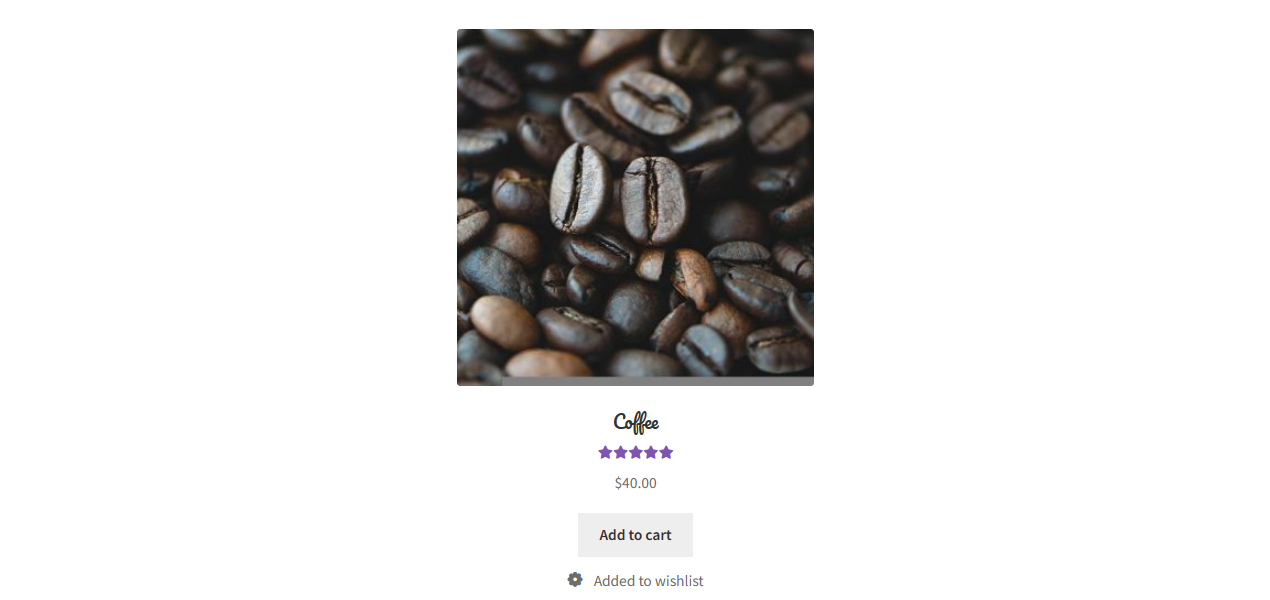
product_page
To get the full product page inside a post/page you can use this shortcode. It will generate the complete product page with a description, additional information, price, related products, etc.
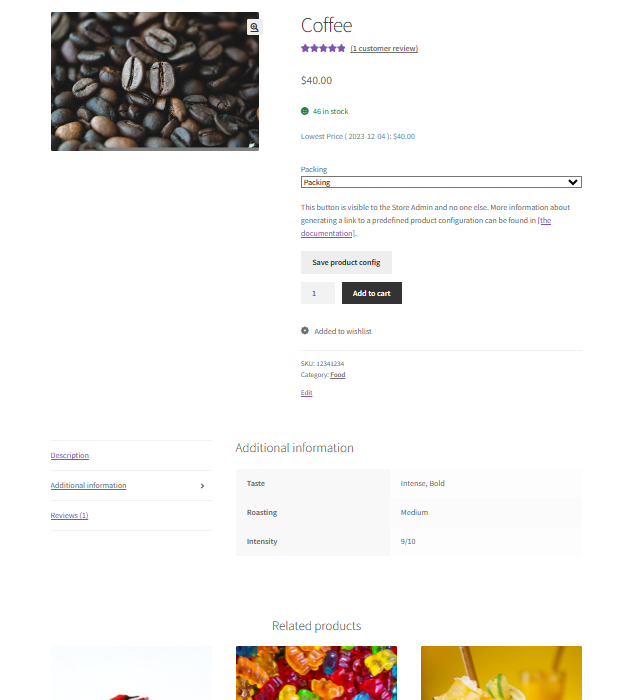
It’s a nice option for blog posts or LPs where you first want to “prepare the ground” before pointing to a specific product to buy.
product_attribute
This shortcode comes from WooCommerce before version 3.2; for new content, the newer products shortcode covers the same case. It will get all products with a given attribute (this is an argument), for example, attribute="size".
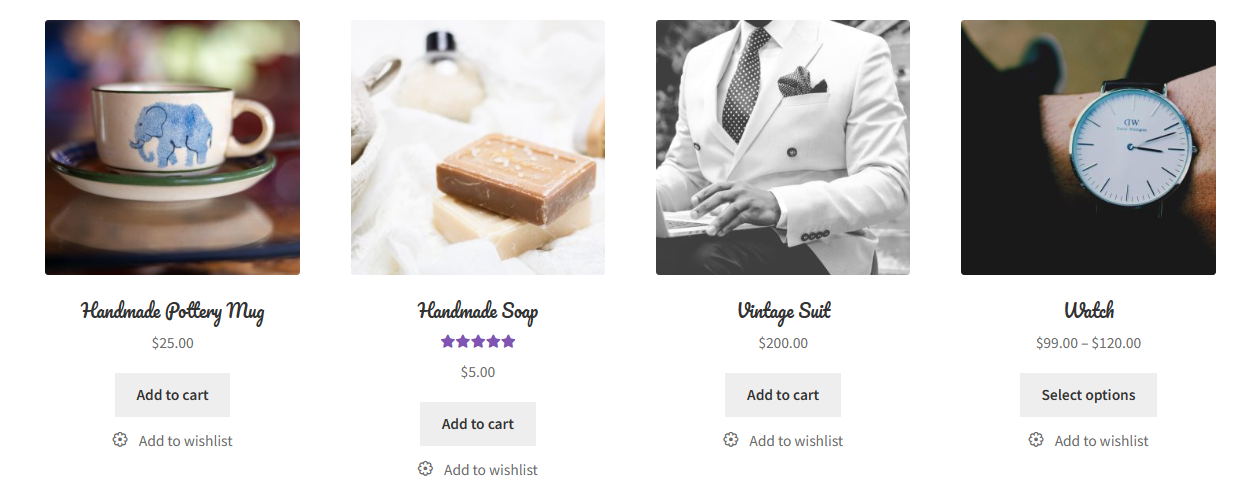
The products shortcode with attribute="size" covers this use case, so use that one for new content.
WooCommerce Products shortcodes
The shortcodes below display several products at once, which is useful for landing pages and product sections inside posts.
products
This shortcode comes with dozens of options and arguments!
The products shortcode displays a product grid on a page or post, or in another location that supports shortcode processing. Use its attributes to choose the products and layout. Without a limit, it displays all matching products.
The products shortcode’s attributes
Let’s see these attributes first.
- limit - the maximum number of products to display. By default, limit="-1" displays all products that meet the other criteria.
- columns - decide in how many columns you want to show your products. The default value is 4.
- ids - display products with specific ids (comma-separated).
- skus - product SKUs separated by a comma.
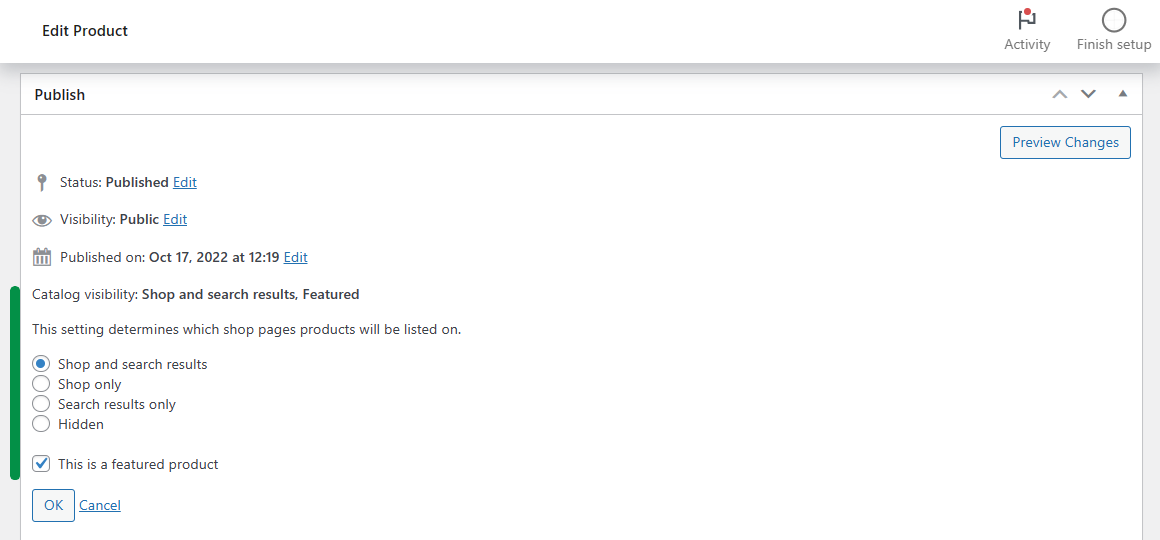
- visibility - decide whether to show visible (default value - products visible both on shop and search results), catalog (visible on shop only), search (visible on search results only), hidden (from shop or search results but accessible via URL), or featured (marked as Featured) products. The results will get products with specific visibility - you can set it for each product.
- on_sale - show on sale products (use: on_sale="true"). This attribute should not be used together with best_selling or top_rated arguments. WooCommerce does not recommend using this argument together with ids, skus, attribute, terms, terms_operator, tag, tag_operator, category, cat_operator, and visibility.
- best_selling - show best selling products (use: best_selling="true"). This argument should not be used together with on_sale or top_rated. WooCommerce does not recommend using this argument together with ids, skus, attribute, terms, terms_operator, tag, tag_operator, category, cat_operator, and visibility.
- top_rated - show top rated products (use: top_rated="true"). This argument should not be used together with on_sale or best_selling.
- paginate - paginate="true" will turn on pagination for products based on the limit. It’s disabled by default (paginate="false").
- orderby - choose the way to sort your products. You may choose one or multiple values (separated by space) from the list: title (by default), date (when the product was published), id (by the post ID of the product), menu_order (the lower the Menu Order number the higher the product will appear), popularity (by the number of purchases), rand (randomly show products, but may not work well with cache), and rating (by average product rating). For example, orderby="title rating" will sort products by title and their ratings.
- order - set the order type (ASCending or DESCending) for a given orderby values, for example, order="ASC" (default value).
- class - give the product container (div) a specific CSS class for further styling and customization.
- attribute - show products with a specific attribute slug, for example, attribute="size".
- terms - give a list of attribute (above) terms (comma-separated or one term) to modify the products you want to show your customers, for example, terms="large,medium" will show products with size attribute (large or medium).
- terms_operator - decide about the way terms impact the product search. By default, the terms_operator takes the IN value so the product should have at least one of the given attribute’s terms. You may also choose AND (the product should have all values of the attribute), or NOT IN (self-explanatory) values.
- tag - show products from inserted tags (comma-separated).
- tag_operator - it works the same for the product tag as terms_operator for the product attribute. The argument gets the IN (default), AND, and NOT IN values.
- category - show products from category slugs separated by commas.
- cat_operator - it works the same for the product category as terms_operator for the product attribute or tag_operator for the product tag. The argument gets the same 3 values: IN (default), AND, and NOT IN.
The WooCommerce products shortcode - how-to-use ideas
Let’s see now some examples of using the products shortcode in your posts, pages, sidebars, or text widgets.
To display up to four products outside the food category, sorted by rating in two columns:
[products category="food" cat_operator="NOT IN" orderby="rating" order="DESC" limit="4" columns="2"]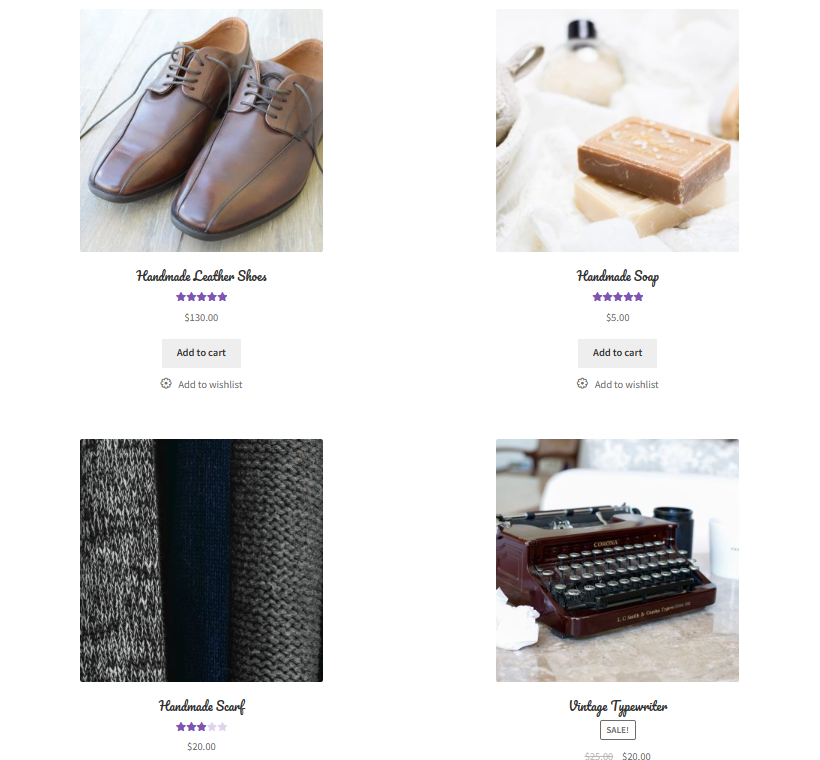
To display up to eight products from the food category, sorted by sales in four columns:
[products category="food" orderby="popularity" order="DESC" limit="8" columns="4"]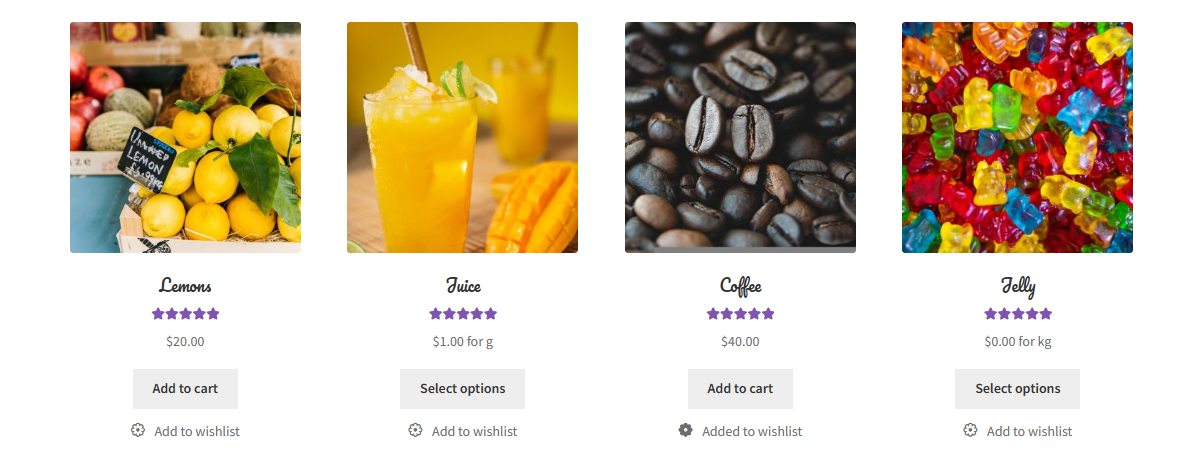
To display four products per page in two columns, sorted by title and then popularity:
[products limit="4" paginate="true" columns="2" orderby="title popularity"]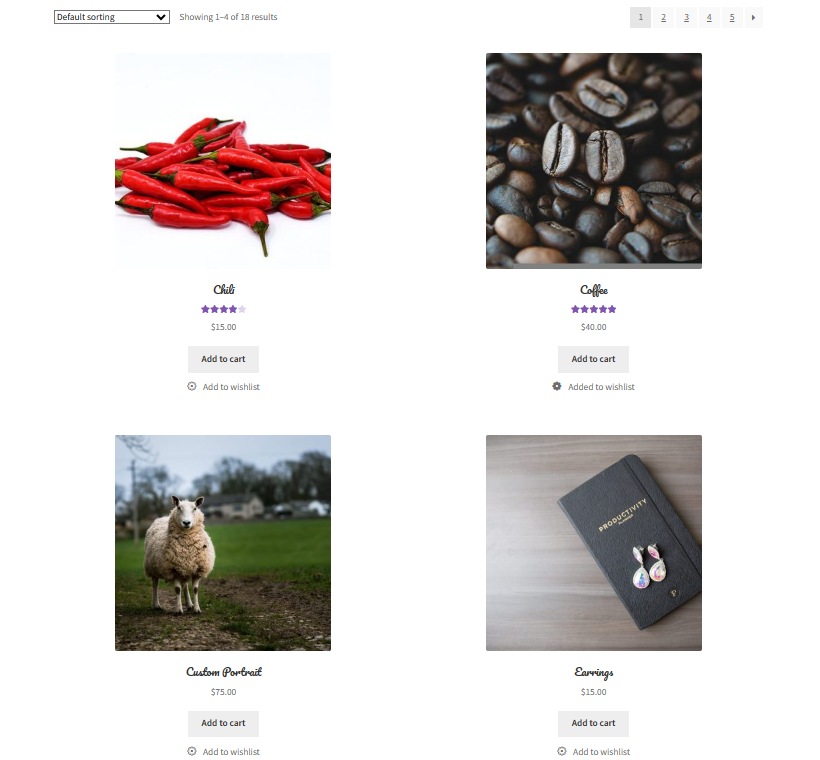
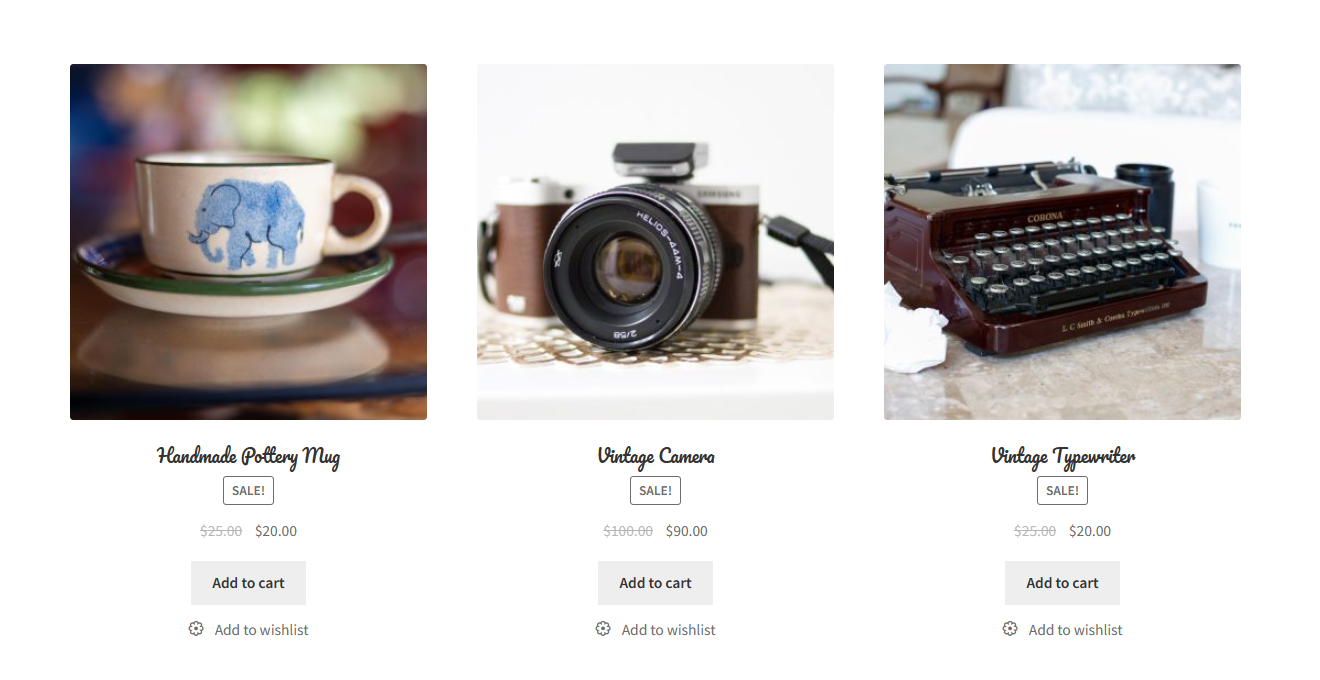
sale_products
The sale_products shortcode will show WooCommerce products on sale. For example, you can use it with the limit and columns arguments to get the interesting result:
best_selling_products
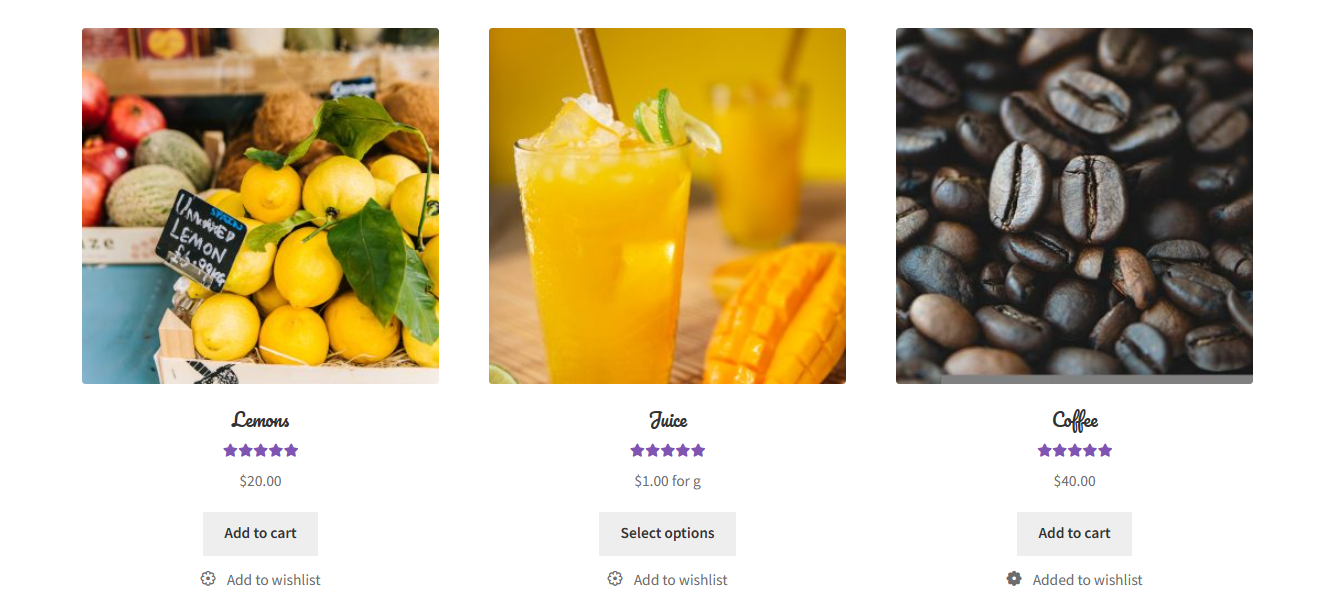
Similarly, this shortcode was introduced before WooCommerce 3.2, and you may use the products shortcode now. If you decide to use the older best_selling_products you will receive products with most purchases. So it works like the best_selling argument for the products shortcode.
recent_products
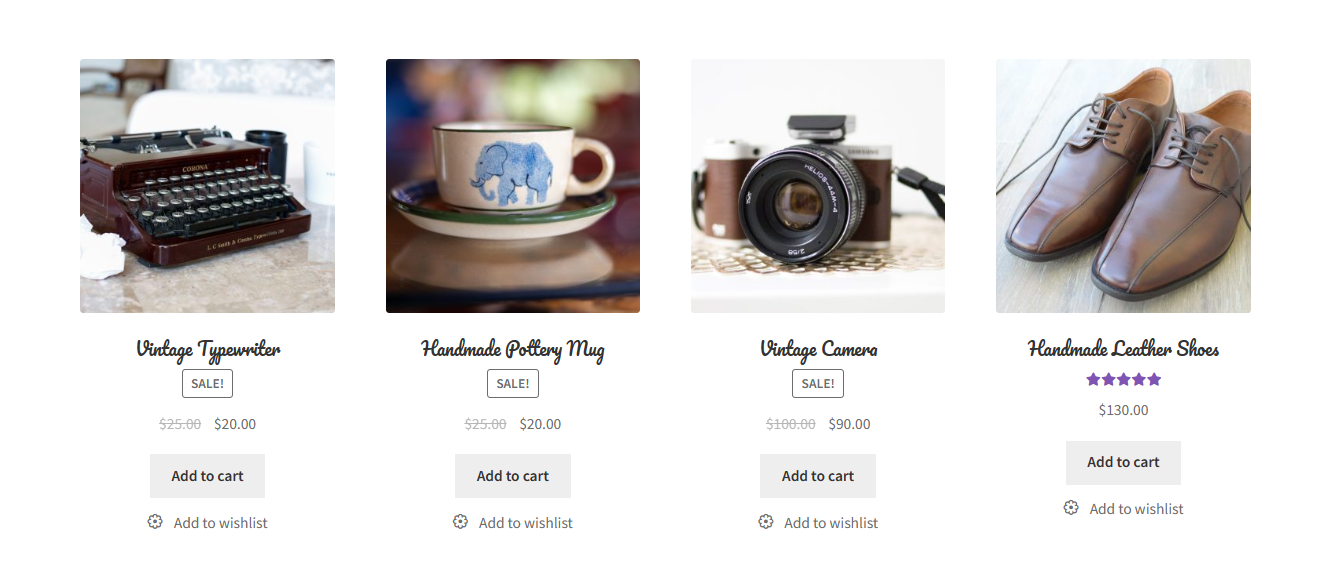
The older WooCommerce also gave us the recent_products shortcode that works similarly to the orderby="date" argument for the new products shortcode. Use columns and limit to control the layout and number of results.
top_rated_products
You can show WooCommerce products with the best ratings (similar to orderby="rating" in the products shortcode) using, for example, top_rated_products columns="2" limit="4".
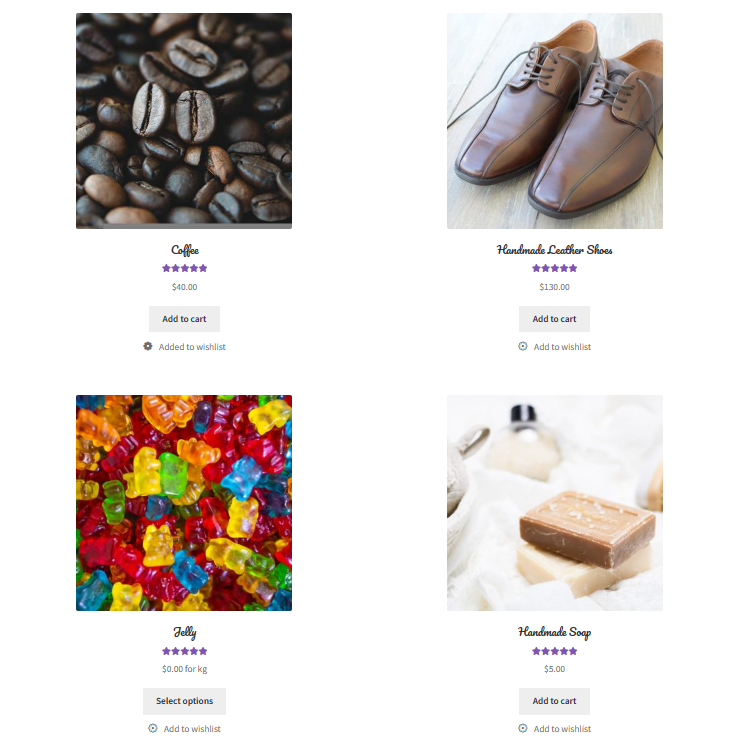
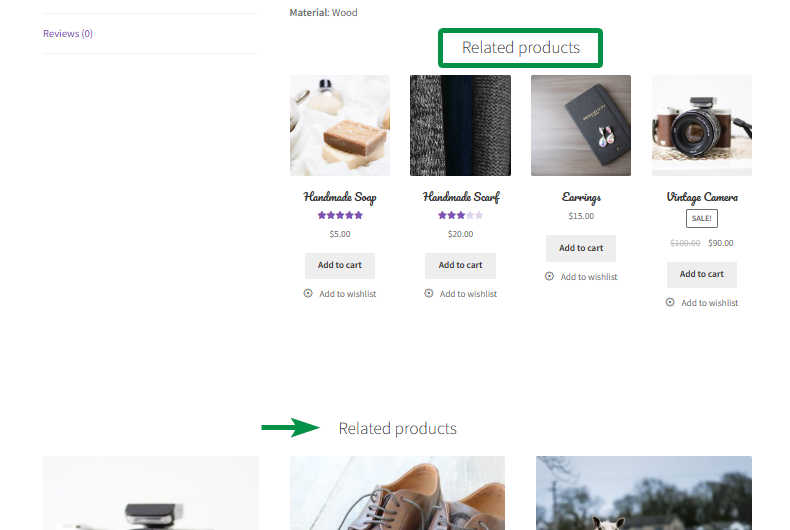
This shortcode generates the related products (use the limit, orderby="title", and columns args to customize it) on a single product page. WooCommerce also displays related products in its single-product template. The related_products shortcode needs a current product context. A generic products list is not an automatic replacement for related-product selection.
featured_products
Featured products are selected products you want your customers to focus on.
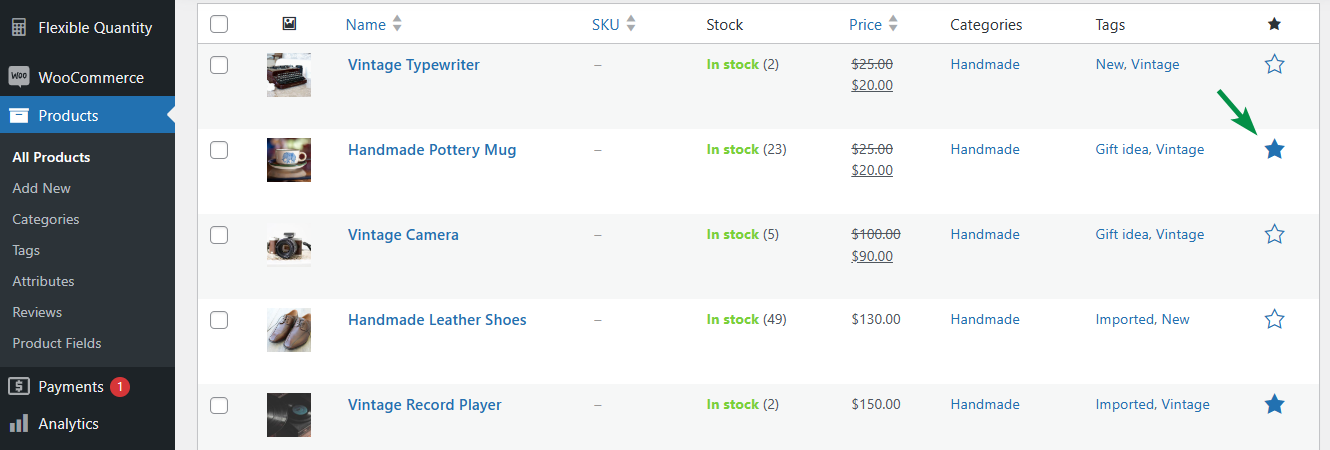
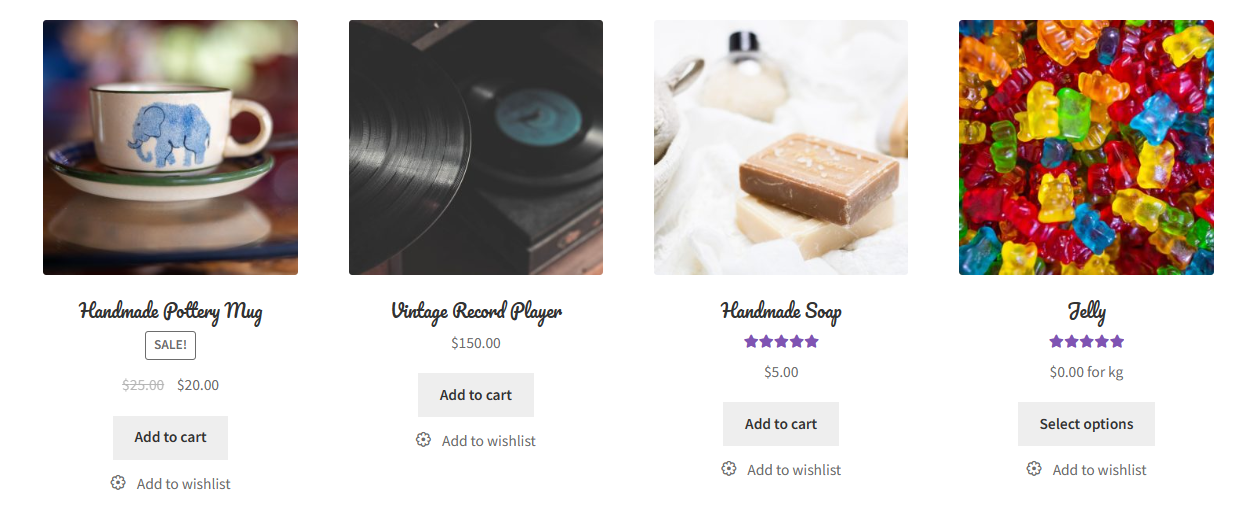
It’s also possible to show the featured products on a single post or page using the older featured_products shortcode (or the new products visibility="featured" shortcode).
WooCommerce Product Category shortcodes
These two WooCommerce shortcodes display category lists or products from a category.
In my opinion, they are very useful for creating general-level information about products in your store, for example, pointing to WooCommerce product categories.
product_categories
This shortcode generates the category list (with images) based on arguments. Hint: you can set the category image and description in Products → Categories → Edit category. I set one column in my example.
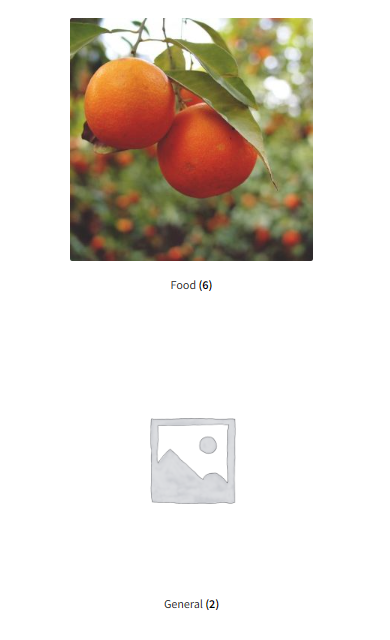
The shortcode can also get additional attributes that can help get customized results:
- ids - choose the specific categories using the category ID (tag_ID in the category edit URL under Products → Categories).
- limit - the number of categories.
- columns - to display (4 by default).
- hide_empty - 1 by default, set to 0 to show all categories including empty ones.
- parent - it’s an interesting argument. You may set it to 0 to show only top-level categories. Also, you can set it to a specific category ID to show its subcategories (child categories).
- orderby - set the sorting method: name (by default), id, slug, menu_order, or include (if you specified the ids for categories).
- order - set to ASC (default) or DESC to choose the category ordering.
product_category
The product_category shortcode displays products from one category. For new content, you can also use products with the category attribute.
The shortcode gets the following attributes:
- category - choose the specific category; use the category slug.
- limit - the number of products.
- columns - to display (4 by default).
- orderby - choose the way to sort your products. The argument’s values are similar to the ones in the products shortcode. You may choose one or multiple values (separated by space) from the list: title (by default), date (when the product was published), id (by the post ID of the product), menu_order (the lower the Menu Order number the higher the product will appear), popularity (by the number of purchases), rand (randomly show products, but may not work well with cache), and rating (by average product rating).
- order - set the order type: ASC (default) or DESC for the products ordering.
This example displays up to five products from the food category in five columns:
[product_category category="food" limit="5" columns="5" orderby="rating"]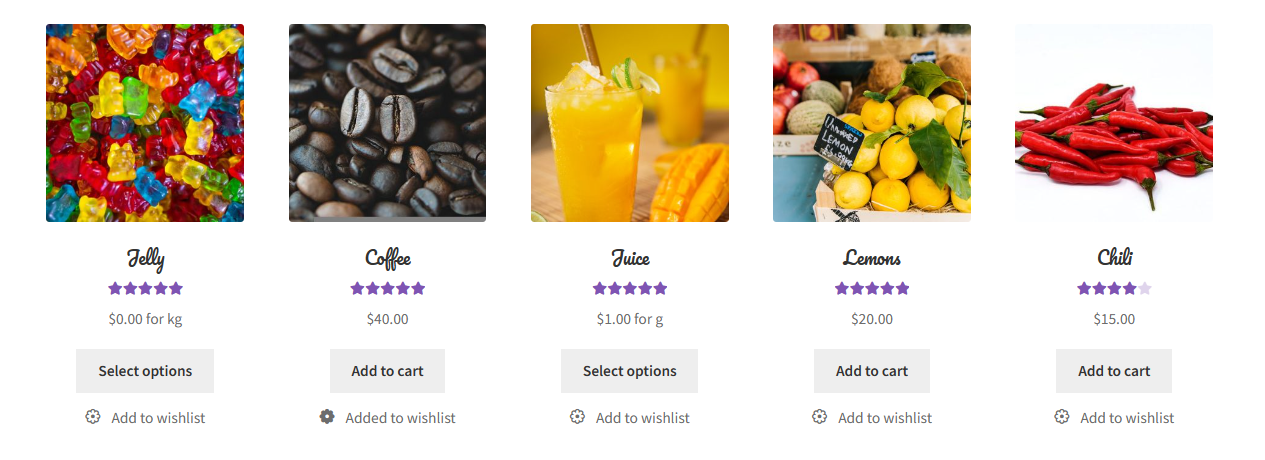
You may test the WooCommerce shortcodes with their arguments and customize your store!
Bonus 1: WooCommerce Gutenberg blocks
Start with Product Collection for product grids, and the Cart and Checkout blocks for the purchase flow. Blocks provide visual settings, while shortcode attributes are entered as text. A Customer Account link block is not a replacement for the complete My Account area.
Block availability depends on the installed WooCommerce version and editing context. Instead of relying on a fixed list of names from an older release, use the WooCommerce blocks documentation and check the inserter in your store. For platform requirements, consult the current WooCommerce server recommendations.
For layout examples, see our guide to changing the WooCommerce shop page. Check extension compatibility before replacing a working classic cart and checkout with blocks.
Bonus 2: WordPress shortcodes
WordPress includes six built-in shortcodes for common media tasks. They are mainly shortcuts to get some media elements inside your posts or pages.
I have listed them here so that you know they exist - if you’d like to further customize your posts and pages beyond WooCommerce shortcodes and blocks.
WordPress shortcodes list
- audio
- caption
- embed
- gallery
- playlist
- video
Compatible WooCommerce plugins
WooCommerce plugins
WP Desk plugins can add features to your store. Check each plugin’s compatibility with the shortcode or block you use, and test the resulting layout.
You may check out WP Desk:
You can also try plugins in a free demo or contact us for more details.
Custom shortcodes in WordPress and WooCommerce
Many plugins and themes add their own shortcodes or let you customize them. The most common uses for them are banners, forms, messages, and special features for your site.
Register your shortcode in a small custom plugin or a child theme’s functions.php file. A custom plugin keeps it available when you change themes; avoid editing a parent theme file that updates may overwrite.
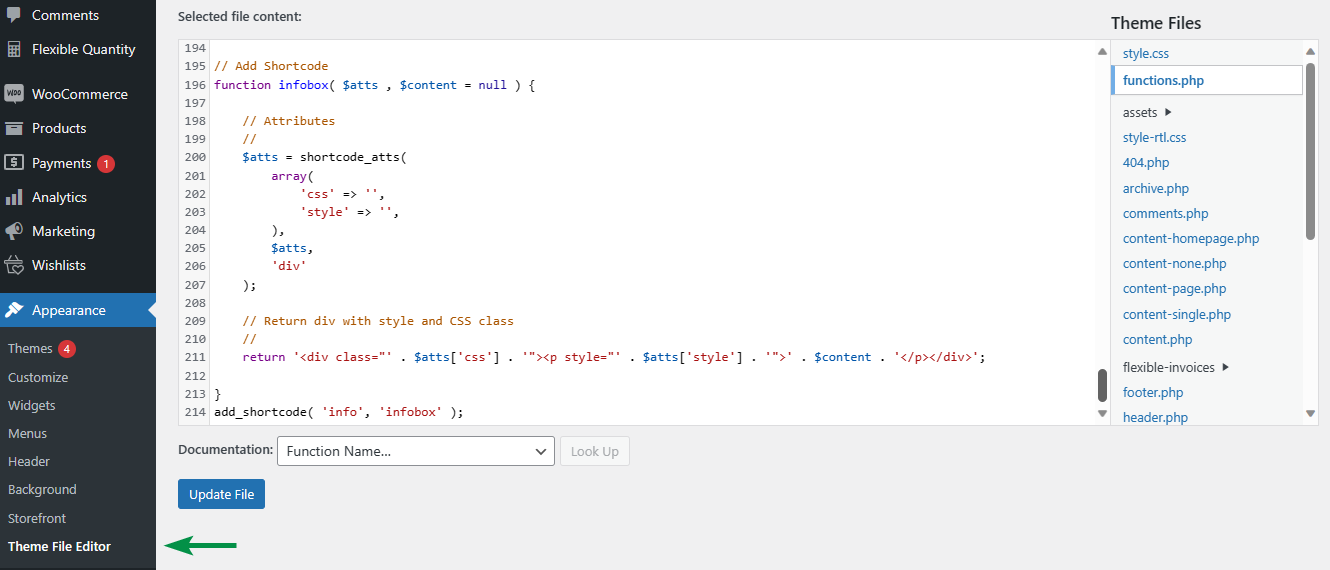
After using the shortcode in a post, visitors will see the new box with styling.
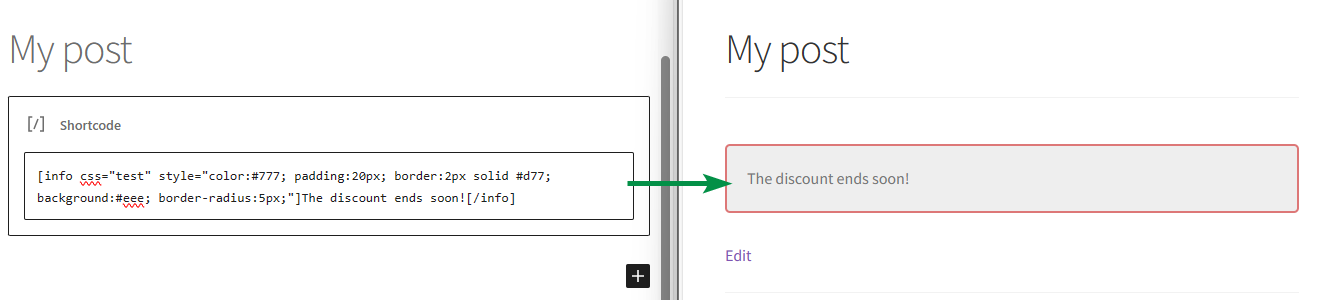
Custom shortcodes ideas
- Infobox
- Contact info
- Affiliate/ UTM helper
- Function execution
- and more
You may also decide you need a WooCommerce shortcodes plugin to help you with the task.
FAQ – WooCommerce shortcodes
What is the shortcode for the WooCommerce cart page?
Use [woocommerce_cart] for the classic cart, [woocommerce_checkout] for classic checkout and [woocommerce_my_account] for the account area. New stores normally start with Cart and Checkout blocks instead.
How do I display products from one category?
Use [products category="food" limit="8" columns="4"], replacing food with your category slug. The older product_category shortcode also lists products from a category.
Why is my shortcode showing as plain text?
Check spelling, brackets, straight quotation marks and whether the supplying plugin is active. Paste it into a Shortcode block rather than a Code block. Other insertion points must explicitly support shortcode processing.
Do shortcodes still work with block themes?
Yes. Use the Shortcode block where supported by the editor or template. For cart and checkout, choose the block or classic implementation and test compatibility instead of placing both versions together.
How many products does the products shortcode show by default?
The default limit="-1" means all matching products. Set an explicit limit for a small product section and use pagination when needed.
Can I add my own shortcode without a plugin?
Yes, by registering it in a child theme's functions.php. A small custom plugin keeps the shortcode available when you change themes. Avoid editing a parent theme file that an update may overwrite.
WooCommerce shortcodes summary
Choose a shortcode for a classic workflow or a block for visual editing. New stores use Cart and Checkout blocks by default, while classic shortcodes remain available. For new product grids, start with products and the attributes above.
If a shortcode appears as text or returns no content, work through the five checks: syntax, quotation marks, insertion point, plugin registration and data, then conflicts. Keep a working copy before changing the cart or checkout.




WooCommerce impresses with its seamless functionality and user-friendly interface. Running my online store is a breeze, thanks to its powerful features and customizable options for a standout e-commerce experience
https://www.sharesoft.in/product/dynamic-pricing-and-discount-product/
WooCommerce impresses with its seamless functionality and user-friendly interface. Running my online store is a breeze, thanks to its powerful features and customizable options for a standout e-commerce experience https://www.sharesoft.in/product/dynamic-pricing-and-discount-product/