
WooCommerce has a built-in coupon system: percentage discounts, fixed amounts, free shipping, usage limits and restrictions by product, category or email. This guide covers the configuration, what each setting actually does, and what to use when coupons alone are not enough.
In this article you will learn how to:
- Three decisions before you enable coupons
- Enable/ disable WooCommerce Coupons
- Add your first WooCommerce coupon
- WooCommerce Coupons - General settings and customization
- Choose the WooCommerce Coupon Usage restriction
- Use a WooCommerce Coupon Code Generator plugin to sell vouchers
- Use Discounts a.k.a When WooCommerce Coupons are not enough
- FAQ – WooCommerce coupons
Contents
- Before you enable coupons: three decisions
- How to enable WooCommerce Coupons?
- Adding WooCommerce Coupons
- WooCommerce Coupons - General settings and customization
- WooCommerce Coupon - Usage restriction
- What about WooCommerce Coupon Code Generator?
- When WooCommerce Coupons are not enough
- FAQ – WooCommerce coupons
- How to manage WooCommerce coupons?
- What coupon types are in WooCommerce?
- What about abandoned cart coupons?
- How to allow coupons per customer?
- How to enable free shipping with a coupon?
- How to auto apply WooCommerce coupons or use them in url?
- Can there be a minimum spending requirement per coupon?
- How do multiple coupons work?
- Why is my WooCommerce coupon not working?
- Do coupons work with the block checkout?
- Can I create hundreds of unique coupon codes at once?
- Summary
- Boost Sales with WooCommerce BOGO and Tiered Pricing
- Promo codes & discounts for existing customers in WooCommerce (15 ideas)
- 5 essential WooCommerce tips to boost your sales
- WooCommerce Bulk Discount<br>for Guests, User Roles & Members
Before you enable coupons: three decisions
A coupon field can prompt customers without a code to leave checkout and look for one. If you do not run coupon promotions, consider whether you need to display it.
According to WP Desk telemetry supplied for this article, collected from 19,803 WooCommerce stores in August 2026, 18% had coupons disabled. The figure describes those stores' settings; it does not tell us why their owners disabled coupons.
If you do use coupons, make three decisions before issuing the first code.
Can coupons stack? Use Individual use only in a coupon's Usage restriction tab to prevent it from being combined with other coupons. Separately, the store-wide sequential calculation setting controls how combined discounts are calculated. Decide on both before distributing codes.
Who can use each code? Codes can be shared beyond their intended audience. Use email restrictions to limit eligibility, and set total or per-user usage limits to control how often a code can be redeemed.
Do sale items count? Decide whether coupons should apply to products already on sale. Test the combined discount against your margins before launching a promotion.
How to enable WooCommerce Coupons?
Coupons are enabled by default in WooCommerce, but check your store settings before creating a code. Go to WooCommerce → Settings. In the General tab, tick the Enable the use of coupon codes checkbox if it is not already selected, then click Save changes. To disable coupons, clear the checkbox and save.
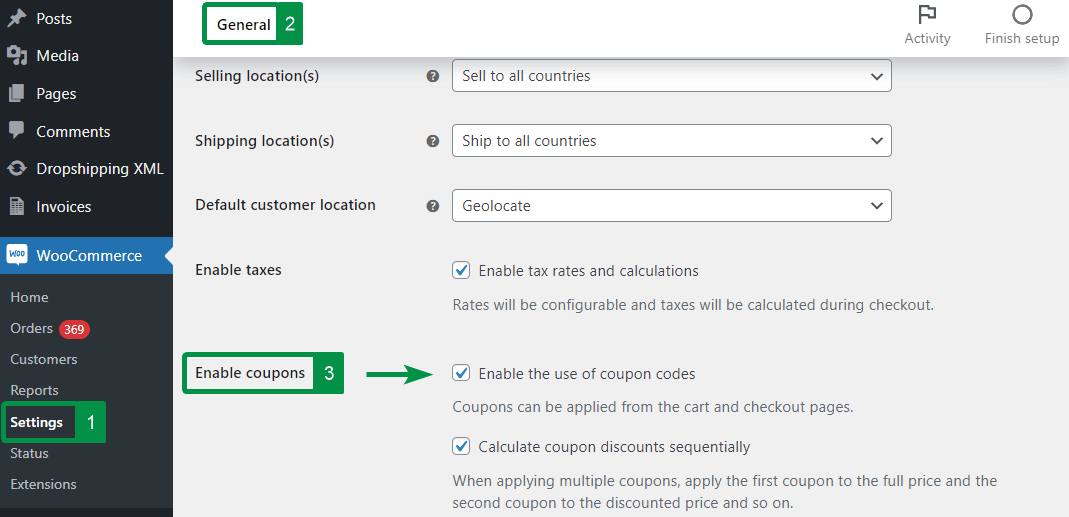
You may also decide to enable the Calculate coupon discounts sequentially option. When eligible coupons are combined, this calculates each subsequent discount on the price remaining after earlier discounts. It does not control whether coupons can be combined; that is handled by each coupon's Individual use only restriction.
For example, two 10% coupons applied sequentially to an eligible $100 item reduce its price to $81, rather than $80. Decide on this setting before issuing codes: changing it can affect the discount customers receive when they combine existing coupons.
Adding WooCommerce Coupons
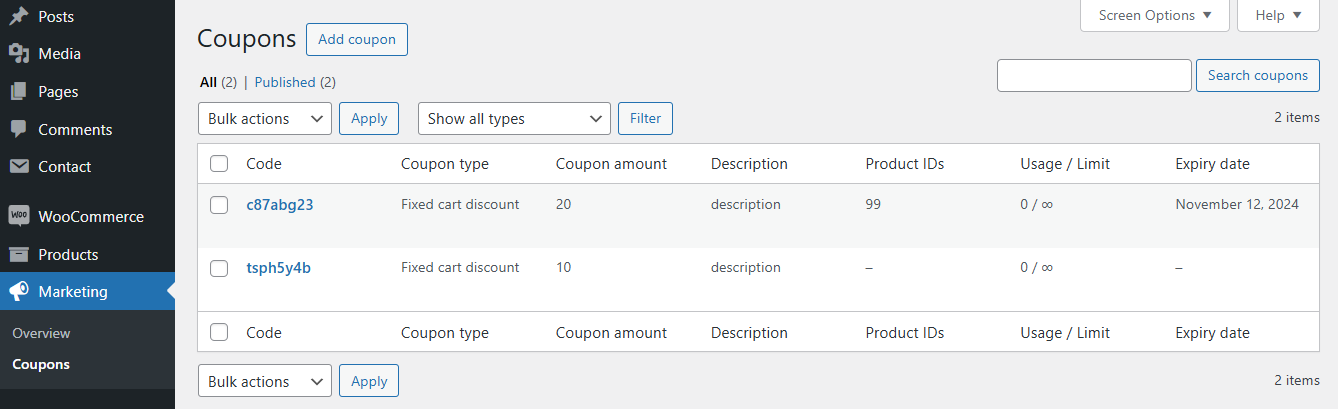
Right after activating coupons, you can add your first coupon. You can simply do this by choosing Marketing → Coupons and then clicking on Add coupon button.
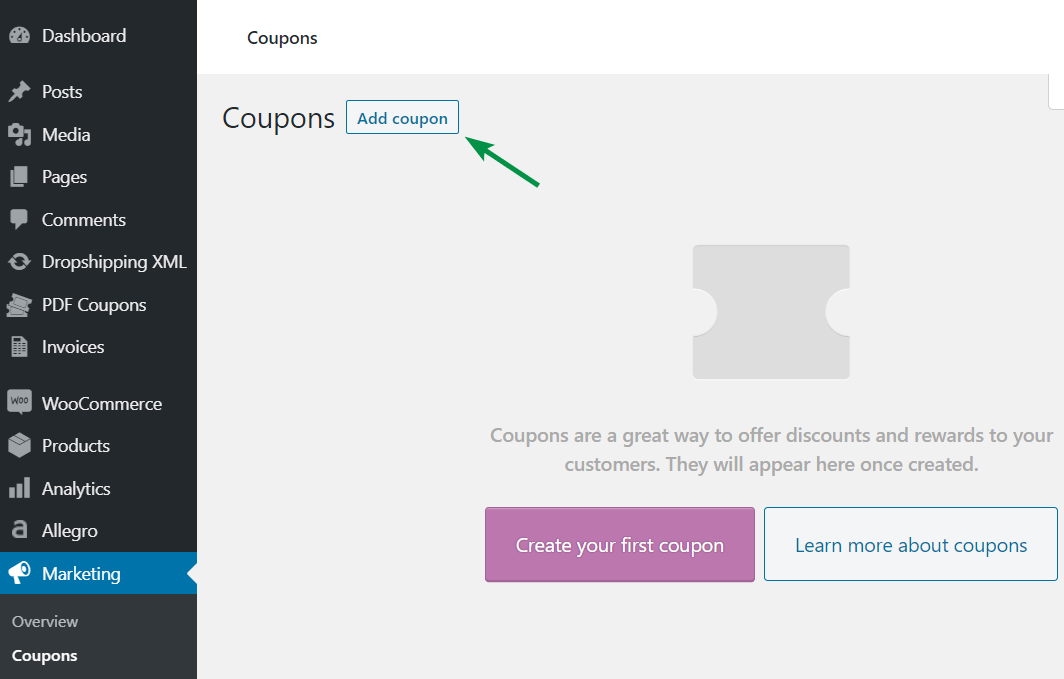
Now it's time to add a new coupon.
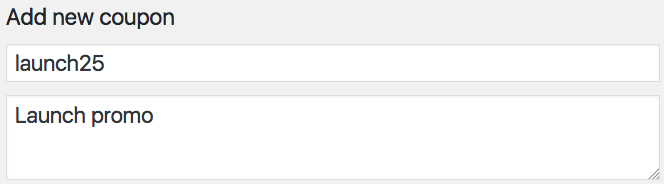
To add your coupon, fill in the following fields:
Coupon code - this is a discount coupon code entered by the customer in the WooCommerce cart.
Description - in this field, you can add some information about your coupon, with as many details as you need. The description is only visible in the admin panel. Even though the description is optional, it's good to use it. If you have multiple promotions or marketing campaigns it will help you identify the coupon after a few weeks or months.
WooCommerce Coupons - General settings and customization
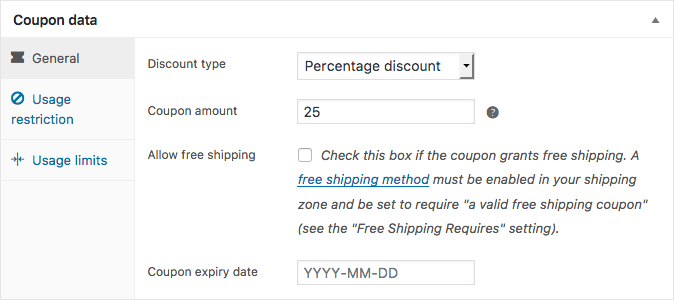
Discount type
- Percentage discount - a type of discount used when the item is discounted by a percent of the original price (for instance, a 20% off coupon).
- Fixed cart discount - it's a fixed value discount for the entire cart. For instance, it could be a coupon worth $100.
- Fixed product discount - a fixed amount off each eligible item, rather than one discount for the whole cart.
Coupon amount - enter the coupon value as an amount or by percentage, depending on the coupon type you choose. Use a decimal system appropriate for your shop's locale. Don't use the currency or percent sign - just enter the number.
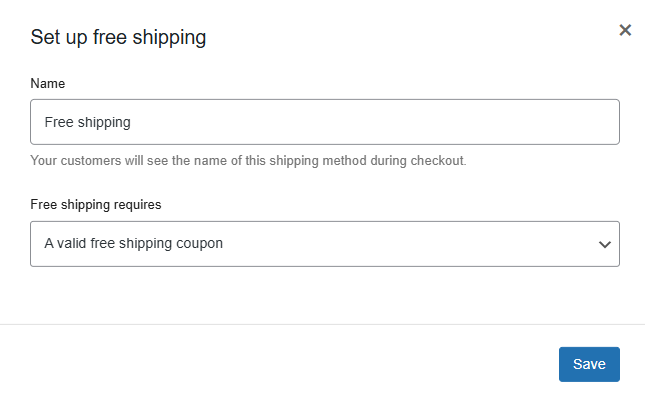
Allow free shipping - check this box to make the coupon eligible for free shipping. Then go to WooCommerce → Settings → Shipping → Shipping zones, edit the relevant zone, and add or edit its Free shipping method. Set Free shipping requires to A valid free shipping coupon and save.
You may learn more about WooCommerce Shipping →
Coupon expiry date - optionally select the day when the WooCommerce coupon is no longer active.
WooCommerce Coupon - Usage restriction
Here you can set a limit for selected products, categories, or email addresses. This configuration is optional, so you don't have to restrict the coupon usage.
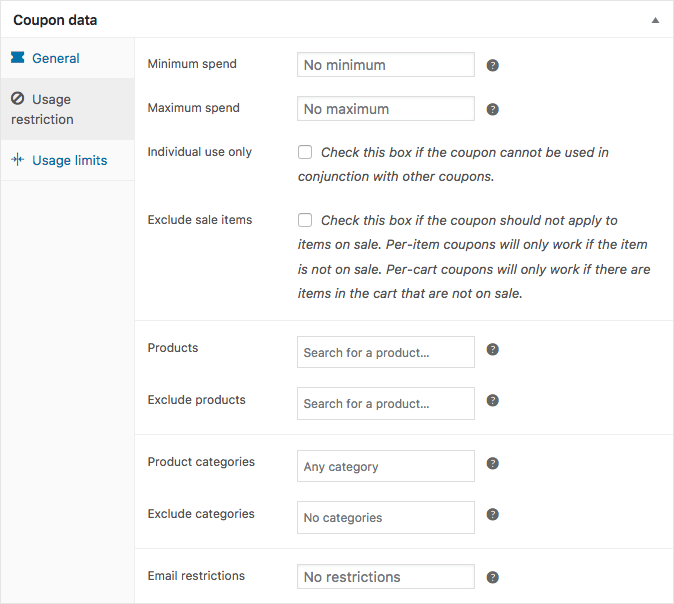
Minimum/maximum spend - set the cart spending thresholds for using the coupon. The minimum-spend check includes the cart subtotal and tax, so do not confuse this threshold with the way discounts are applied before tax calculation. See the WooCommerce coupon documentation.
Individual use only - check this option if you don't want the discount to be used in combination with other coupons.
Exclude sale items - tick this checkbox if the coupon can't be applied to products on sale.
Products - select a list of products that the coupon will be applied to. So, it's possible to prepare WooCommerce coupons per specific product.
Exclude products - select the products to which the discount won't be applied.
Product categories - select the whole categories that will be eligible for the discount.
Exclude categories - this option allows you to select the categories to which the discount won't be applied.
Email restrictions - enter the email addresses that can use the coupons. If you want to add more than one email address, separate them with a comma.
Usage limits
Here you can set a usage limit for your coupon. This configuration is also optional, so decide for yourself whether you want to use it or not.
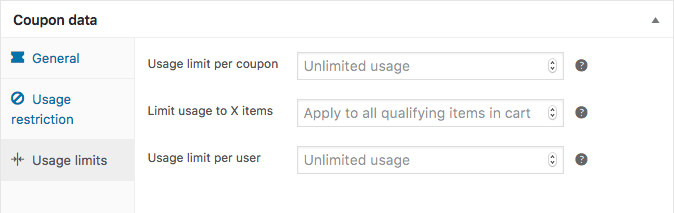
Usage limit per coupon - specify how many times the coupon can be used before it expires.
Limit usage to X items - enter the maximum number of items the coupon can be applied to (for product discounts).
Usage limit per user - specify how many times each customer can use the coupon.
That covers the main settings for a single coupon. Click Publish to make it available, or schedule publication for the start of your promotion. Test the code with both eligible and ineligible carts before distributing it.
What about WooCommerce Coupon Code Generator?
WooCommerce can generate a random code when you create an individual coupon. To sell PDF gift cards and generate vouchers when customers buy them, use a dedicated extension.
Flexible PDF Coupons lets you create PDF gift cards and vouchers in WooCommerce, configure their value and restrictions, and sell them as products. It can support gift card campaigns for Black Friday or Christmas.
Flexible PDF Coupons WooCommerce £59
Design your own PDF coupons and sell them as gift cards, tickets, or service vouchers. Use extra add-ons and insert your own shortcodes, delay sending coupons by email, or even generate QR codes.
💾 Active Installations: 2,000+ | WordPress Rating:
For a setup example, read about reusable vouchers and coupon conditions in the Flexible Coupons guide.
The video below introduces turning WooCommerce coupons into PDF gift cards that customers can buy and send.
When WooCommerce Coupons are not enough
WooCommerce coupons support category restrictions, scheduled publication and email restrictions, but they do not cover every promotion.
The standard coupon editor does not provide automatic discount rules based on cart conditions, BOGO (buy one get one), BOGOF (buy one get one free), BOGOHO (buy one get one half off), or pricing rules for customer groups.
This is where a pricing plugin takes over.
For a practical example, see how to configure quantity discounts with Flexible Pricing. It applies pricing rules when their conditions are met, without asking the customer to enter a code.
With Flexible Pricing you instantly get:
- Price, percent, or fixed discounts.
- WooCommerce discounts for selected categories.
- Discounts for selected roles or client groups.
- Per product or variation discounts.
- WooCommerce dynamic discounts based on order totals, totals in selected categories, or customer order history.
- Different kinds of WooCommerce promotions like BOGO (buy one, get one), BOGOF (buy one, get one free), or BOGOHO (buy one get one half off) promotions. For example: buy X items of one product to get a discount for Y items of this or another product.
- Buy a product from a selected category and get a discount for another product from this or another category.
FAQ – WooCommerce coupons
How to manage WooCommerce coupons?
It's possible in the Marketing → Coupons.
What coupon types are in WooCommerce?
Three: percentage discount, fixed cart discount and fixed product discount. The settings section above explains when each one fits.
What about abandoned cart coupons?
They are discount codes that are sent after a user leaves the cart. Such coupons may lower the abandonment cart rate. It's possible to send them by email automatically using a abandoned-cart email extension.
How to allow coupons per customer?
Use Allowed emails in the coupon's Usage restriction tab to restrict it to selected billing email addresses. Use Usage limit per user in the Usage limits tab to control repeat redemptions. See the coupon restrictions section.
How to enable free shipping with a coupon?
First, enable the Allow free shipping checkbox in the General tab of the coupon settings. Then configure the relevant shipping zone's Free shipping method to require A valid free shipping coupon. Follow the free shipping setup above.
How to auto apply WooCommerce coupons or use them in url?
Adding ?coupon_code=YOURCODE to an ordinary cart URL is not a universal built-in method. WooCommerce's shareable checkout links use a dedicated /checkout-link/ path and the coupon parameter, alongside product information. Check that your installed version supports this feature and test the link before distributing it.
For other discount-link workflows, use an extension such as URL Coupons or custom code. Automatically applying discounts when a cart meets your conditions requires custom code or a plugin with automatic pricing rules.
Can there be a minimum spending requirement per coupon?
Yes. The minimum and maximum spend are set in the Usage restriction tab of the coupon settings.
How do multiple coupons work?
WooCommerce allows multiple valid coupons when their restrictions permit combining them. This does not require enabling sequential calculation.
If Calculate coupon discounts sequentially is enabled, subsequent discounts are calculated on the amount remaining after earlier discounts. See the calculation example above.

To prevent a coupon from being combined with other coupons, enable Individual use only in its Usage restriction tab.
Why is my WooCommerce coupon not working?
Check the code, expiry date, spending thresholds, product and email restrictions, usage limits, and whether another coupon requires individual use. Sale-item exclusions can also prevent a discount from applying. Read the error message, correct the reported issue, and test again with an eligible cart.
Do coupons work with the block checkout?
Yes. WooCommerce coupons work with both the classic checkout and the Cart and Checkout blocks. Their position and presentation can differ, so check the layout customers see. If an extension adds coupon features, verify its block compatibility separately.
Can I create hundreds of unique coupon codes at once?
The built-in coupon editor creates coupons individually. For bulk creation, use a bulk-generation extension or a custom integration. Selling PDF gift cards and generating codes for purchases requires a dedicated gift card solution.
Summary
WooCommerce handles the basics: three discount types, expiry dates, usage limits and restrictions by product, category or email. Decide whether coupons can be combined, how combined discounts are calculated, and whether sale items qualify before distributing codes. Test those settings against the promotions you already run.
For PDF gift cards, explore Flexible PDF Coupons. For discounts triggered automatically by pricing rules, see Flexible Pricing. Bulk coupon generation needs a suitable extension or custom integration.




Maciej, quick one for you. I have a coupon code that works for all products. I don’t want that and have ticked the product box to say only this product on restrictions. Thing is, no other product coupons work. Only one product and one coup.c. two other products. Coup.codes. won’t work
Hi – I don’t have a coupon tab. In my version, the Enable Coupons check box is under Settings -> General. I have that clicked, but I don’t have coupons. I have read (https://docs.woocommerce.com/document/coupon-management/) that this should now appear under Marketing with the newest Woocommerce update, but I’ve updated and refreshed with no luck. Any thoughts?
Hi Kacee, try to see if there is a plugin that may block or hide some parts of the WordPress admin.
Hi Rod Thanks for the great article reception. ;) Yes, you can set up multiple use of the voucher. Customers will be able to use one coupon several times. You should navigate to product edit panel, PDF Coupon tab and tick Allow to multiuse option https://monosnap.com/file/080GIp4jXi71B6gJvWBqd3Cvl5QNSC
Great article! My question is, if you give someone a $100 credit and they want to use only half for now and half later, how would you do the settings? Or would they have to use the full $100. If the coupon is set to 1 per coupon and 1 per user, I assume they can use until the full amount is used?
Great article! My question is, if you give someone a $100 credit and they want to use only half for now and half later, how would you do the settings? Or would they have to use the full $100.
If the coupon is set to 1 per coupon and 1 per user, I assume they can use until the full amount is used?
Hi Rod
Thanks for the great article reception. ;) Yes, you can set up multiple use of the voucher. Customers will be able to use one coupon several times. You should navigate to product edit panel, PDF Coupon tab and tick Allow to multiuse option https://monosnap.com/file/080GIp4jXi71B6gJvWBqd3Cvl5QNSC