

Removing unnecessary billing fields from the WooCommerce checkout page can simplify the purchasing process. This can lead to higher conversion rates, faster checkout thus overall better customer experience.
In this guide, we'll explore how to remove these fields without harming your checkout flow. Whether you’re using plugins or coding directly, you'll find the steps easy to implement.
Key points
1. Is a checkout page without a billing address possible?
2. How to remove the billing address fields in WooCommerce?
3. Online purchases without a billing address is easier, helps conversion rate, and SEO.
4. A website can lose friction without not only a nice theme, but also a solution for a fluent checkout process.
So, how to disable unnecessary billing address fields, and shipping, or remove the Ship to a different address checkbox from the WooCommerce checkout page entirely?
Let's see how to configure a better checkout with fewer fields!
How to achieve that?
Contents
- What are Checkout Fields in WooCommerce?
- Understanding the Default WooCommerce Checkout Fields
- List of the default WooCommerce billing fields
- How to Remove Unnecessary Billing Fields from the Checkout?
- 8 Steps to Remove Checkout Fields in WooCommerce
- Why to install the plugin to help you improve the checkout form?
- Billing and shipping in WooCommerce
- Disable billing address fields in WooCommerce
- WooCommerce Checkout Without Billing Address Fields in 5 Minutes
- Remove checkout fields using PHP code
- Remove the shipping address from the WooCommerce checkout page
- Customize WooCommerce Checkout - plugin options
- Summary & more about checkout customization
- WooCommerce Checkout Field Editor: How to Add, Edit & Remove Billing Fields
- WooCommerce Checkout Page: Add Shipping Address Fields - WooCommerce shipping field customization
- Hide billing fields based on the shipping method in the WooCommerce checkout
- Customize the WooCommerce Checkout Page: Top Tips for a Seamless Experience
- Customize the WooCommerce Checkout Page: Tips & Tools for Success
Flexible Checkout Fields WooCommerce
WooCommerce remove shipping address from checkout is now possible within seconds. Download this free plugin and customize WooCommerce checkout form in a minute!
💾 Active Installations: 80,000+ | WordPress Rating:
But first, let's see what topics you'll find in this blog post:
What are Checkout Fields in WooCommerce?
Checkout fields in WooCommerce are the data input areas presented to customers during the checkout process. These fields collect information necessary for order processing, including customer details, billing information, and shipping addresses.
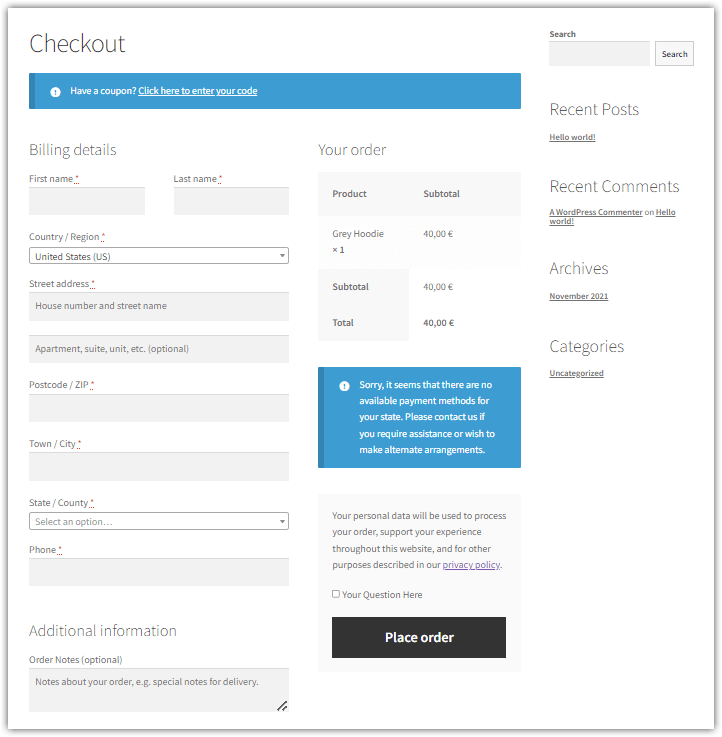
They play a crucial role in ensuring that the store can fulfill orders accurately and efficiently. Understanding how these fields function helps store owners customize their checkout experience to better suit their customer needs.
Understanding the Default WooCommerce Checkout Fields
By default, WooCommerce includes a set number of fields that are required during the checkout process. These typically include customer name, billing address, email, phone number, and payment details.
Each field serves a specific purpose, helping to ensure that merchants have all the information needed to deliver products successfully.
However, not every field is necessary for every product type, especially digital goods or services, prompting many store owners to reconsider their checkout form layout.
List of the default WooCommerce billing fields
- First Name
- Last Name
- Company Name
- Country
- Address 1
- Address 2
- City
- Postcode / ZIP
- State
- Phone
- Email Address
These fields can be customized to fit the needs of your store, and additional custom fields can also be added if needed.
Importance of Checkout Fields for Billing and Shipping
Checkout fields are vital for capturing essential details that ensure proper transaction processing and product delivery.
Billing fields mainly capture payment-related information, while shipping fields gather user addresses for product delivery.
Properly configured checkout fields enhance the security and accuracy of transactions.
Additionally, they help in building trust with customers, as clear and relevant information ensures a smooth purchasing experience.
Later, you will see how to remove fields using a free plugin.
The default checkout is not the final shape of the form you can see in a WooCommerce store.
How to Remove Unnecessary Billing Fields from the Checkout?
To remove unnecessary billing fields from your WooCommerce checkout page, store owners have a few options.
They can use plugins designed specifically for field management or customize the checkout template directly using filters.
By removing extraneous fields, store owners can reduce cart abandonment rates and improve overall user experience.
It’s important to assess which fields are truly necessary for your business model before making any changes.
Let's remove unnecessary fields and simplify the checkout process with a WooCommerce checkout manager plugin.
8 Steps to Remove Checkout Fields in WooCommerce
- Identify Unnecessary Fields: Review your current checkout fields and determine which ones can be removed without affecting your business operations.
- Backup Your Site: Before making any changes, ensure that your website is backed up to prevent data loss.
- Implement changes for cart or checkout wisely: Try to remove fields or make any improvements in the WooCommerce checkout form during smaller traffic.
- Select Your Method: Choose whether to use a plugin or add custom code based on your comfort level with code editing.
- Implement Changes: Follow the steps for either the plugin or code editing to remove the identified fields.
- Test Your Checkout: After making changes, conduct thorough testing to ensure that the checkout process still functions correctly.
- Compare conversion rates: You may improve the checkout form based on data.
- Better UX and checkout design: The goal is not only to customize your checkout process by removing unnecessary fields. User friendly or direct checkout can be achieved with better design.
Removing billing fields is just the beginning. You may also add discounts in cart and checkout. You are not bound to product page discounts.
Free WooCommerce checkout customizer
So, you may also use a free WooCommerce customizer for checkout block based form. Add new fields to the default checkout fields with this plugin.
WP Desk gives you two plugins for custom checkout optimization. You will see how to remove fields from the checkout page using the first one.
Flexible Checkout Fields for WooCommerce – WooCommerce Checkout Manager
Using the WooCommerce Checkout Field Editor Plugin
The Flexible Checkout Fields plugin offers an intuitive interface for managing checkout fields without coding.
With this plugin Checkout without billing address in WooCommerce. Disable billing address fields and remove shipping address from the WooCommerce checkout page.
Let's remove unwanted checkout fields from your checkout page!
But wait! Why you may want to change woo checkout. Are all fields related to billing section needed. What are unnecessary checkout fields? Below I will show you how to remove checkout fields from the WooCommerce form.
Why to install the plugin to help you improve the checkout form?
You may think: where can I shop online without billing address?
And you will probably think of many cases in which you only needed your credit card with some verification. That's the requirement to process the payment.
In most cases, you just enter specifically the card's holder name, number, email, and CVV. Usually, without entering your address or zip code.
And depending on the bank or card issuer that collect the data, you also need to verify the card for fraud prevention, for example, with a code.
If you sell digital goods, you may want to build the checkout without address fields.
Why? Because that can play a huge role in today's competitive environment.
Jump to the table of contents.
Advance your e-commerce UX
The necessity of providing more data may confuse users.
Less user data means anonymous shopping and better privacy.
Don't require specific merchant or debit card information.
Stay with only what you'll need as online retailers to process the payment.
Especially, for virtual orders in WooCommerce, card details, e-mail address, name, and surname may be all there is from the collection point of view. Reduce the number of data you need.
In fact, the actual billing address may look suspicious and annoy customers.
What's more, apply only must-have fields to decrease confusion, or error and ticket rates.
Of course, full billing will make the purchase time-consuming. And you're risking losing customers. Let's find out how to fix / improve the default form.
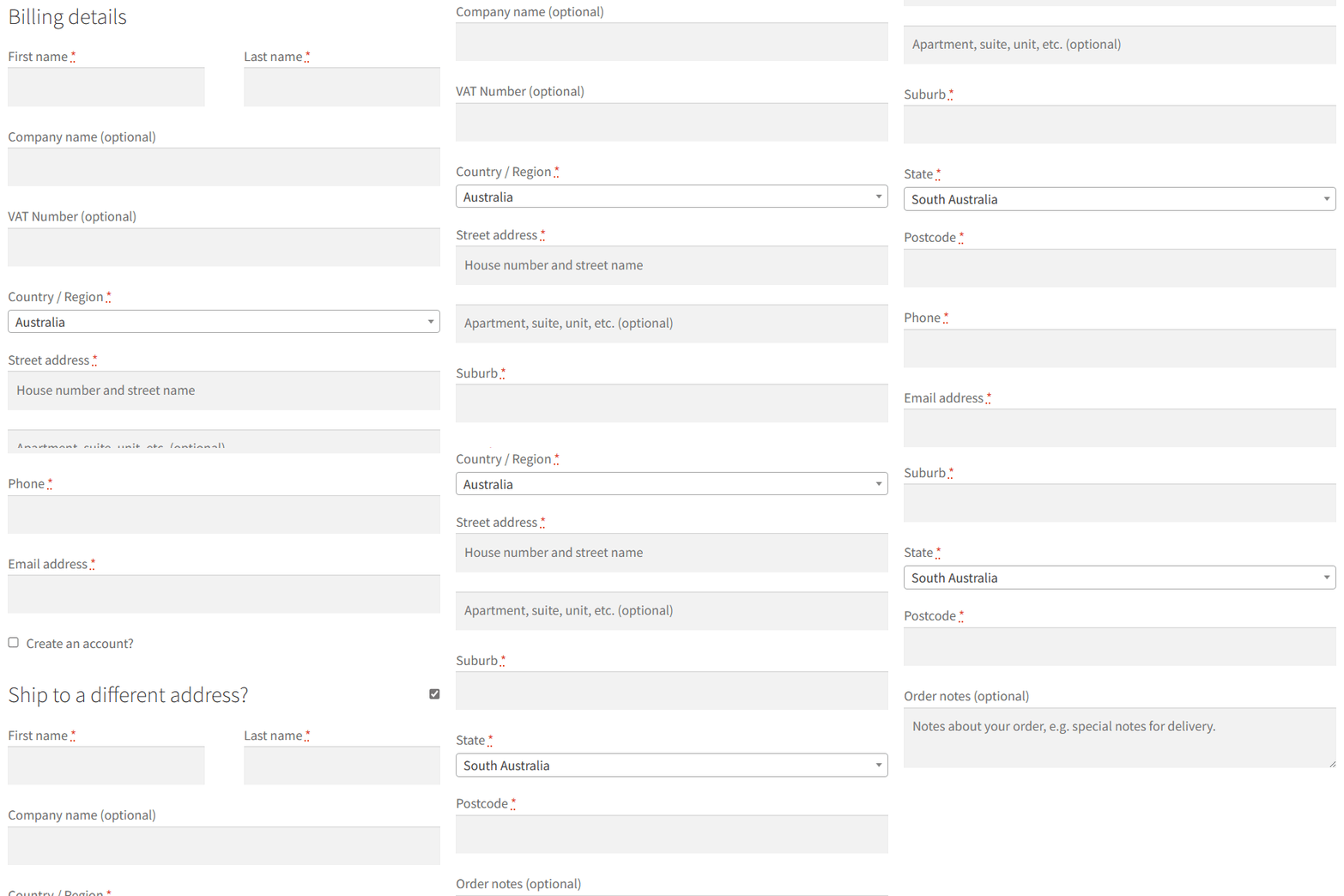
WooCommerce checkout fields can be still a bottleneck in the purchasing process.
Determine which fields you really need (recommend as few as possible).
How to improve the site's UX with easier transaction in WooCommerce?
Customer experience and user interaction play an increasingly important role (for actual conversion or SEO).
When you need to pay for products or services you also want to give as little information as required.
If the site's checkout form has too many fields, it can lower the satisfaction from shopping or discourage from entering the information, don't you agree?
So, let's find out how to disable some billing address (or shipping address) fields in WooCommerce with a free plugin.
You may also boost the experience and convince others to pay with a card with a discount or with no fee.
By default, WooCommerce gives you the standard checkout page without a way to customize it. Let's assume you do not need all WooCommerce fields, want to remove all shipping fields and disable the ship to a different address checkbox.
👉🏽 Today, I will show you how to customize the WooCommerce checkout page the way you want in less than 5 minutes with a free plugin!
Just install and activate the plugin and you're ready to remove the fields.
Control what fields you need, make fields optional, rearrange them, or just remove default checkout fields from your WooCommerce checkout form.
Of course, som fields are still useful, but with the plugin you may decide about necessary fields. Do you need only three fields? With the checkout manager, it's easy!
Billing and shipping in WooCommerce
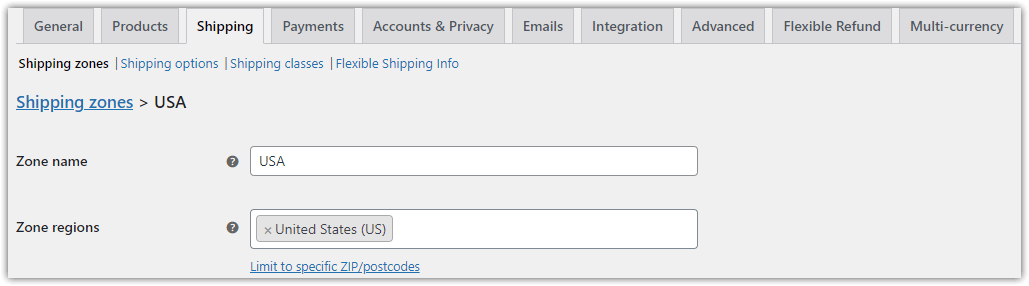
WooCommerce uses billing and shipping information when receiving orders. You can use WooCommerce default settings to restrict sales to some countries. You can also choose the default customer location.
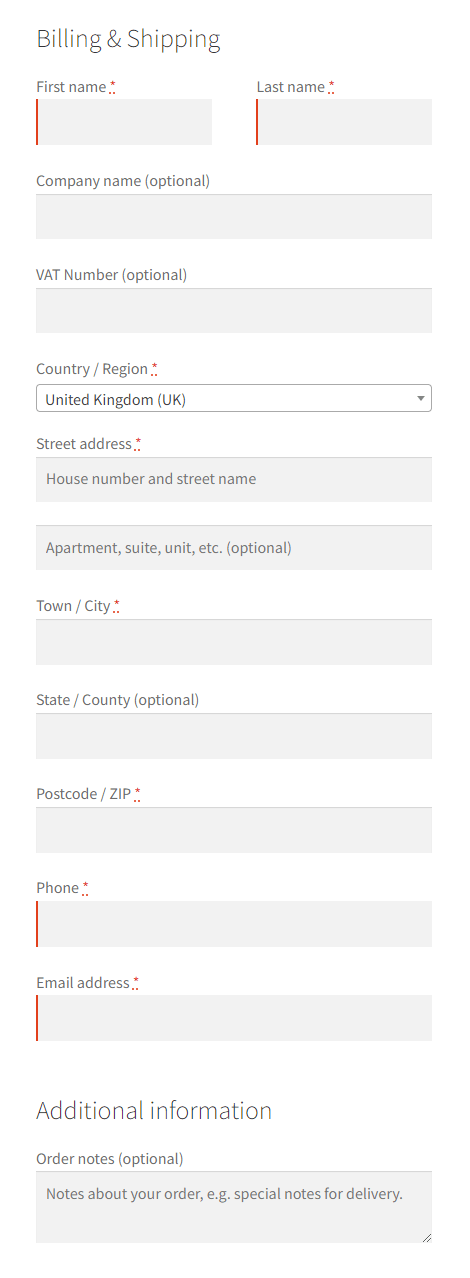
👉🏽 Now, let's look at the WooCommerce standard checkout form with default billing and shipping fields. The shipping section will appear when a customer enables the Ship to a different address checkbox.
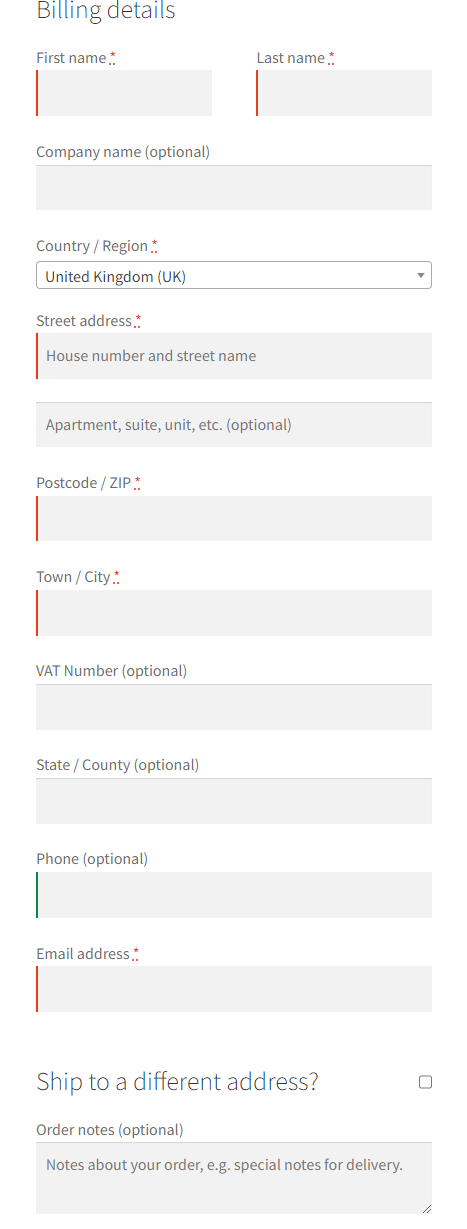
Disable billing address fields in WooCommerce
The standard WooCommerce checkout fields are ok, but I guess you'd like to customize the form a little bit.
For example, you may want to:
- remove billing address fields
- disable shipping section
- hide some shipping fields
- rearrange checkout fields
- or add new ones to the checkout page
- make the form simpler and faster
🎉 You can use a free plugin to customize your WooCommerce checkout form easily!
Meet Flexible Checkout Fields:
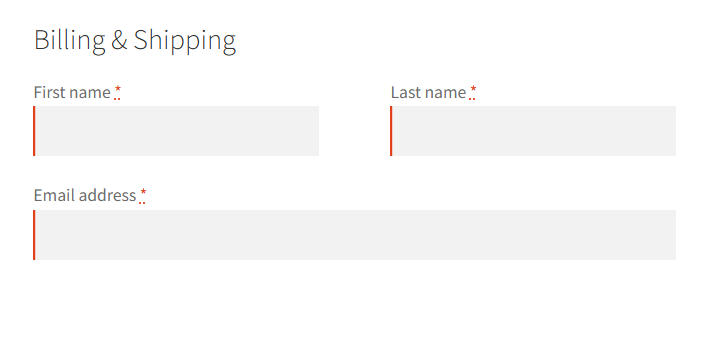
Now, let's see an example. Let's prepare the checkout with a customer's name and e-mail address only!
WooCommerce Checkout Without Billing Address Fields in 5 Minutes
👉🏽 We will use the free Flexible Checkout Fields plugin to configure checkout like this:
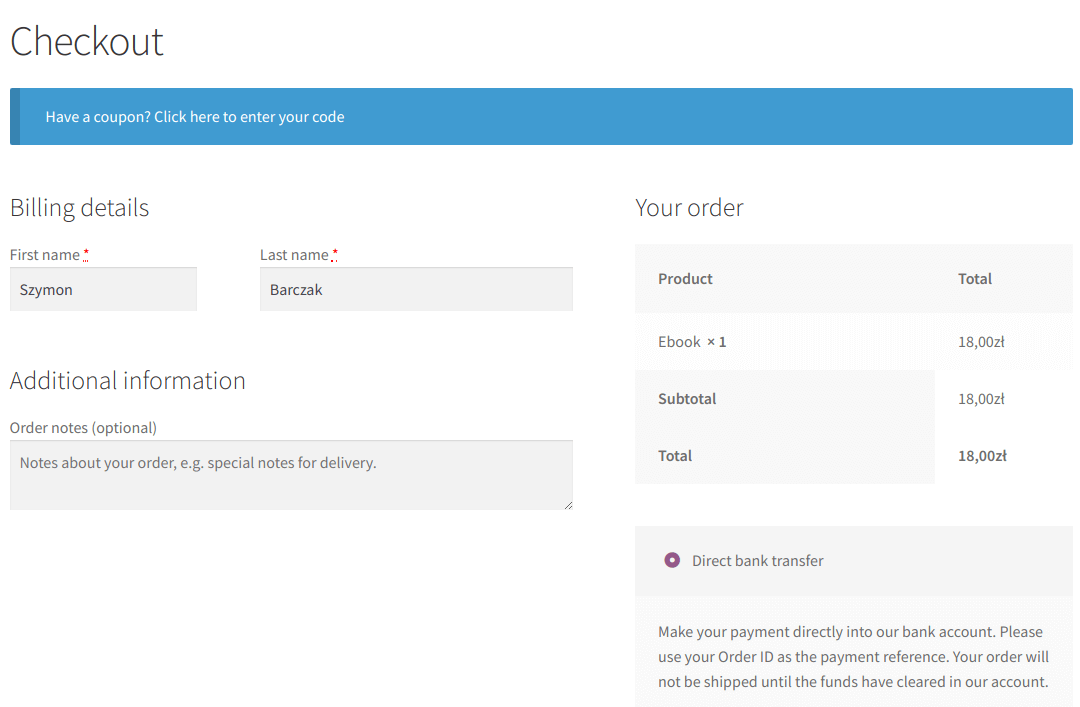
To disable some of the billing address fields in the WooCommerce checkout:
-
Get the plugin
First, we need Flexible Checkout Fields to hide the shipping address fields of the Billing section. Once again, you can download it from the WordPress repository of plugins::
Flexible Checkout Fields WooCommerce
WooCommerce remove shipping address from checkout is now possible within seconds. Download this free plugin and customize WooCommerce checkout form in a minute!
💾 Active Installations: 80,000+ | WordPress Rating:
-
Use plugin settings
Once you install the plugin, go to WooCommerce → Checkout Fields.
-
Remove billing address fields
Unmark Enable Field checkboxes on each billing address field you want to hide from the WooCommerce checkout form:
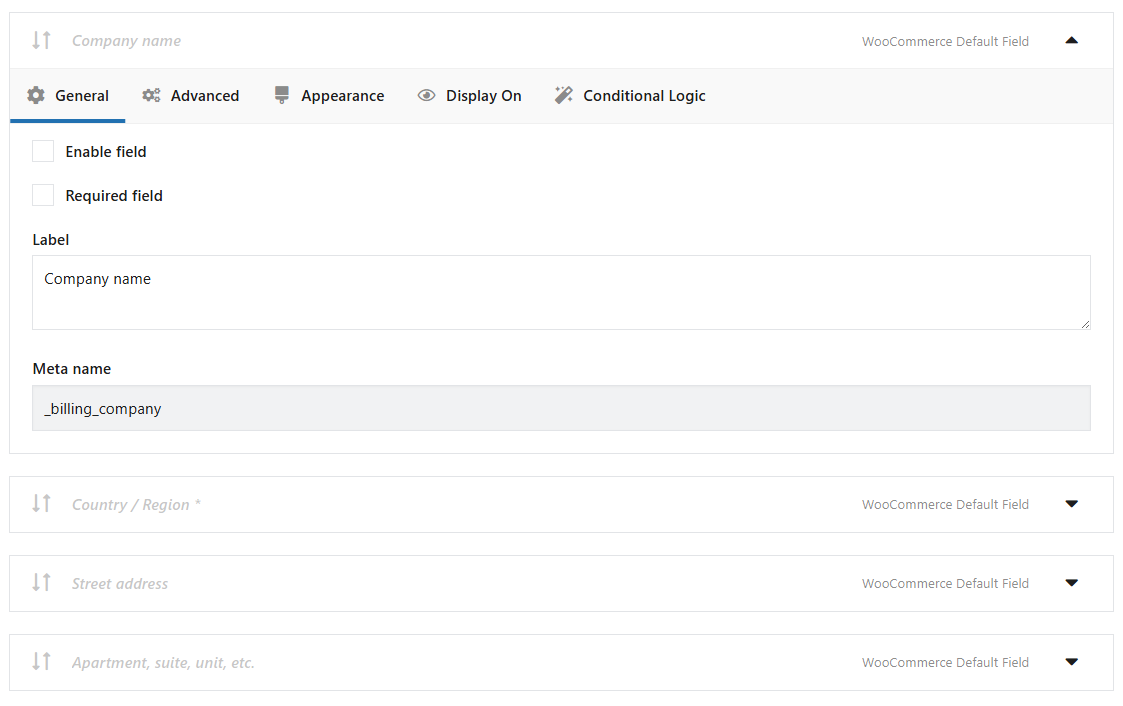
Hide WooCommerce checkout fields You can also disable fields in shipping address.
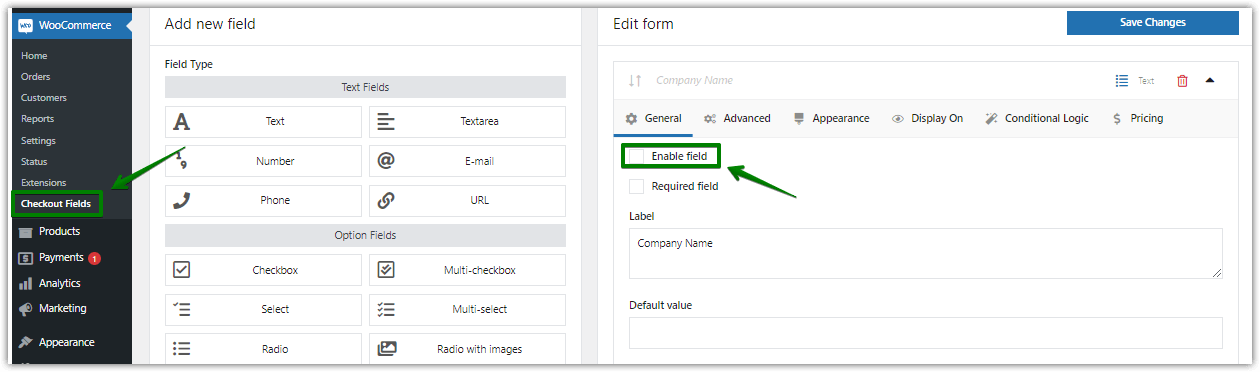
This is how you remove shipping address from the WooCommerce checkout step by step
That's all! You have configured WooCommerce checkout without an address in 5 minutes.
You can hide fields, add new ones, reorder, and make them optional with the plugin as well!
Remove checkout fields using PHP code
You can also add PHP code to your theme's `functions.php` file. For example, to remove the billing phone field from the checkout, you can use the following code
add_filter('woocommerce_checkout_fields', 'custom_code_remove_billing_phone');

function custom_code_remove_billing_phone($fields) {

unset($fields['billing']['billing_phone']);

return $fields;

}
Similarly, if you want to remove the country field, you can use this code:
add_filter('woocommerce_checkout_fields', 'custom_code_remove_country_fields');

function custom_code_remove_country_fields($fields) {

unset($fields['billing']['billing_country']);

return $fields;

}
Simple code. But it helps you customize your WooCommerce checkout process, minimizing unnecessary fields and improving the overall shopping experience.
Remove the shipping address from the WooCommerce checkout page
The shipping address fields will appear after a customer clicks the Ship to a different address checkbox:
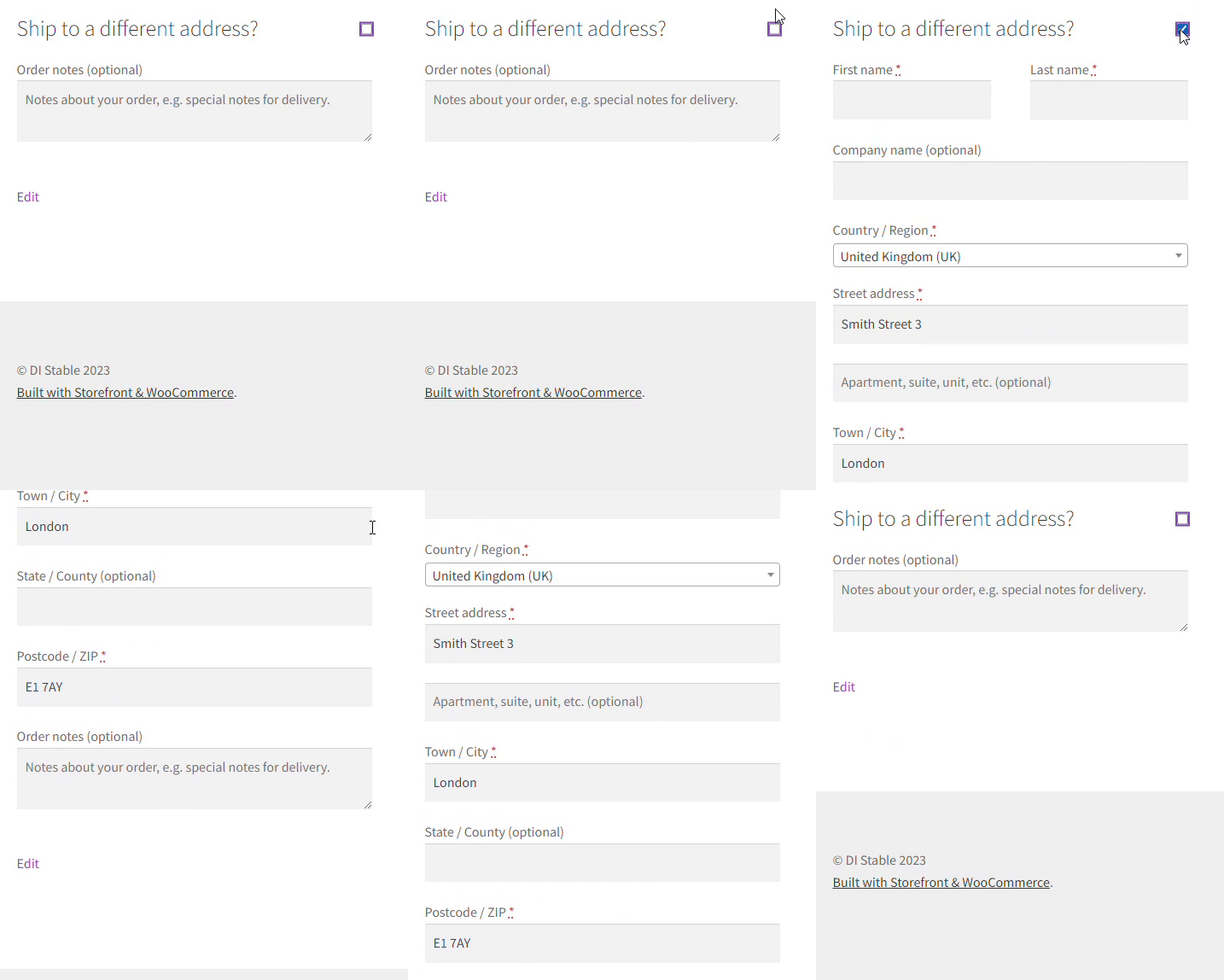
Of course, you can customize the shipping section the same way as in the example above.
👉🏽 Use the Flexible Checkout Fields plugin to hide, add, or reorder shipping address fields:
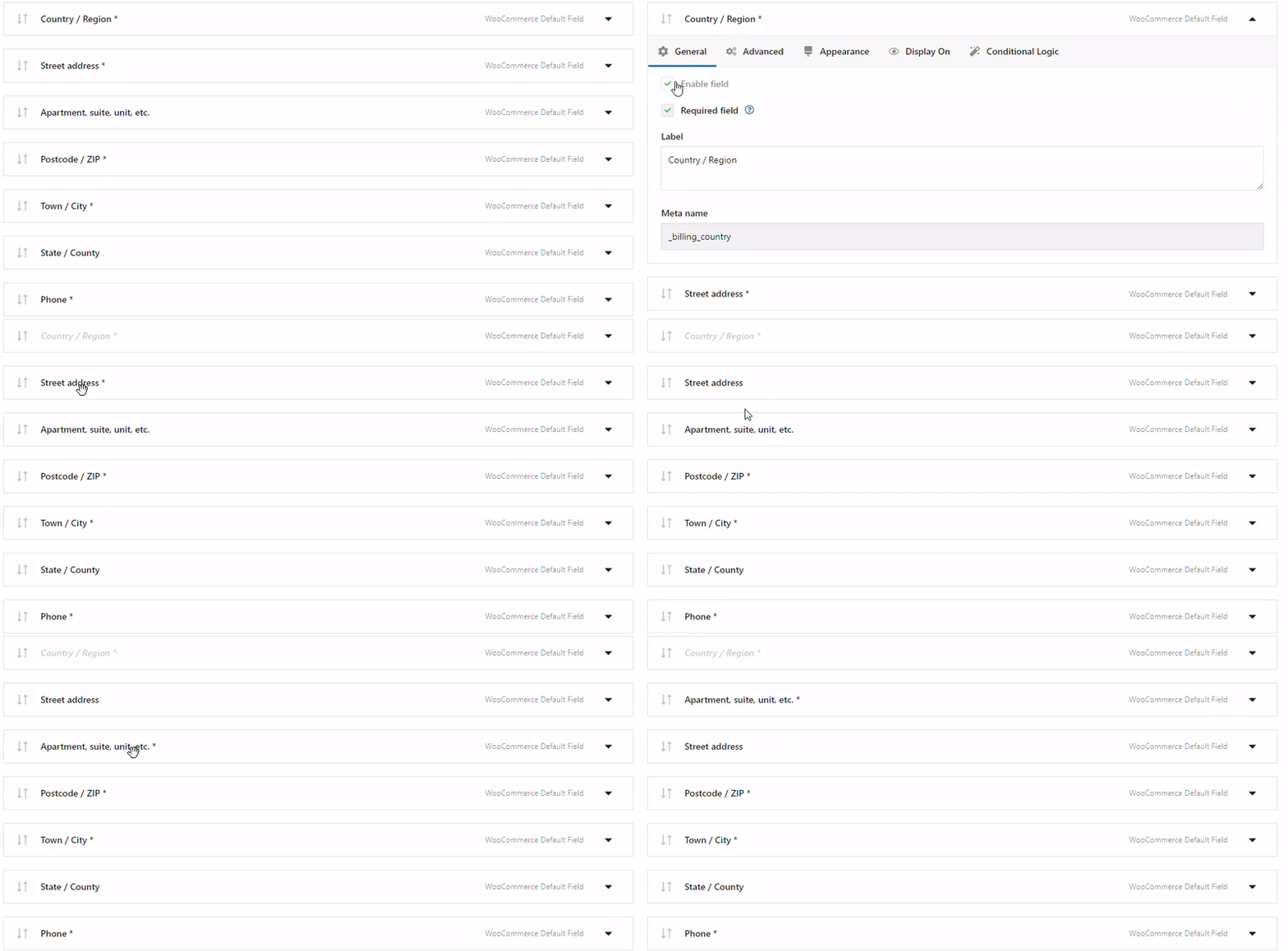
Remove ship to a different address from the WooCommerce checkout
WooCommerce hides shipping fields till someone ticks the Ship to different address checkbox.
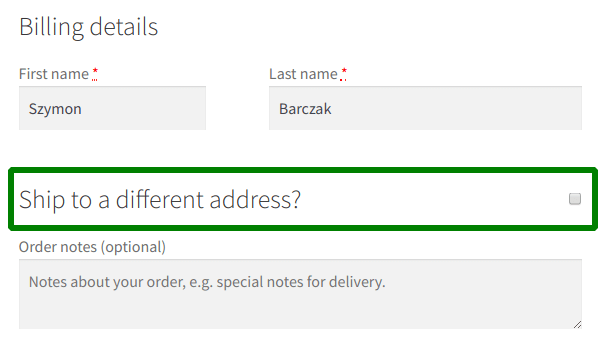
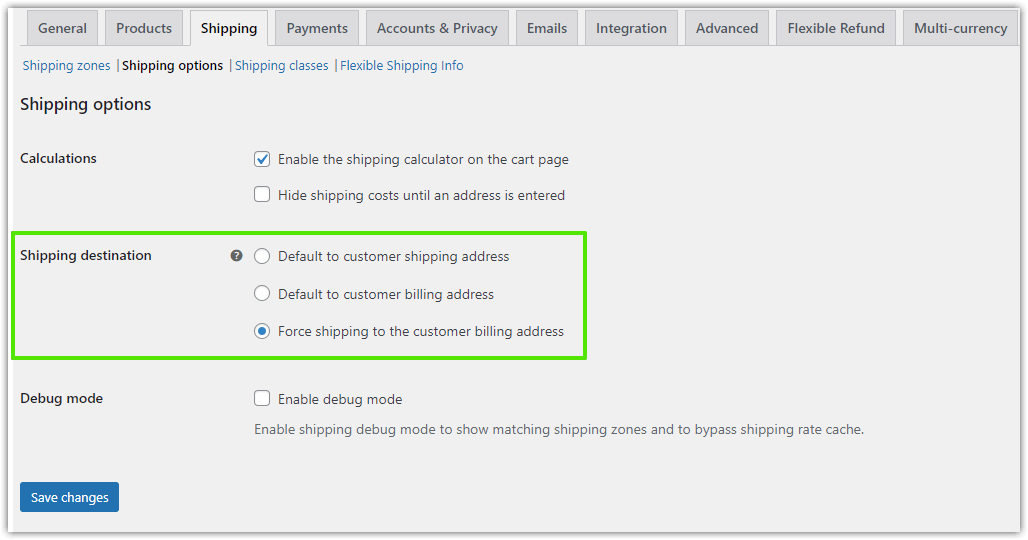
But you may disable the shipping section entirely with the built-in WooCommerce option.
To do that:
1. Go to WooCommerce → Settings → Shipping → Shipping options → Shipping destination and Force shipping to the customer billing address.
2. Your customers will enter the address for billing & shipping at the same time:
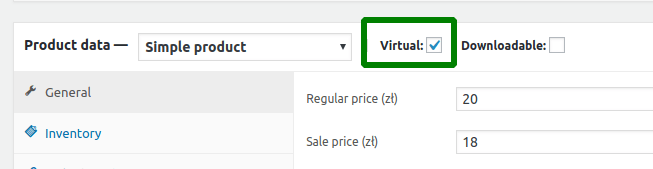
3. This section will also be hidden by default when there are no physical products in the cart. Only the virtual ones.
Customize WooCommerce Checkout - plugin options
In short, Flexible Checkout Fields lets you add custom fields to the WooCommerce checkout page.
Also, with this plugin, you can edit or rearrange default WooCommerce checkout fields. For example, you can disable address fields if you sell digital products.
Almost 80,000 stores worldwide use this plugin daily with ratings of 4.6 out of 5 stars.
Of course, you can upgrade to the PRO if you need more features in the future.
Increase the conversion rate of the new checkout (with revert SEO benefit).
Features of Flexible Checkout Fields
✅ The free version lets you create add these fields:
- Single Line Text
- Textarea
- Paragraph Text
- Number
- Phone
- URL
- Checkbox
- Color Picker
- Headline
- Image
- HTML
✅ With the PRO version, you can additionally create these fields:
- Multi-checkbox
- Radio button
- Multi-select
- Select (Drop Down)
- Radio with colors
- Date
- Time
- Radio with images
- File Upload
Also, take a quick look at all features in the PRO version of the plugin and read the plugin documentation →
Summary & more about checkout customization
You have learned how to configure WooCommerce checkout without an address or disable shipping.
The best aspect of the checkout customization is that you won't have to modify it or writing a PHP function. The latest version of the free plugin will essentially handle it for you.
Removing billing fields and customizing the checkout form in WooCommerce is much easier with the free plugin.
Of course, you may also get advanced features with a pro subscription. But you may proceed with that further after you practice checkout customization. You've got the idea.
You can find more related articles below.
If you have any questions send us your feedback in the comments section below!





I am confused by this information, I thought because of the ‘new’ rules for digital products you’ll need to pay taxes on the consumer end?
Hello Job.
This article was added a long time ago (in 2018) and not all information will be up-to-date. We apologize if some content was misleading.
Nie działa w ten sposób w przypadku produktu wirtualnego z wariantami.
Dzień dobry Tomaszu, bardzo przepraszamy za późną odpowiedź na komentarz. Odtworzyliśmy przebieg powyższego tutoriala z wykorzystaniem wtyczki Flexible Checkout Fields dla produktu wirtualnego z wariantami i nie wykryliśmy żadnych błędów. Powyższe rozwiązanie jak najbardziej działa. Chcielibyśmy jednak pomóc, w związku z czym, jeśli potrzebujesz rozwiązania tej kwestii, bardzo prosimy o rozwinięcie problemu i o szersze go opisanie na adres mailowy [email protected] Dorota z WP Desk
Dzień dobry Tomaszu,
bardzo przepraszamy za późną odpowiedź na komentarz. Odtworzyliśmy przebieg powyższego tutoriala z wykorzystaniem wtyczki Flexible Checkout Fields dla produktu wirtualnego z wariantami i nie wykryliśmy żadnych błędów. Powyższe rozwiązanie jak najbardziej działa. Chcielibyśmy jednak pomóc, w związku z czym, jeśli potrzebujesz rozwiązania tej kwestii, bardzo prosimy o rozwinięcie problemu i o szersze go opisanie na adres mailowy [email protected]
Dorota z WP Desk
Apakah, Form Billing bisa di hide semua jika menggnakan yang pro?, soalnya terkesan ribet, jika banyak field yang harus di nput, dangkan mereka memayar dena cashlezz?.. mengapa harus ada alamat billing?, tapi klo alamat pengantaran, mungkin iya?
Does this work with the checkout page block?
Our plugin is only compatible with the classic editor. Work on the block version is ongoing, it will probably be a separate plugin.
That’s the plugin for block-based checkout: https://wordpress.org/plugins/checkout-fields-for-blocks/
That’s the plugin for block-based checkout: https://wordpress.org/plugins/checkout-fields-for-blocks/