• Skip to primary navigation
  • Skip to main content
  • Skip to primary sidebar
  • Skip to footer
WP Desk = premium plugins for WordPress & WooCommerce
  • Plugins
        • Checkout & OrdersMake your work easier and automate the orders. Adjust the order form to your needs and make it more useful to your customers. Print order labels directly from WooCommerce. Put the orders in order using our plugins. Find out how to streamline the procurement process in your store.
          • Flexible Checkout Fields
          • Active Payments
          • Automatic Payment Status
          • Flexible Refund and Return Order
          • Print Orders and Address Labels
          • Flexible Subscriptions Recurring Shipping
          • Flexible Subscriptions Payment Retry
          • Flexible Subscriptions Stock Management
        • ProductsThese plugins will help you manage your WooCommerce products. Here you will find the plugins to import and update products from XML or CSV files. Then you can change the product unit of measure, show the lowest price in the last 30 days (Omnibus Directive), or let customers name the product price!
          • Flexible Product Fields
          • Dropshipping Import Products
          • Dropshipping FTP Import Products
          • Dropshipping Export Products
          • Custom Price
          • WP Desk Omnibus
          • Flexible Quantity Calculator
          • Dropshipping Orders Export
        • MarketingPromote your store online. Add products from your shop to price comparison websites directly from WooCommerce. Acquire new customers and communicate with your existing ones. Build a customer base and communicate with clients using one of the most effective marketing tools, namely e-mail marketing. Check out our promotional tools!
          • Flexible Pricing
          • Flexible Wishlist - Analytics & Emails
          • OLX WooCommerce
          • Flexible PDF Coupons
          • ShopMagic
          • Flexible Invoices
  • Bundle🔥
  • WP Desk Care
  • Support
  • Blog
  • My Account
  • 0

More results

How to export WooCommerce products to Excel?

Plugin Tutorials, WooCommerce export products, WooCommerce import products, WooCommerce tutorials

Tomasz Bednarek4 minutes read2026-06-18
blog category heading image

You may need to export or import products to WooCommerce when migrating to or from another store or CMS. Today, I will show you how to export WooCommerce products to Excel. It’s probable you’ll want to manage the products with Excel to adjust the product feed to further use, for example, WooCommerce bulk product upload or product updates.

Have you ever manually added or updated products in your store? If so, you know how annoying and repetitive this process is 🙁!

In this article, you will learn how to export WooCommerce products easily and like it 🙂. I will also show you 3 methods for WooCommerce product export. Then I will compare them and each product feed’s appearance in Excel. Finally, you’ll learn how to run bulk product export and import in WooCommerce effectively! Ok, let’s begin 🚀!

Before I continue, check out the All Plugins Bundle offer, which gives you the opportunity to purchase the plugin to export products from WooCommerce along with other products that complement its features (import products, export orders, and other plugins). ↓

Contents

    • All Plugins Bundle $99
  • 3 ways of exporting WooCommerce products to Excel
    • 1️⃣ WordPress exporter
    • 2️⃣ The built-in WooCommerce product export option
    • 3️⃣ Export WooCommerce products to Excel with a plugin
  • Export WooCommerce products - A step-by-step guide
    • Get the plugin to export products from WooCommerce
    • Add a new export
    • Choose the WooCommerce product types to export
    • Conditional Logic
    • Product fields, attributes, price & stock
    • Export WooCommerce products - options
    • Start the product export
    • Manage your WooCommerce product exports
  • Product feeds in Excel - Comparison
    • Use the WordPress exporter
    • WooCommerce Products Exporter
    • Export WooCommerce Products with the plugin
  • WooCommerce bulk product upload & updates for free!
    • Dropshipping Import Products for WooCommerce
  • Summary & free demo
    • Related Articles
  • How to export WooCommerce products with images?
  • Export products from WooCommerce in 4 steps
  • How to export WooCommerce products with categories?
  • All you need to know about WooCommerce product export import
  • How to export WooCommerce products to CSV file (the easy way)

All Plugins Bundle $99

Export products from WooCommerce to CSV or XML files in an easy way. With Dropshipping Export Products for WooCommerce, it's child's play!

Add to cart or View Details
WP Desk
Plugins used by 239,844+ shops

3 ways of exporting WooCommerce products to Excel

Ok, let’s start with 3 ways to export products in WooCommerce. First, I will show you the two free options that are available in WooCommerce. Then, you’ll see how to use a plugin to adjust the product data, set export conditions, and set automatic exports based on schedule!

1️⃣ WordPress exporter

The first method is based on the built-in WordPress data exporter. You can find it in the Tools menu → Export.
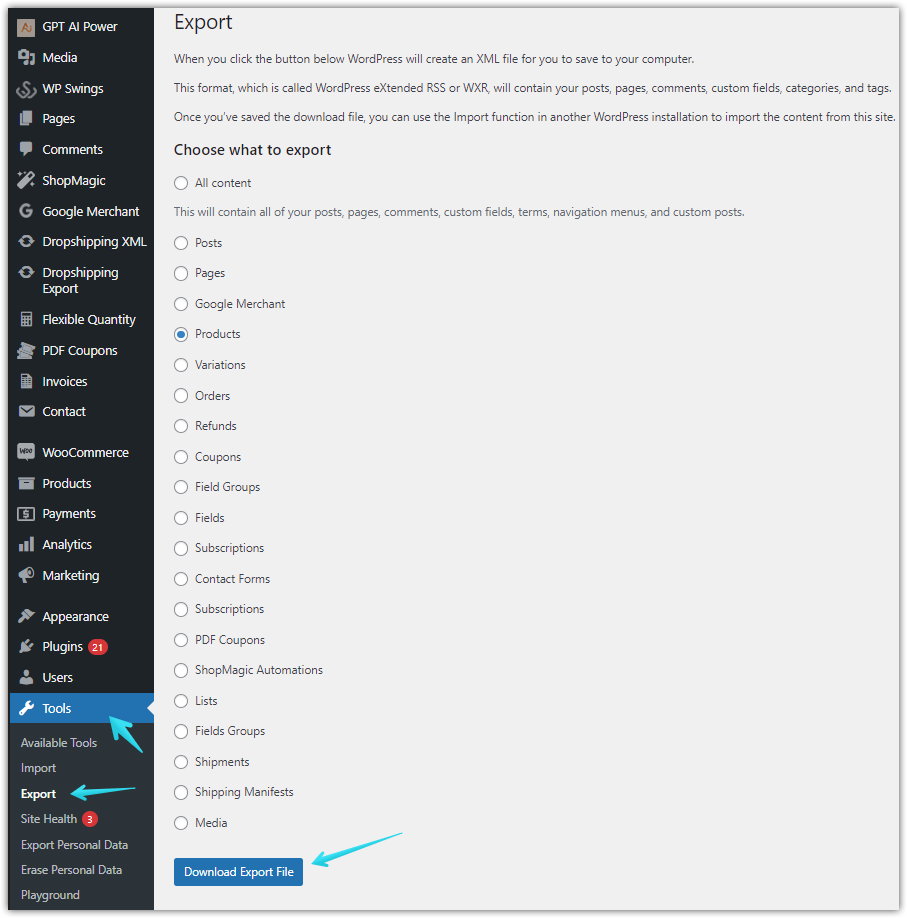
Download export file from WordPress
Default built-in WordPress product exporter

As you can see, WordPress gives you a way to create an XML file with all or just specific data from your site. So it’s a fast way to back up the content, media, and also products, or more post types given by WooCommerce or other plugins.

To export WooCommerce products choose the Products option and click Download Export File. In a few seconds, you’ll receive the XML file with all products that you can easily import with the Tools → Import into another WooCommerce.
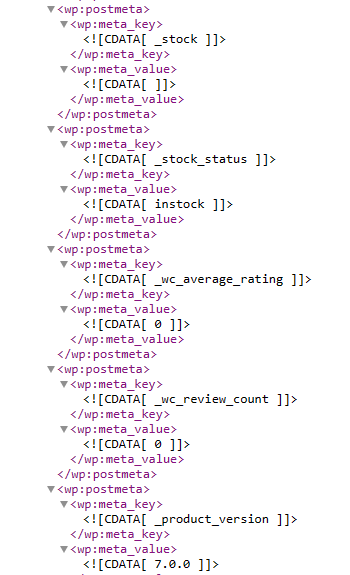
Product meta with WordPress exporter

You may also adjust the exported product data with a spreadsheet. I will show you how to open the XML in Excel (and compare it with other methods) later.

The benefit of this approach is that it’s free & fast. But the downside is that it’s not flexible!

2️⃣ The built-in WooCommerce product export option

The next method uses the default WooCommerce functionality inside Products → Export to let you create a CSV product feed and customize the product data you want.
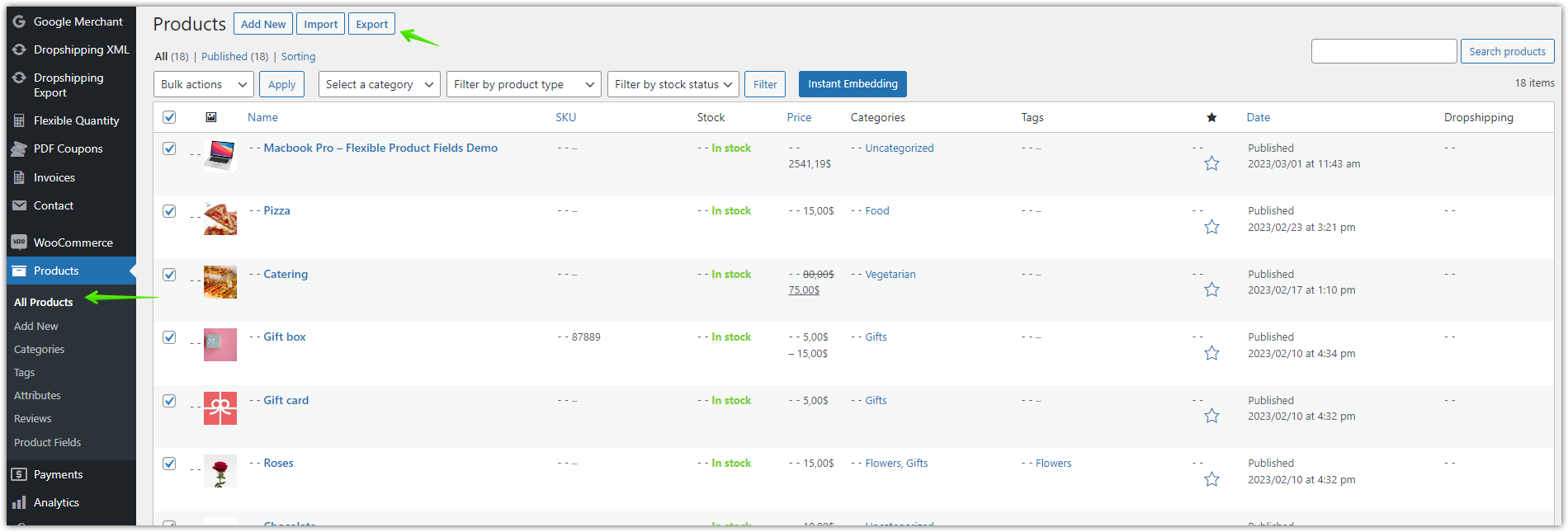
Exporting products from WooCommerce to csv
Export products from WooCommerce using the built-in default tool

You will be able to choose the product fields and filter the product data that will export to a CSV file.
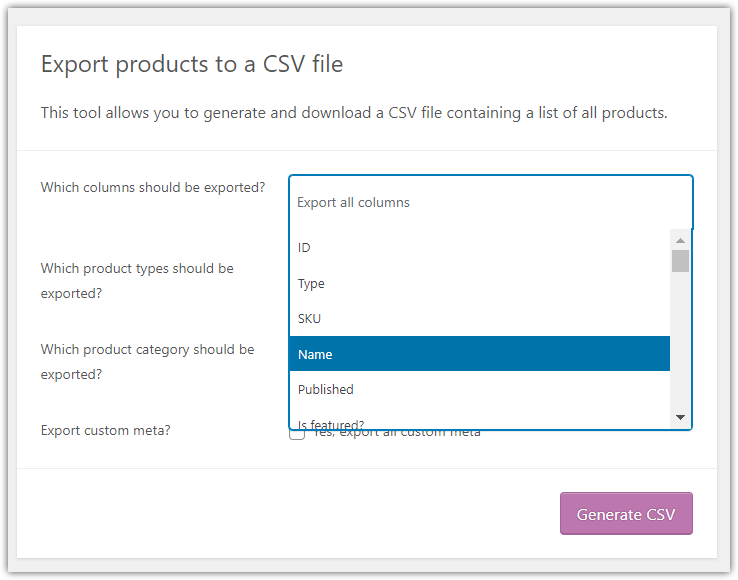
Export products to a csv file
Choose which product fields you want to export

The WooCommerce product export feature is more flexible and gives you products inside a CSV file which is easier to open with Excel. I will tell you more about it later.

It’s also a free method, but it lacks some advanced features to set the export schedule, customize the product fields, select attributes, or use specific conditions.

3️⃣ Export WooCommerce products to Excel with a plugin

The last method uses a dedicated plugin to export WooCommerce products (XML or CSV) that you can then edit in Excel or simply import into another store. More settings and product feed customization mean that you will probably not need to use Excel at all!

Ok, let’s quickly see how to run such a product export with the plugin.

Export WooCommerce products - A step-by-step guide

  1. Get the plugin to export products from WooCommerce

    First, you’ll need the plugin.

    After activating the extension, you’re good to go with the WooCommerce products export!

  2. Add a new export

    Go to the Dropshipping Export menu → Export.
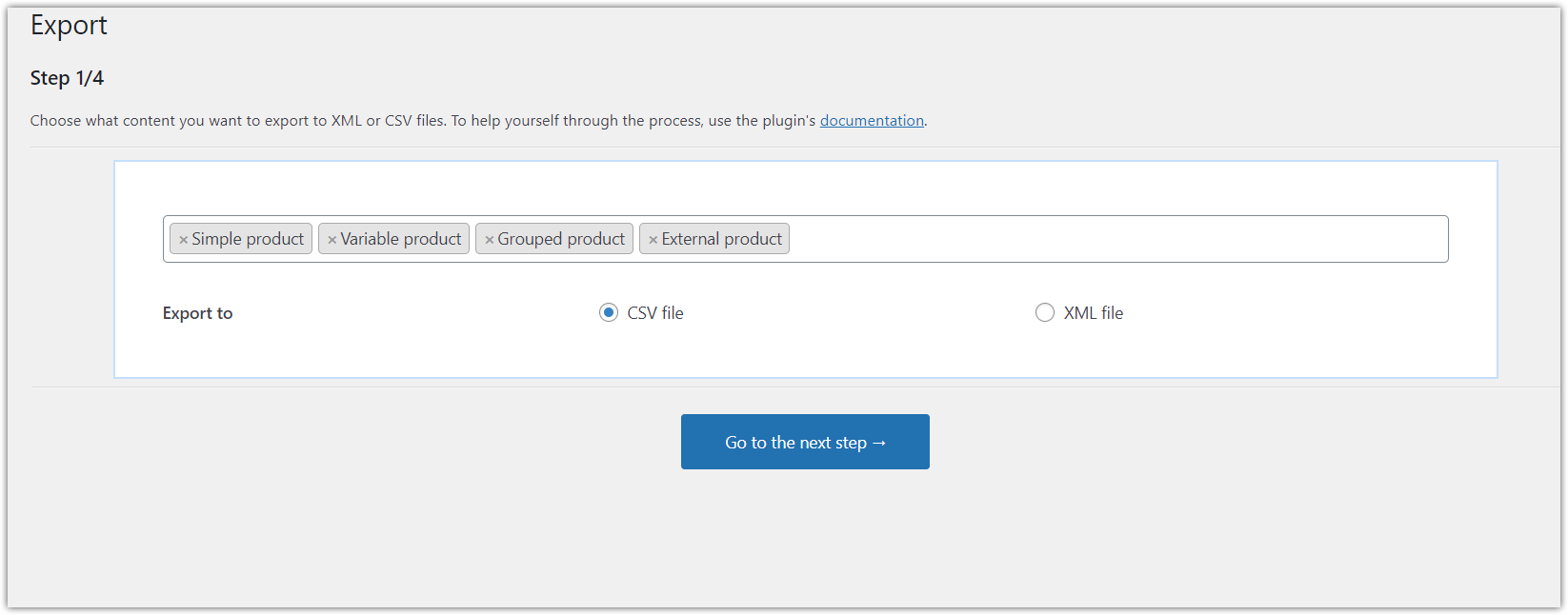
    Exporting products with a plugin
    Dropshipping Export Products for WooCommerce. Step 1.
  3. Choose the WooCommerce product types to export

    Decide about the product types and the file format according to your needs. It's possible to export WooCommerce products to to CSV or XML files
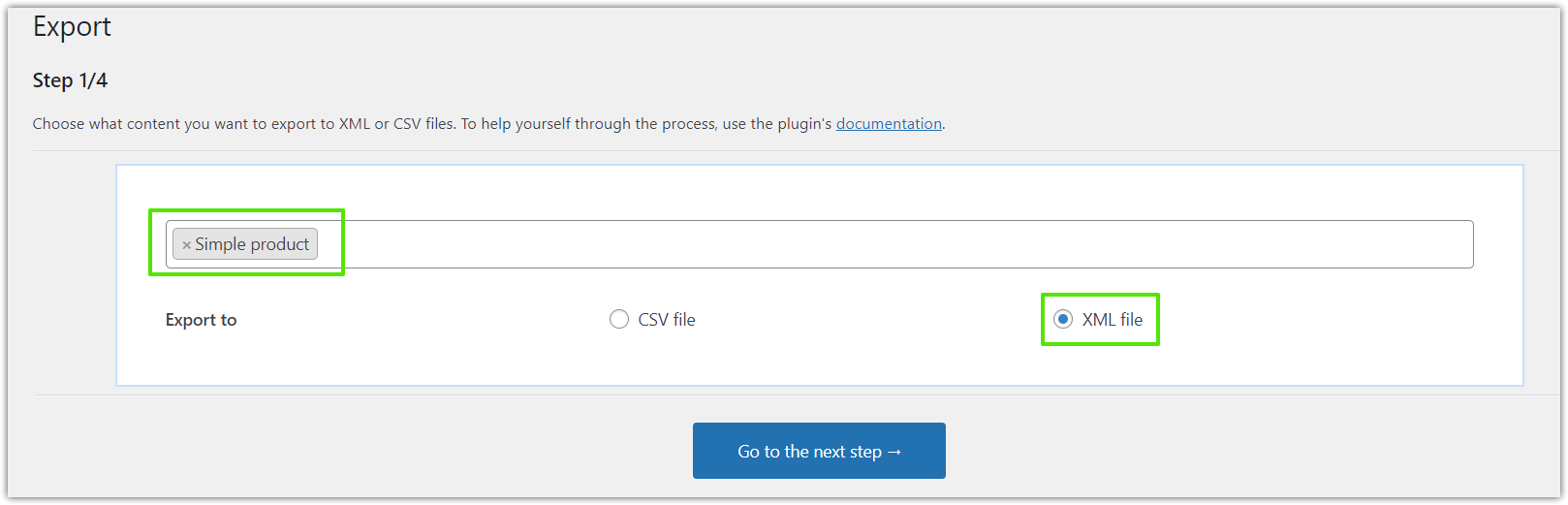
    Export WooCommerce products to excel with a plugin
    Dropshipping Export Products for WooCommerce. Step 1. Simple products, XML file.

    I want all product types in the XML format which I will use later for the WooCommerce bulk product upload with a free plugin.

  4. Conditional Logic

    Next, I can use conditional logic to manage the products to export based on rules, and options, for example, attributes, prices, or stock.
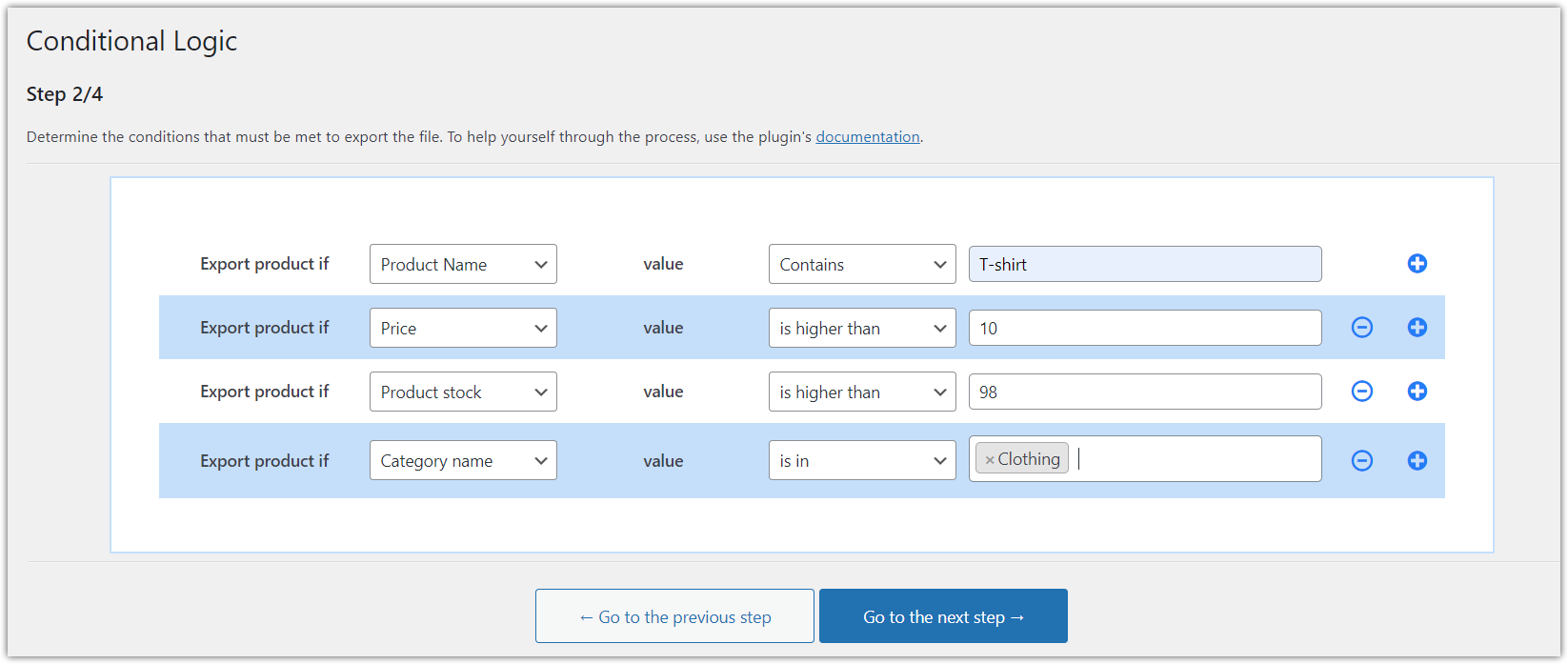
    Set conditions to export the right products
    Dropshipping Export Products for WooCommerce. Step 2. Conditional Logic.
  5. Product fields, attributes, price & stock

    Then, I select product fields, and attributes to add to the XML file and quickly modify the prices and stock at the same time!
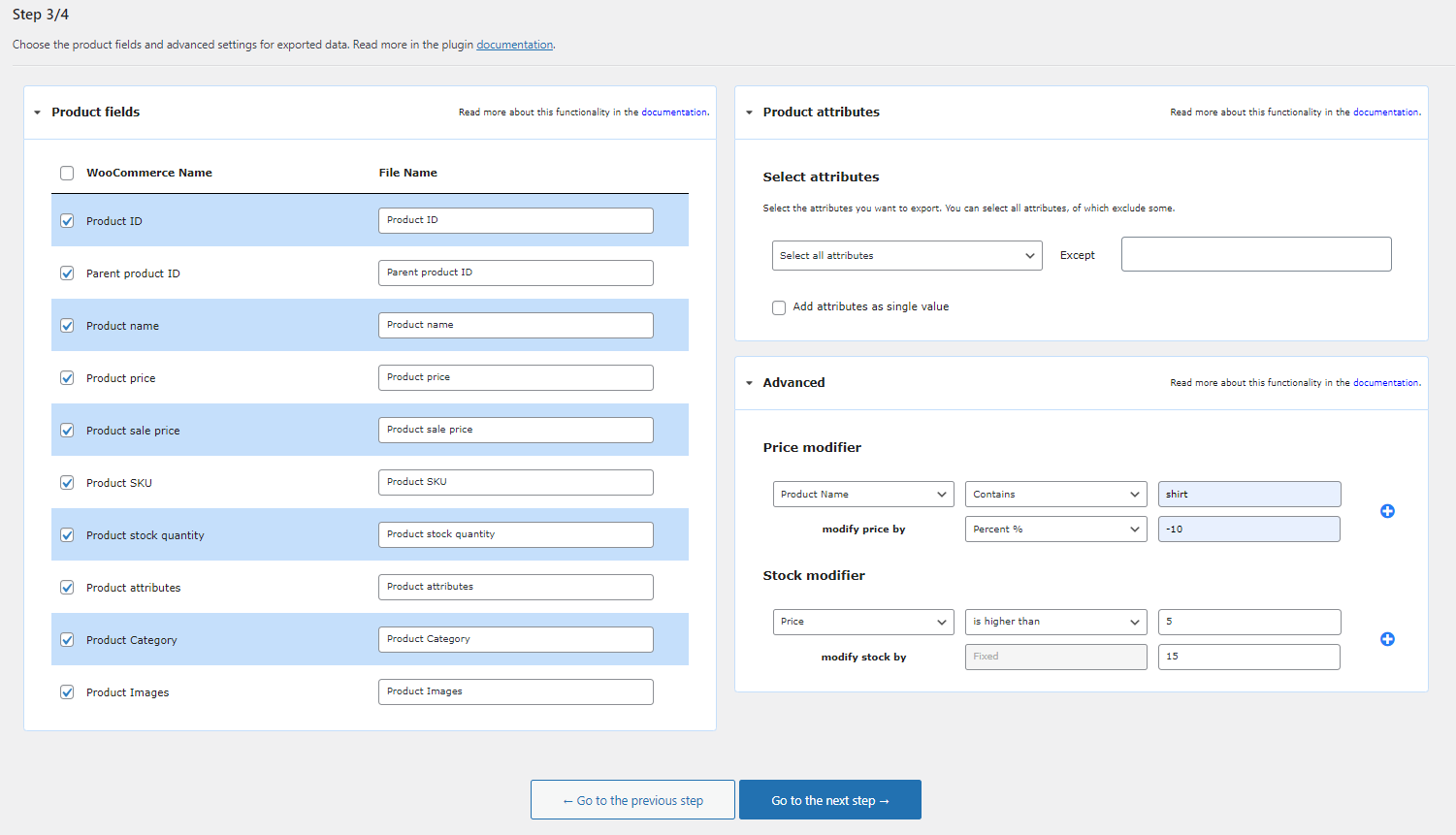
    WooCommerce export products excel
    Dropshipping Export Products for WooCommerce. Step 3. Product Mapper.

    💡 Read about all options in the plugin documentation →
  6. Export WooCommerce products - options

    Finally, I can name the export and choose the export options.
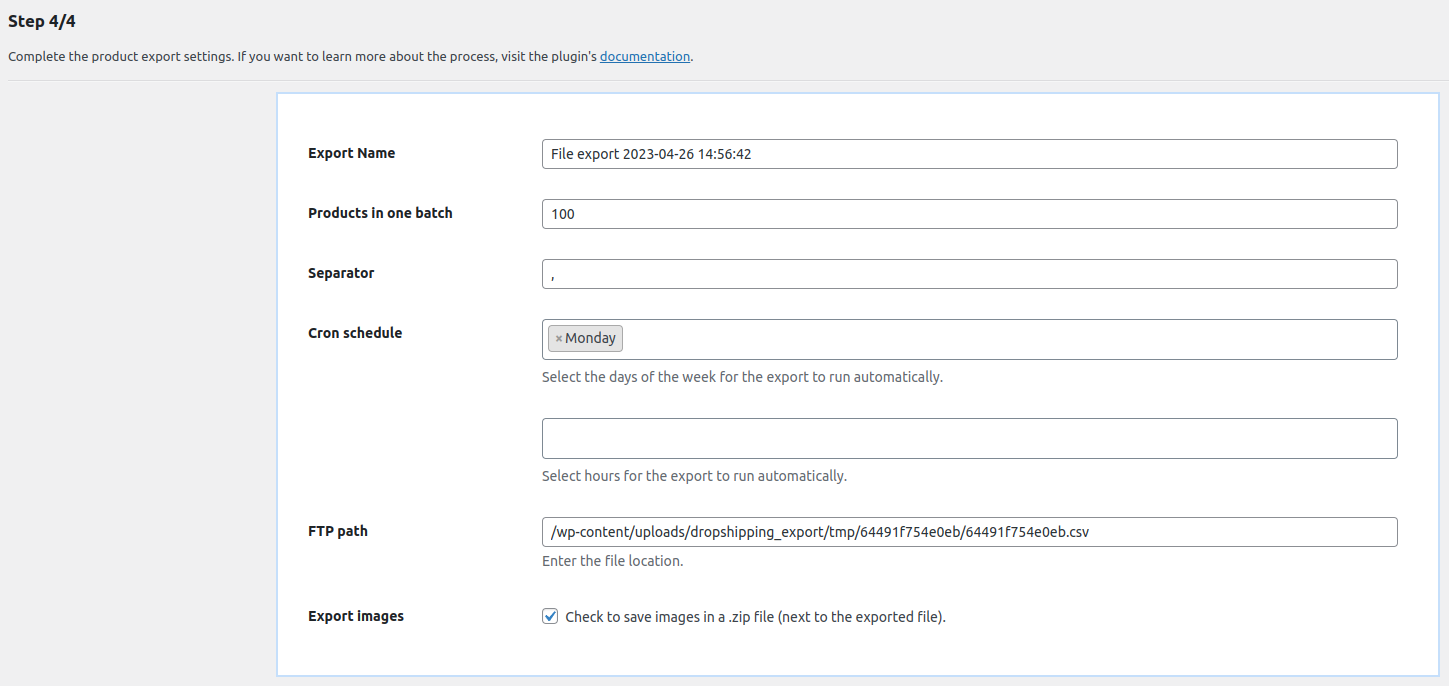
     WooCommerce export products to excel
    Dropshipping Export Products for WooCommerce. Step 4. Export options.

    I want to export WooCommerce products just once, so I did not set the export schedule this time. But, this is a great feature, for example, I can:

    • share the product feed with a reseller,
    • update the feed with the product stock twice a day & share the feed with a partner store,
    • export WooCommerce products in an XML file with current prices modified by 20%,
    • prepare a product list that your affiliates will use to import as external products in WooCommerce with a plugin,
    • export multiple XML/ CSV product feeds to organize them based on conditions,
    • etc.

    💡 Check out our free plugin to import products to WooCommerce.
  7. Start the product export

    The export process takes a few moments (based on the number of products, of course).
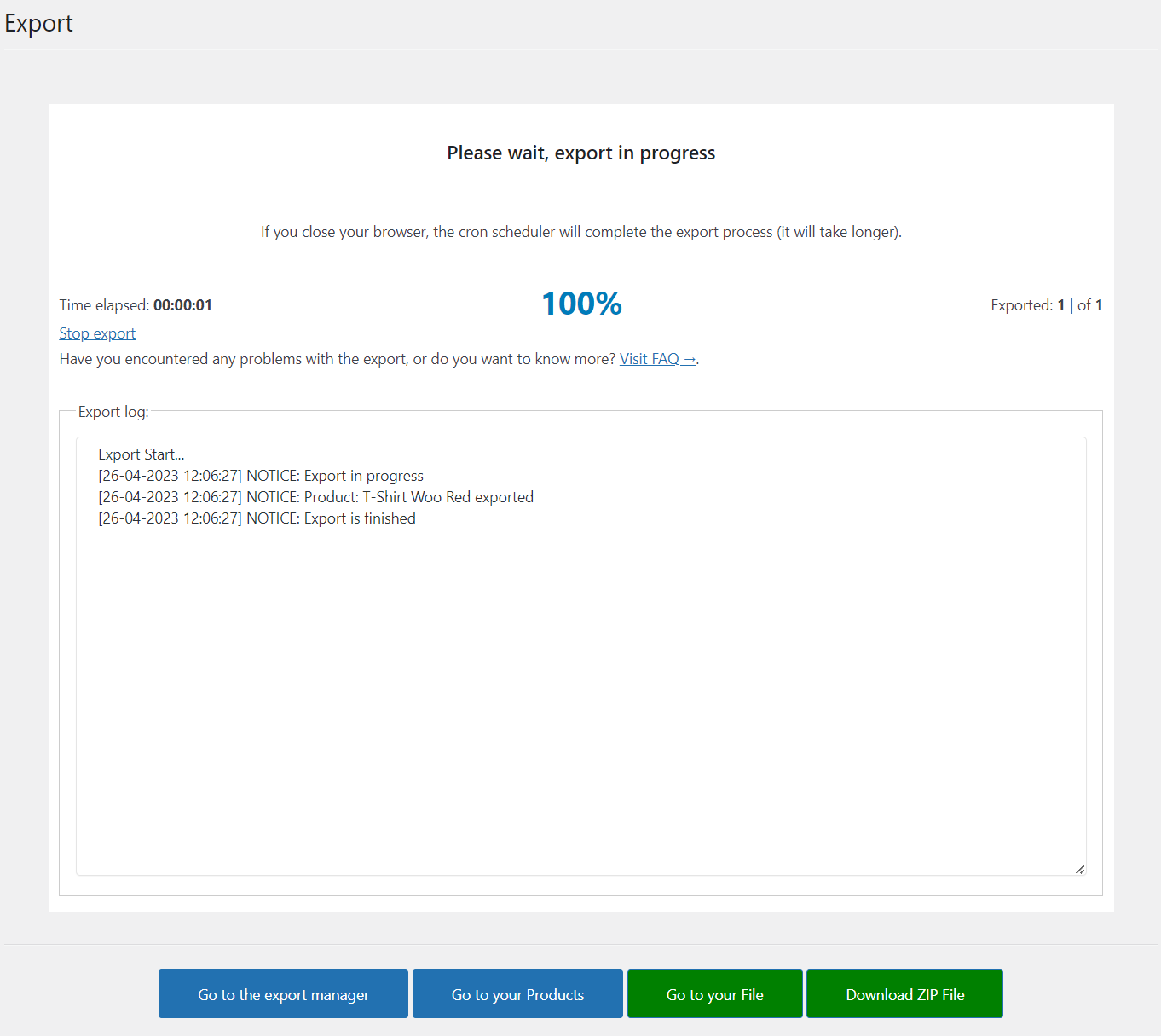
    WooCommerce export products excel the exporting process
    Dropshipping Export Products for WooCommerce. Step 4. Exporting the XML file.
  8. Manage your WooCommerce product exports

    You can also add multiple exports, edit the existing ones, and copy them easily.
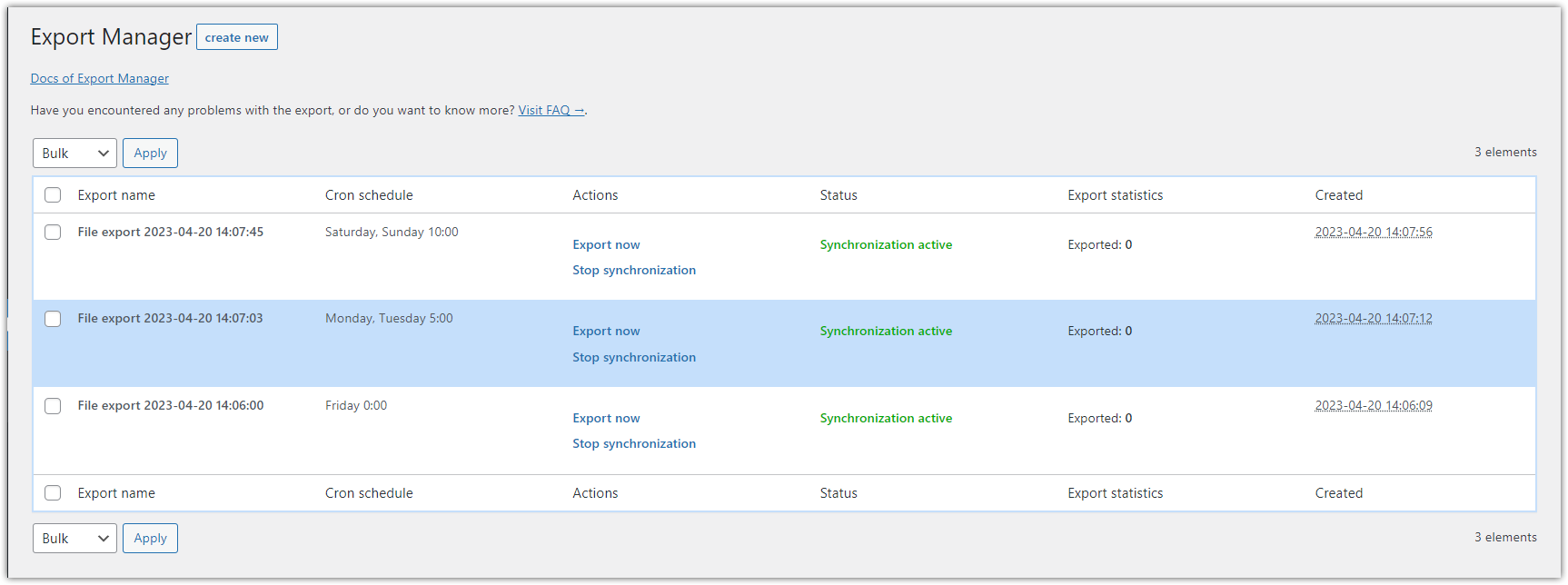
    Decide if you want to export more WooCommerce products to Excel.
    Dropshipping Export Products for WooCommerce. The Export Manager.

    As you can see, the plugin lets you save the exports with specific settings to use in the future without the necessity to go through the export settings again!

💡 Read more in the plugin documentation →

Product feeds in Excel - Comparison

Use the WordPress exporter

First, let’s see the exported XML file from WordPress built-in Tools → Export in Excel.
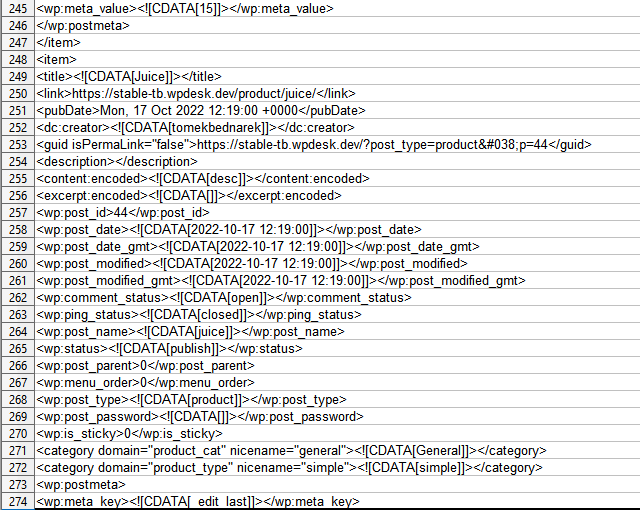
WordPress exporter XML spreadsheet

As you can see, you have all information about the product (maybe you need all post meta). But you will probably spend some time filtering the data you want and making the spreadsheet easier to read.

WooCommerce Products Exporter

Now, let’s open the CSV file we’ve created with Products → Export in a spreadsheet. It's a much better option for a spreadsheet than the previous one.

CSV with WooCommerce products in a spreadsheet

There is a lot of product data. You can use Excel to modify prices, and stock, and adjust the file.

Export WooCommerce Products with the plugin

Finally, you can open the XML/CSV file generated with the plugin inside Excel if you need further modifications. As you’ve seen, I’ve already modified the prices and stock.

So I can now use Excel to add some descriptions, attributes, or custom fields if I want to.
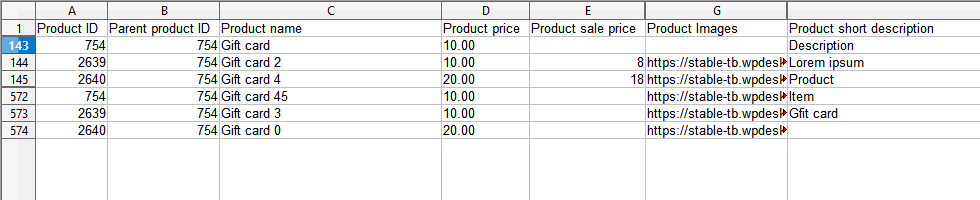
Edit CSV exported products in Excel

WooCommerce bulk product upload & updates for free!

No matter the export method, you can use a free plugin to import WooCommerce products!

Dropshipping Import Products for WooCommerce

Export products from WooCommerce to CSV or XML files in an easy way. With Dropshipping Export Products for WooCommerce, it's child's play!

Download for free or Go to WordPress.org
WP Desk
Plugins used by 239,844+ shops
Works with WooCommerce 10.6 - 11.0

Use the plugin to bulk upload (or update) the WooCommerce product data in a few minutes!

Download the plugin and start importing products for free today!

💡 Also, I encourage you to visit the plugin documentation to see all settings for product imports and read about WooCommerce bulk upload products in detail!

Summary & free demo

Today you’ve learned how to export WooCommerce products to Excel (to CSV or XML files) using 3 methods.

If you want to synchronize product data based on conditions, and schedule, use the plugin to export WooCommerce products (and import products if you need to handle them back 🙂).

I encourage you to see all features of the plugin and read its documentation. Also, test the plugin in your free demo → 🙂

Finally, contact us if you have any questions about exporting (or importing) products in WooCommerce.


See how Sandra automates sales analysis → Meet Sandra AI

Related Articles

Export WooCommerce products with images

How to export WooCommerce products with images?

In this article, you’ll learn how to export WooCommerce products with images with or without a plugin! You can either use the built-in WordPress expor...
Product export from WooCommerce

Export products from WooCommerce in 4 steps

There are many situations in which WooCommerce requires exporting products. Your store needs a backup, you have to adjust the prices of all your produ...
WooCommerce export product categories

How to export WooCommerce products with categories?

In this article, you’ll learn 3 ways to export products with product categories in WooCommerce. I will mainly focus on the export options. The article...
Product import export plugin for WooCommerce

All you need to know about WooCommerce product export import

Are you running a WooCommerce store and tired of manually transferring your products from one store to another? Nobody has time for that, after all! L...
WooCommerce export products CSV

How to export WooCommerce products to CSV file (the easy way)

There are multiple situations where exporting WooCommerce products may be useful or even required. For example, if you decide to migrate your WooComme...

4 minutes read62813 views

Tomasz Bednarek

Copywriter and Marketing Specialist

Author of numerous articles and educational materials created for WP Desk and related services focused on WooCommerce plugins (Flexible Invoices, F...

Powered by WP Desk

WP Desk brings you great WooCommerce plugins. We strive to save your time and money by speeding up your processes. Use our plugins to build a better store. Awesome support included in the package.

Premium WooCommerce Plugins →
WP Desk › Blog › WooCommerce products › WooCommerce export products › How to export WooCommerce products to Excel?

Primary Sidebar

Contents

    • All Plugins Bundle $99
  • 3 ways of exporting WooCommerce products to Excel
    • 1️⃣ WordPress exporter
    • 2️⃣ The built-in WooCommerce product export option
    • 3️⃣ Export WooCommerce products to Excel with a plugin
  • Export WooCommerce products – A step-by-step guide
    • Get the plugin to export products from WooCommerce
    • Add a new export
    • Choose the WooCommerce product types to export
    • Conditional Logic
    • Product fields, attributes, price & stock
    • Export WooCommerce products – options
    • Start the product export
    • Manage your WooCommerce product exports
  • Product feeds in Excel – Comparison
    • Use the WordPress exporter
    • WooCommerce Products Exporter
    • Export WooCommerce Products with the plugin
  • WooCommerce bulk product upload & updates for free!
    • Dropshipping Import Products for WooCommerce
  • Summary & free demo

All Plugins Bundle $99

Export products from WooCommerce to CSV or XML files in an easy way. With Dropshipping Export Products for WooCommerce, it's child's play!

Add to cart or View Details
WP Desk
Plugins used by 239,844+ shops

Stay updated on our how-to articles

WP Desk news, WooCommerce tips, promo codes - right to your inbox.

By entering your e-mail, you agree to our Terms & Conditions and Privacy Policy.

By entering your e-mail, you agree to our Terms & Conditions and Privacy Policy.

Footer

WP Desk - WooCommerce Plugins

At WP Desk we create great WooCommerce plugins with awesome support. Save time and money with our e-commerce solutions. See how we can help you improve your e-store →

Secured by Comodo

WP Desk

  • About us
  • Giving Back
  • Blog
  • Get Support
  • Contact us

Products

  • Premium Plugins
  • WP Desk Care
  • Documentation
  • WooCommerce Invoices
  • Email Marketing
  • PDF Coupons

Legal

  • Terms & Conditions
  • Refund Policy
  • Support Policy
  • Privacy Policy

© 2026 WP Desk

We value your privacy

We use necessary cookies to make our site work. We'd also like to set additional cookies to understand site usage, enhance your browsing experience, and serve personalized ads or content. By clicking ‘Accept All,’ you consent to our use of additional cookies.

Functional Always active
The technical storage or access is strictly necessary for the legitimate purpose of enabling the use of a specific service explicitly requested by the subscriber or user, or for the sole purpose of carrying out the transmission of a communication over an electronic communications network.
Preferences
The technical storage or access is necessary for the legitimate purpose of storing preferences that are not requested by the subscriber or user.
Statistics
The technical storage or access that is used exclusively for anonymous statistical purposes. Without a subpoena, voluntary compliance on the part of your Internet Service Provider, or additional records from a third party, information stored or retrieved for this purpose alone cannot usually be used to identify you. The technical storage or access that is used exclusively for anonymous statistical purposes. Without a subpoena, voluntary compliance on the part of your Internet Service Provider, or additional records from a third party, information stored or retrieved for this purpose alone cannot usually be used to identify you.
Marketing
The technical storage or access is required to create user profiles to send advertising, or to track the user on a website or across several websites for similar marketing purposes.
  • Manage options
  • Manage services
  • Manage {vendor_count} vendors
  • Read more about these purposes
View preferences
  • {title}
  • {title}
  • {title}