Contents
Key Plugin Features
Flexible Pricing WooCommerce lets you automatically apply discounts when specific conditions are met. Promotions can apply to the entire cart, selected categories, products and variations, as well as specific customers.
Key plugin features:
- percentage discounts, fixed amount discounts, and setting a fixed price,
- promotions based on the cart value or products from selected categories,
- quantity thresholds for categories and quantity thresholds for products and variations, e.g. a lower price after purchasing a specified number of items,
- “buy X and get Y cheaper or free” offers configured for categories or for products and variations,
- discounts for selected user roles and user groups,
- promotions that take into account the order history of a registered customer,
- separate rules for categories and products and variations,
- promotion scheduling with start and end dates.
The plugin can be useful, among other things, for creating wholesale discounts, offers for returning customers, time-limited promotional campaigns, loyalty programs, and promotions covering related product categories. Rules are applied automatically when the cart contents or customer data meet the configured conditions.
Demo
On the demo page, you can check how the PRO versions of our plugins work before purchase. You only need a valid email address to create a test account.
Installation
Subscription activation
Important Information
- The plugin lets you configure promotions only for the store’s main currency.
- The plugin does not allow you to create promotions for grouped products.
Promotion Types
- Fixed amount and percentage discounts, as well as fixed price.
- Discounts for selected categories.
- Discounts for selected user roles or groups.
- Discounts for selected products or their variations.
- Promotions based on cart value, category value, and the purchase history of a registered user.
- Buy X units of a product to receive a discount on Y units of that product promotions.
- Buy X units and get Y free promotions.
- Buy a product from a selected category to receive a discount on a product from the same or another category promotions.
Main Settings
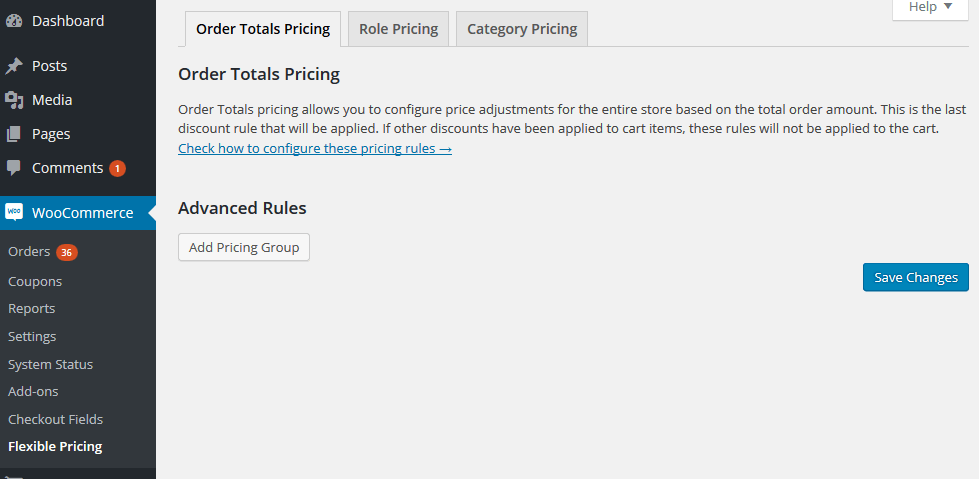
The plugin configuration is located in the WooCommerce → Flexible Pricing menu.
Order Promotions
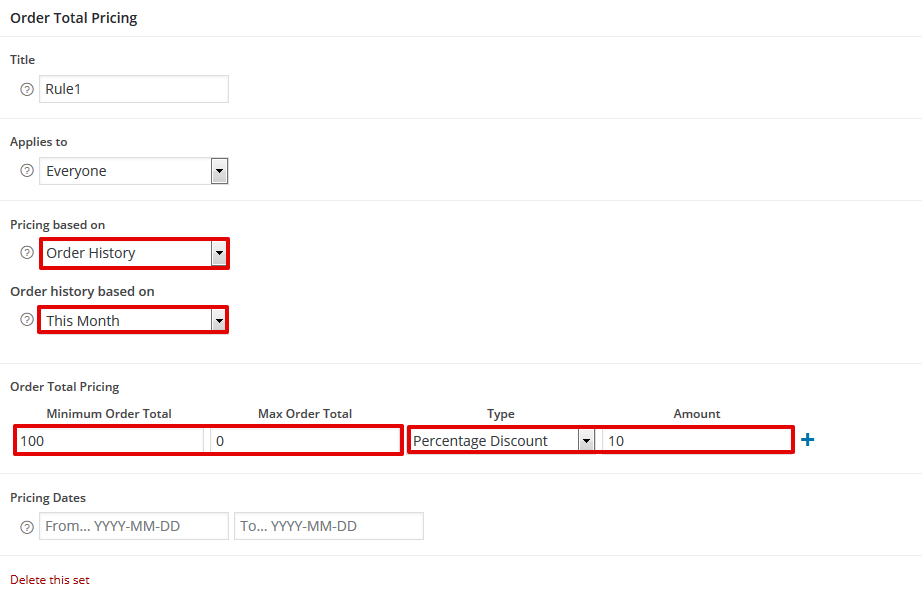
Order promotions let you configure pricing for the entire store based on the order amount. This is the last rule that will be applied. If other promotions are applied to products in the cart, the rules created here will not be applied.
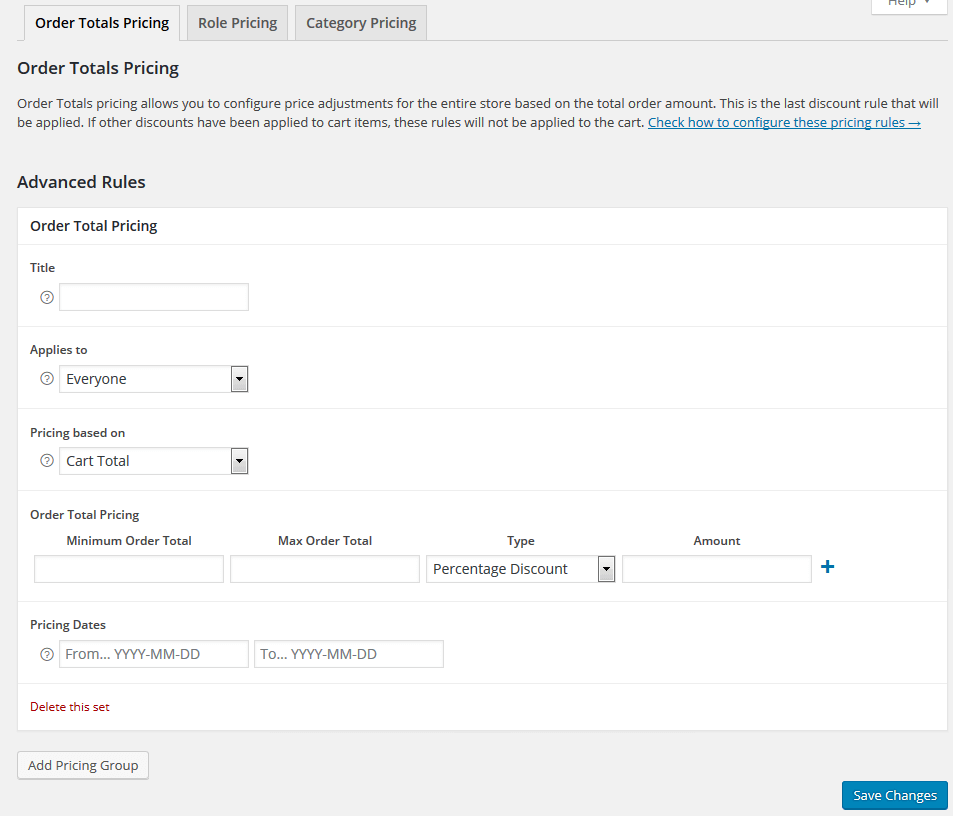
Add rule set - click to create the first or next promotion calculation rule.
Title - enter a title to make multiple rules easier to identify.
Applies to - select the user roles to which the promotions will apply.
Prcing based on - select one of the promotion calculation methods. You will find descriptions of each promotion type below.
Minimum / Maximum order total- enter the order value for which the discount will be applied. Leave the field empty for any value.
Type - select how the discount should be calculated.
Amount - enter the value of the discount granted. Do not enter the % sign or currency; they will be applied automatically.
Add another rule - you can add any number of rules to the set.
Pricing dates - set the promotion validity period. Leave the fields empty if you do not want to limit the promotion by time. By setting an earlier date, you can disable a given rule set if you do not want to delete it.
Promotion Based on Cart Total
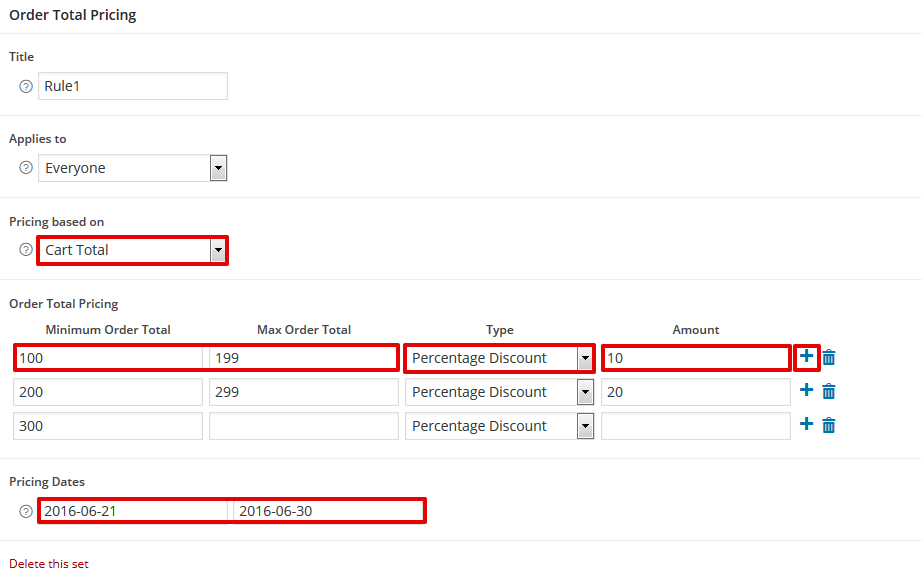
A promotion that applies a discount based on the total value of products in the cart.
Example:
If you want to set up a simple promotion for any products based on the order value, use the "Cart total" option. You can add any number of ranges and set a different discount for each. A customer who meets the range conditions will receive the configured discount on the entire order value.
Promotion Based on Category Total
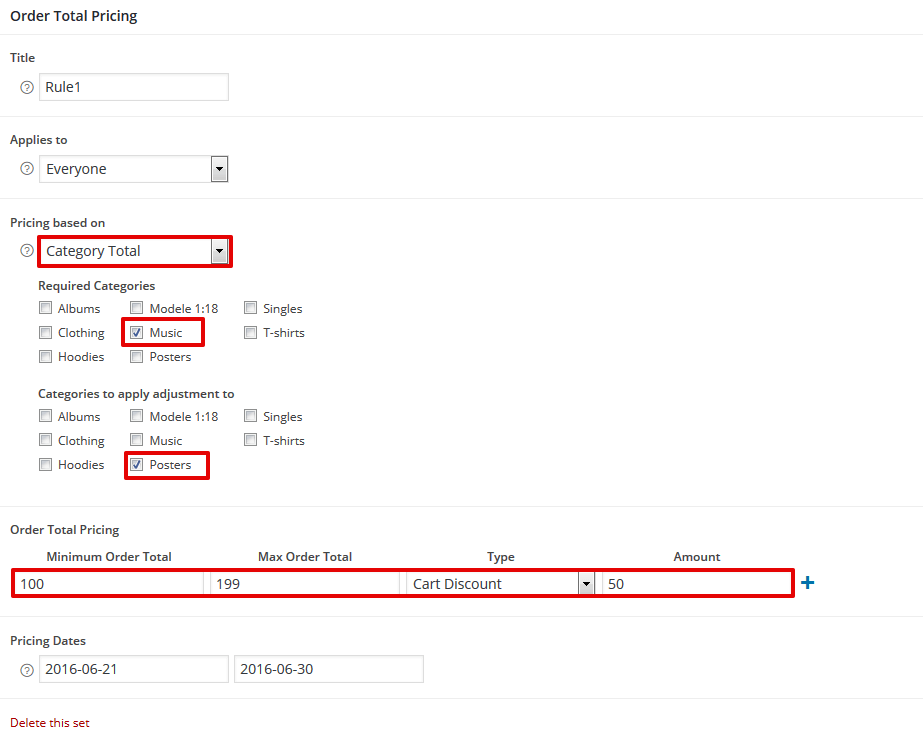
With this promotion, you can choose which product categories must be in the cart for the discount to apply and which product categories should receive the discount. It is enough for the customer to add a product from one category you specify for the discount to be applied in the cart.
Example:
The way a promotion based on "Category total" works is identical to "Cart total", but additionally you can set which categories the promotion should apply to. You can choose the category or categories in which the customer must purchase products and the category or categories in which they can receive the configured discount.
Promotion Based on Order History
A promotion for discounts based on the customer’s order history. You can set any period for which the order value required to receive the discount will be calculated. The selected range will apply to orders that have already been completed.
Order history based on - select one of the default ranges (this/previous week, this/previous month, this/previous year) or set any range yourself by selecting the Custom period option.
Custom period - you can select the period and number of periods, and the order value will be calculated according to the configured number of periods back. You can also select the Fixed dates option and choose a range from the calendar.
Example:
You can create a promotion for customers who have made purchases of at least PLN 100 in the current month and give them a 10% discount on the entire order.
Role Promotions
Promotion settings are located in the WooCommerce → Flexible Pricing → Role Promotions menu. Role promotions let you configure pricing for the entire store based on user roles. The configured discounts will be visible in the product catalog and on the product page.
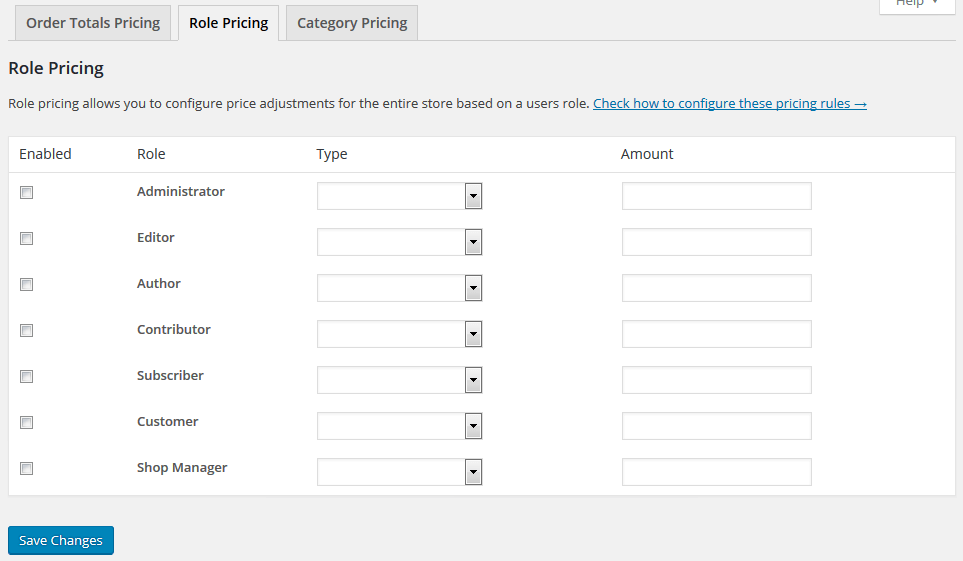
Enabled - select this if you want to apply a discount for the selected role.
Role - the list of user roles defined in WooCommerce.
Discount type - select how the discount should be calculated.
Discount value - enter the value of the discount granted. Do not enter the % sign or currency; they will be applied automatically. The discount value will be applied to each product.
Example:
If you want to give registered customers a fixed 3% discount on every product, you can do this in the "Role Promotions" tab. Select the Customer role, set the discount type to "Percentage discount", and enter 3 in "Discount value".
Group Promotions
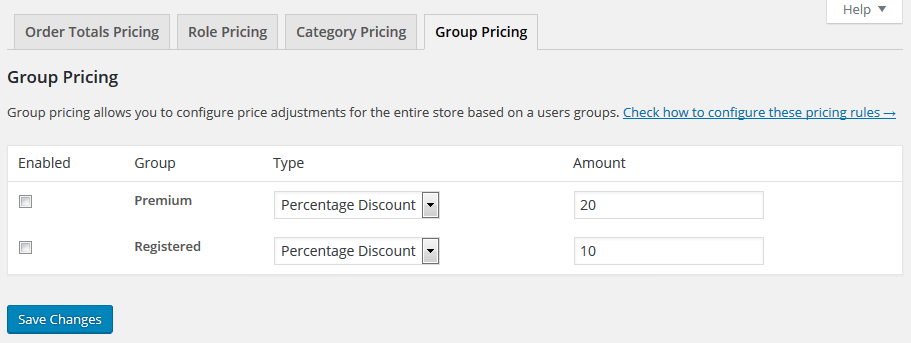
Flexible Pricing integrates with the Groups plugin for managing user groups. After installing the Groups plugin, promotion configuration will appear in the WooCommerce → Flexible Pricing → Group Promotions menu. The created groups will also be available in the "Applies to" field in the order, category, and product promotion settings. Promotion settings are identical to those in Role Promotions.
Category Pricing
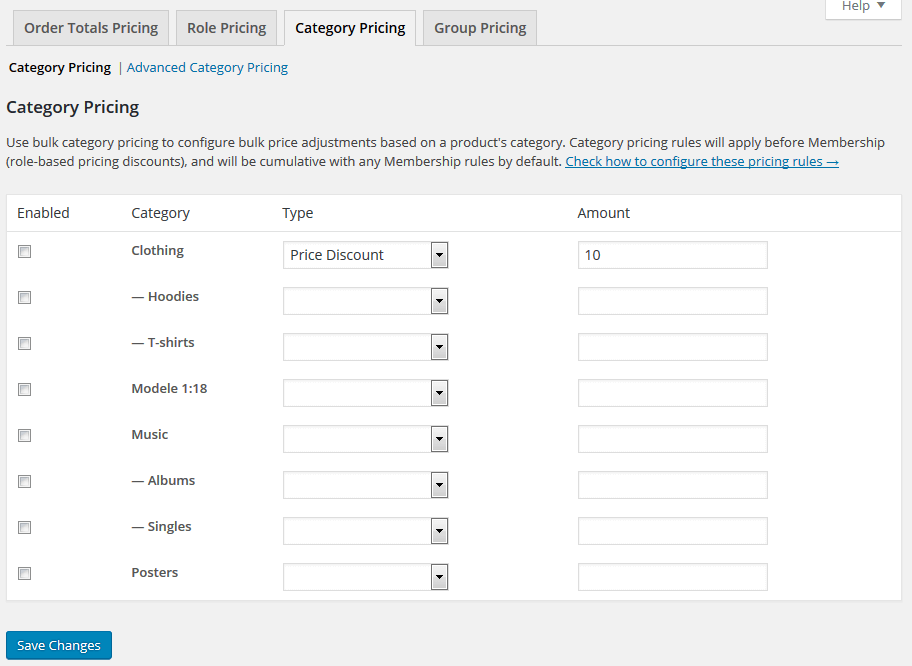
Promotion settings are located in the WooCommerce → Flexible Pricing → Category Pricing menu.
Category Pricing
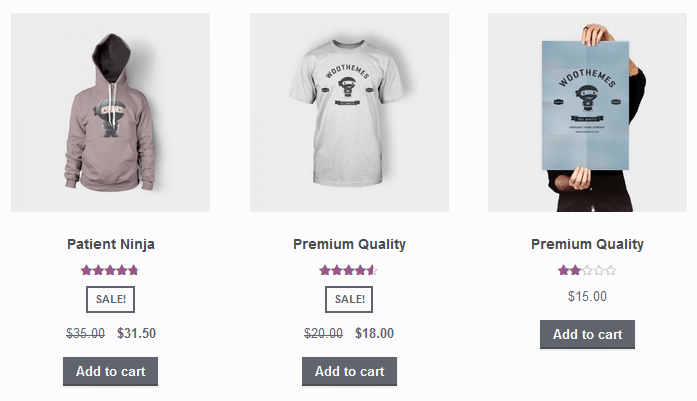
Category promotions are a simple way to configure discounts for categories. Category promotions are applied before role promotions and are added together with them. Discount configuration is identical to Role Promotions. Set the discount type and enter its value so that every product in a given category is discounted. The configured discounts will be visible in the product catalog and on the product page.
Example:
If you would like to discount selected categories in your store, simply set the discount type and its value for the selected category. The customer will see the product discount in the product catalog.
Advanced Category Pricing
Advanced category promotions let you configure discounts based on the quantity of line items in the cart. Promotions are calculated when a rule matches a given range and are applied to all line items in the selected category/categories. Advanced promotions are applied before simple category promotions, and they are not visible next to products.
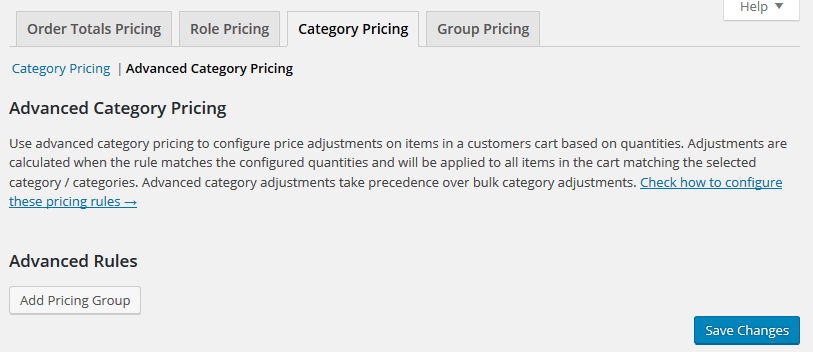
You can create any number of promotions by clicking "Add pricing group".
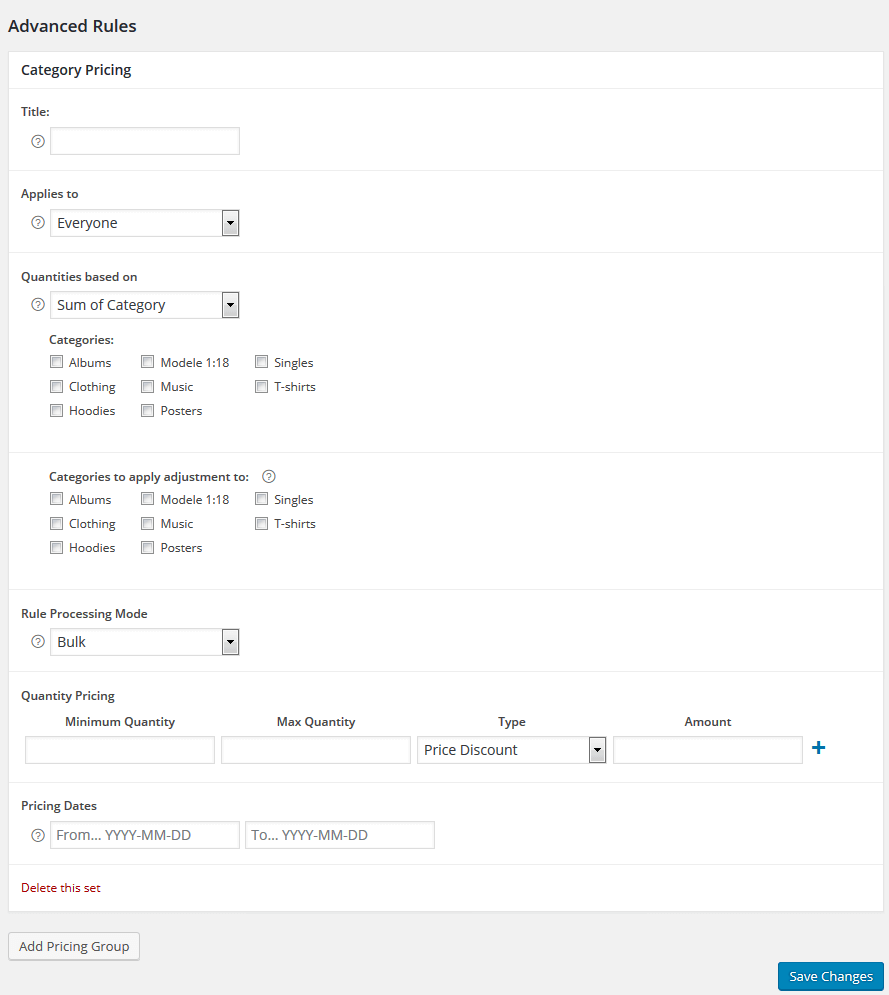
Title - enter title to identify rules (only visible in the dashboard).
Applies to - select roles or groups the rule applies to.
Quantities based on - select how to calculate the rule.
- Cart Line Item Quantity - quantities for Quantity Pricing will be based on cart line item quantity.
- Sum of Category - quantities will be based on the total sum of the categories in the cart.
Categories - select categories to base the quantities on.
Categories to apply adjustment to - select categories to apply the rule to.
Rule Processing Mode - select how to process the rule. Modes are described below.
Pricing Dates - optionally add dates to use the rule only for a limited time.
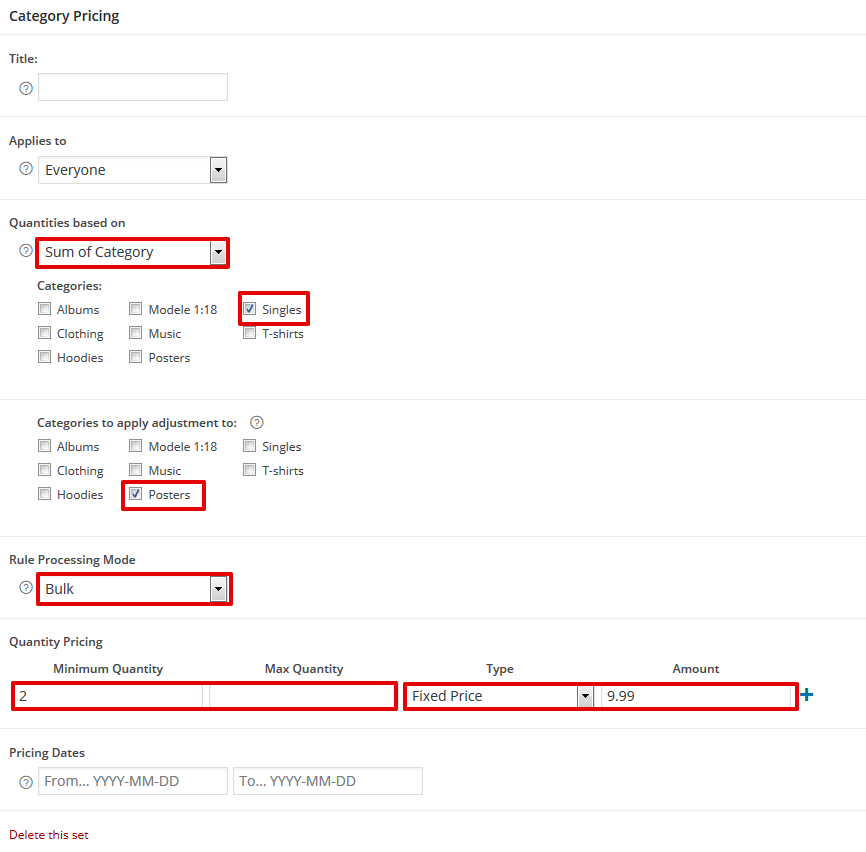
Bulk Processing Mode
Discount based on the quantity of the products in the cart. Set how many items a customer needs to buy to get a discount. Add multiple rules.
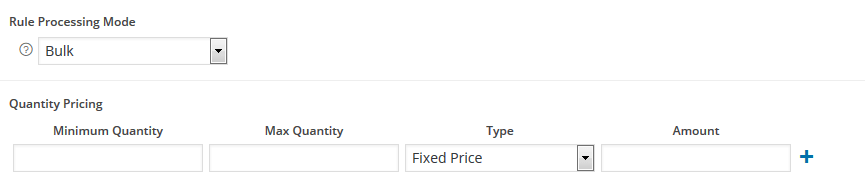
Minimum and Max Quantity - enter ranges for how many items a customer needs to buy to get a discount.
Type - select price or percentage discount.
Amount - enter the discount amount. Do not add % symbol or currency. A discount will be used for all products.
Example:
Give discounts to customers who buy products from selected categories. If a customer buys any 2 products from a category he will be able to buy all products from this category for $9,99 a piece.
Special Offer
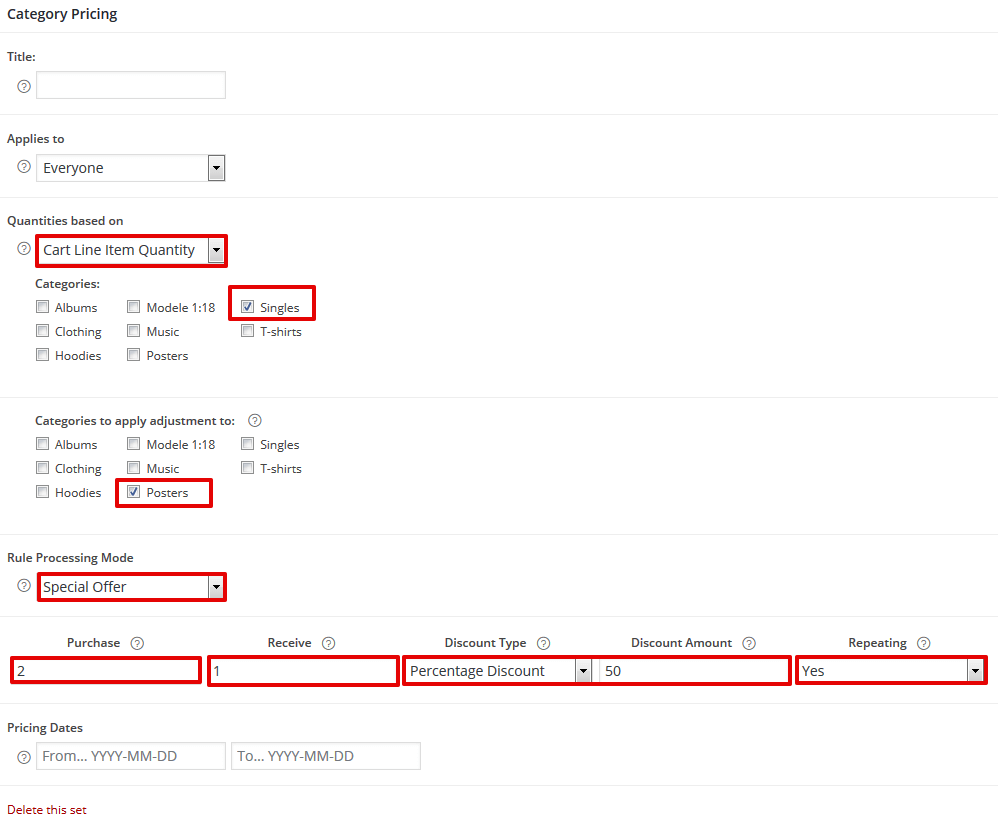
How many products the customer needs to buy to get an extra. Great for creating BOGOF deals (buy one, get one free).

Purchase - enter how many products the customer needs to buy at full price. Leave empty for any.
Receive - enter how many products the customer gets. Leave empty for any.
Discount Type - select price, percentage discount or fixed price.
Discount Amount - enter the discount amount. Do not add % symbol or currency.
Repeating - select if the discount should repeat for every value entered in the Receive field.
Example:
Give a 50% discount if the customer buys 2 products. A rule will be used for every 2 products from the selected category. Buying 2 products will result in a discount for a third with a 50% discount.
Product Pricing
Flexible Pricing is available in the Product Data meta box.
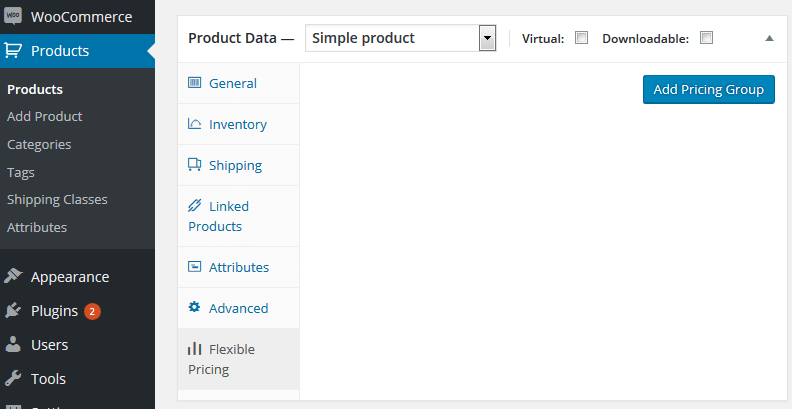
Click Add Pricing Group to add rules.
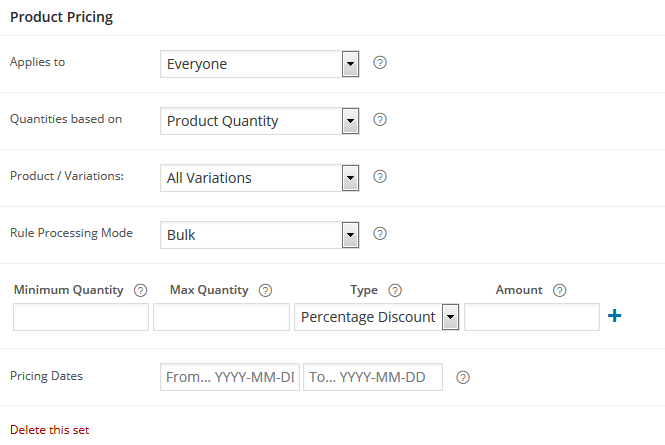
Applies to - select roles or groups the rule applies to.
Quantities based on - select how to calculate the rule.
- Product Quantity - quantities will be based on the product ID. If the product is a variable type product, this option will use each variation that has been added to the cart to calculate the total quantities, and will apply the price adjustment to all variations.
- Variation Quantity - are totaled based on the Variation ID. The price adjustment is applied to the specific variation in the cart.
- Quantity of Category - quantities will be based on the product categories in the cart. This is useful if you would like to give a specific product a discount when X number of items from a product category have been added to the cart.
Product / Variations - apply the rule to a products or only selected variations.
Rule Processing Mode - works the same as described in the Advanced Category Pricing.
Pricing Dates - optionally add dates to use the rule only for a limited time.
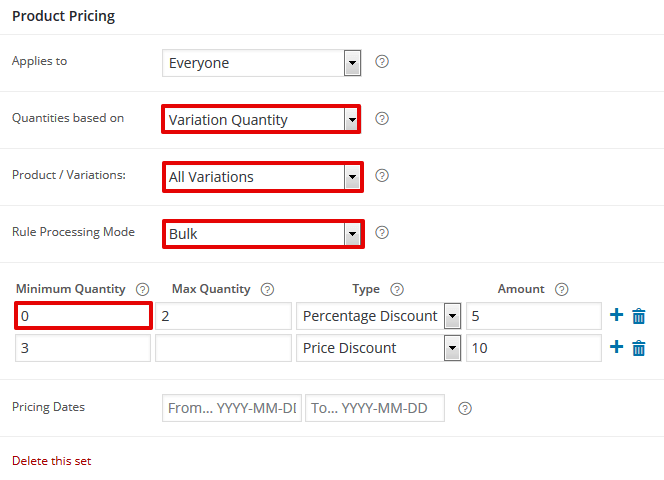
Bulk Pricing
Discount based on product or variation quantity. How many products or variations a customer needs to buy in order to get a discount (price or percentage). Add as many rules as you like.
Example:
Set up a promotion for every variation counted as an individual product. A customer will get 5% discount for 2 items and 10% for 3 an more items. If the customer buys 3 items, 1 of every variation, he gets 5% for every variation. If he buys 9 items, 3 of every variation, he gets 10% for every variation
Special Offer
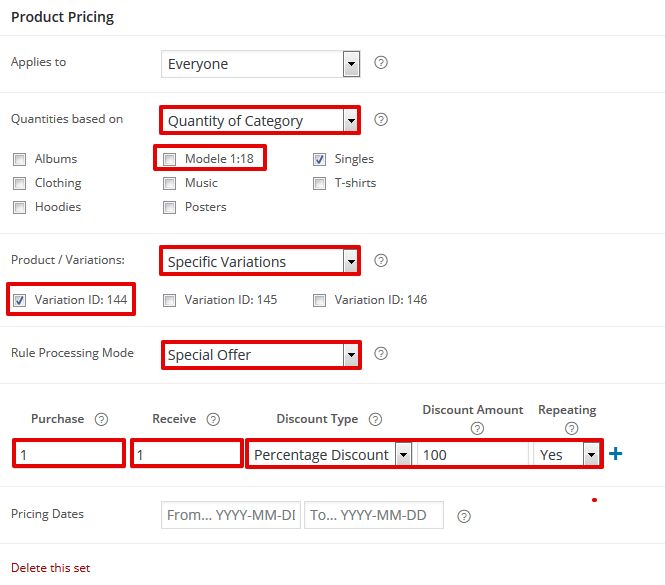
The promotion allows you to determine how many products or variants the customer needs to buy. You can also set how many discounted items the customer can receive.
Example:
Set up a promotion for a selected variation - just select it from the list. Adding a Special Offer you may reward a customer by giving him a discount for selected variation.
Advanced Features
Setting Promotion Calculation Based on Regular Prices
If you have sale prices configured for products, the plugin will apply promotions to those prices. To always apply promotions to regular prices, simply add the code below to the functions.php file in your theme:
add_filter( 'wc_flexible_pricing_get_use_sale_price', '__return_false' );
Worth reading
- https://wpdesk.net/blog/woocommerce-buy-one-get-one-free-deals/
- https://wpdesk.net/blog/how-to-increase-sales-with-existing-customers/
- https://wpdesk.net/blog/woocommerce-pricing-product-tables-plugins/
