• Skip to primary navigation
  • Skip to main content
  • Skip to primary sidebar
  • Skip to footer
WP Desk = premium plugins for WordPress & WooCommerce
  • Plugins
        • Checkout & OrdersMake your work easier and automate the orders. Adjust the order form to your needs and make it more useful to your customers. Print order labels directly from WooCommerce. Put the orders in order using our plugins. Find out how to streamline the procurement process in your store.
          • Flexible Checkout Fields
          • Active Payments
          • Automatic Payment Status
          • Flexible Refund and Return Order
          • Print Orders and Address Labels
          • Flexible Subscriptions Recurring Shipping
          • Flexible Subscriptions Payment Retry
          • Flexible Subscriptions Stock Management
        • ProductsThese plugins will help you manage your WooCommerce products. Here you will find the plugins to import and update products from XML or CSV files. Then you can change the product unit of measure, show the lowest price in the last 30 days (Omnibus Directive), or let customers name the product price!
          • Flexible Product Fields
          • Dropshipping Import Products
          • Dropshipping FTP Import Products
          • Dropshipping Export Products
          • Custom Price
          • WP Desk Omnibus
          • Flexible Quantity Calculator
          • Dropshipping Orders Export
        • MarketingPromote your store online. Add products from your shop to price comparison websites directly from WooCommerce. Acquire new customers and communicate with your existing ones. Build a customer base and communicate with clients using one of the most effective marketing tools, namely e-mail marketing. Check out our promotional tools!
          • Flexible Pricing
          • Flexible Wishlist - Analytics & Emails
          • OLX WooCommerce
          • Flexible PDF Coupons
          • ShopMagic
          • Flexible Invoices
  • Bundle🔥
  • WP Desk Care
  • Support
  • Blog
  • My Account
  • 0

More results

Product tabs WooCommerce (how to adjust default and add custom ones)?

Tech Posts, WooCommerce tutorials

Tomasz Bednarek2 minutes readUpdated: 2024-10-22Updated: 2025-08-20
blog category heading image

WooCommerce products contain certain information e.g. the product description, image, price, etc. Some product data lands in the product tabs like description, weight, attributes, or reviews. In this article, you may learn more about WooCommerce product tabs, what they are, and how to add custom ones.
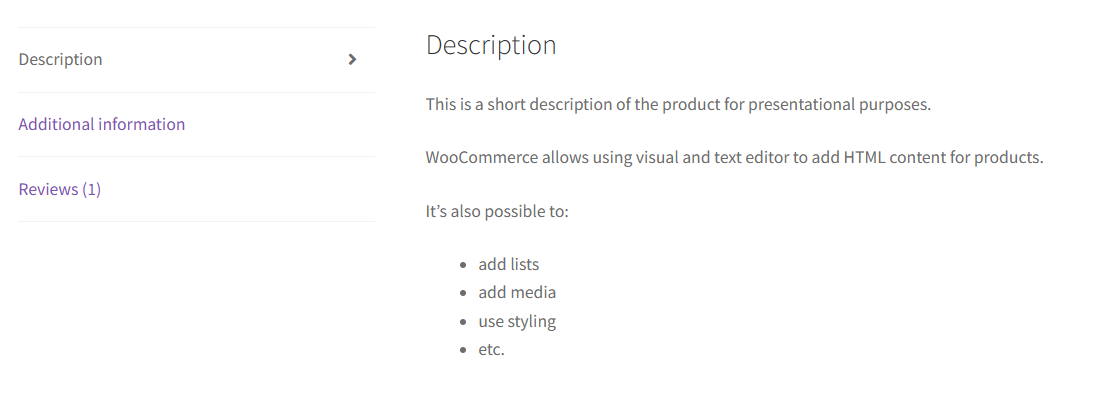
WooCommerce product tabs example

Contents

    • Key points
  • What are WooCommerce product tabs?
    • The default WooCommerce product tabs
  • How to add custom product tabs in WooCommerce?
  • How to customize the product tabs?
  • Summary
    • Related Articles
  • WooCommerce additional information - a quick guide
  • How to change the WooCommerce shop page (options & customization)
  • How to customize the WooCommerce shop page (checkout & product)?
  • How to use WooCommerce product tags (quick guide)
  • WooCommerce Products - The basics of e-commerce product management

Key points

  1. Product tabs in WooCommerce are places for detailed information about products.
  2. By default, WooCommerce shows only limited product data/ information in the product tabs.
  3. These are product description, attributes, and reviews.
  4. It's possible to add custom product tabs using a plugin or adding code.

What are WooCommerce product tabs?

By default, WooCommerce gathers product data and shows them in certain places.
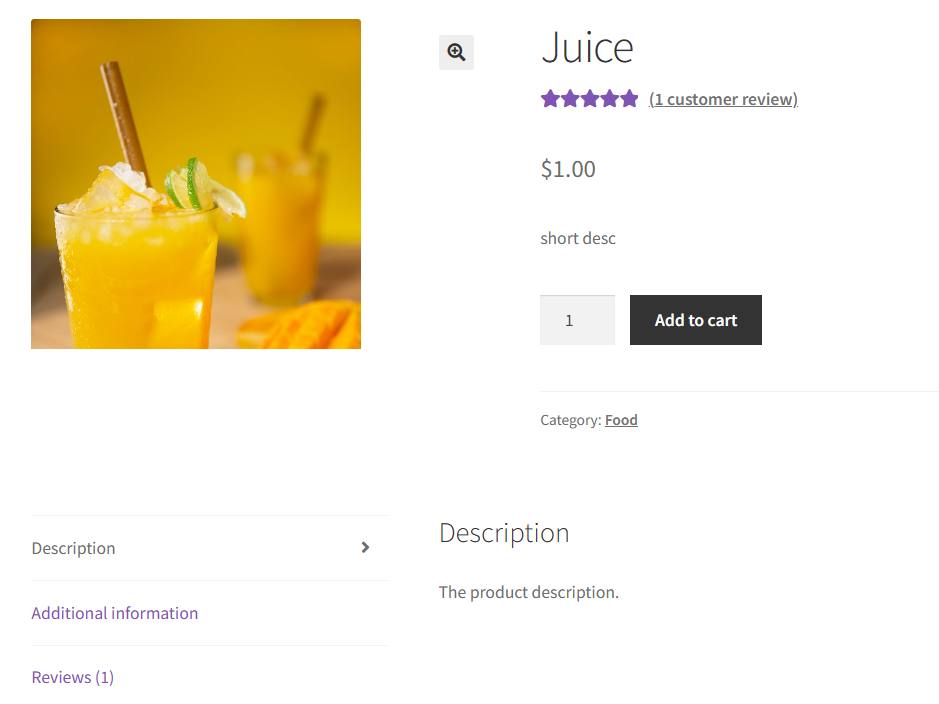
WooCommerce product information

The image, price, or short description appears at the top, while additional data about products go below.

WooCommerce product tabs organize this information for better readability.

Themes and plugins can also modify the product tabs layout or data (I use Storefront).

💡 The product tabs will appear only if there is content, so no description or attributes means that they will not be visible.

Reviews can be hidden based on the settings in WooCommerce → Settings → Products → General.
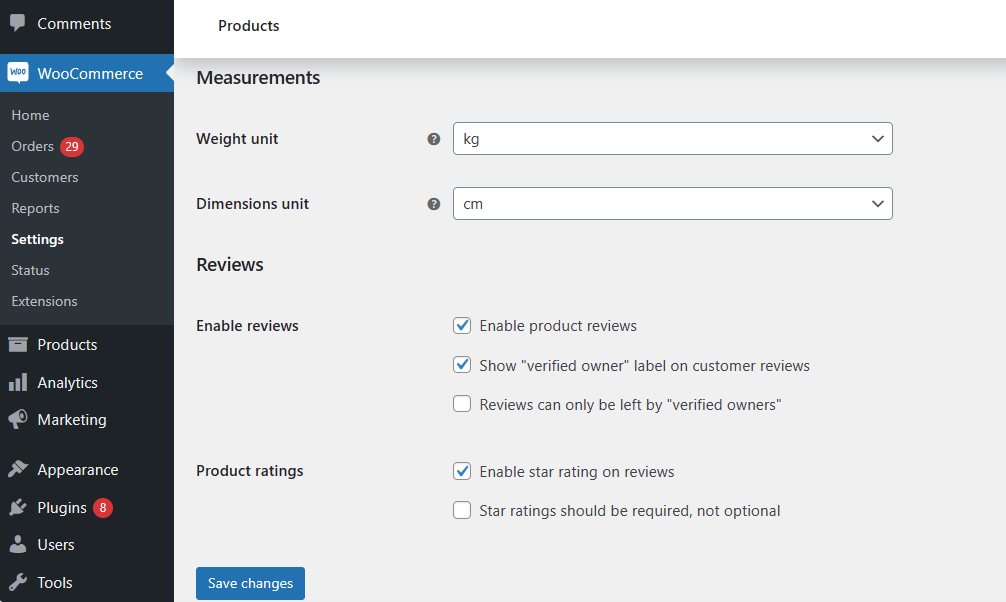
Product reviews in WooCommerce - settings

It's also possible to disable product reviews per WooCommerce product.

Let’s see what elements go in each product tab.

The default WooCommerce product tabs

  1. Description

    Product tab with description
    Product tab with description

    It’s self-explanatory. Its content comes from the WooCommerce product’s main description.
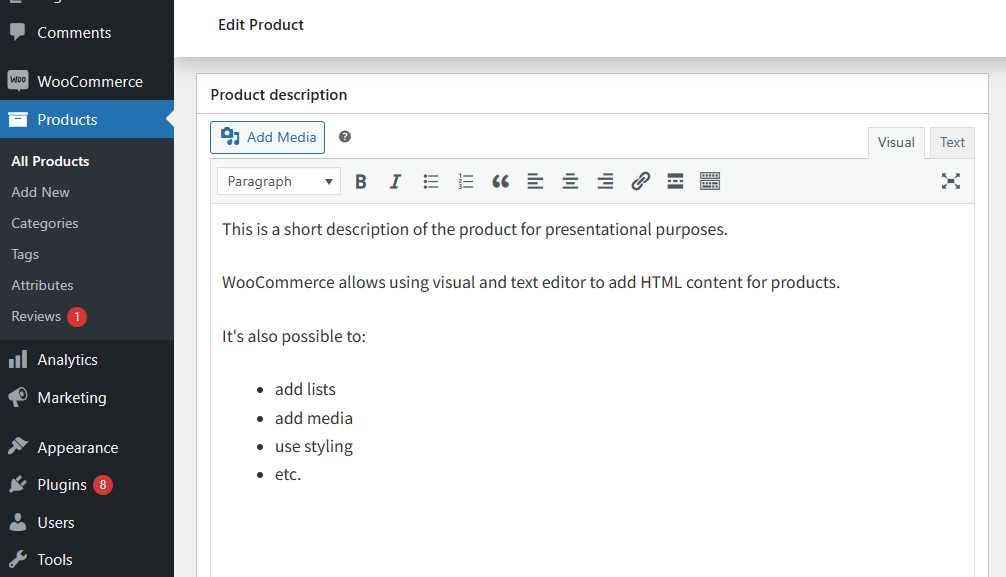
    Edit product description in
    Edit product description in

    The short description usually goes just below the product title and price.
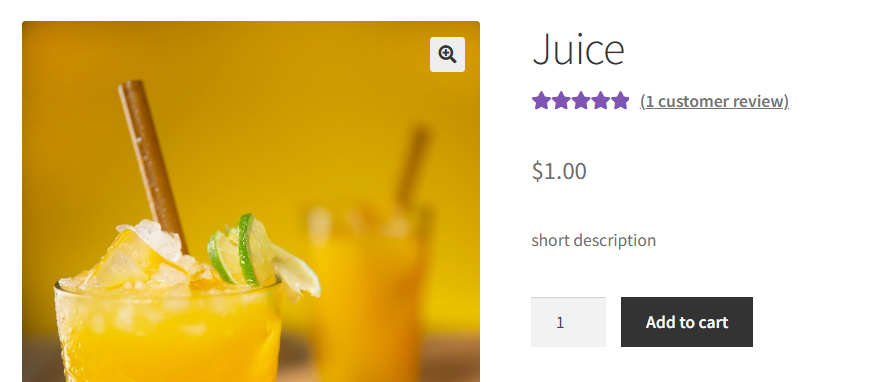
    Product short description
    Product short description
  2. Additional information

    WooCommerce products come with several sections for adding product information.
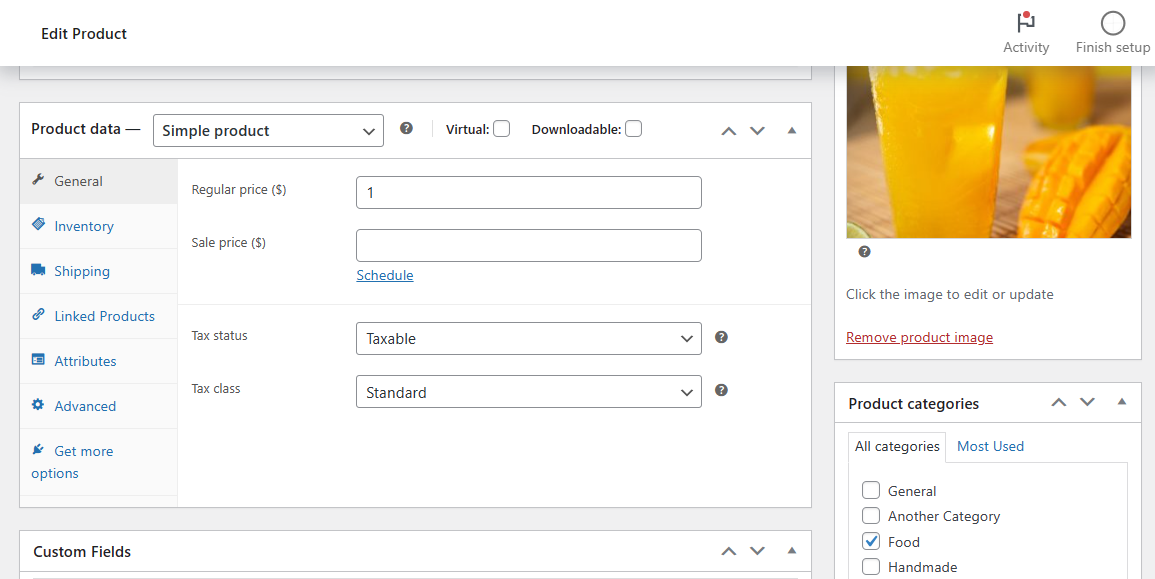
    Product data, image, and categories
    Product data, image, and categories

    Attributes and shipping information (from the Product data) will appear in the Additional Information tab on the product page.
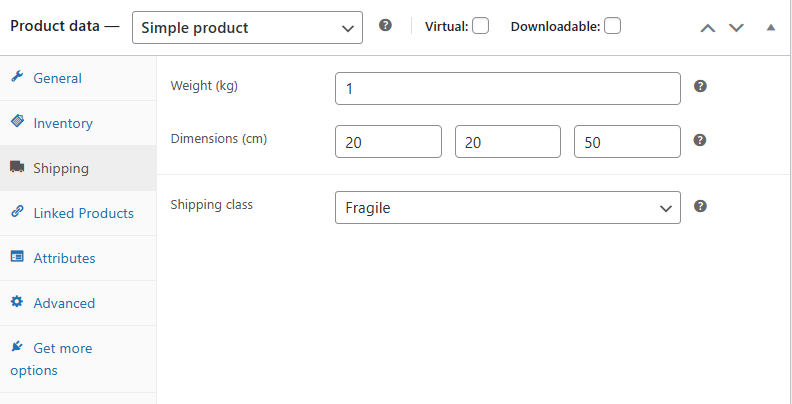
    Shipping and attributes information
    Shipping and attributes information

    There is an option to hide some attributes from appearing on the product page.
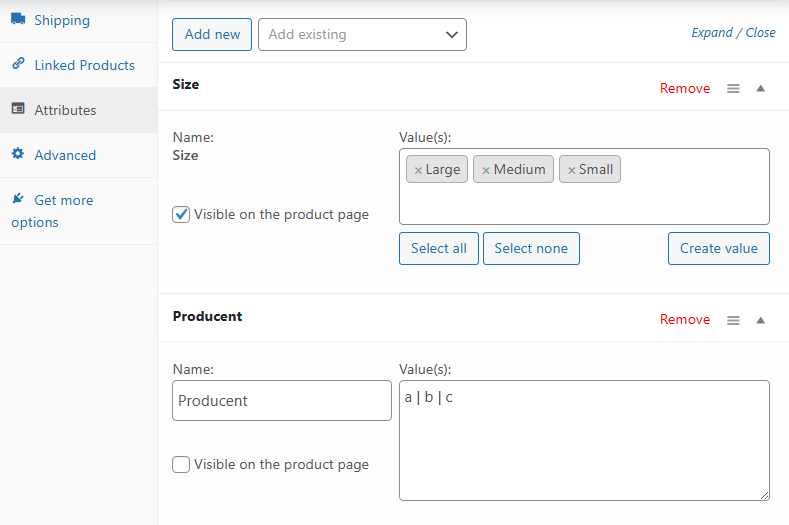
    Product attributes
    Product attributes

    A similar mechanism works for variable products. WooCommerce will show all attributes including ones specified for variations.
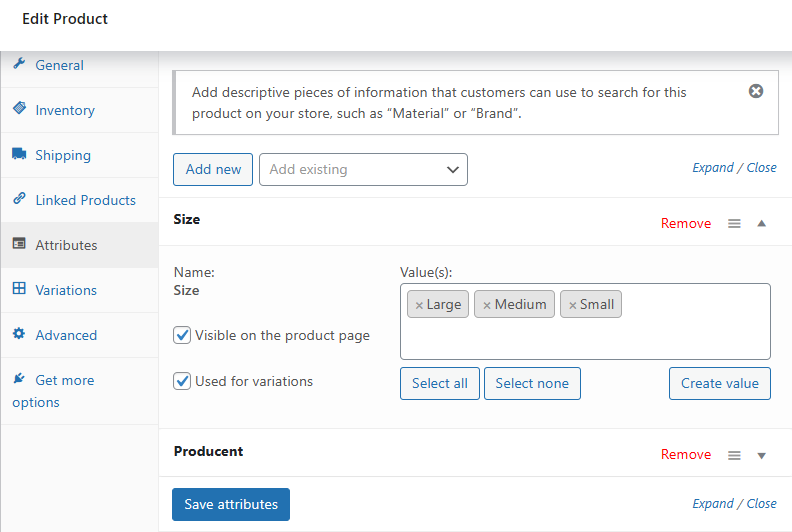
    Attributes for variations
    Attributes for variations
    💡 Adding specific shipping details (weight and dimensions) for each variation will appear in the Additional Information tab when changing the product variation.
  3. Reviews

    After enabling the product reviews in WooCommerce → Settings → Products → General, a new product tab will appear with the number of accepted reviews.

    Product reviews
    Product reviews

    Store administrators will also see the reviews awaiting approval, but visitors will see only accepted ones in ().

How to add custom product tabs in WooCommerce?

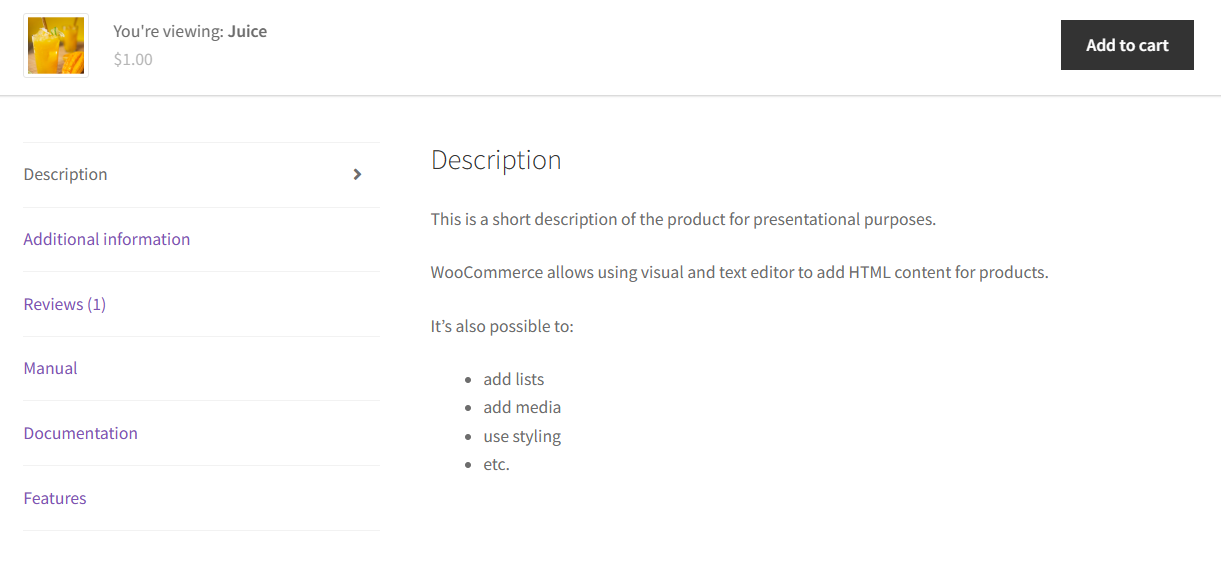
Sometimes the default data is not enough. It’s possible to add custom product tabs in WooCommerce with additional information using actions and filters. In my example below, I add the code to show 3 new tabs.
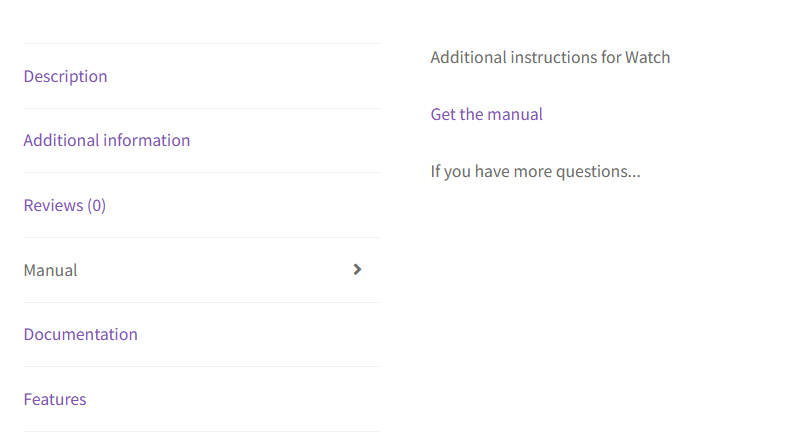
Custom product tabs example in WooCommerce

The custom code can be as simple as a link, product meta, or advanced HTML layout.

Of course, one needs to remember to check if the code is correct and place it as a plugin or inside the theme’s functions.php file. The below code is just an example.
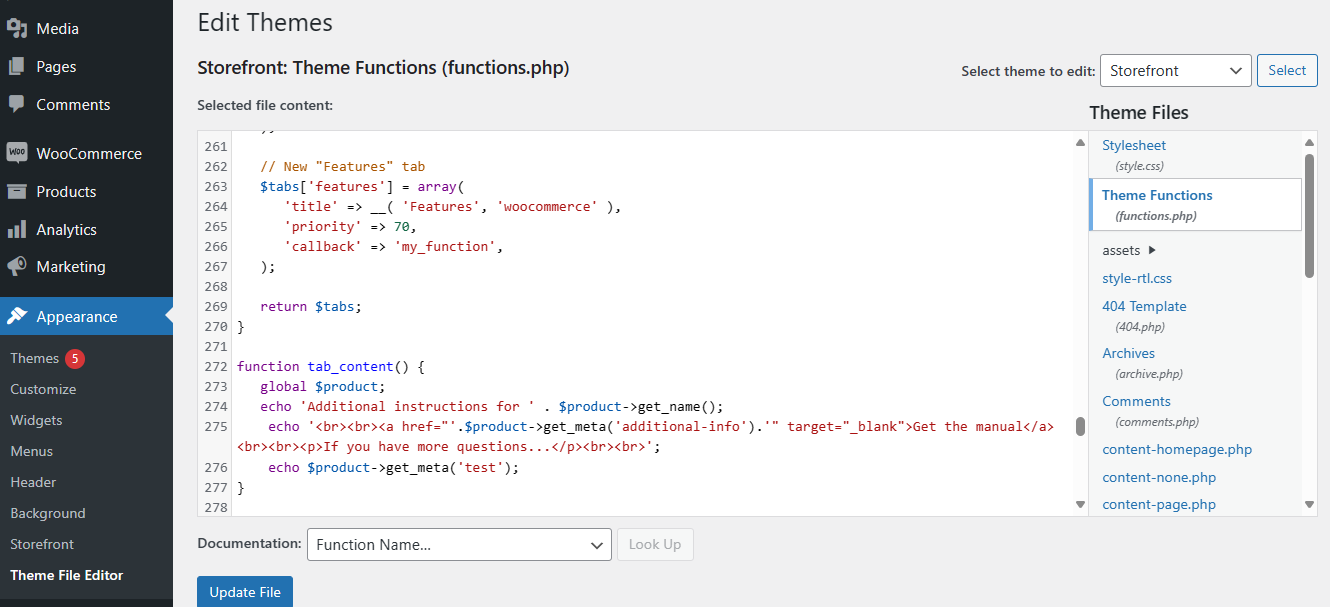
Adding code for custom product tabs in WooCommerce
💡 Do you think standard tabs are not enough? It’s also reasonable to limit custom product tabs in WooCommerce and show only good information.

How to customize the product tabs?

As you’ve read earlier, adding the description, attributes & shipping information, or reviews is what makes the product tabs appear. But it’s also possible to adjust the standard product tabs in WooCommerce using the woocommerce_product_tabs filter.

Changing, removing, or reordering the WooCommerce product tabs requires custom code. There are several examples of using the woocommerce_product_tabs filter.

💡 As you can see, customizing the default output of product tabs requires technical skills. However, it is also possible to use WooCommerce shortcodes, custom shortcodes, and plugins to adjust the layout and information on the product page.

Summary

To sum up, in the article, I’ve visualized how to use the default and custom product tabs in WooCommerce for informational purposes. You may check out WP Desk free plugins.


Related Articles

WooCommerce additional information - a quick guide

WooCommerce additional information - a quick guide

WooCommerce product additional information shows attributes and shipping details. However, the default tab may not be enough. In this article, I will ...
How to change the WooCommerce shop page (options and customization)

How to change the WooCommerce shop page (options & customization)

Being one of the standard WooCommerce pages, the shop page can come with additional settings. In this article, you may read about the WooCommerce shop...
Shop, product, and checkout page customization in WooCommerce

How to customize the WooCommerce shop page (checkout & product)?

Can you blame WooCommerce for no advanced options to customize the shop, product, or checkout page? Of course, you shouldn’t. In fact, it’s better to ...
How to use WooCommerce product tags (quick guide)

How to use WooCommerce product tags (quick guide)

It’s possible to show WooCommerce products without any structure. But, tags and categories help to organize WooCommerce products for better presentati...
WooCommerce product manager plugin guide

WooCommerce Products - The basics of e-commerce product management

Launching and running a WooCommerce shop is very simple in the long-term perspective. The beginnings are difficult in any field. To make a start easy ...

2 minutes read6882 views

Tomasz Bednarek

Copywriter and Marketing Specialist

Author of numerous articles and educational materials created for WP Desk and related services focused on WooCommerce plugins (Flexible Invoices, F...

Powered by WP Desk

WP Desk brings you great WooCommerce plugins. We strive to save your time and money by speeding up your processes. Use our plugins to build a better store. Awesome support included in the package.

Premium WooCommerce Plugins →
WP Desk › Blog › WooCommerce tutorials › Product tabs WooCommerce (how to adjust default and add custom ones)?

Primary Sidebar

Contents

    • Key points
  • What are WooCommerce product tabs?
    • The default WooCommerce product tabs
  • How to add custom product tabs in WooCommerce?
  • How to customize the product tabs?
  • Summary

Stay updated on our how-to articles

WP Desk news, WooCommerce tips, promo codes - right to your inbox.

By entering your e-mail, you agree to our Terms & Conditions and Privacy Policy.

By entering your e-mail, you agree to our Terms & Conditions and Privacy Policy.

Footer

WP Desk - WooCommerce Plugins

At WP Desk we create great WooCommerce plugins with awesome support. Save time and money with our e-commerce solutions. See how we can help you improve your e-store →

Secured by Comodo

WP Desk

  • About us
  • Giving Back
  • Blog
  • Get Support
  • Contact us

Products

  • Premium Plugins
  • WP Desk Care
  • Documentation
  • WooCommerce Invoices
  • Email Marketing
  • PDF Coupons

Legal

  • Terms & Conditions
  • Refund Policy
  • Support Policy
  • Privacy Policy

© 2026 WP Desk

We value your privacy

We use necessary cookies to make our site work. We'd also like to set additional cookies to understand site usage, enhance your browsing experience, and serve personalized ads or content. By clicking ‘Accept All,’ you consent to our use of additional cookies.

Functional Always active
The technical storage or access is strictly necessary for the legitimate purpose of enabling the use of a specific service explicitly requested by the subscriber or user, or for the sole purpose of carrying out the transmission of a communication over an electronic communications network.
Preferences
The technical storage or access is necessary for the legitimate purpose of storing preferences that are not requested by the subscriber or user.
Statistics
The technical storage or access that is used exclusively for anonymous statistical purposes. Without a subpoena, voluntary compliance on the part of your Internet Service Provider, or additional records from a third party, information stored or retrieved for this purpose alone cannot usually be used to identify you. The technical storage or access that is used exclusively for anonymous statistical purposes. Without a subpoena, voluntary compliance on the part of your Internet Service Provider, or additional records from a third party, information stored or retrieved for this purpose alone cannot usually be used to identify you.
Marketing
The technical storage or access is required to create user profiles to send advertising, or to track the user on a website or across several websites for similar marketing purposes.
  • Manage options
  • Manage services
  • Manage {vendor_count} vendors
  • Read more about these purposes
View preferences
  • {title}
  • {title}
  • {title}