Contents
Order overview
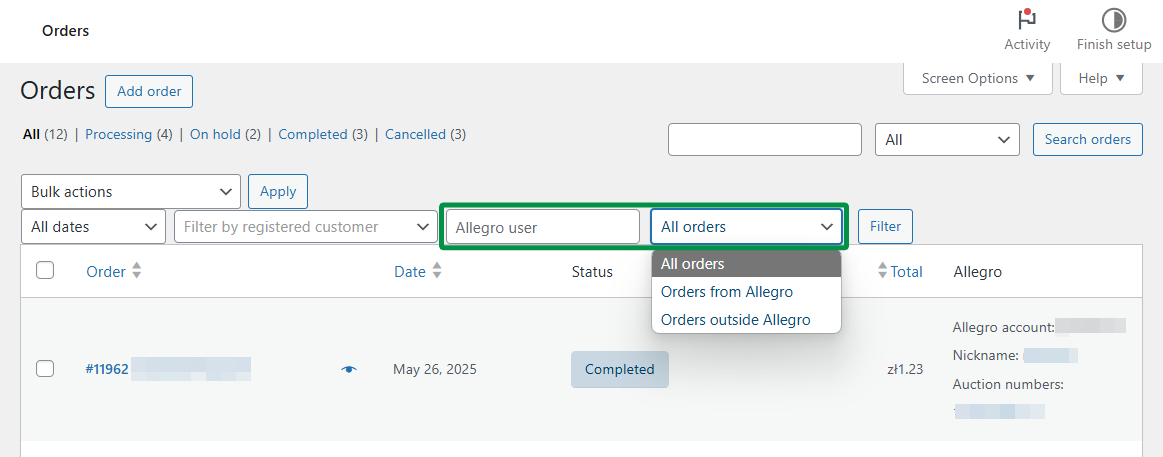
In the WooCommerce Orders menu, you can:
- search for orders imported from Allegro by the buyer’s Allegro username,
- view only orders from Allegro,
- view only WooCommerce orders outside Allegro.
In the Allegro column, you’ll see the Allegro account used for the order, the buyer’s nickname, and the auction numbers included in the order.
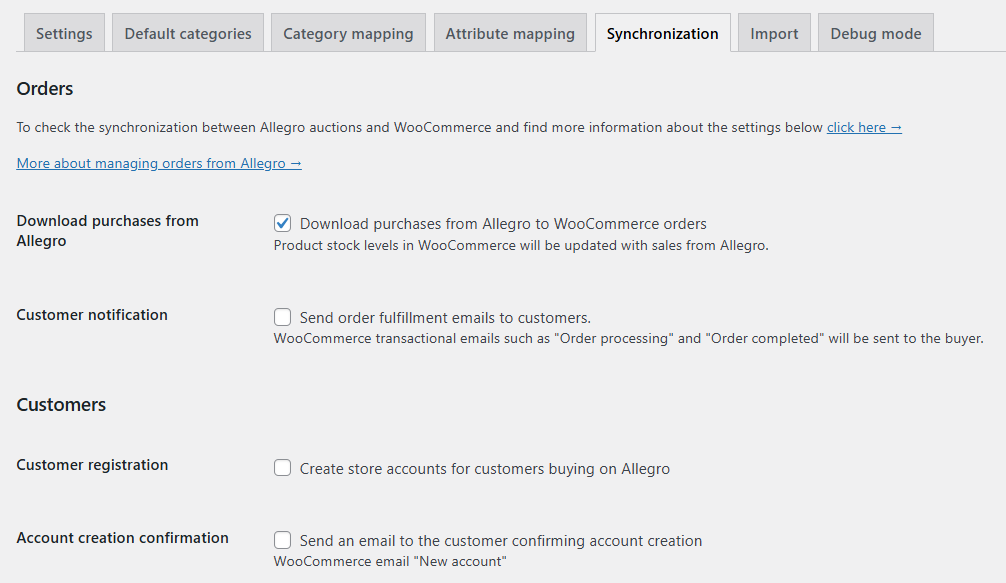
Orders will be imported if the Download purchases from Allegro option is enabled in the plugin. Go to Allegro → Settings → Synchronization to manage order-related settings.
Enabling this option alone isn’t enough. Products must also be linked to WooCommerce products — either by listing products from WooCommerce to Allegro using auctions or by importing auctions from Allegro using the auction import feature.
If your orders aren’t being imported, check the FAQ section of the plugin documentation.
Order editing
Allegro purchase form
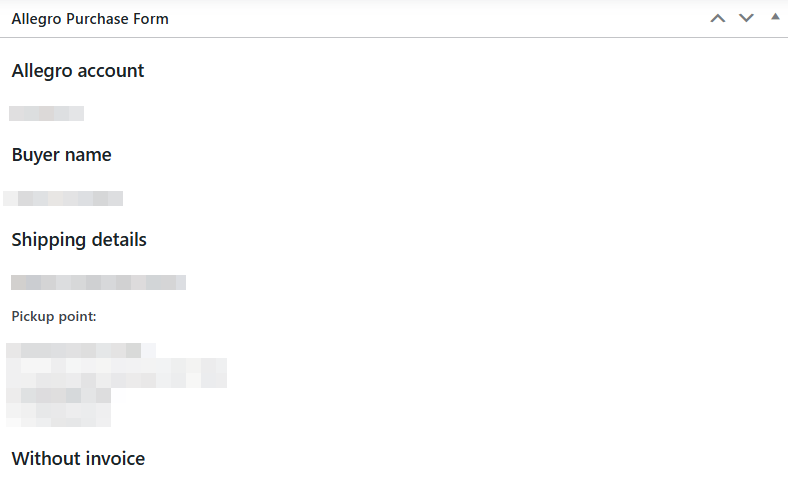
In the order edit screen, you’ll find the Allegro purchase form, which includes:
- Allegro account used for the order,
- buyer name,
- auction numbers included in the order,
- message to seller,
- shipping details, including pickup point when available,
- invoice details if the buyer requested an invoice.
Invoices
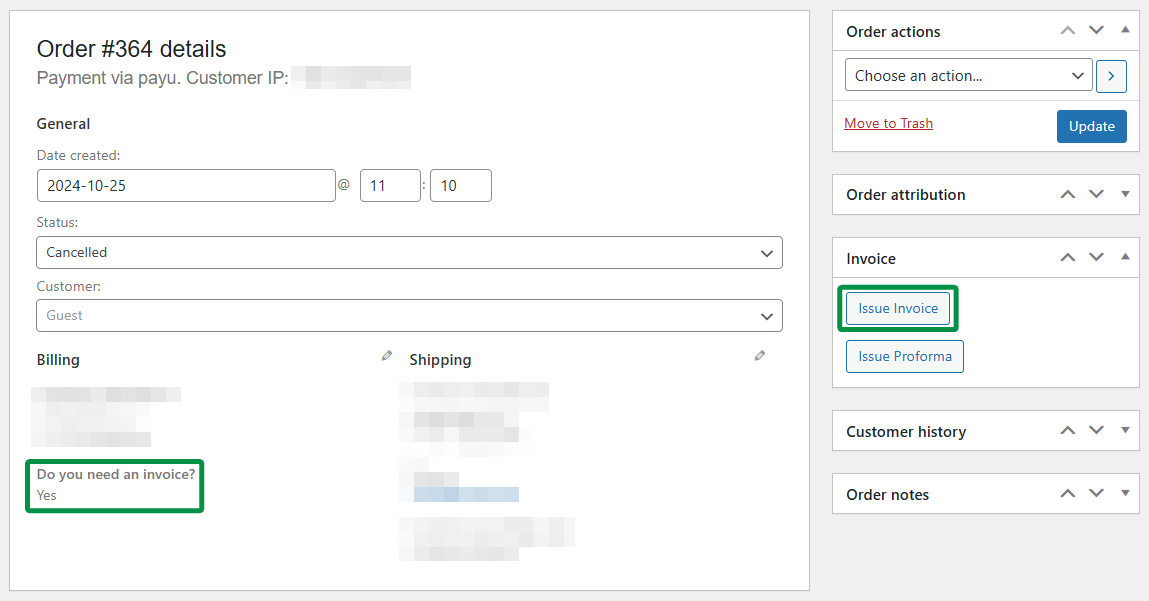
If the buyer requested an invoice on Allegro, the plugin stores invoice details in the Allegro purchase form section of the WooCommerce order.
To display buyer invoice preferences and VAT number in the WooCommerce order details section, you can use Flexible Invoices. The plugin can show invoice data under the Payment section and help you generate and send invoices automatically or manually.
Phone number in Allegro orders
By default, WooCommerce does not include a Phone number field in the Shipping section. The plugin uses the buyer’s phone number from Allegro order data.
If shipping is included in the Allegro order, the plugin places the recipient’s phone number from Allegro into the WooCommerce Payment section as billing_phone.
Payments
The plugin saves the payment method name in the WooCommerce order based on the payment data received from Allegro.
For recognized providers, the order can use payment method names such as PAYU, P24, or OFFLINE. For cash on delivery orders, the WooCommerce payment method is set to Cash on delivery. If the payment method is not recognized, the plugin saves it as an unknown Allegro payment method with the provider name.
When Allegro confirms that the order has been paid, the plugin marks the WooCommerce order as paid and adds an order note. For cash on delivery orders, the plugin adds a note that the order uses cash on delivery.
Learn more about WooCommerce order statuses.
Order status synchronization
The plugin synchronizes selected order status changes between WooCommerce and Allegro. Changes in WooCommerce can update the Allegro fulfillment status, and supported Allegro fulfillment status changes can update the WooCommerce order status.
Check Allegro’s official documentation to learn more about Allegro order statuses.
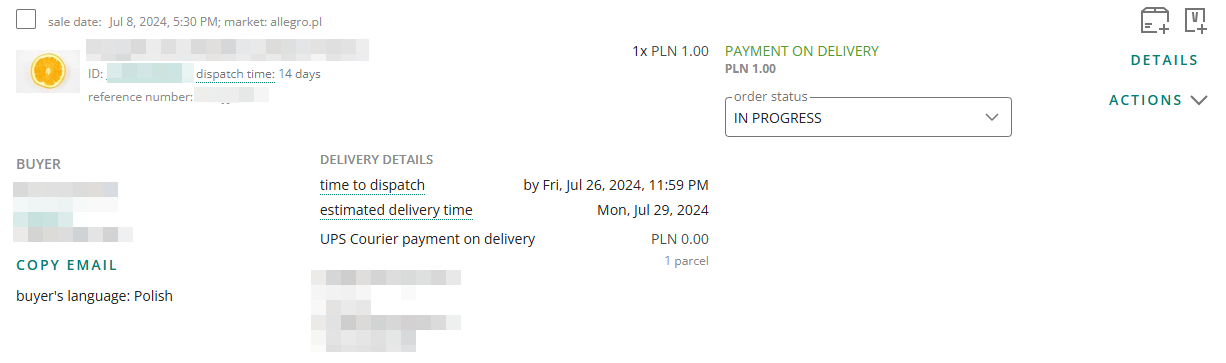
Synchronization from WooCommerce to Allegro works for these status changes:
- Changing WooCommerce order status to Cancelled updates Allegro fulfillment status to CANCELLED.
- Changing WooCommerce order status to Completed updates Allegro fulfillment status to SENT.
- Changing WooCommerce order status to Processing updates Allegro fulfillment status to PROCESSING, unless the Allegro order is already in PROCESSING, READY_FOR_SHIPMENT, or SENT.
Supported Allegro fulfillment status changes are also reflected in WooCommerce:
- CANCELLED changes the WooCommerce order status to Cancelled.
- PROCESSING and READY_FOR_SHIPMENT change the WooCommerce order status to Processing.
- SENT changes the WooCommerce order status to Completed.
Allegro Delivery
The plugin includes built-in Allegro Delivery handling for orders imported from Allegro. In the WooCommerce order edit screen, Allegro orders can include the Allegro Delivery metabox and the Allegro — Status History metabox.
From the Allegro Delivery metabox, you can:
- create a shipment for the imported Allegro order,
- use predefined package sizes configured in Allegro → Settings → Allegro Delivery,
- enter or edit package dimensions and weight,
- set sender point details when required,
- generate a shipping label,
- order pickup when the selected delivery method supports it,
- cancel a shipment when cancellation is still possible.
You can configure default Allegro Delivery behavior in Allegro → Settings → Allegro Delivery. This includes automatic shipment creation, the WooCommerce order status that triggers automatic shipment creation, default label format, label page size, pickup preferences, predefined packages, and sender point mappings.
Legacy shipping integrations
The plugin can also work with selected WP Desk shipping integrations for WooCommerce: eNadawca, InPost, and Orlen Paczka WooCommerce.
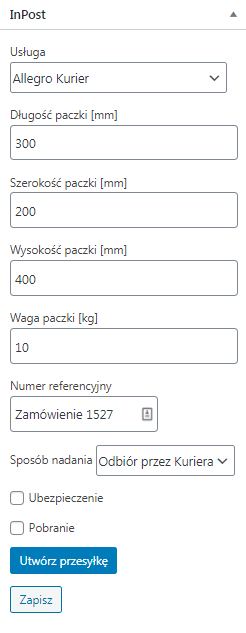
If a buyer on Allegro selects a shipping method supported by one of these integrations and the order is imported to WooCommerce, the plugin can detect the shipping method. Depending on the installed carrier plugin, a carrier-specific metabox may appear in the order edit screen.
Automatic shipment number forwarding to Allegro
After generating a shipment for an Allegro order using the InPost or eNadawca plugin, the shipment number can be sent to Allegro automatically.
The plugin can also send shipment data to Allegro through the woocommerce_allegro_shipment_notify action when a compatible integration provides the carrier and tracking number.
Shipping methods
The plugin recognizes selected Allegro shipping methods for imported orders and maps them to supported carrier integrations where possible.
InPost:
- Paczkomaty 24/7
- Paczkomaty 24/7 COD
- Allegro Paczkomaty InPost
- Allegro Paczkomaty InPost COD
- Allegro Kurier24 InPost
- Allegro Kurier24 InPost COD
- Allegro miniKurier24 InPost
- Allegro miniKurier24 InPost COD
Poczta Polska:
- Economic postal package
- Priority postal package
- COD shipment / Paczka48 COD
- Registered economic letter
- Allegro Registered Shipment
- Priority COD shipment / Paczka24 COD
- Registered priority letter
- Courier shipment
- Courier COD shipment
- Pocztex Kurier48 & Allegro Pocztex Kurier 48
- Pocztex Kurier48 COD & Allegro Pocztex Kurier 48 COD
- Pocztex Kurier24
- Pocztex Kurier24 COD
- Paczka24
- Paczka48
- Pickup at point (prepaid) – Paczka24 Pickup at Point
- Pickup at point – Paczka24 Pickup at Point
- Pickup at point (prepaid) – E-PRZESYŁKA / Paczka48 Pickup at Point
- Pickup at point – E-PRZESYŁKA / Paczka48 Pickup at Point
Orlen Paczka WooCommerce:
- Orlen Paczka WooCommerce
Payment method names
If you’d like the plugin to save the order in WooCommerce with a custom payment method name, use the woocommerce_allegro_payment_method_title filter.
Replace Allegro Payment Method Name with your preferred label.
Options for advanced users
The plugin includes the woocommerce_allegro_order_create filter. This filter is triggered after an Allegro order is created in WooCommerce.
You can also use these filters to define custom WooCommerce order statuses for imported Allegro orders:
woocommerce_allegro_processing_order_status— default:processingwoocommerce_allegro_finish_order_status— default:completedwoocommerce_allegro_cancel_order_status— default:cancelled
The plugin also supports woocommerce_allegro_shipment_notify for integrations that need to send carrier and tracking number data to Allegro.
