Contents
How to prepare your store for importing Allegro listings
- Log in to your Allegro account in the plugin settings. Read more about configuring plugin settings.
- Add default Allegro categories. Default categories are used in the import filters and can be mapped to WooCommerce categories. Learn how to add default categories.
- Create WooCommerce categories. Go to Products → Categories and prepare the category structure you want to use for imported products.
- Set up category mapping. Link Allegro categories with WooCommerce categories so newly created products can be assigned to the correct store category. Learn more about category mapping.
- Configure WooCommerce taxes if taxes are enabled in your store. Then select the default tax class in the import settings. Read more about tax configuration in WooCommerce.
Automation - mapping
Part of the import and product creation process is automated. When the plugin creates a product or variation, it can use Allegro parameters as WooCommerce product attributes. If an attribute already exists in your store, new values can be added to it during the import.
Auction images
The plugin imports images from the Allegro listing into the WooCommerce product gallery. The Allegro thumbnail is used as the main product image or variation image, depending on the selected import type.
Allegro listing import settings
Before importing listings, configure the basic import settings.
Go to Allegro → Settings → Import.
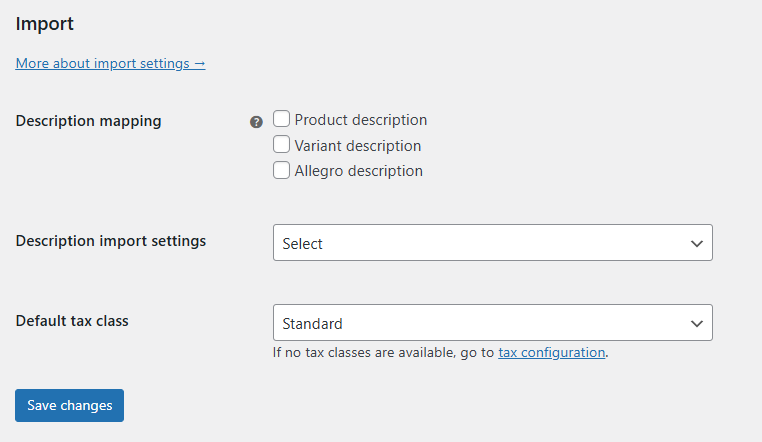
Description mapping
Choose where the imported Allegro description should be saved. You can select one or more options:
- Product description - imports the description into the main WooCommerce product description.
- Variant description - imports the description into the product variation description when importing a variation.
- Allegro description - saves the description as a dedicated Allegro description that can be used when listing an auction from WooCommerce.
Description import settings
Choose how the auction description should be imported.
Full description
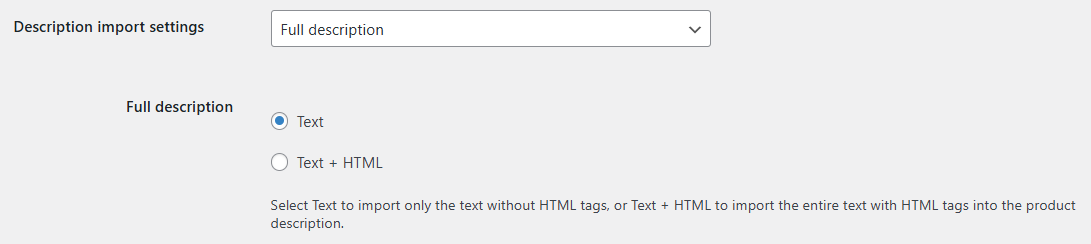
- Text - imports plain text only. HTML tags are removed.
- Text + HTML - imports the full description with HTML tags.
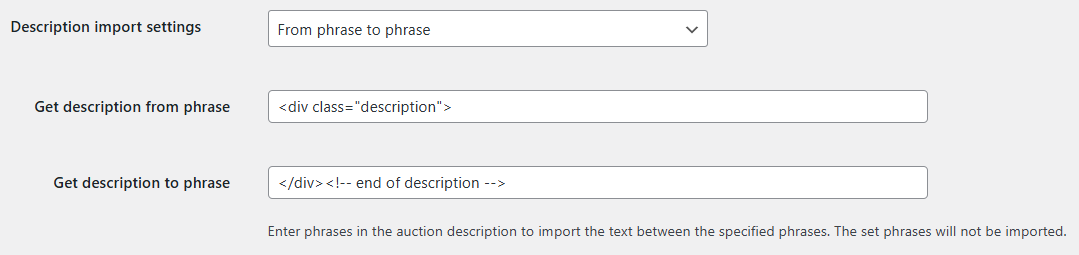
From phrase to phrase
Use this option to import only the part of the description located between two phrases. The phrases themselves are not imported. Use specific phrases or HTML fragments to avoid importing the wrong part of the description.
Xpath
Use Xpath when you want to import a specific element from the Allegro description. Learn more about Xpath in this w3schools guide.

To copy an Xpath in Chrome:
- Right-click the part of the Allegro listing description you want to import.
- Select Inspect.
- Right-click the highlighted element in the browser developer tools.
- Select Copy → Copy XPath.
- Paste the copied path into the Xpath field in the import settings or import table.
Default tax class
The Default tax class setting is available when taxes are enabled in WooCommerce. Select the tax class that should be assigned to newly created products during import. You can also change the tax class directly in the import table before importing selected listings.
Listing import table
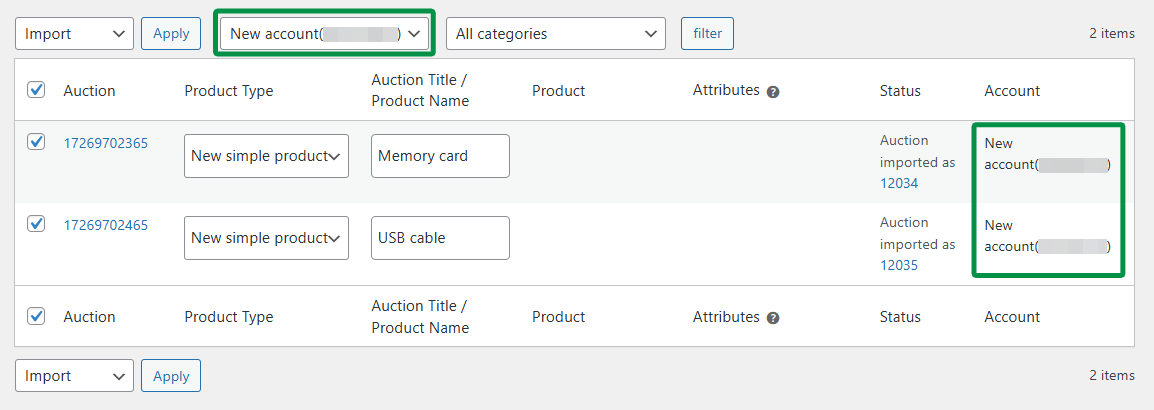
You can import Allegro listings and create WooCommerce products from the Allegro → Import menu.
Filtering the listings list
Allegro categories - filter listings by a specific Allegro category. Use the All categories dropdown to select a category, then click Filter.

Listing titles - search listings by title, for example by product name or manufacturer. You can combine the search field with category filtering.
Allegro accounts - if you have connected more than one Allegro account, you can filter listings by account.

Import table columns
The import table includes the following columns:
- Auction - Allegro auction ID and a direct link to the auction.
- Product Type - choose how the listing should be imported into WooCommerce. By default, New simple product is selected. Learn more about product types below.
- Auction Title / Product Name - the title from Allegro. You can edit it before import and use it as the WooCommerce product name.
- Product - use this field when importing into an existing product or adding a new variation to an existing variable product.
- Attributes - select Allegro parameters that should be used to create product variations, for example color or size.
- Status - displays messages and errors related to the import.
- Account - shows which Allegro account is associated with the auction.
Additional columns are available in the Screen Options tab in the top right corner of the page.

- Allegro category - the Allegro category assigned to the imported auction.
- WooCommerce category - the WooCommerce category assigned to the new product.
- Tax - the tax class assigned to the new product. This column is available when WooCommerce taxes are enabled.
- Description - description import settings for a specific auction.
In Screen Options, you can also set how many auctions are displayed per page. The default value in the plugin is 10 auctions per page. Increasing this number may be limited by your server configuration.
Importing listings
Connecting your store to Allegro does not automatically import Allegro listings as WooCommerce products. To import listings, select them manually in the Allegro → Import table.
You can import listings in several ways, depending on whether you want to create a new product, create a variable product, add a variation, or link the auction with an existing WooCommerce product.
If you have already configured the required import settings, select the listings with checkboxes, choose Import from the bulk actions dropdown, and click Apply.
Once the import is successful, the Status column displays the confirmation message: “Auction imported as” with a link to the imported auction in WooCommerce.

New simple product
The New simple product option creates a new simple WooCommerce product from the Allegro listing. This is the default import option.
Select the listing, keep New simple product in the Product Type column, and use Bulk actions → Import.
New product with variants
Use New product with variants when the imported Allegro listing should create a new variable product in WooCommerce.
A variation attribute defines the differences between product variants. For example, a T-shirt can use attributes such as color and size.
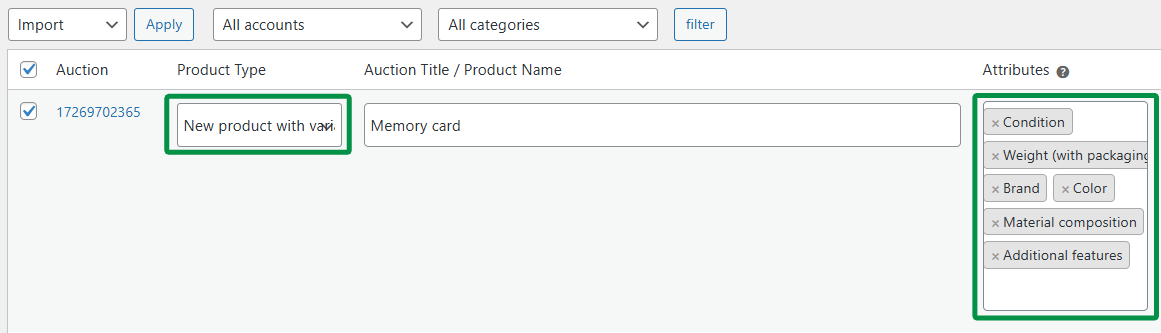
After selecting New product with variants in the Product Type column, choose the attributes in the Attributes column. The dropdown contains parameters available in the Allegro listing. You can select more than one attribute.
If you want to import more listings as variations of the same variable product, make sure to select all attributes that differ between the variants during the first import.
If the selected attributes do not match when adding another variation, the plugin may stop the import and display an error such as: “Product has a different attribute value for field: XXX”.
In that case, remove the incorrect product connection in the Allegro auction section and repeat the import with the correct attributes selected.
New variant
The New variant option adds a new variation to an existing WooCommerce variable product.
After selecting New variant in the Product Type column, search for the existing variable product or variation in the Product column.
Existing product
Use Existing product when the WooCommerce product already exists and you want to connect it with an Allegro auction.
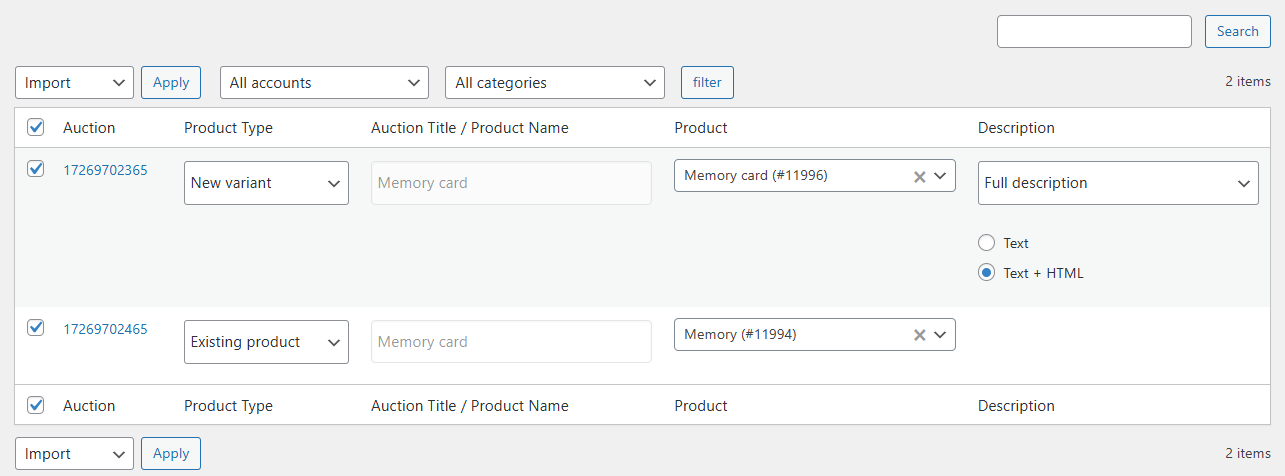
After selecting Existing product in the Product Type column, search for the product or variation in the Product column.
After the product is connected with the Allegro auction, plugin synchronization features can use this connection if they are enabled in the plugin settings.
Advanced
Filtering listings in the import list
The plugin includes the woocommerce_allegro_filter_import_query filter hook. It allows developers to modify the Allegro API request used to display listings in the import table.
Example usage: filter listings priced above 50 PLN.
A full list of available request parameters can be found in the official Allegro documentation.
