• Skip to primary navigation
  • Skip to main content
  • Skip to primary sidebar
  • Skip to footer
WP Desk = premium plugins for WordPress & WooCommerce
  • Plugins
        • Checkout & OrdersMake your work easier and automate the orders. Adjust the order form to your needs and make it more useful to your customers. Print order labels directly from WooCommerce. Put the orders in order using our plugins. Find out how to streamline the procurement process in your store.
          • Flexible Checkout Fields
          • Active Payments
          • Automatic Payment Status
          • Flexible Refund and Return Order
          • Print Orders and Address Labels
          • Flexible Subscriptions Recurring Shipping
          • Flexible Subscriptions Payment Retry
          • Flexible Subscriptions Stock Management
        • ProductsThese plugins will help you manage your WooCommerce products. Here you will find the plugins to import and update products from XML or CSV files. Then you can change the product unit of measure, show the lowest price in the last 30 days (Omnibus Directive), or let customers name the product price!
          • Flexible Product Fields
          • Dropshipping Import Products
          • Dropshipping FTP Import Products
          • Dropshipping Export Products
          • Custom Price
          • WP Desk Omnibus
          • Flexible Quantity Calculator
          • Dropshipping Orders Export
        • MarketingPromote your store online. Add products from your shop to price comparison websites directly from WooCommerce. Acquire new customers and communicate with your existing ones. Build a customer base and communicate with clients using one of the most effective marketing tools, namely e-mail marketing. Check out our promotional tools!
          • Flexible Pricing
          • Flexible Wishlist - Analytics & Emails
          • OLX WooCommerce
          • Flexible PDF Coupons
          • ShopMagic
          • Flexible Invoices
  • Bundle🔥
  • WP Desk Care
  • Support
  • Blog
  • My Account
  • 0

More results

How to translate a WordPress plugin (free tools)

Tech Posts, WordPress design & development, WordPress tips & plugins

WP Desk4 minutes readUpdated: 2022-01-13Updated: 2026-06-08
blog category heading image

This article will show you how to translate a WordPress plugin to your local language of choice. We will look at free software to translate WordPress plugins and themes. For example, Loco Translate and the translation editor Poedit. WordPress translate plugin - free options available for 2025.

Contents

  • Best ways to translate plugins and themes in WordPress
  • Translation options
  • How to translate a plugin with Poedit?
  • Translating a plugin with Loco Translate
  • How to start translating plugins and themes?
    • Steps to translate a WordPress plugin/ theme
    • What are .mo and .po files in WordPress?
    • Plural forms
  • WordPress.org translation know-how
  • Where to find a WordPress plugin translator
  • How about automated translation in WordPress?
    • Related Articles
  • Professional WordPress design and development (learning, tools & plugins)
  • 5 essential WooCommerce tips to boost your sales
  • WordPress 5.3 Overview
  • 10-step WooCommerce review to help you understand why WooCommerce is the best e-commerce platform
  • 15 Best Websites to Learn WordPress and WooCommerce

Best ways to translate plugins and themes in WordPress

Translating WordPress plugins or themes is not so complicated. Let's see the methods to translate them starting with the fastest (and cheapest) ones. Then, you will be able to see the 2 step-by-step examples.

Translation options

These free tools may help you translate a WordPress plugin (or theme).

  • Poedit
  • Loco Translate
  • Poeditor
  • SayWhat

There are also free extensions in the WordPress repository to help in translating a WordPress plugin.

💡 If you want to translate just a few phrases inside a WordPress plugin, check the SayWhat plugin SayWhat plugin. It's a simple and quick way to translate strings of plugins and themes.

Multilingual content is necessary when you reach users globally. Of course, if a website is not translated, users may just leave. Also, translation is important for better SEO.

How to translate a plugin with Poedit?

For translating a plugin, you need:

  • Poedit Editor installed on your computer. Here you can download OS X and Windows versions
  • Flexible Invoices for WooCommerce plugin files on your computer
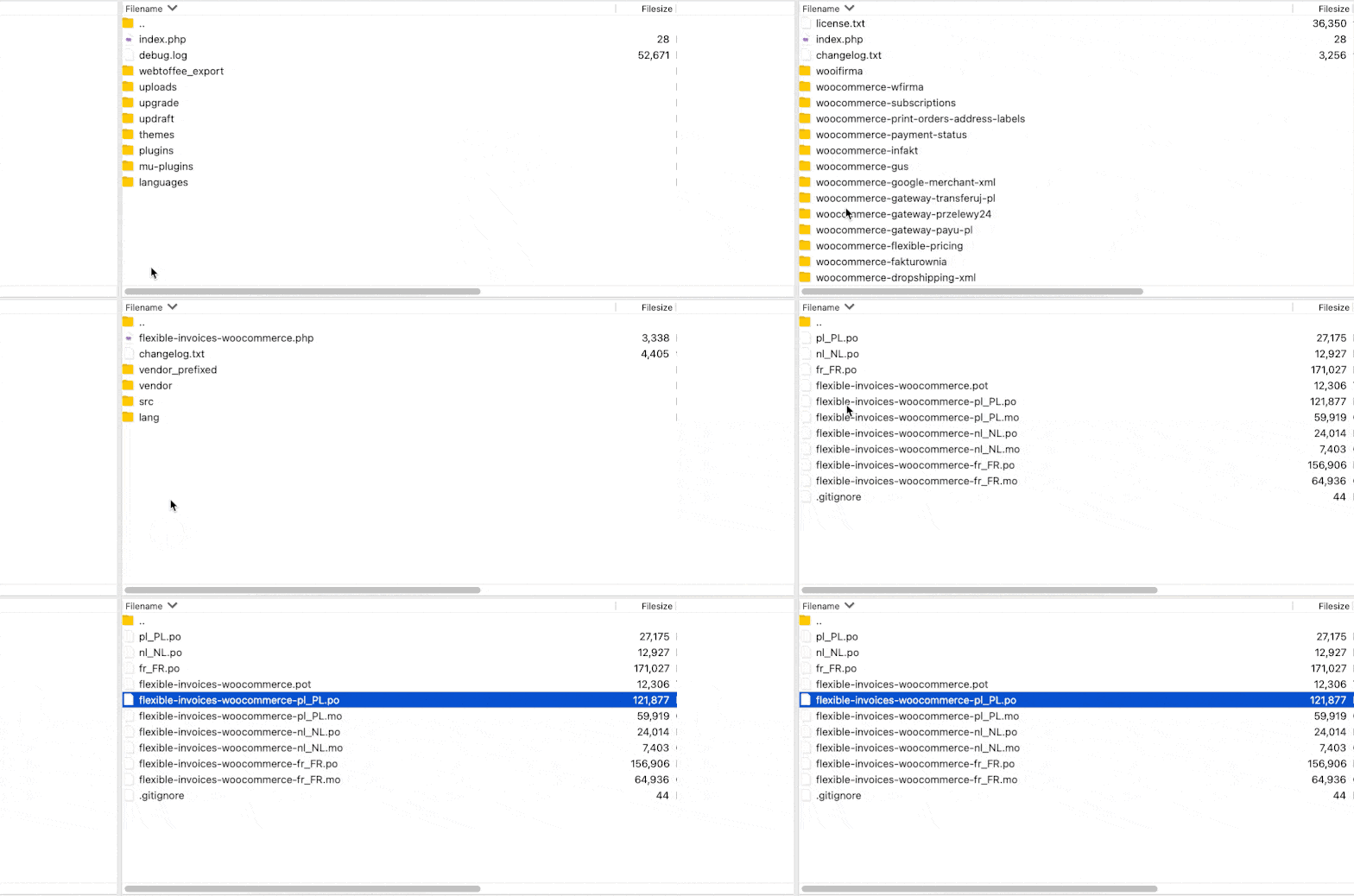
💡 In this example, I will use the free version of Poedit Editor and Flexible Invoices for WooCommerce plugin. You can find the PO and MO files in the Flexible Invoices plugin inside this path flexible-invoices-woocommerce > lang > flexible-invoices-woocommerce-pl_PL.po.

Po file in Flexible Invoices WooCommerce Plugin

After installing, please open the editor and click File > Open. Please remember you can only edit .po files!

Now you see all the strings, and you can start with the translation. Click on each available string and write your translation into the Translation field.
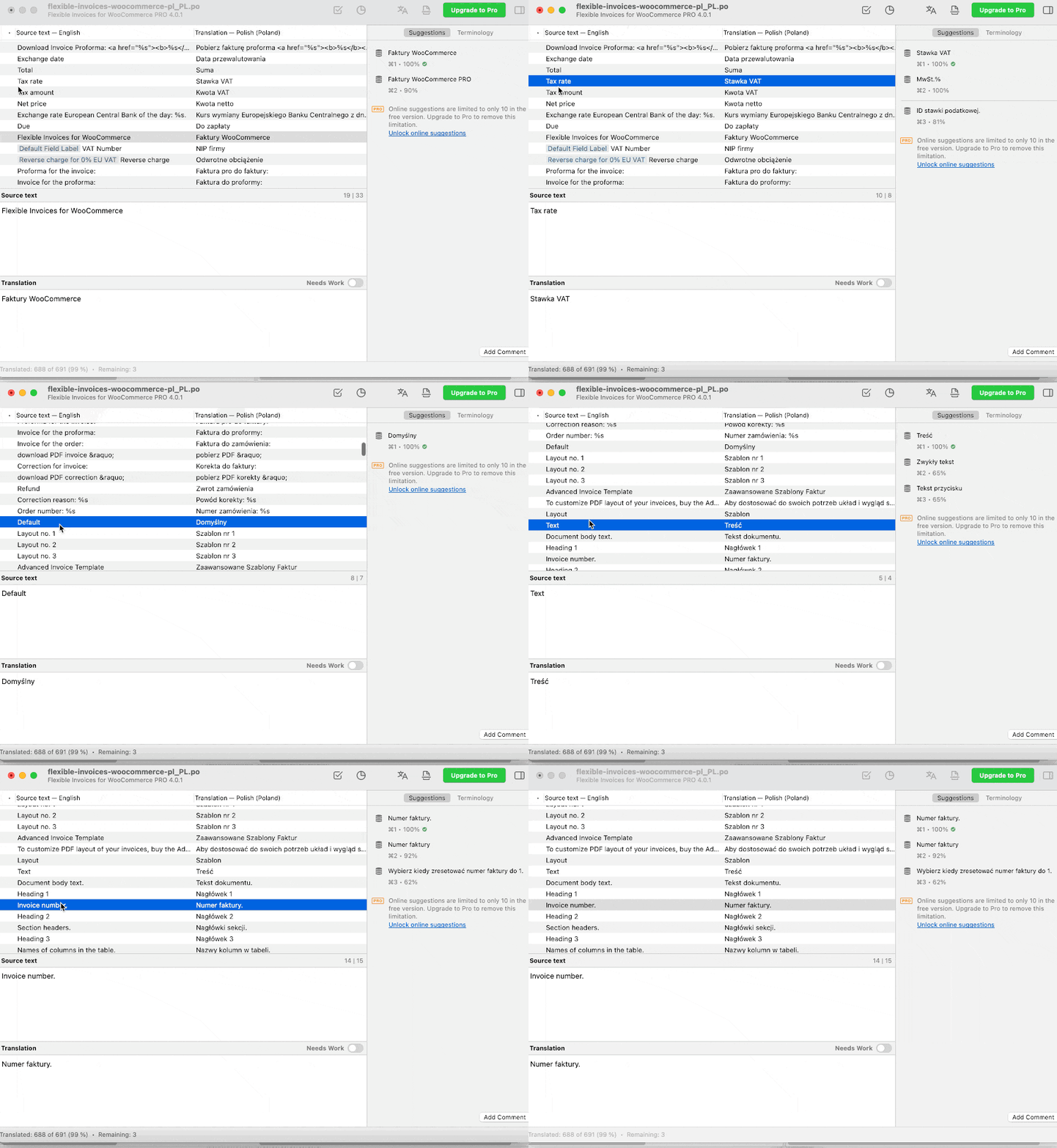
Translate plugin strings in Poeditor

Please notice that you have to add all the special characters from the source (original) text to the translation field. It will ensure the right translation by printing all possible variables.
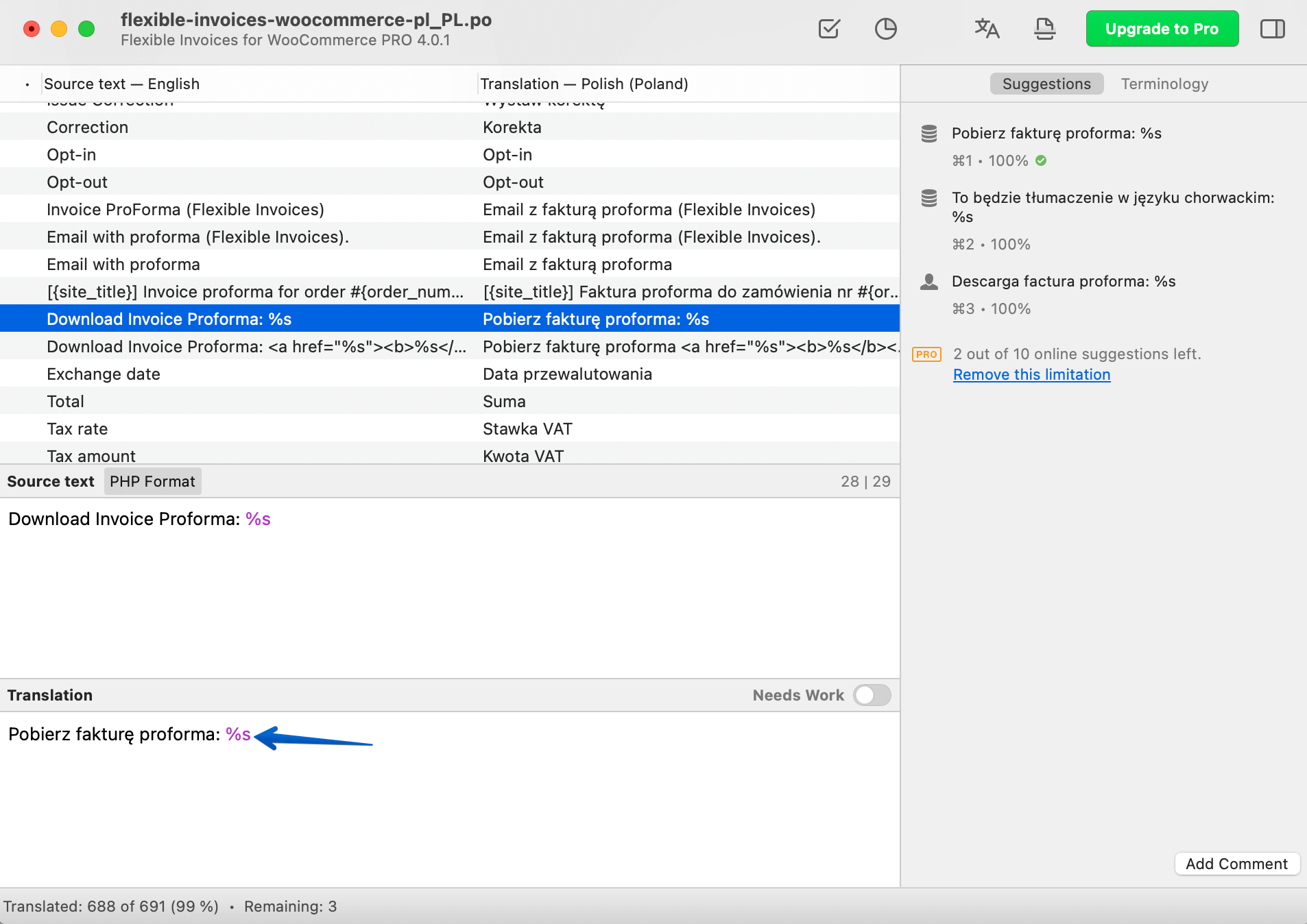
Translate plugin strings with special characters

When you’ve finished, you can save your new translation File as a new one. Please remember that you have to save this File with the plugin name flexible-invoices-woocommerce and the language-specific suffix at the end of the name.

For example, the Spanish translation file name should be flexible-invoices-woocommerce-es_ES. This is very important; otherwise, your translation will not work. Then choose Compile to MO. The files always come in pairs (.po and .mo). WordPress will interpret and pull data from .mo files.
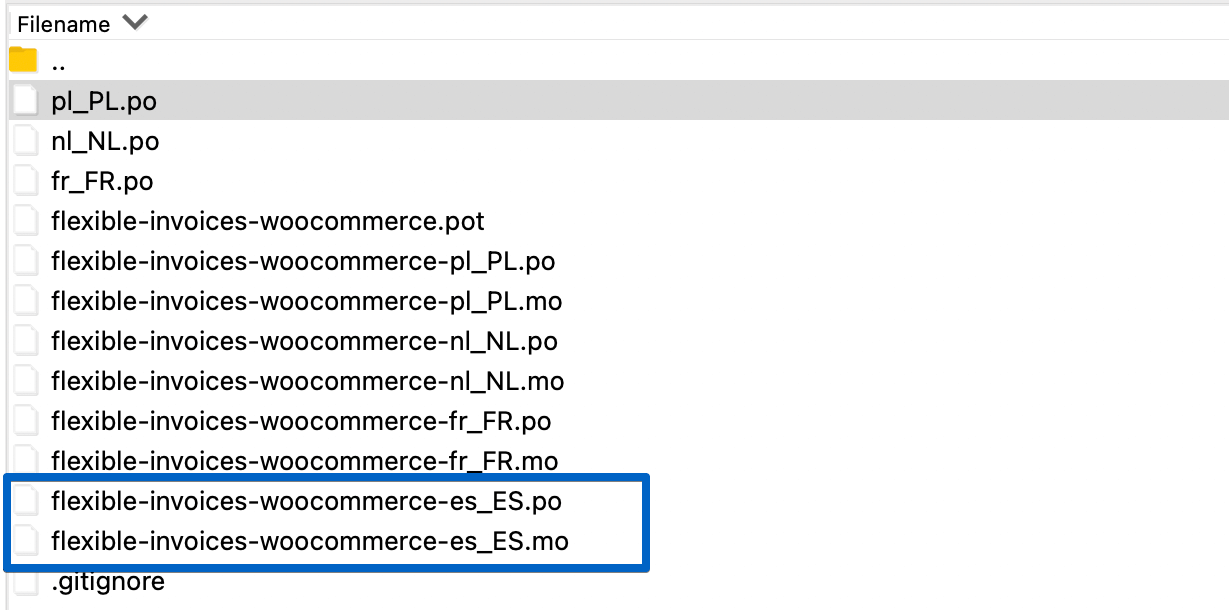
Create a .po files in Poeditor

The last step is adding translation files to your server. You can do that through FTP. Go to this path: wp-content > languages > plugins. Add both .mo and .po files into this folder.

Remember that the language on your invoice will depend on the current language of the WordPress dashboard.

And that's it! The plugin is translated. Both your invoices and the interface should appear in the language you have chosen.

Translating a plugin with Loco Translate

Loco Translate is a plugin to manage your translation directly from the WordPress dashboard. It is entirely free, so all you have to do is install it on your site. First, navigate to Plugins. Then click the Add new button. And find Loco Translate on the bottom left of your Dashboard. Finally, install and activate the plugin.
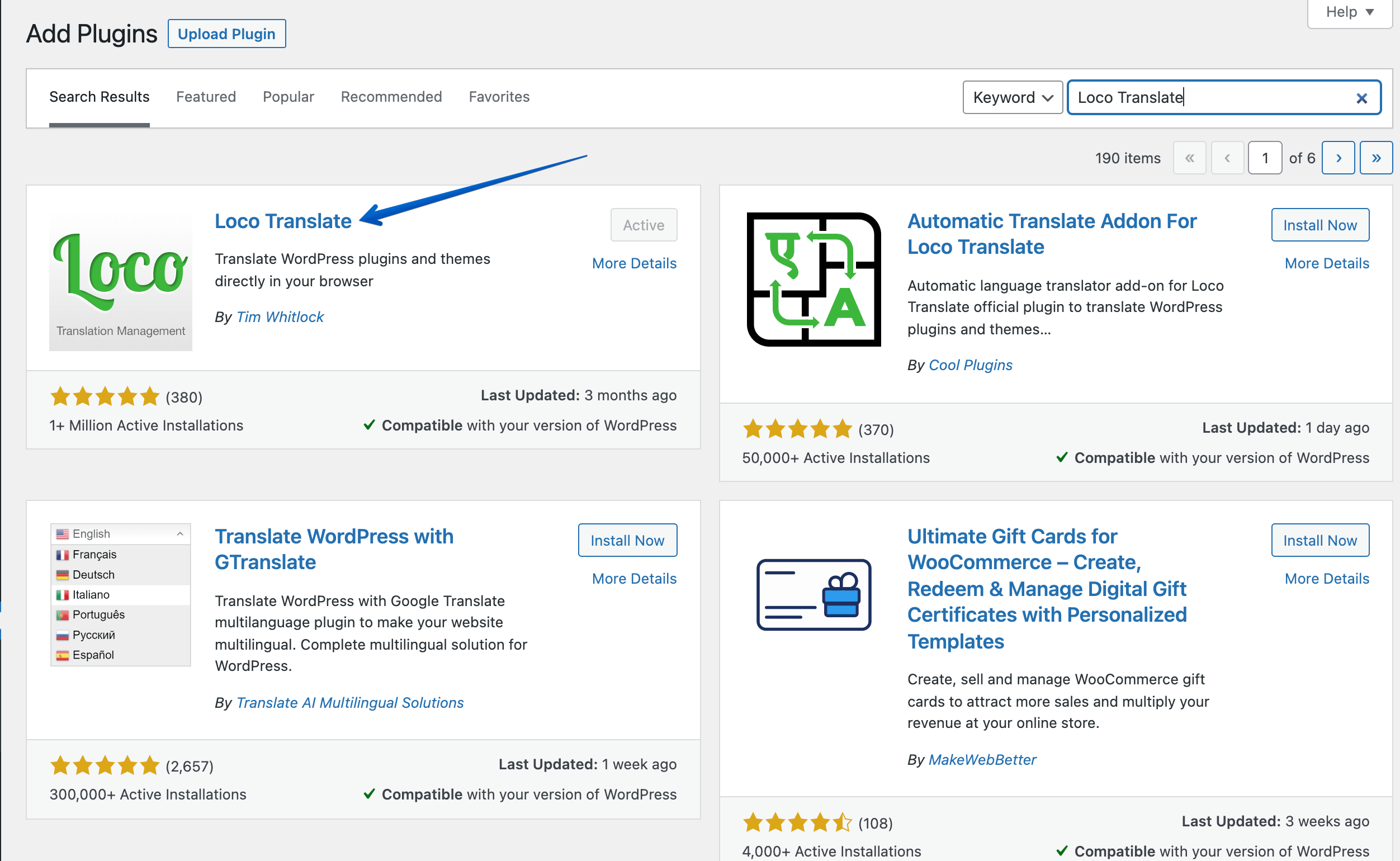
Installing Loco Translation plugin

Let's translate the Flexible Invoices for WooCommerce plugin with Loco Translate!

First, choose the plugin, list all active plugins, and click Flexible Invoices for WooCommerce. Secondly, click New Language and select your language from a dropdown. Please remember that you also have to choose this language from Settings > General to show translation on your site.
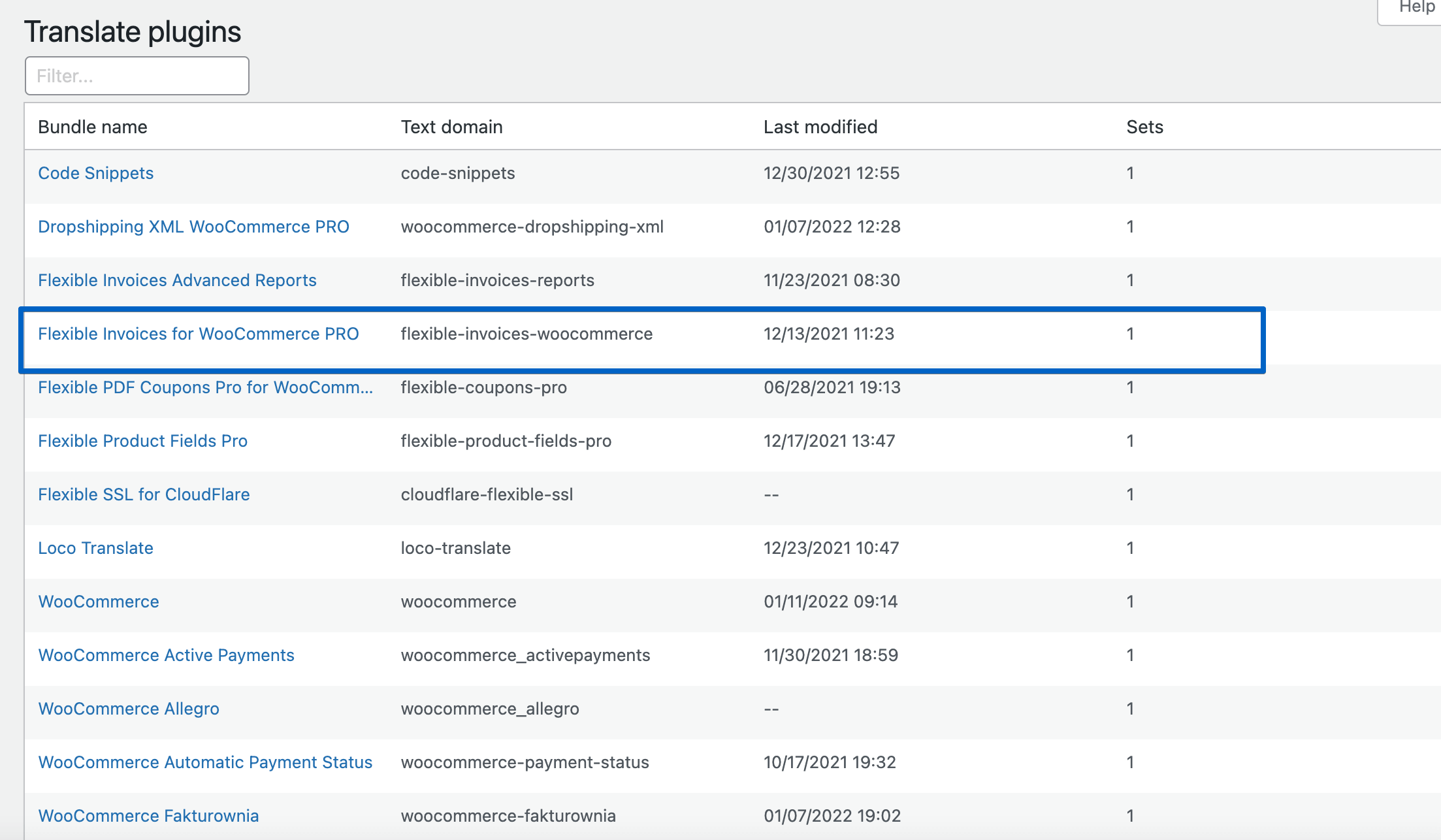
Find a plugin in Loco Translate

Then select the location of your translation and start translating the plugin. Now, click on every string one by one and translate it to the language of your choice. Save your work and check changes on your site.
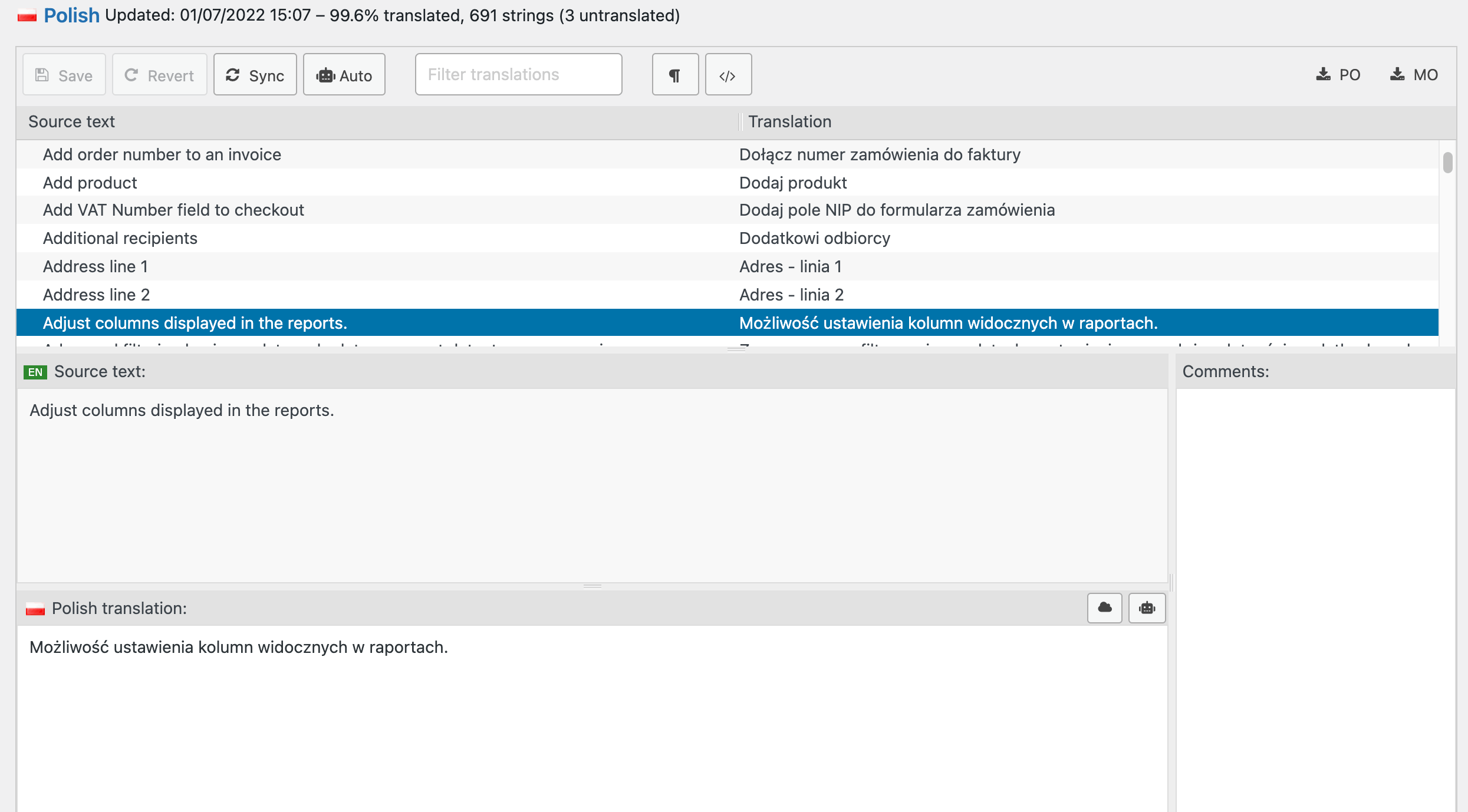
Translate strings in Loco Translate

Done, Flexible Invoices for WooCommerce is translated!

💡 In the article, I was translating the Flexible Invoices for WooCommerce plugin.
If you need to issue invoices in your WooCommerce store you may install this free plugin in your WordPress or download it from the WordPress repository.

How to start translating plugins and themes?

Having a translated site can help SEO, but it's also necessary for a better user experience. Untranslated parts of the website may look unprofessional and untrustworthy. If you downloaded a plugin or a theme without translation or partly translated, you may choose from a few options.

  1. First, you can translate the plugin or theme yourself.
  2. Secondly, ask the software producer for an official (or missing) translation.
  3. Or hire a translator.
  4. Finally, use automated on-site (browser) translation.

Steps to translate a WordPress plugin/ theme

Use one of the above tools if you choose to translate the plugin yourself.

  1. Download or open a plugin folder.
  2. Then, get a copy of the existing .po files.
  3. Copy the .po file from the plugin to the working folder.
  4. Then, use an editor to translate a WordPress plugin.
  5. Save the file with the locale e.g. it_IT for languages and language regions.
  6. Copy the file to /wp-content/languages/plugins/ using FTP or a hosting file manager.
  7. Change the site's language in Settings → General → Site Language.
  8. Finally, test if all phrases are translated backend/ frontend.
💡 Remember about copying or modifying .po files inside /wp-content/languages/plugins/ or /wp-content/languages/themes/.

What are .mo and .po files in WordPress?

Machine Object (MO) and Portable Object (PO) are translation management files in WordPress. PO files contain understandable human strings, which are compiled into binary MO files. As you can probably guess, the .po files are used to edit the translation.

Usually, translation plugins copy the files for you. But if you want to use off-site tool, then you may have to transfer or edit the .po files yourself.

Plural forms

In some languages, there are different plural forms for numerals. You may need to define the plural forms inside the translation tool.

WordPress.org translation know-how

Authors of plugins or themes should make a software translation-ready according to the WordPress i18n (internationalization) standard. I18n allows users and contributors to translate a plugin or theme following the WordPress guidelines.

It's also possible to help translate a theme or plugin (readme or user interface) by sending a translation to:

  • translate.wordpress.org/projects/wp-plugins/PLUGIN-SLUG/
  • translate.wordpress.org/projects/wp-themes/THEME-SLUG/

For example, https://translate.wordpress.org/projects/wp-plugins/flexible-invoices/.

Where to find a WordPress plugin translator

You may also delegate the task or hire an external translator for you. In that case, you can specify the task depending if you want the .po file being translated or if you need a person to add translations to WordPress.

How about automated translation in WordPress?

Users can use a browser to translate the content of the page. It may work for sites not available in the user's language, but not for websites with partly translated content. It's better to have the content translated and checked by a translator. Having bad opinions about poor translation can harm online presence.

💡 One more thing! You may also check out how WP Desk free plugins for WordPress and WooCommerce.

For more articles about plugins and e-commerce, see our blog.
Related Articles

Professional WordPress design and development (learning, tools & plugins)

Professional WordPress design and development (learning, tools & plugins)

You can find a lot of books about professional WordPress design and development. There are also courses, videos, and tutorials on how to excel in desi...
WooCommerce tips

5 essential WooCommerce tips to boost your sales

Do you need valuable WooCommerce tips and tricks to boost your sales? I'll give you 5 most essential WooCommerce tips and tricks. If you follow them, ...
WordPress 5.3 Overview

WordPress 5.3 Overview

New WordPress is here and brings us some improvements, especially in the block editor. It also introduces the new default WordPress theme called Twent...
WooCommerce Review

10-step WooCommerce review to help you understand why WooCommerce is the best e-commerce platform

In this WooCommerce review I will guide you through 10 reasons why WooCommerce should be your e-commerce platform of choice. Life is a series of choic...

15 Best Websites to Learn WordPress and WooCommerce

This is a guest post by Simon Dwight Keller from PRable.
Are you looking for the best sources to learn WordPress and WooComm...

4 minutes read116311 views

Reader Interactions

Comments

  1. minimal adv says

    2023-11-27 at 14:29

    Hello i am using the free version of the Flexible Quantity Calculator for WooCommerce i have set the quantity in meters but i cant translate it to Greek the term – for m – in the price unit field. I have tried Loco but i cant find it

    Reply
  2. Tomasz Bednarek says

    2023-11-28 at 08:56

    Hi, please send a message with the screenshots of your Logo settings. Also, write the exact location of the .po & .mo files. We will assist you with our support faster (you may choose a pre-sale option) https://wpdesk.net/get-support/?subject=Support :)

    Reply
  3. Tomasz Bednarek says

    2024-01-15 at 11:40

    Hi, please send a message with the screenshots of your Logo settings. Also, write the exact location of the .po & .mo files. We will assist you with our support faster (you may choose a pre-sale option) https://wpdesk.net/get-support/?subject=Support :)

    Reply

Leave a Reply Cancel reply

Your email address will not be published. Required fields are marked *

WP Desk

...

Powered by WP Desk

WP Desk brings you great WooCommerce plugins. We strive to save your time and money by speeding up your processes. Use our plugins to build a better store. Awesome support included in the package.

Premium WooCommerce Plugins →
WP Desk › Blog › WordPress design & development › How to translate a WordPress plugin (free tools)

Primary Sidebar

Contents

  • Best ways to translate plugins and themes in WordPress
  • Translation options
  • How to translate a plugin with Poedit?
  • Translating a plugin with Loco Translate
  • How to start translating plugins and themes?
    • Steps to translate a WordPress plugin/ theme
    • What are .mo and .po files in WordPress?
    • Plural forms
  • WordPress.org translation know-how
  • Where to find a WordPress plugin translator
  • How about automated translation in WordPress?

Stay updated on our how-to articles

WP Desk news, WooCommerce tips, promo codes - right to your inbox.

By entering your e-mail, you agree to our Terms & Conditions and Privacy Policy.

By entering your e-mail, you agree to our Terms & Conditions and Privacy Policy.

Footer

WP Desk - WooCommerce Plugins

At WP Desk we create great WooCommerce plugins with awesome support. Save time and money with our e-commerce solutions. See how we can help you improve your e-store →

Secured by Comodo

WP Desk

  • About us
  • Giving Back
  • Blog
  • Get Support
  • Contact us

Products

  • Premium Plugins
  • WP Desk Care
  • Documentation
  • WooCommerce Invoices
  • Email Marketing
  • PDF Coupons

Legal

  • Terms & Conditions
  • Refund Policy
  • Support Policy
  • Privacy Policy

© 2026 WP Desk

We value your privacy

We use necessary cookies to make our site work. We'd also like to set additional cookies to understand site usage, enhance your browsing experience, and serve personalized ads or content. By clicking ‘Accept All,’ you consent to our use of additional cookies.

Functional Always active
The technical storage or access is strictly necessary for the legitimate purpose of enabling the use of a specific service explicitly requested by the subscriber or user, or for the sole purpose of carrying out the transmission of a communication over an electronic communications network.
Preferences
The technical storage or access is necessary for the legitimate purpose of storing preferences that are not requested by the subscriber or user.
Statistics
The technical storage or access that is used exclusively for anonymous statistical purposes. Without a subpoena, voluntary compliance on the part of your Internet Service Provider, or additional records from a third party, information stored or retrieved for this purpose alone cannot usually be used to identify you. The technical storage or access that is used exclusively for anonymous statistical purposes. Without a subpoena, voluntary compliance on the part of your Internet Service Provider, or additional records from a third party, information stored or retrieved for this purpose alone cannot usually be used to identify you.
Marketing
The technical storage or access is required to create user profiles to send advertising, or to track the user on a website or across several websites for similar marketing purposes.
  • Manage options
  • Manage services
  • Manage {vendor_count} vendors
  • Read more about these purposes
View preferences
  • {title}
  • {title}
  • {title}