Contents
Key plugin features
Flexible Refund and Return Order for WooCommerce lets you manage customer requests directly in WooCommerce. A customer can submit a request from My Account → Orders or through a public form without logging in. The plugin supports three request types: refund, reclamation, and repair.
Key plugin features:
- support for Refund, Reclamation, and Repair requests;
- separate settings and a separate form for each request type;
- a custom button label for each request type;
- request button visibility based on order status, user role, payment method, product, or product category PRO;
- ANY / ALL matching mode for product and product category visibility rules PRO;
- a time limit for submitting a request PRO;
- request submission without logging in, based on the order number and email address PRO;
- separate public form shortcodes for refunds, reclamations, and repairs PRO;
- support for multiple requests for the same order, viewed and managed independently;
- request statuses: Requested, Shipment, Verifying, Approved, Refused, and Canceled;
- request type and request status visible in the WooCommerce order list;
- email notifications that include the request type;
- for refunds: full or partial order refund, several shipping cost refund modes, including automatic shipping cost refund when all remaining products are refunded, refund through the payment gateway or as a coupon PRO, and automatic refund approval PRO.
The plugin is useful when you want to organize refunds, reclamations, service requests, or warranty-related requests. It helps collect the required customer information and manage the process from the WooCommerce order.
Go to the Flexible Refund menu in the WordPress admin panel. The plugin settings are divided into separate menu items:
- Flexible Refund → Requests,
- Flexible Refund → Refund,
- Flexible Refund → Reclamation,
- Flexible Refund → Repair,
- Flexible Refund → Global settings.
The Refund, Reclamation, and Repair sections are used to configure a specific request type. Each section has two tabs:
- Settings - button visibility, button label, public form shortcode, availability period, and policy page;
- Edit form - form fields that the customer fills in when submitting the request.
Global settings
Go to Flexible Refund → Global settings. This section contains settings shared by all request types and public request forms.
Search by visible order number - enable this option if you want the customer to enter the order number visible in the store instead of the internal WooCommerce order ID in the public request form. Use this option if your store uses custom order numbering.
PRO Cancel unpaid order button - enable this option if you want the customer to cancel an unpaid order from My Account → Orders. The button is available only for orders with the Pending payment or On hold status.
Request types: Refund, Reclamation, and Repair
The plugin supports three request types. You can enable each type separately and configure a separate form for it.
Refund - use this request type when the customer wants to return products and receive a refund. Only this request type supports refund method settings, coupons, automatic approval, and shipping cost refunds.
PRO Reclamation - use this request type when the customer reports a product defect or an order issue. Reclamation uses the request form, request statuses, and email notifications, but it does not process an automatic monetary refund.
PRO Repair - use this request type when the customer wants to submit a product for repair. This request type can help you handle service requests and right-to-repair processes. Repair uses the request form, request statuses, and email notifications, but it does not process an automatic monetary refund.
In the PRO version, you can edit the additional Reclamation and Repair forms. In the free version, additional forms are unavailable.
Request type settings
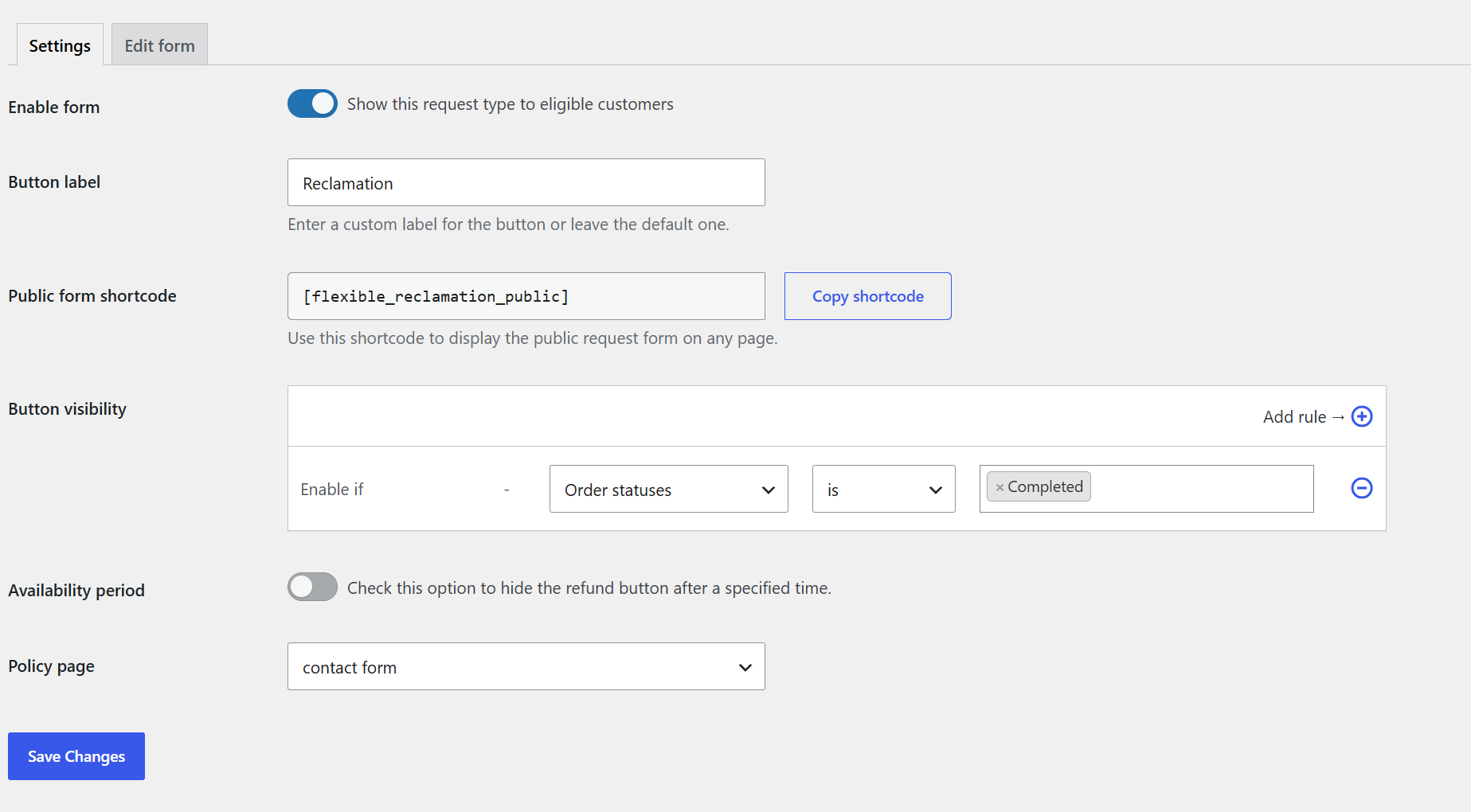
Go to Flexible Refund → Refund, Flexible Refund → Reclamation, or Flexible Refund → Repair. In the Settings tab, you can configure the visibility and behavior of the selected request type.
Enable form - enable this option to make the request type available to customers who meet its visibility rules.
Button label - enter the button label visible to the customer in My Account → Orders. If you leave the default value, the button will use the request type label, for example Refund, Reclamation, or Repair.
PRO Public form shortcode - copy the shortcode for the public request form. Available shortcodes:
[flexible_refund_public]- public refund form,[flexible_reclamation_public]- public reclamation form,[flexible_repair_public]- public repair form.
PRO Button visibility - enable conditional logic to set the rules that must be met before the request button appears in the customer's My Account. You can set conditions based on:
- user role,
- order status,
- payment method,
- product,
- product category.
For product and product category conditions, you can choose ANY or ALL matching mode. ANY means that one selected product or category is enough. ALL means that the order must match all selected values.
Conditional logic lets you display the request button only in selected situations. You can use more than one condition. Two operators are available: is and is not. Subsequent conditions are combined with and.
Below you will see an example of settings that display the request button when the order status is Processing and the payment method is Bank Transfer.

Refund type - this option is available only for the Refund request type. Choose the refund method:
On bank account / On cash - with this option, a refund will be made according to the payment method used in the order.
PRO On Coupon - select this option to generate a discount coupon after the refund is approved. Its value will be equal to the refund amount. The coupon code can be sent to the customer by email.
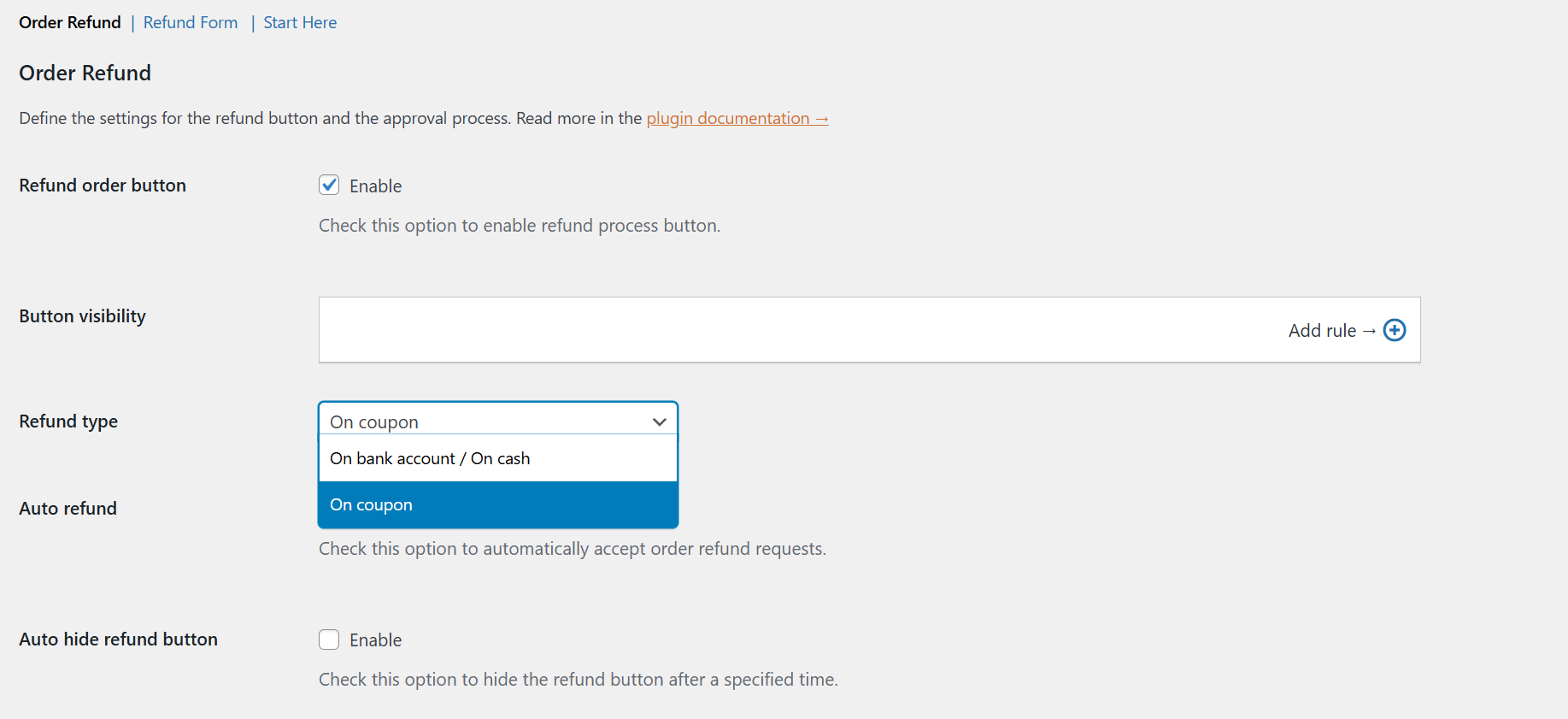
{coupon_code} shortcode.PRO Automatic approval - this option is available only for the Refund request type. Enable it to automatically approve order refund requests.
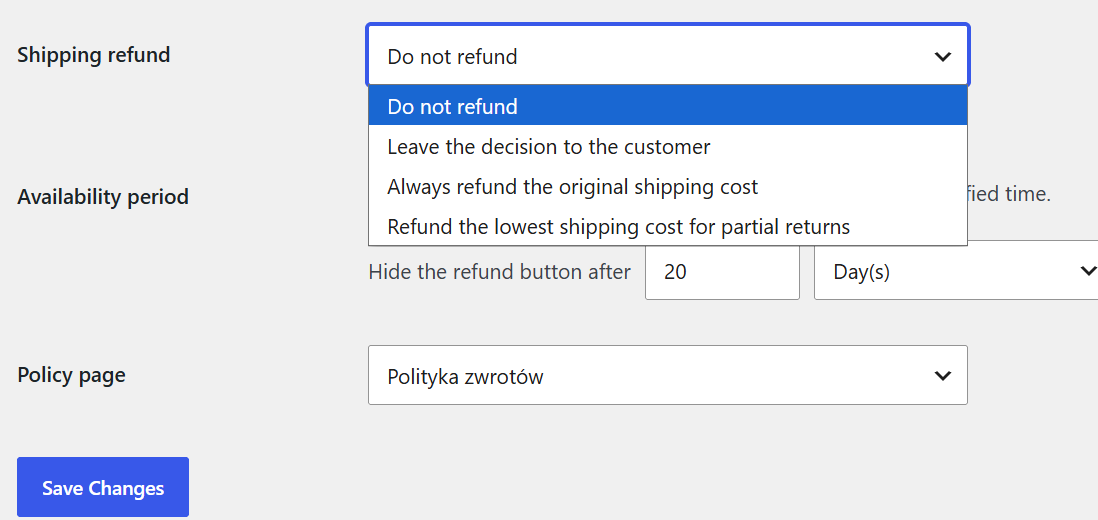
Shipping refund - this option is available only for the Refund request type. Choose whether and how shipping costs should be included in a refund request.
Available options:
- Do not refund - the refund form will not include the shipping cost item.
- Leave the decision to the customer - the customer decides whether to select the shipping cost refund item. For partial and full returns, the plugin uses the original shipping cost.
- Always refund the original shipping cost - the plugin automatically selects the shipping cost refund item. For partial and full returns, the plugin uses the original shipping cost.
- Refund the lowest shipping cost for partial returns - the plugin automatically selects the shipping cost refund item. For partial returns, the plugin uses the amount entered in the Cheapest shipping cost in the store field. For full returns, the plugin refunds the original shipping cost.
Cheapest shipping cost in the store - this field appears when you select Refund the lowest shipping cost for partial returns. Enter the lowest shipping cost available in your store. The plugin will use this amount for partial returns.
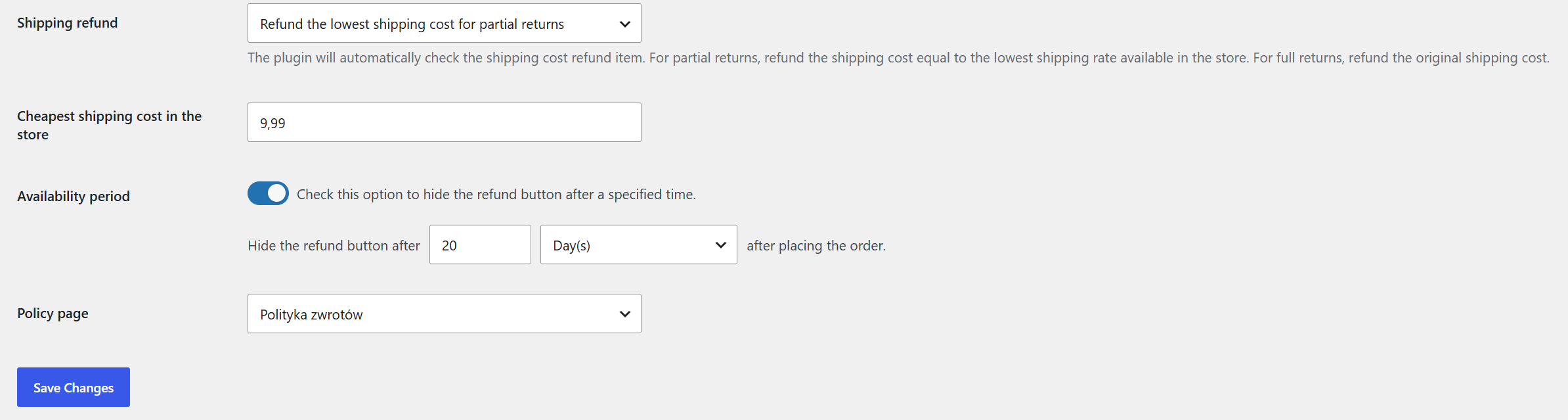
PRO Availability period - enable this option to hide the request button after a selected time from the order date. You can choose hours, days, weeks, months, or years.
Policy page - select a page with rules for the selected request type. The link to this page can be included in emails with the {refund_info_page} placeholder.

Edit request form
Each request type has its own form. Go to Flexible Refund → Refund, Flexible Refund → Reclamation, or Flexible Refund → Repair, and open the Edit form tab.

Available form fields:
- Text - short text field;
- Textarea - longer text field;
- Checkbox - checkbox options;
- Radio - one selectable option;
- Select - dropdown list;
- PRO Multi Select - list with multiple selectable options;
- PRO Upload - field used to allow customers to upload attachments. The store admin can limit the number of uploaded files;
- PRO HTML - custom HTML content in the form.
Form field settings
Main settings:
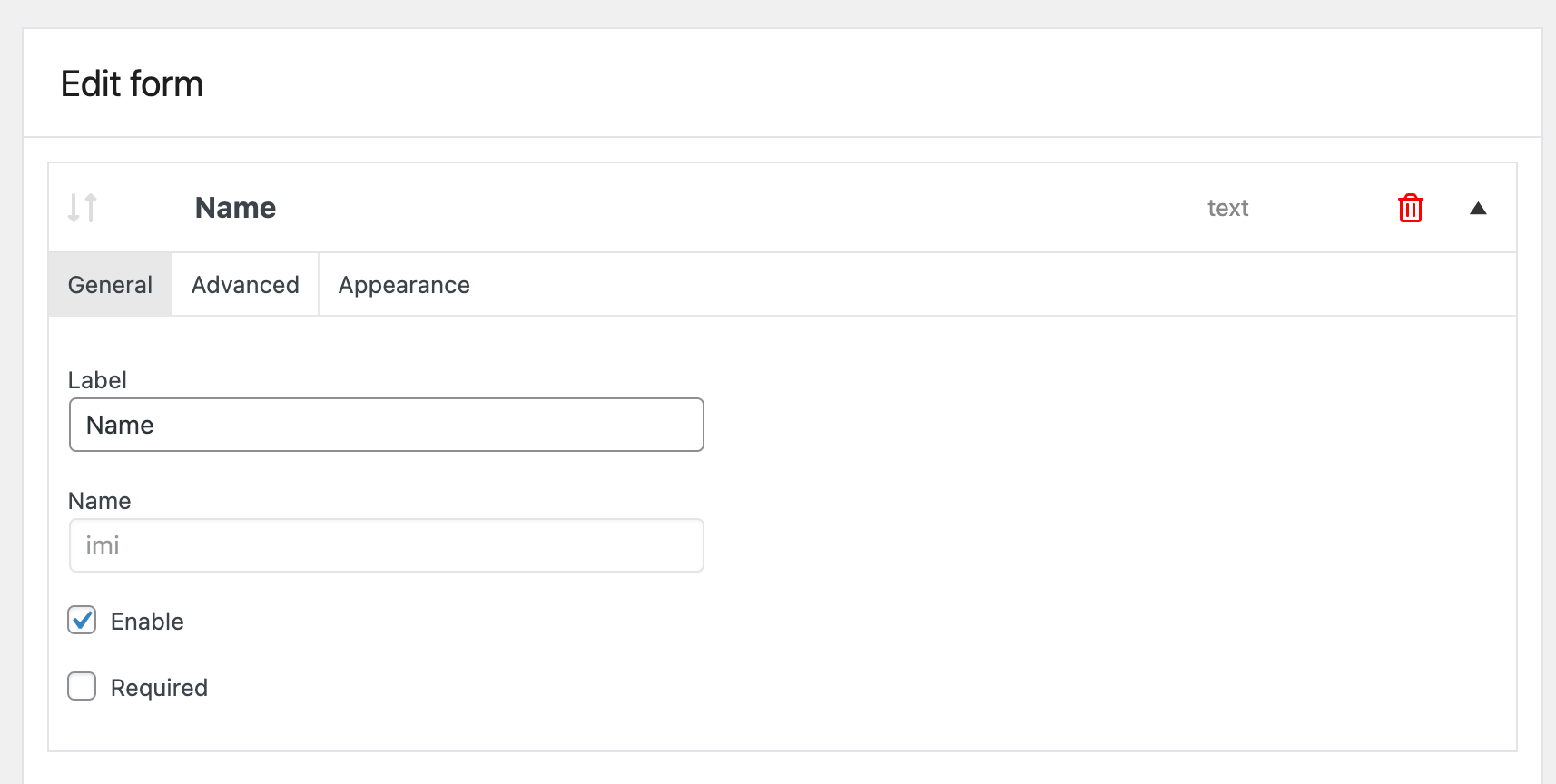
Label - the field label displayed in the request form.
Name - the field name in the database. After adding the field, the name cannot be edited.
Enable - uncheck this option if you want to hide the field.
Required - check this option to make the field required.
Advanced settings:
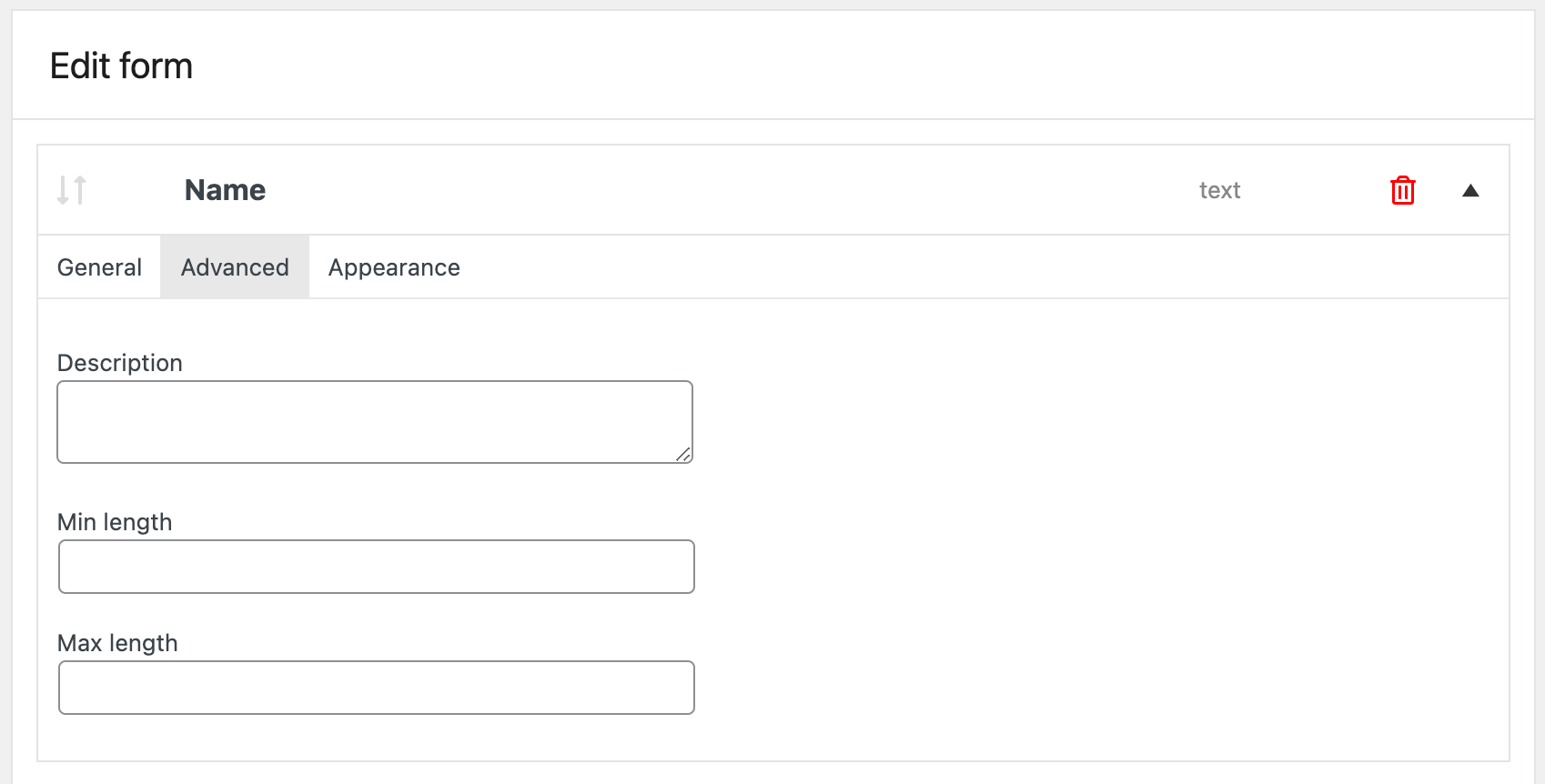
Description - description displayed below the field.
Min length - minimum number of characters in the field.
Max length - maximum number of characters in the field.
Files Limit - upload file limit for the Upload field.
Appearance:

Placeholder - helper text displayed in the field.
CSS class - your own CSS class for the field.
You can change the order of fields with drag and drop.

Request on the My Account page
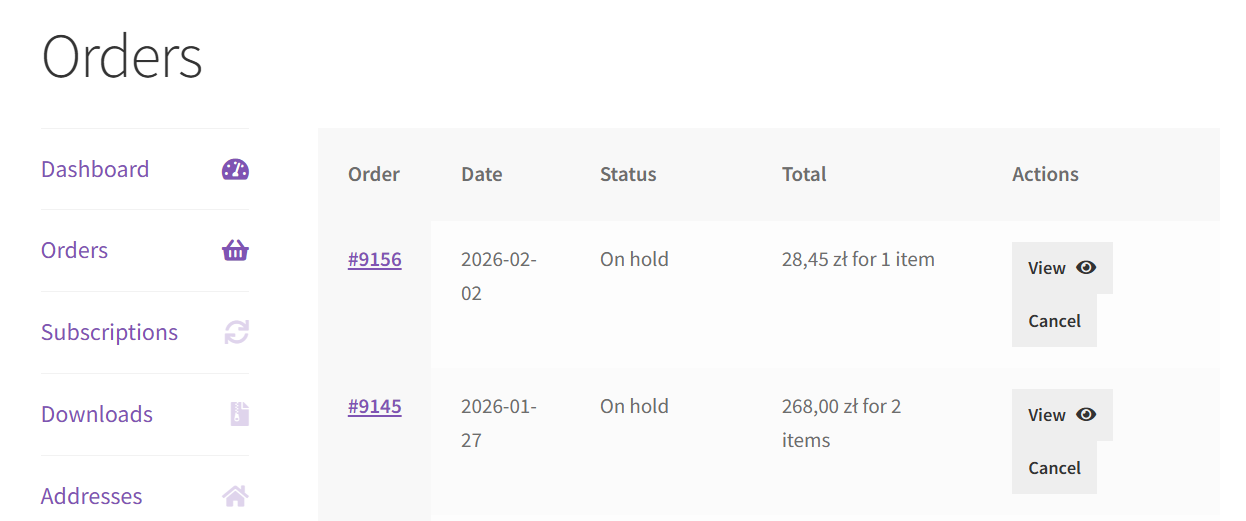
On the My Account → Orders page, the customer will see buttons for the available request types, for example Refund, Reclamation, or Repair. The buttons will appear only when the selected request type is enabled and the order meets its visibility rules.
After clicking the button, the customer will go to the request form for the selected type. In the form, the customer selects products from the order and fills in the fields configured in the Edit form tab.
For the Refund request type, the customer can request a refund for the whole order or PRO selected products. The shipping cost item depends on the Shipping refund setting. Depending on the selected mode, the customer can select the shipping cost item manually or the plugin can select it automatically. When the customer returns all remaining products from the order, shipping costs are added automatically in the automatic shipping refund modes.
For Reclamation and Repair, the customer selects products and fills in the form, but the plugin does not process a monetary refund.
After the request is submitted, the order status will change to a request status, and an active request process will be saved in the order. The customer will see request information in the order details.
After sending a request, the customer can cancel it by clicking Cancel Request.
After cancellation, the request status will change to Canceled. The customer can submit another request if the order meets the visibility rules for the selected request type.
Request without logging in [PRO]
The plugin also lets customers submit a request without logging in. This is useful when the customer placed an order in the store but does not have a customer account or is not signed in. Create a separate page with a public request form for these customers.
Public form shortcodes:
[flexible_refund_public]- public refund form,[flexible_reclamation_public]- public reclamation form,[flexible_repair_public]- public repair form.
- Create a new page, for example Refund Form, Reclamation Form, or Repair Form.
- Paste the shortcode for the selected request type and save the changes.
- The selected page will display a form with Order number and Email fields.
If the customer enters correct data, meaning an existing order number and the matching email address, the plugin will display the request form for the selected type. If the data is incorrect, the customer will see an error message.

Managing requests by the store administrator
You can find all requests in Flexible Refund → Requests or in the WooCommerce order list with the request status filter. The order edit page will display the Customer requests metabox.
In the Customer requests metabox, the store admin will see:
- the list of requests connected with the order;
- request ID and request type, for example #15 Repair Request;
- submission date;
- products selected by the customer;
- customer answers from the form;
- current request status;
- customer note field;
- available statuses.
Request statuses:
- Requested - the request was submitted by the customer and is waiting for review;
- Shipment - the store is waiting for the customer shipment;
- Verifying - the request is being verified;
- Approved - the request has been approved;
- Refused - the request has been refused;
- Canceled - the request has been canceled by the customer.
After changing the status, click Update. The plugin will save the request status, add an order note, and send the related email notification.
For the Refund request type, the Approved status starts the monetary refund process. If a Refund request includes shipping costs, the shipping item appears in the Customer requests metabox together with the products selected by the customer. When the lowest shipping cost mode is used for partial returns, the store admin will see the amount based on the Cheapest shipping cost in the store field. For full returns, the plugin uses the original shipping cost. If the refund covers the full order amount, the order status can change to Refunded. For Reclamation and Repair, the Approved status completes the request, but it does not process an automatic monetary refund.
The plugin adds the Request status column to the WooCommerce order list. This lets the store admin check the latest request status without opening the order.
E-mails
You can find all email messages generated by the plugin in WooCommerce → Settings → Emails.
PRO Edit and add new recipient addresses for the admin request notification email.
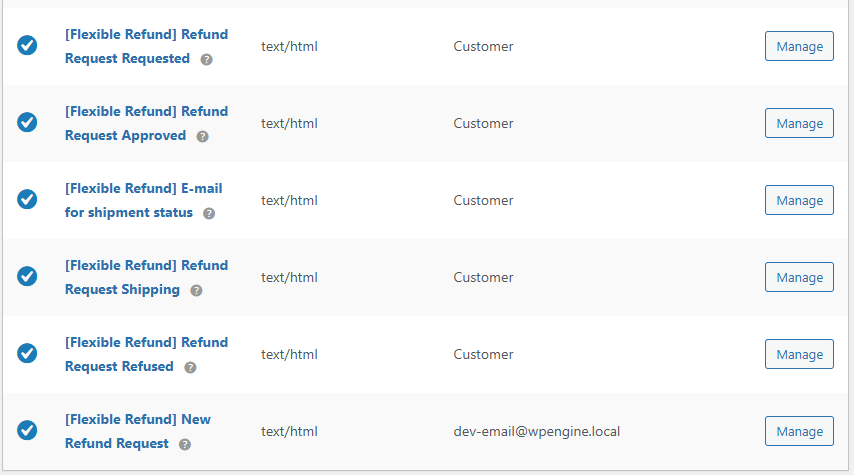
To edit or enable / disable an email, click Manage.

Enable/Disable - enable or disable this email notification.
Subject - use the default email subject or create your own. You can use the following placeholders: {site title}, {site address}, {site_url}.
Email heading - use the default email heading or create your own. You can use the following placeholders: {site title}, {site address}, {site_url}.
Additional content - you can edit email content. Available placeholders: {shop_title}, {shop_address}, {shop_url}, {shop_email}, {refund_url}, {refund_note}, {refund_order_table}, {customer_name}, {order_id}, {order_date}, {order_number}, {order_payment_method}, {coupon_code}, {admin_order_url}, {admin_refunds_url}, {refund_info_page}, {refund_request_date}, {request_id}, {request_type}, {request_type_label}, {request_label}, {refund_specific_content}.
Email Type - available email types: plain text, HTML, or multipart.
The plugin sends the following emails:
- Request Submitted - when a new request is submitted;
- New Request Notification - to the store admin when a new request is submitted;
- Request Awaiting Shipment - when the Shipment status is set;
- Request Being Verified - when the Verifying status is set;
- Request Approved - when the request is approved;
- Request Refused - when the request is refused.
Free vs. PRO Feature Comparison
To make it even easier for you to see the difference between the free and pro versions of the Flexible Refund and Return Order for WooCommerce plugin, we've prepared for you a summary table of all the features. Take a look and decide which version you choose.
| Feature | FREE → | PRO → |
| Return shipping costs | ✅ | ✅ |
| Full refunds | ✅ | ✅ |
| Partial refunds | ❌ | ✅ |
| Refund form builder | ✅ | ✅ |
| Text, textarea, checkbox, radio, select with description field types in the refund form | ✅ | ✅ |
| Multi-Select, Upload, HTML field types in the refund form | ❌ | ✅ |
| Refund and return policy, terms and conditions, or conditions for returns and warranty requests | ✅ | ✅ |
| Privacy and refund policy checkbox | ✅ | ✅ |
| Include the terms and conditions text and conditions to accept | ✅ | ✅ |
| Describe the return policy and refund requirements of your WooCommerce store | ✅ | ✅ |
| Refund button for an order on the customer My Account page -> Orders | ✅ | ✅ |
| Withdraw the refund request with the cancel button | ✅ | ✅ |
| Refund Request management page | ✅ | ✅ |
| Automatic emails to the customer after the refund request status changes | ✅ | ✅ |
| Return button visibility (conditional logic) | ❌ | ✅ |
| Reimbursement of funds On Coupon | ❌ | ✅ |
| Auto Refund button | ❌ | ✅ |
| Auto hide refund button | ❌ | ✅ |
