Auction template
An auction template includes the default settings used when listing WooCommerce products on Allegro.
Use auction templates to save repeatable offer settings, such as the Allegro account, marketplace, category, description template, delivery price list, offer conditions, price modifier, and quantity settings. This is especially useful when you list many products in the same Allegro category or use the same sales conditions for multiple offers.
Template list
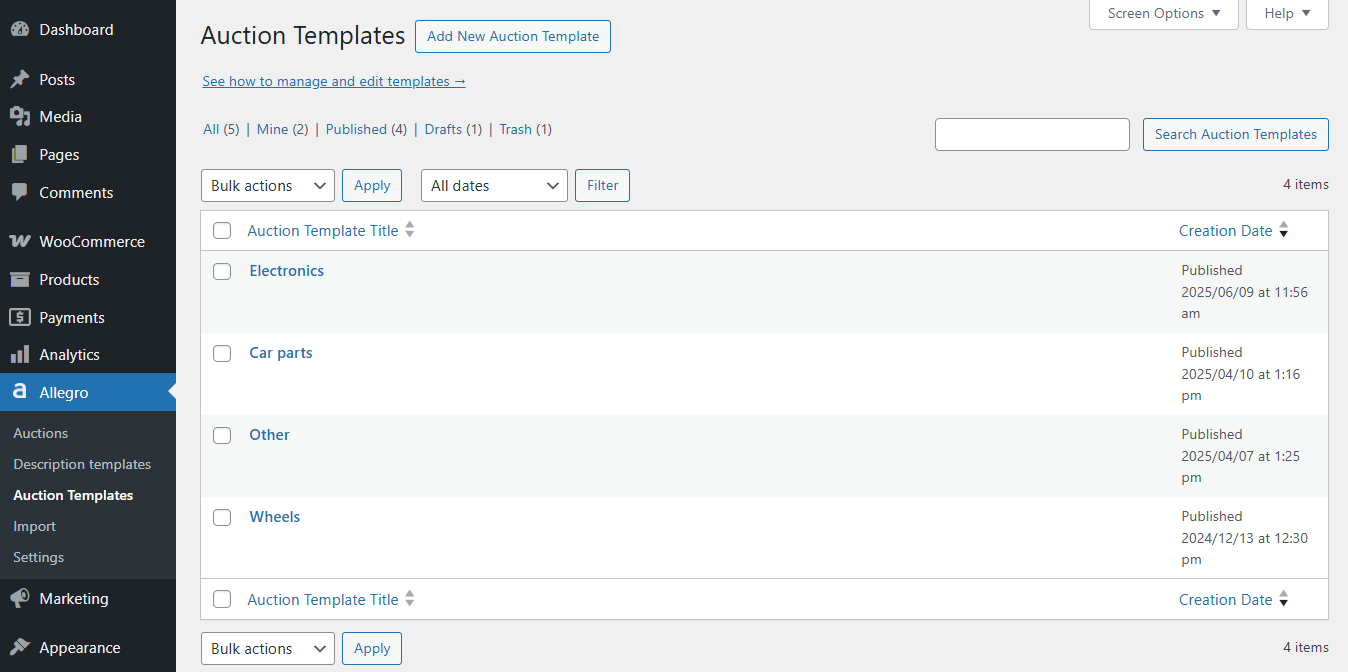
You can browse, edit, and add new auction templates in the Allegro → Auction Templates menu.
New template / editing a template
A template stores the default auction data used during listing.
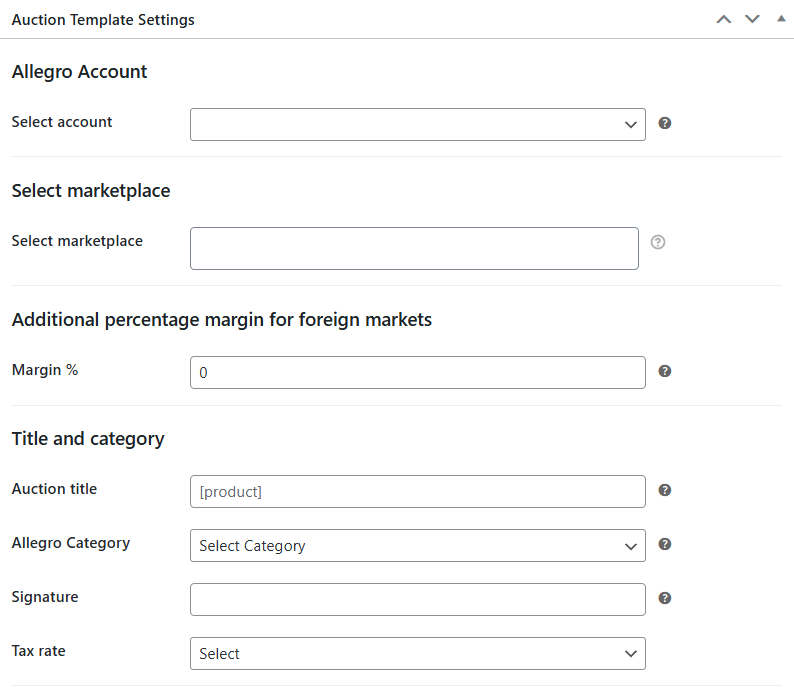
Allegro Account
Select account – choose the Allegro account that will be used to list the auction.
Select marketplace
Select marketplace – choose the marketplace where the auction will be listed.
Additional percentage margin for foreign markets
Margin % – enter an additional percentage margin for foreign marketplaces.
Title and category
Auction title – leave empty to use the WooCommerce product name as the auction title. You can use shortcodes such as or .
Example:
Product name: T-shirt
Attribute name: color
Attribute values: green, red
Template title: Super Best Price!!!
Auction title: Super T-shirt Best Price!!! green red
Allegro Category – choose an Allegro category defined in the category settings. If the list is empty, add default Allegro categories first.
Signature – add an internal product identifier.
Item features
Set product parameters required for the selected Allegro category. These fields depend on the selected category and can include required and optional Allegro parameters.
Tax rate
In the auction template and auction draft, you’ll find the Tax rate field. The field can be displayed per marketplace, depending on the selected Allegro account and marketplace settings.
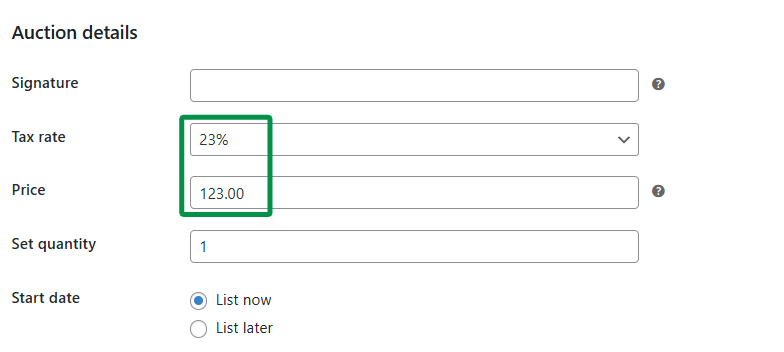
When creating an auction for a WooCommerce product with a defined tax rate, the plugin can use the product’s tax rate if it matches the selected Allegro category and marketplace requirements. If needed, set the tax rate in the auction template so the correct value is sent to Allegro.
Product catalog
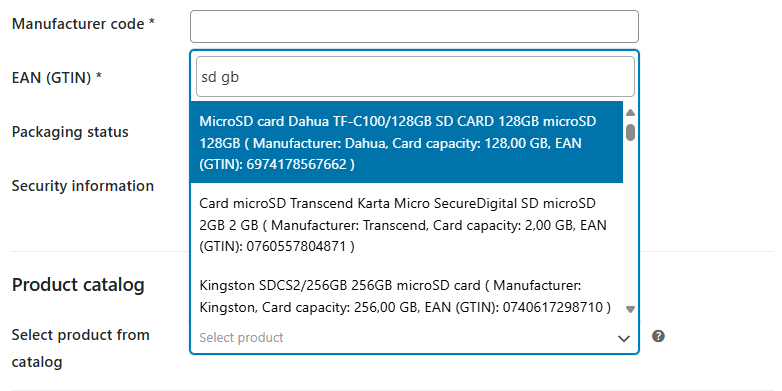
Select product from catalog – choose a product from the Allegro catalog to link it to the auction. The plugin searches for catalog items based on the selected Allegro category. If a valid EAN / GTIN is available, the plugin can suggest a matching product from the Allegro catalog.
Photos and item description
Select template – choose a description template created in the Description Templates menu. If the list is empty, create a description template first.

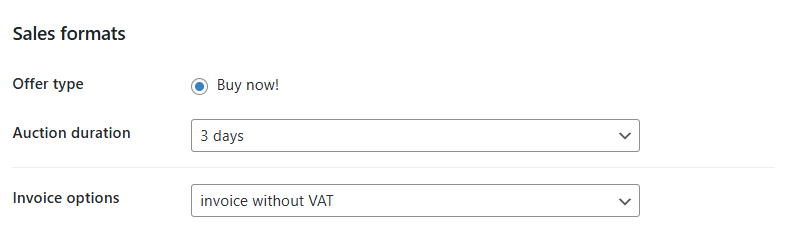
Sales formats
Offer type – the available offer type is Buy now!.
Auction duration – set the listing duration. Available duration options include 3, 5, 7, 10, 20, and 30 days, or until items run out.
Invoice options – select whether you issue invoices for this offer. Available options are:
- I do not issue an invoice
- VAT invoice
- VAT margin invoice
- invoice without VAT
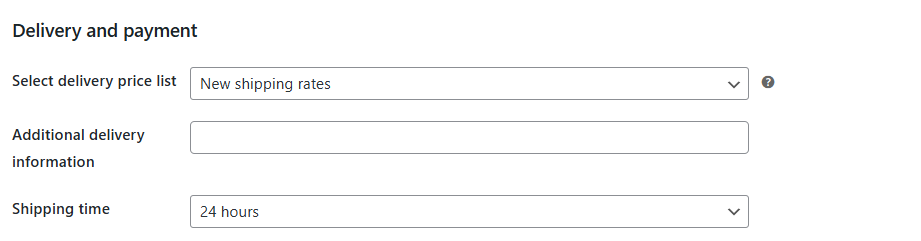
Delivery and payment
Select delivery price list – select a delivery price list configured in your Allegro account settings.
Additional delivery information – enter additional delivery information for the offer.
Shipping time – set the handling time, for example immediately, 24 hours, 2 days, 3 days, 5 days, 7 days, 10 days, 14 days, or 21 days.
Offer conditions
Business accounts should define return, complaint, and warranty terms for listed offers. Add these policies in your Allegro account first, and then select them in the template.
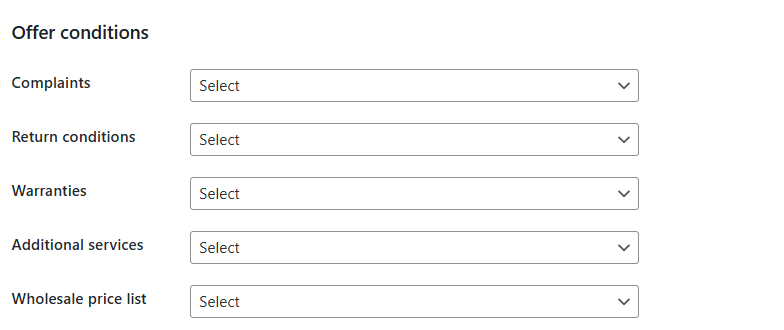
Complaints – select the complaint policy.
Return conditions – select the return policy.
Warranties – select the warranty policy.
Additional services – select additional services configured in Allegro, if available.
Wholesale price list – optionally select a wholesale price list. Wholesale pricing is available only for business accounts. If you use a personal account or do not have wholesale price lists configured, this dropdown may be empty.
GPSR
The auction template includes GPSR-related fields used to provide product safety and responsible party information where required.
Marketed before GPSR – check this option if the product was placed on the market before 13.12.2024.
Manufacturer contact
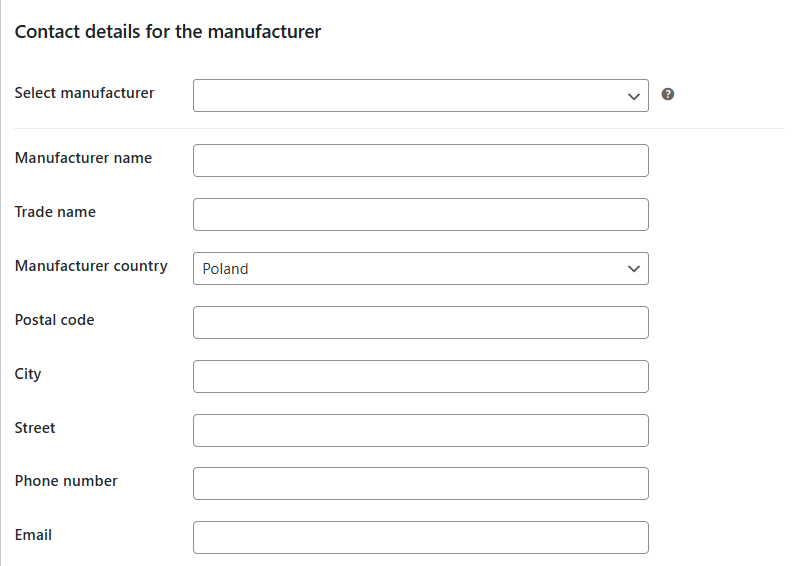
The manufacturer contact section includes:
- Manufacturer name – full name of the product manufacturer.
- Trade name – trade or short name of the manufacturer.
- Manufacturer country – country where the manufacturer is based.
- Postal code – postal code of the manufacturer’s address.
- City – city where the manufacturer is located.
- Street – street and building number of the manufacturer’s address.
- Phone number – manufacturer phone number.
- Email – manufacturer email address.
Responsible person contact
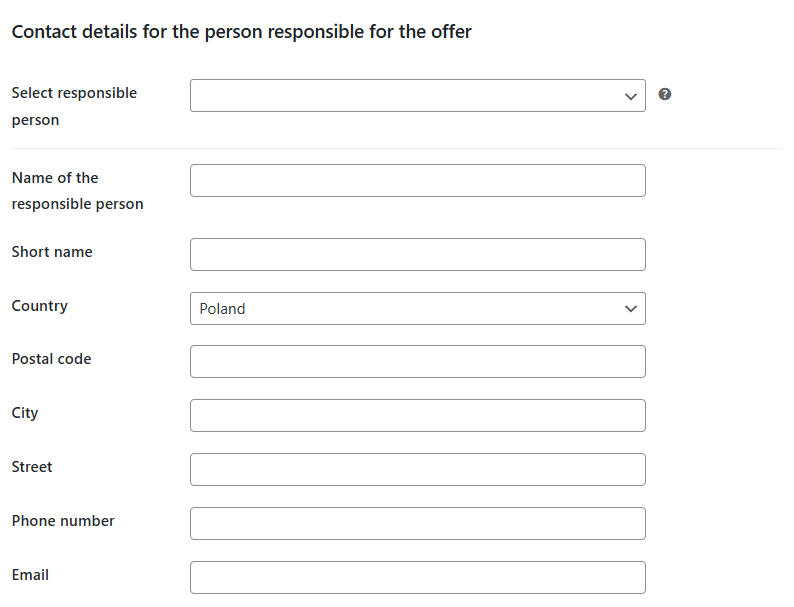
The responsible person contact section includes:
- Name of the responsible person – full name of the person responsible for the offer.
- Short name – short name of the responsible company or person.
- Country – country where the responsible person is based.
- Postal code – postal code of the responsible person’s address.
- City – city where the responsible person is located.
- Street – street and building number of the responsible person’s address.
- Phone number – phone number.
- Email – email address.
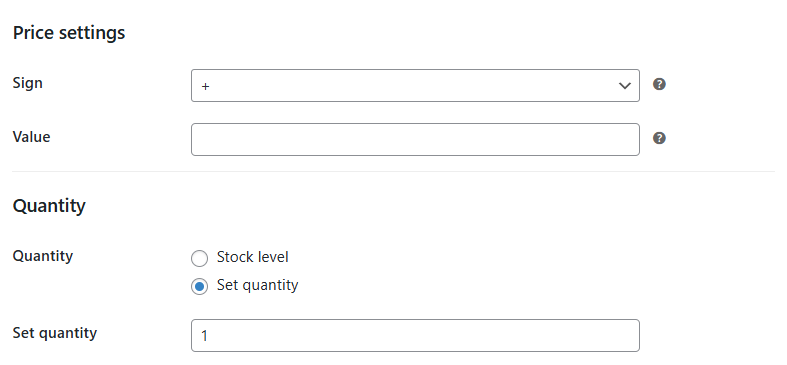
Price settings
You can define how the auction price should be calculated based on the WooCommerce product price.
Sign – choose whether the plugin should add a fixed value or multiply the product price.
Value – enter the value used by the selected sign.
Examples:
- Select * and enter 1.10 to add a 10% margin to the product price.
- Select * and enter 0.90 to decrease the price by 10%.
- Select + and enter a fixed value to increase the price by that amount.
- Select + and enter a negative value to decrease the price by that amount.
Quantity
Quantity – choose how the auction quantity should be set:
- Stock level – use the current WooCommerce stock level.
- Set quantity – manually enter the number of items to list.
GPSR attachments
The GPSR Attachments metabox lets you add safety-related information to the offer. You can choose whether to provide no safety information, text safety information, or attachments.
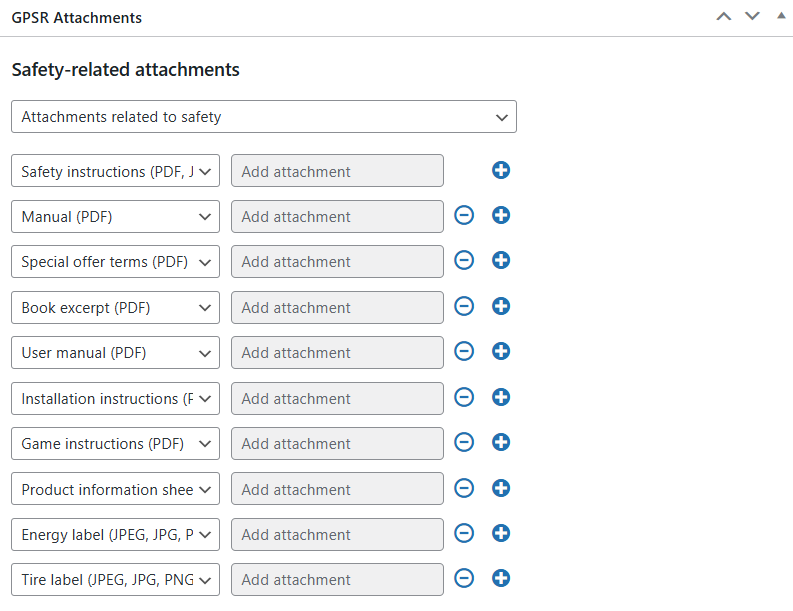
Available attachment types:
- Safety instructions (PDF, JPEG, JPG, PNG)
- Manual (PDF)
- Book excerpt (PDF)
- User manual (PDF)
- Installation instructions (PDF)
- Game instructions (PDF)
- Product information sheet (PDF)
- Energy label (JPEG, JPG, PNG)
- Tire label (JPEG, JPG, PNG)
