Contents
What the plugin does
Flexible Quantity Calculator for WooCommerce lets you sell products by a selected unit of measure and calculate prices based on the purchased quantity. In the PRO version, customers can also enter dimensions to calculate the required quantity and price.
Key plugin features
Unit Calculator for WooCommerce lets you sell products by a selected unit of measure, not only by pieces. It is useful, among others, for selling materials by length, areas by square meters, loose products by weight, and liquids by capacity or volume.
Key plugin features:
- Custom selling unit – you can define the product unit of measure, its label, price, increment, and minimum and maximum quantity.
- Automatic price calculation – the plugin calculates the price based on the selected quantity. The PRO version also calculates the quantity and price from dimensions entered by the customer.
- Support for different measurement types – the calculator can work with length, area, volume, weight, and capacity. It also supports decimal values.
- Settings templates – you can assign one calculator configuration to selected products, product categories, or tags. The plugin supports simple and variable products.
- Control over entered values – you can set the allowed increment and the minimum and maximum value entered by the customer.
- Stock level conversion – the product stock level can be reduced according to the purchased quantity of the unit of measure, for example the number of kilograms or meters.
- Price thresholds – the price table lets you change the unit price depending on the purchased quantity. This feature is available in the PRO version.
- Shipping thresholds – the shipping class table lets you change the product shipping class depending on the ordered quantity. This feature is available in the PRO version.
- Custom units of measure – you can add units that are not available on the plugin’s standard list. This feature is available in the PRO version.
The plugin is useful wherever the customer buys a precisely defined quantity of material or enters custom product dimensions, for example in stores selling fabrics, cables, panels, tiles, wood, paints, fertilizers, or products sold by weight.
Demo
On the demo page, you can check how the PRO versions of our plugins work before purchase. You only need a valid email address to create a test account.
Installation
Subscription activation
Requirements
The plugin requires the following shortcode to be placed on the page set as Cart in WooCommerce:
[woocommerce_cart].
The plugin will not work correctly if the Cart page is built with blocks (introduced in WooCommerce 8.3.0).
Calculator settings for products, product categories, and tags can be configured using settings templates.
Template settings
If you want to enable the flexible quantity calculator, add and configure a new template.
Template assignment
In I am creating template for, choose Products, Products categories, or Tags. Then select the products, categories, or tags to which the template should apply. Configure the settings below and save the template.
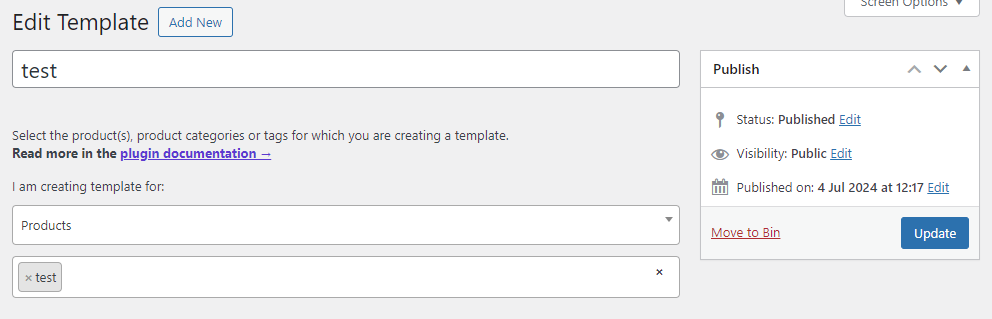
Basic settings
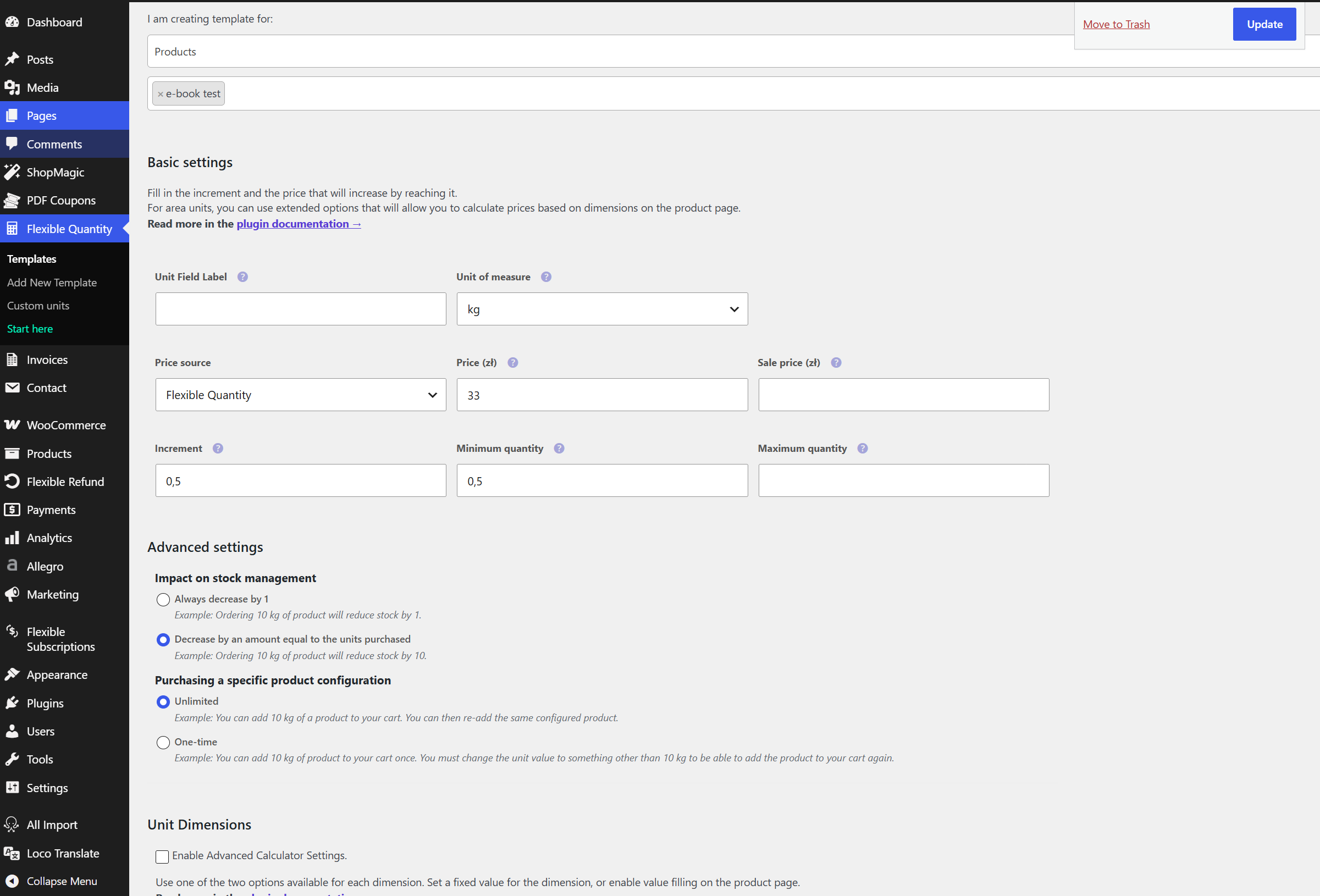
Unit Field Label - the label visible on the product page.
Unit of measure - the unit in which the product is sold.
Price source - choose where the unit price comes from:
- Flexible Quantity - use the Price and Sale price entered in this template.
- Product (PRO) - use the prices of products assigned to the template. The template price fields become read-only. Selecting Product disables and unchecks Enable Pricing Table.
In the FREE version, Product (PRO version only) is visible but cannot be selected.
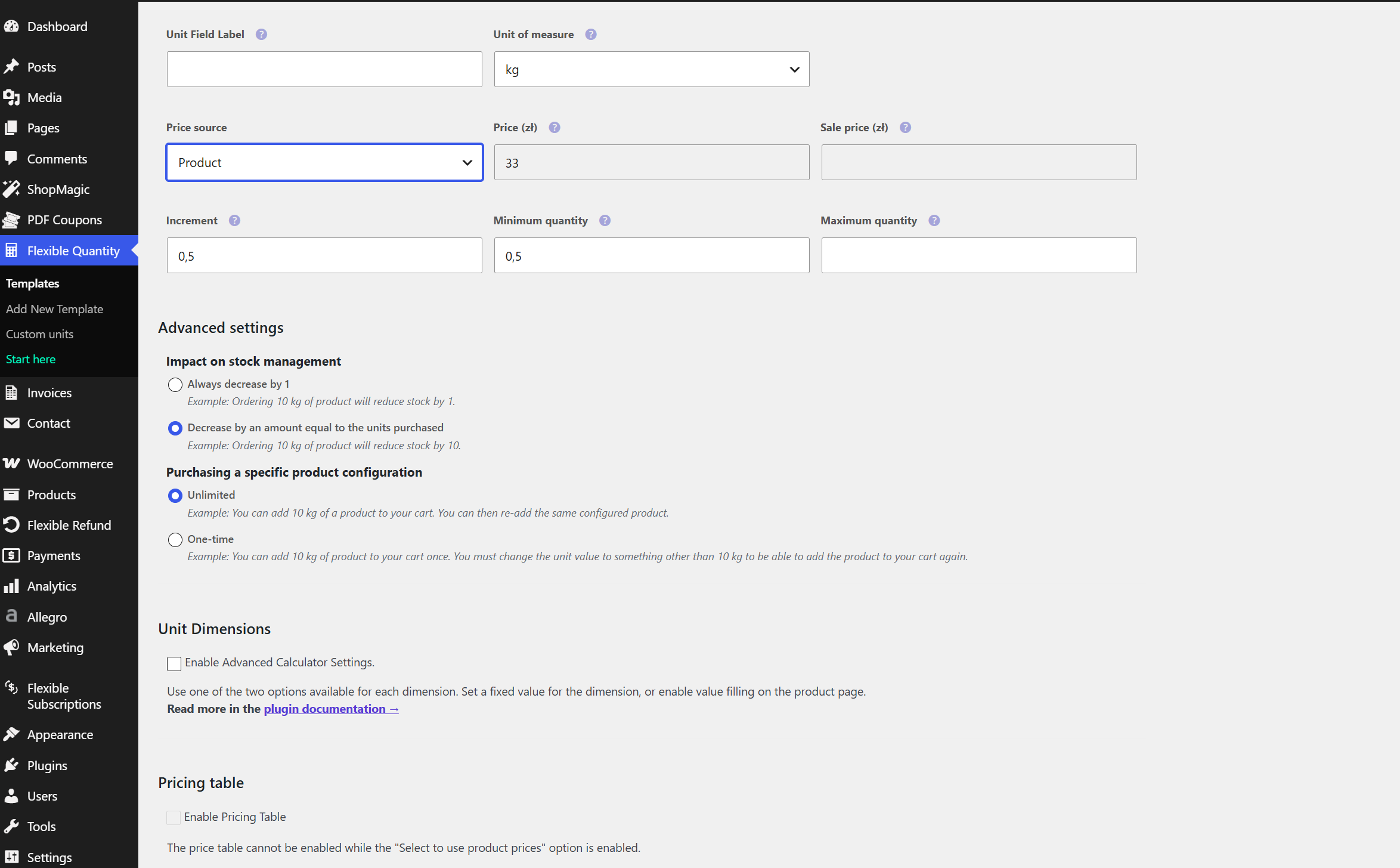
Price (currency) - the regular price for the configured unit of measure.
Sale price (currency) - the sale price for the configured unit of measure. The currency symbol follows the store currency.
Increment - the quantity increment used by the calculator.
Minimum quantity - the minimum quantity the customer can select.
Maximum quantity - the maximum quantity the customer can purchase.
Adding a custom unit to the calculator
Option available in the PRO version
To add a custom unit, go to the side menu, select Unit Calculator, and then Custom units.
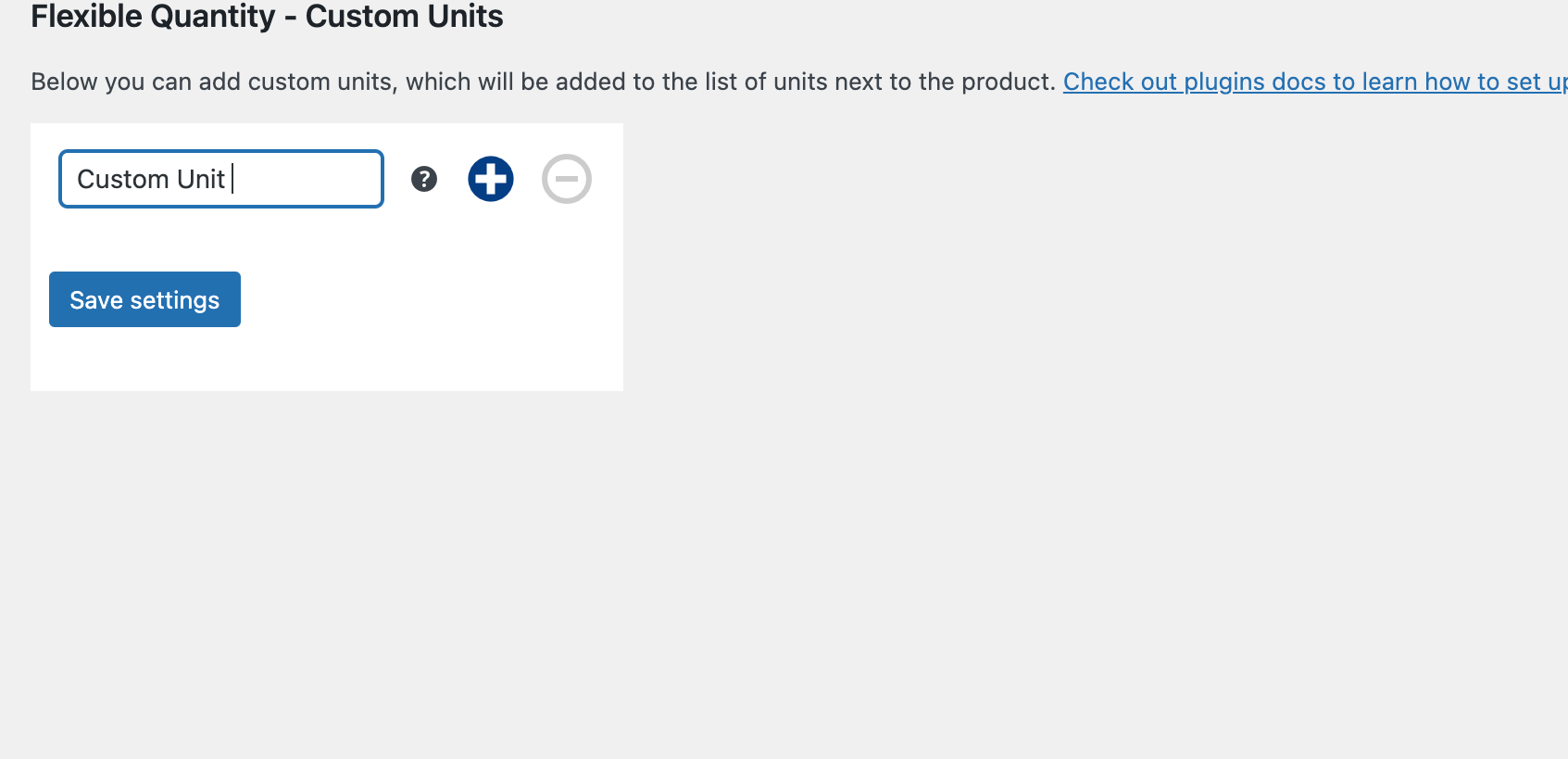
Next, enter your custom unit name and click Save changes.
To add another custom unit, click “plus”. To delete a unit, click “minus”.
The added unit of measure will appear on the list of units of measure in the calculator settings.
Advanced settings
These settings are available in both FREE and PRO.
Impact on stock management - choose how the purchased quantity affects stock:
- Always decrease by 1 - for example, ordering 10 kg reduces stock by 1.
- Decrease by an amount equal to the units purchased - for example, ordering 10 kg reduces stock by 10.
Purchasing a specific product configuration - choose whether the same configuration can be added again:
- Unlimited - the customer can add the same configured product again, for example another 10 kg.
- One-time - the customer can add a specific configuration once. To add the product again, change the unit value, for example from 10 kg to 12 kg.
Unit Dimensions
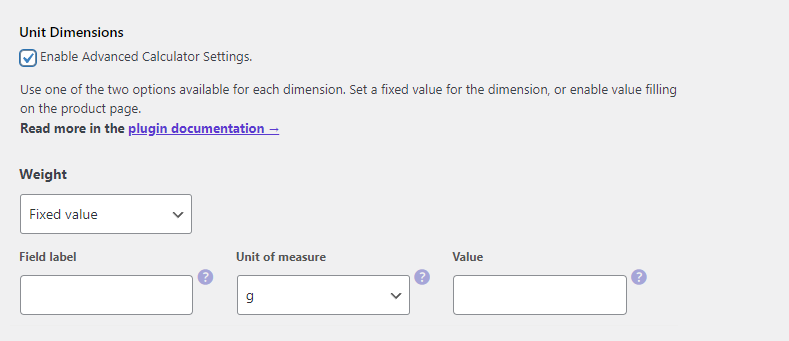
PRO Enable Advanced Calculator Settings. - this setting enables dynamic price recalculation based on weight or dimension values of the unit of measure entered by the buyer, or lets you define those values in advance.
Settings for weight units
PRO Settings for weight units:
- Fixed value - a value defined by the store administrator.
- User value - a value that can be entered by the customer on the product page.
For the selected “User value” option, the following settings will appear:
- Increment
- Minimum value
- Maximum value
PRO Field label - the unit of measure field label visible on the product page.
PRO Unit of measure - sets the new unit of measure.
If gram is selected as the unit of measure in the main calculator settings, only gram can be selected in the advanced settings. If you select a unit of measure that can be converted into smaller units, those units will appear on the list in the new unit selection field.
Weight units that can be selected:
- g - gram,
- kg - kilogram,
- t - metric ton,
- oz - ounce,
- lbs - pound,
- tn - imperial ton.
Settings for length units
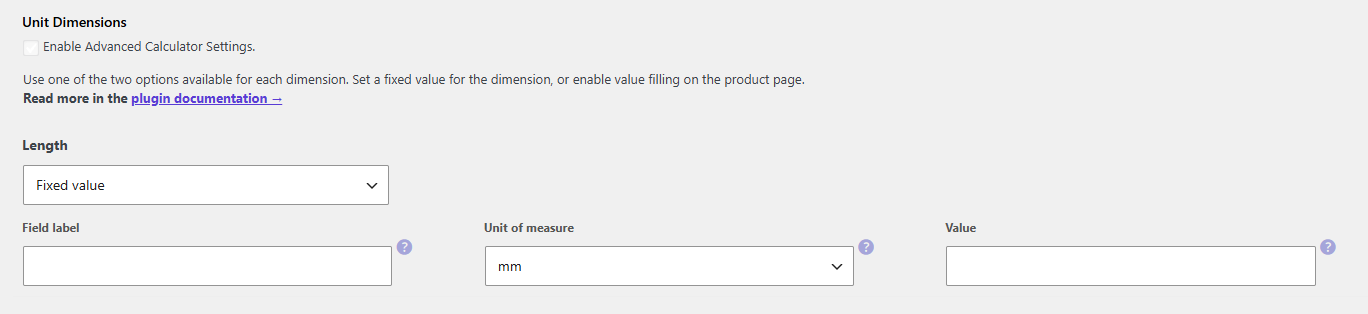
PRO Settings for length units:
- Fixed value - a value defined by the store administrator.
- User value - a value that can be entered by the customer on the product page.
For the selected “User value” option, the following settings will appear:
- Increment
- Minimum value
- Maximum value
PRO Field label - the length unit field label visible on the product page.
PRO Unit of measure - sets the new unit of measure.
If mm is selected as the unit of measure in the main calculator settings, only millimeter can be selected in the advanced settings. If you select a length unit that can be converted into smaller units, those units will appear on the list in the new unit selection field.
Length units that can be selected:
- mm - millimeter,
- cm - centimeter,
- m - meter,
- km - kilometer,
- in - inch,
- ft - foot,
- yd - yard,
- mi - mile.
Settings for area units
For area units, settings for Length and Width will appear.
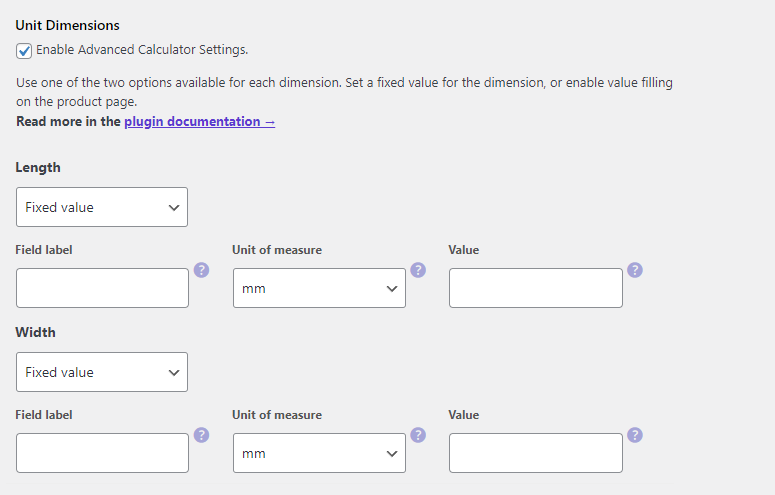
PRO Settings for length units:
- Fixed value - a value defined by the store administrator.
- User value - a value that can be entered by the customer on the product page.
For the selected “User value” option, the following settings will appear:
- Increment
- Minimum value
- Maximum value
PRO Field label - the length unit field label visible on the product page.
PRO Unit of measure - sets the new unit of measure.
If sq mm is selected as the unit of measure in the main calculator settings, only millimeter can be selected in the advanced settings. If you select a length unit that can be converted into smaller units, those units will appear on the list in the new unit selection field.
Area units that can be selected in the main settings:
- sq mm - square millimeter,
- sq cm - square centimeter,
- sq m - square meter,
- ha - hectare,
- sq km - square kilometer,
- sq in - square inch,
- sq ft - square foot,
- sq yd - square yard,
- sq mi - square mile.
Example use:
You sell a product by square meters in your store, but you want customers to enter dimensions in centimeters.
First, in the main settings, select the new unit - sq m. Set the price of the sold unit of measure and the increment. In the example configuration, the price is set to 10 PLN and the increment to 1. This means that 10 PLN will be charged for every 1 square meter. When buying 3 square meters, the customer will pay 30 PLN.
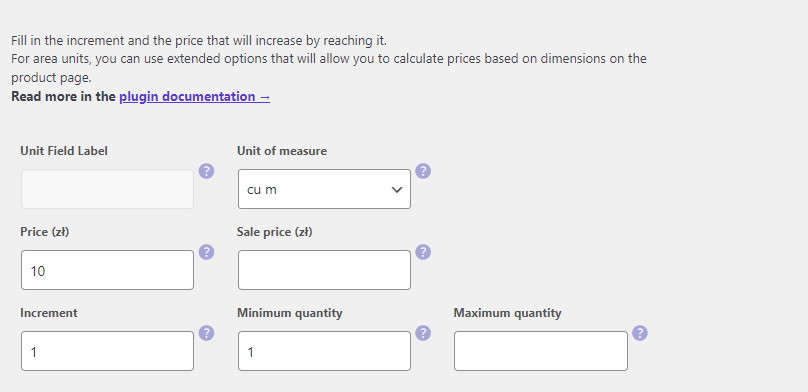
Next, select the Enable Advanced Calculator Settings. checkbox.
You will be able to configure two dimensions: width and length.
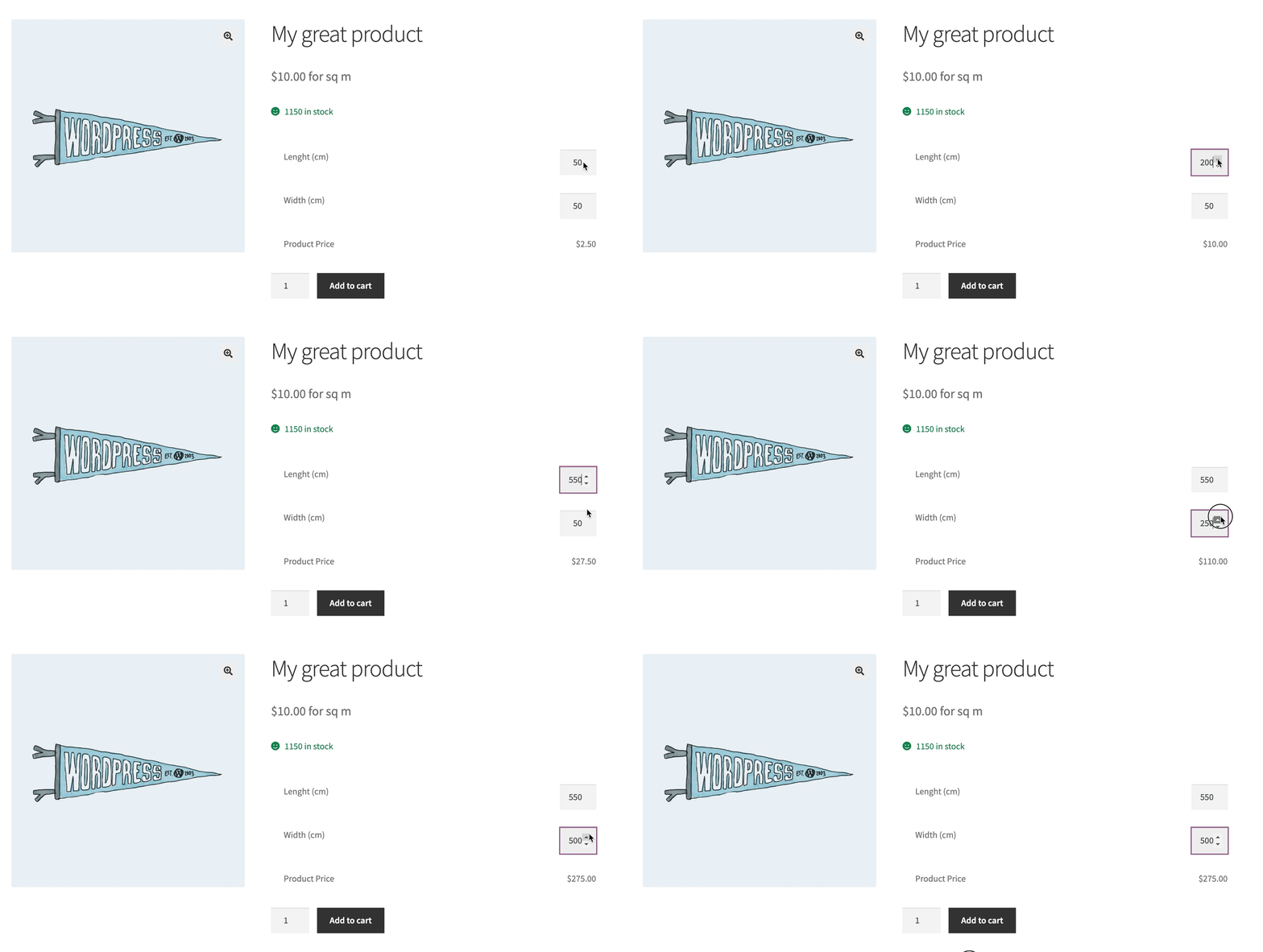
If you want customers to enter their own dimensions, select “User value” in the settings. You can enter your own name for width and length. Select cm as the new unit of measure.
Setting the increment value lets you control which values can be entered on the product page.
The minimum and maximum value define the range for the dimension of the sold product unit. If you do not want to limit the dimension value, leave the fields empty.

As a result, prices will be recalculated dynamically on the product page after the customer enters the values.
Settings for capacity units
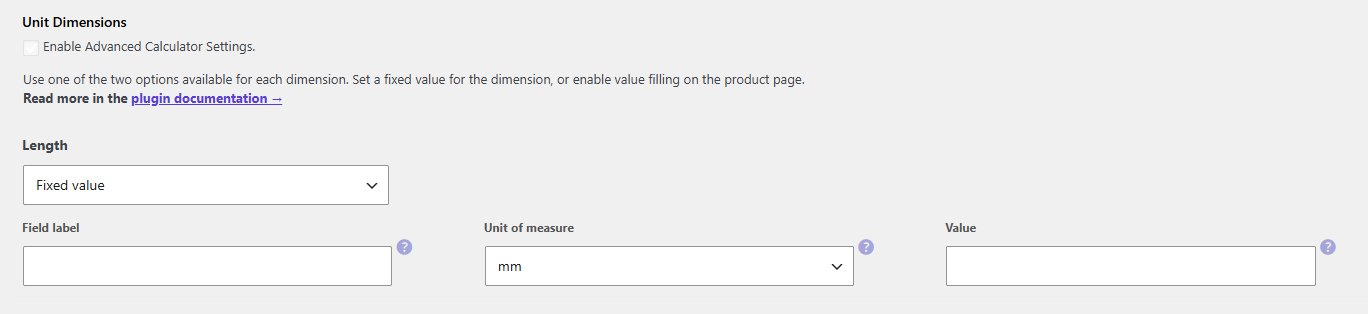
PRO Settings for capacity units:
- Fixed value - a value defined by the store administrator.
- User value - a value that can be entered by the customer on the product page.
For the selected “User value” option, the following settings will appear:
- Increment
- Minimum value
- Maximum value
PRO Field label - the capacity unit field label visible on the product page.
PRO Unit of measure - sets the new unit of measure.
If ml is selected as the unit of measure in the main calculator settings, only milliliter can be selected in the advanced settings. If you select a capacity unit that can be converted into smaller units, those units will appear on the list in the new unit selection field.
Capacity units that can be selected in the main settings:
- ml - milliliter,
- l - liter,
- cup - cup,
- pt - pint,
- qt - quart,
- gal - gallon,
- fl oz - ounce.
Settings for volume units
For volume units, settings for Length, Width, and Height will appear.
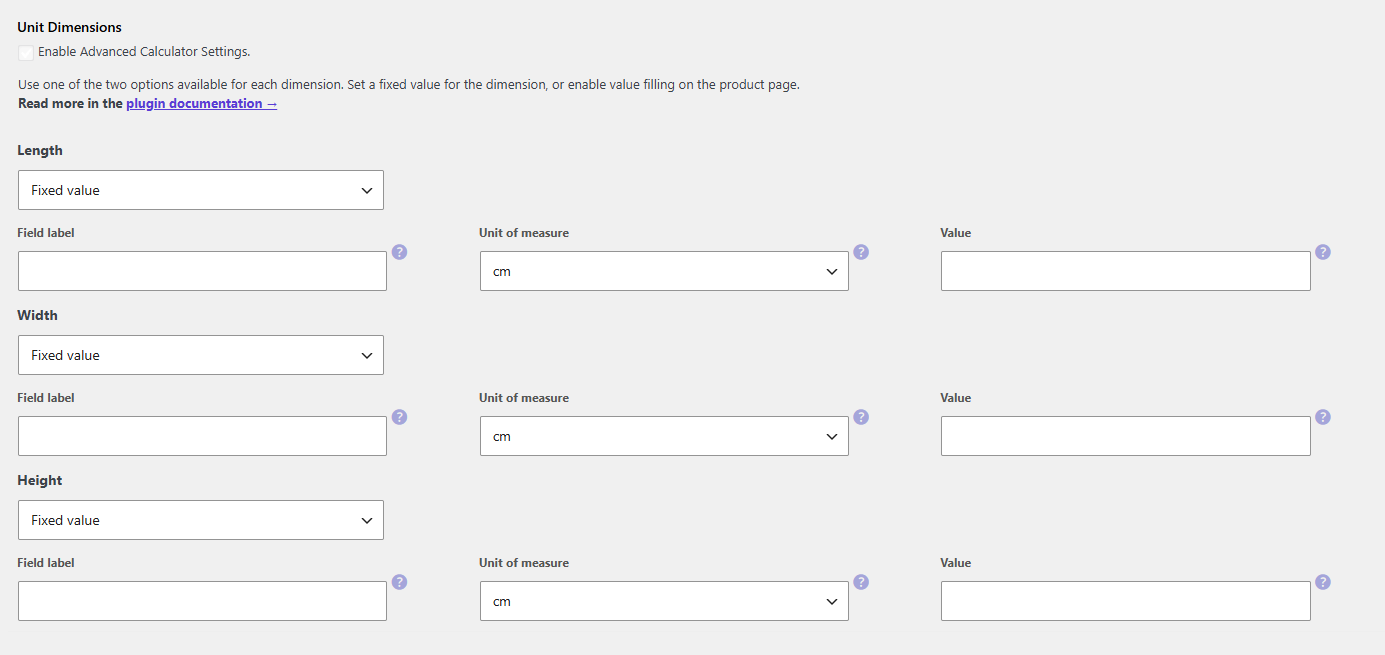
PRO Settings for volume units:
- Fixed value - a value defined by the store administrator.
- User value - a value that can be entered by the customer on the product page.
For the selected “User value” option, the following settings will appear:
- Increment
- Minimum value
- Maximum value
PRO Field label - the length unit field label visible on the product page.
PRO Unit of measure - sets the new unit of measure.
If cu mm is selected as the unit of measure in the main calculator settings, only cubic millimeter can be selected in the advanced settings. If you select a capacity unit that can be converted into smaller units, those units will appear on the list in the new unit selection field.
Volume units that can be selected in the main settings:
- cu mm - cubic millimeter,
- cu cm - cubic centimeter,
- cu m - cubic meter,
- cu in - cubic inch,
- cu ft - cubic foot,
- cu yd - cubic yard.
Example use:
You sell a product by cubic meters in your store, but you want customers to enter dimensions in centimeters.
First, in the main settings, select the new unit - cu m. Set the price of the sold volume unit and the increment. In the example configuration, the price is set to 10 PLN and the increment to 1. This means that 10 PLN will be charged for every 1 cubic meter. When buying 3 cubic meters, the customer will pay 30 PLN.
Next, select the Enable Advanced Calculator Settings. checkbox.
You will be able to configure three dimensions: width, length, and height.
If you want customers to enter their own dimensions, select “User value” in the settings. You can enter your own name for width, length, and height. Select cm as the new unit of measure.
Setting the increment value lets you control which values can be entered on the product page.
The minimum and maximum value define the range for a given dimension of the sold product unit of measure. If you do not want to limit the dimension value, leave the fields empty.

As a result, prices will be recalculated dynamically on the product page after the customer enters the values.
Pricing table
Option available in the PRO version
It lets you set unit of measure prices according to the purchased quantity of the product unit of measure. The plugin applies the first matching condition. Set Price source → Flexible Quantity to use this table.
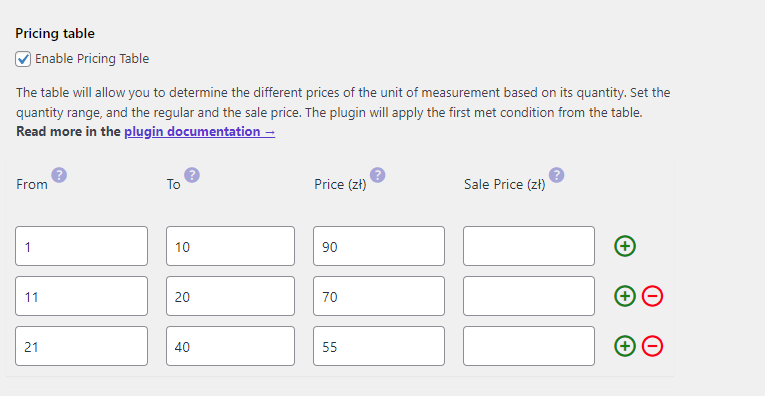
PRO Enable Pricing Table - enable the option to set prices for different quantities of the purchased product unit of measure.
PRO From - enter the quantity of the unit of measure from which the specified product unit price will be charged.
PRO To - enter the maximum quantity of the unit of measure for which the specified product unit price will be charged.
PRO Price - the price specified for a given quantity range of the product unit of measure.
PRO Sale Price - the sale price that applies to a given quantity range of the product unit of measure.
Shipping class table
Option available in the PRO version
The shipping class table lets you assign a shipping class to the purchased quantity of the product unit of measure. The plugin applies the first matching condition.
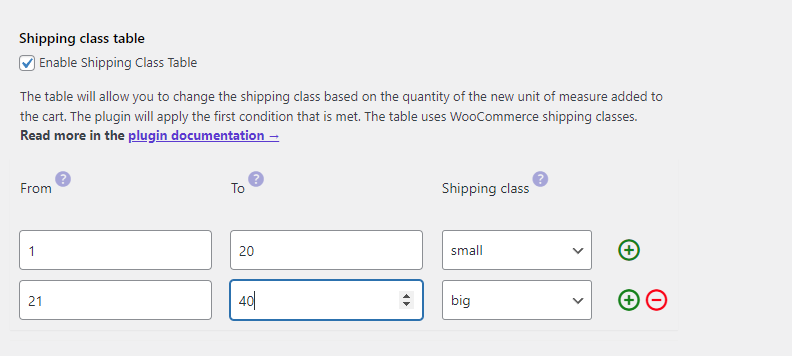
PRO Enable Shipping Class Table - select this option to enable shipping class table settings.
PRO From - enter the quantity of the unit of measure from which the shipping cost will be calculated according to the specified shipping class.
PRO To - enter the maximum quantity of the unit of measure for which the shipping cost will be calculated according to the specified shipping class.
PRO Shipping class - select the WooCommerce shipping class for this quantity range.
Integrations with other WP Desk plugins
Unit Calculator for WooCommerce integrates with selected WP Desk plugins. Integrations make it possible to calculate prices of additional options according to the unit of measure, include product data in shipping rules, and display new units on invoices.
Flexible Product Fields
Using the plugins together is useful when the product price depends on its quantity or dimensions, and the customer should also choose an additional service or provide information needed to fulfill the order.
Additional service priced by quantity or dimension
This is the basic scenario covered by the dedicated integration between the two plugins.
Examples:
- board lamination charged per square meter,
- fabric hemming charged per meter,
- protective coating charged by area,
- additional product processing charged by its weight or volume.
Unit Calculator calculates the unit quantity needed by the customer. In Flexible Product Fields, you can add a field for selecting an additional service and set its price calculation method to Per unit (Flexible Quantity). If the customer selects the service, its cost will be calculated proportionally to the value passed by Unit Calculator.
Using the plugins together solves the problem of manually calculating surcharges for products sold by meters, kilograms, liters, or square meters.
More information:
- Flexible Product Fields integration with Unit Calculator
- Field prices in Flexible Product Fields
- Advanced Unit Calculator settings
Custom-sized product with additional fulfillment data
Not every piece of information entered by the customer has to affect the price. Flexible Product Fields can complement the calculator with data needed to prepare the product, for example:
- description of the finishing method,
- print or engraving text,
- color or variant selection,
- production notes,
- a file with a design or graphic.
Unit Calculator is still responsible for the product quantity and price, while Flexible Product Fields collects additional information. Selected field values can be visible in the cart, checkout summary, and order details.
This scenario is useful, among others, for selling printed materials, boards cut to size, stickers, banners, wooden products, or items made according to the customer’s design.
More information:
- Field types available in Flexible Product Fields
- Product page, cart, and order
- Custom fields and product units of measure in WooCommerce
Optional add-ons depending on the customer’s earlier selection
Flexible Product Fields PRO supports conditional logic between fields. This lets you display additional options only after a specific service is selected.
For example, the customer can:
- enter product dimensions in Unit Calculator,
- select that they want to order additional processing,
- choose the finishing type or complete the information needed to perform it.
This reduces the number of fields visible immediately on the product page and collects additional data only when it is needed. If the additional service should be charged proportionally to the unit quantity, you can use the Per unit (Flexible Quantity) price calculation method for its field.
More information:
Product price thresholds and separately priced add-ons
Unit Calculator PRO lets you define the unit price depending on the purchased quantity. Flexible Product Fields can add the price of a selected option or additional service.
This combination can match a scenario where a larger order lowers the product unit price, but the customer can still order paid finishing or personalization.
Flexible Checkout Fields
Flexible Checkout Fields extends the checkout form with additional fields related to fulfilling the whole order.
Custom-sized product with additional fulfillment instructions
This scenario is useful, among others, for selling fabrics, cables, panels, tiles, boards, floor coverings, and other products prepared according to customer dimensions.
The customer enters the required quantity or dimensions on the product page. Unit Calculator calculates the product price based on that. In the checkout form, you can then display fields for information needed for fulfillment, for example:
- cutting or packing instructions,
- preferred fulfillment date,
- project or job number,
- additional notes,
- a file needed to fulfill the order.
In Flexible Checkout Fields PRO, you can use conditional logic to show these fields only when the cart contains a specific product or a product from a selected category. As a result, a customer buying standard products will not see fields intended only for custom-sized products.
Related materials:
- Configuring Unit Calculator for WooCommerce
- Additional checkout form fields
- Conditional logic in the Flexible Checkout Fields plugin
- Custom fields and product units of measure in WooCommerce
Additional service for products sold by unit
Flexible Checkout Fields PRO can also add a selection of an additional service in the checkout form, for example:
- express fulfillment,
- special packaging,
- additional order check,
- documentation preparation,
- another service related to the whole order.
You can assign a fixed surcharge or a percentage price calculated from the subtotal or order total to the field. Unit Calculator is still responsible for calculating product prices according to the ordered quantity or dimensions, while Flexible Checkout Fields adds a separate fee based on the selection made at checkout.
The service field can be displayed conditionally, for example only for specific products or product categories.
Related materials:
- Price table in Unit Calculator
- Assigning a price to a custom checkout form field
- Conditional logic based on cart contents
Remember: the surcharge configured in Flexible Checkout Fields applies to the checkout form field. It is not part of the Unit Calculator price table and does not change the product unit price.
Information related to the selected delivery method
Unit Calculator PRO lets you assign a shipping class depending on the ordered quantity. Flexible Checkout Fields PRO can display fields depending on the shipping method selected by the customer.
This lets you collect additional information required by a specific delivery method, for example:
- information about unloading options,
- preferred delivery date,
- instructions for the carrier,
- details of the person receiving the order,
- confirmation of delivery conditions for large-format materials.
Related materials:
- Shipping class table in Unit Calculator
- WooCommerce shipping classes
- Flexible Checkout Fields conditional logic
Flexible Invoices PRO
Unit Calculator for WooCommerce and Flexible Invoices PRO can be used together in stores that sell products by length, area, volume, capacity, or weight.
Unit Calculator is responsible for selecting the product quantity or dimensions and calculating its price. Flexible Invoices PRO takes data from the order and creates a PDF sales document based on it.
Product unit of measure visible on the invoice
The basic integration scenario applies to products sold in units other than pieces, for example:
- fabrics, cables, and trims sold by meters,
- panels, tiles, or floor coverings sold by square meters,
- loose materials sold by kilograms,
- liquids sold by liters,
- materials billed by volume.
After both plugins are configured together, the invoice can display the unit set in Unit Calculator, for example kg, l, m², or m³, instead of the default “pcs.” unit.
This solves the problem of documents where the product quantity is correct, but the unit used does not match the way the product is sold. This matters especially for business orders and materials billed by actual length, area, weight, or volume.
To pass the unit to the invoice:
- Go to the Unit Calculator settings template.
- Set the product unit of measure.
- Select Advanced settings → Impact on stock management → Decrease by an amount equal to the units purchased.
- Place a test order and issue an invoice for it.
- Check the quantity and unit columns in the generated document.
Free vs. PRO Feature Comparison
To make it even easier for you to see the difference between the free and pro versions of the Flexible Quantity for WooCommerce plugin, we've prepared for you a summary table of all the features. Take a look and decide which version you choose.
| Feature | FREE → | PRO → |
| Select the unit of measure | ✅ | ✅ |
| Cost calculator based on unit, weight, dimension, area, and volume | ✅ | ✅ |
| Price based on weight (g, kg, t, oz, lbs, tn) | ✅ | ✅ |
| Price based on dimension (mm, cm, m, km, in, ft, yd, mi) | ✅ | ✅ |
| Price based on area measures (sq mm, sq cm, sq m, sq km, ha, sq in, sq ft, sq yd, sq mi) | ✅ | ✅ |
| Price based on product volume (ml, l, cup, pt, qt, gal, fl. oz., cu cm, cu m, cu. in, cu. ft., cu yd) | ✅ | ✅ |
| Set new units and prices | ✅ | ✅ |
| Enable the unit dimensions and unit measurement price calculator | ❌ | ✅ |
| Add the label for the unit dimension field | ❌ | ✅ |
| Fixed or user-based value of the dimension | ❌ | ✅ |
| Set the minimum and maximum values for the unit dimensions | ❌ | ✅ |
| Define the dimension increment value for flexible price calculation formulas | ❌ | ✅ |
| Choose different units of measure for unit dimensions | ❌ | ✅ |
| Product pricing based on the dimension and dynamic unit measurement calculations | ❌ | ✅ |
| Define the unit dimensions names | ❌ | ✅ |
| See the product price upfront based on the customer input | ❌ | ✅ |
| Enable pricing table for ranges | ❌ | ✅ |
| Shipping class based on the product quantity | ❌ | ✅ |
| WooCommerce quantity based product pricing and flexible shipping cost | ❌ | ✅ |
| Dynamic Price per quantity | ❌ | ✅ |
| Add custom units of measure, for example, box, bundle, or pallet | ❌ | ✅ |
| Use product prices (Price source → Product) | ❌ | ✅ |
