Contents
1. Plugin Overview
Sandra Analyst analyzes WooCommerce sales data and turns user questions into ready-to-use reports.
Reports may include:
- text summaries,
- tables,
- charts,
- a list of executed SQL queries (technical section in report details).
After activation, the following menu items are available in the WordPress admin panel:
- Sandra Analyst (main menu),
- Ask Sandra (subpage for questions and report generation),
- All Reports (list of all reports).
Store data processed by Sandra
Sandra uses the store data necessary to complete a task, including the content of pages and posts, the product catalog, and order metadata, where required to provide the plugin’s functionality.
Sandra does not send end customers’ personal data to the model, such as email addresses, delivery addresses, phone numbers, billing details, or other fields that could directly identify a customer. Data-filtering mechanisms and data-scope limitations are applied before information is sent to the model.
Results generated by Sandra are intended as assistance only. Users should review them before using them in their store. If a particular scenario requires a broader scope of data, this should be clearly described in the documentation and additionally protected by appropriate restrictions.
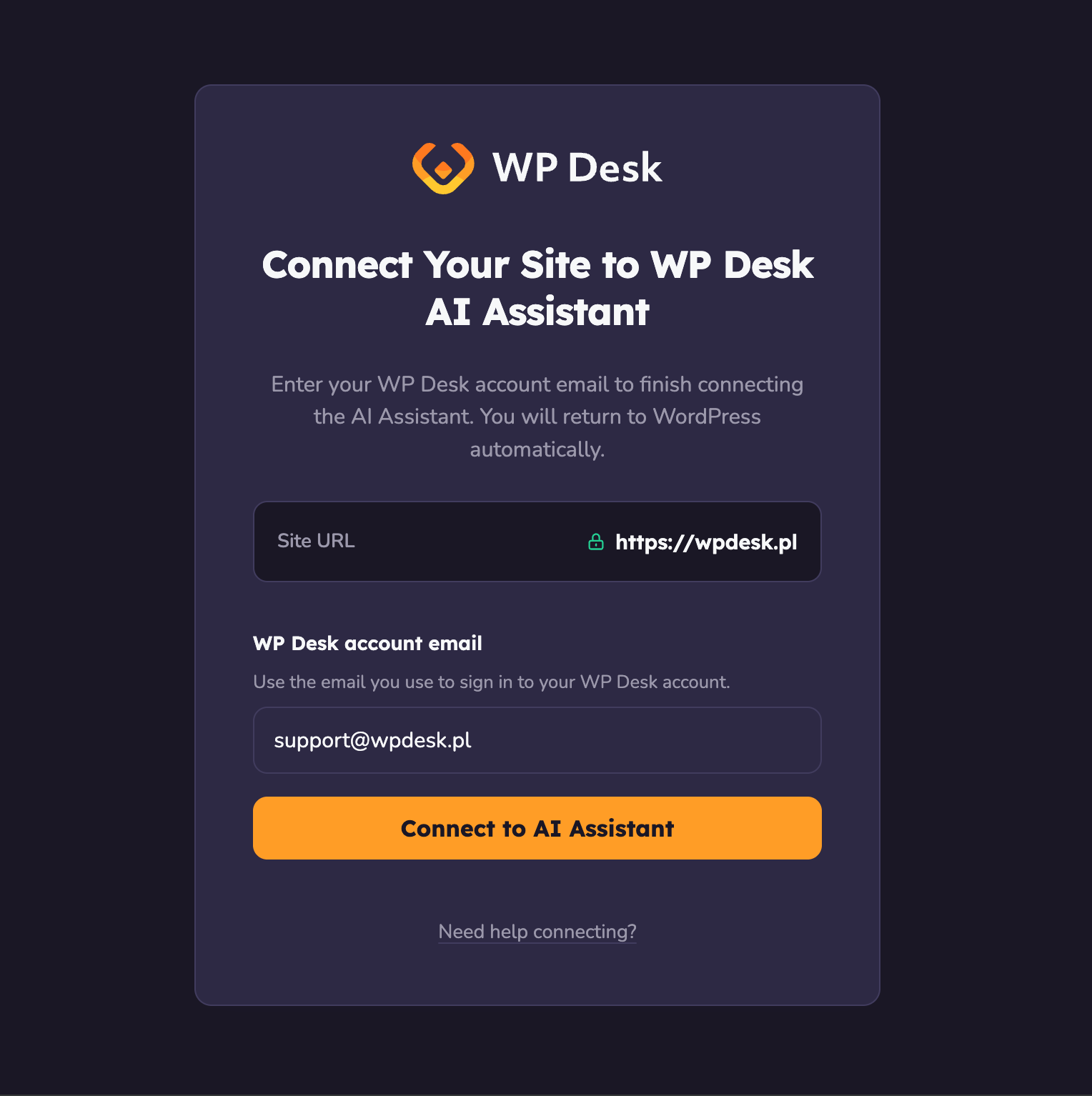
An active connection to a WP Desk account is required for report generation.
You can start the connection process in two ways:
- Go to the plugins list and use the Connect WP Desk Account link next to the plugin (when not connected).
- Use the Connect WP Desk Account link in Sandra's interface when a connection error is shown.
- Click Connect WP Desk Account.
- Sign in to your WP Desk account and confirm the site connection.
- Return to WordPress admin, where the plugin stores the connection data.
- Open Ask Sandra after redirect.
- Check the success notice confirming Sandra is ready to analyze your store data.
During connection, you may see errors related to:
- invalid or expired authorization code,
- authorization request mismatch with account/site,
- site already connected to another WP Desk account,
- license eligibility restrictions.
In such cases, try connecting again or contact WP Desk support.
4. Ask Sandra Screen (Report Creation)
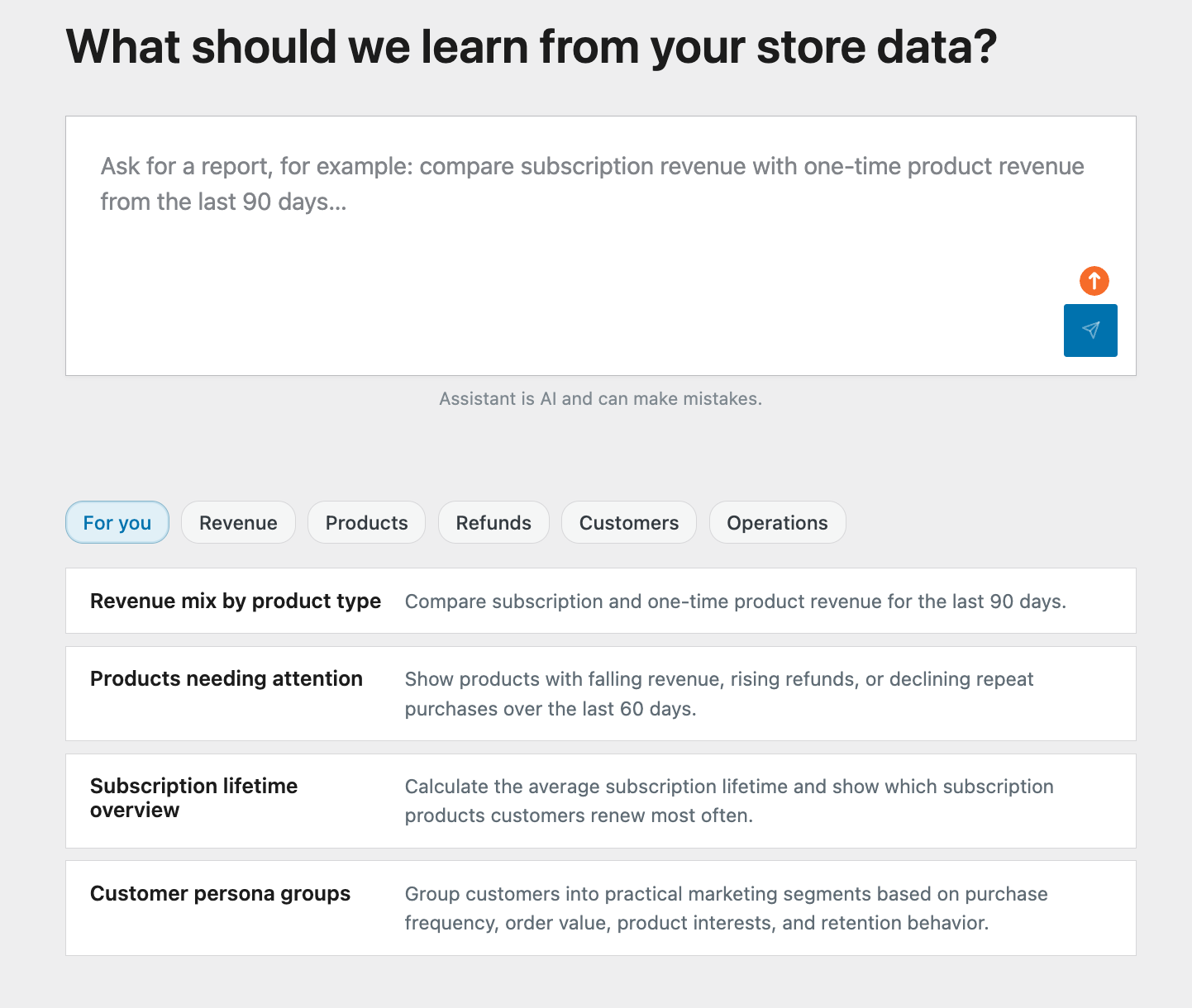
The Ask Sandra screen includes:
- the Analytics query input,
- the Generate report button,
- predefined question suggestions (topic categories),
- status and error notices,
- an AI limitation notice (possible mistakes).
Question suggestions
Below the query box, you can use categories and predefined prompts, for example:
- For you,
- Revenue,
- Products,
- Refunds,
- Customers,
- Operations.
Clicking a suggestion automatically fills the query field.
What happens after clicking Generate report
- If report creation starts successfully, the user is redirected to report details.
- If report processing continues in the background, a notice and a View All Reports link appear.
- If something fails, an error notice is shown (including a reauthorization link when needed).
5. All Reports Screen (Report List)
The All Reports view contains a reports table and filtering tools.
List elements
- Status filters: All, Completed, Running, Pending, Failed.
- Columns: Report Title, Status, Date.
- Date sorting (ascending/descending).
- Pagination (first/previous/next/last page).
Monthly limit
If quota is active, a counter appears above the table:
Monthly reports remaining: X / Y.
Empty states
- No reports at all: a message encourages creating the first report.
- No reports for selected status: a dedicated no-match message is shown.
6. Report Detail View
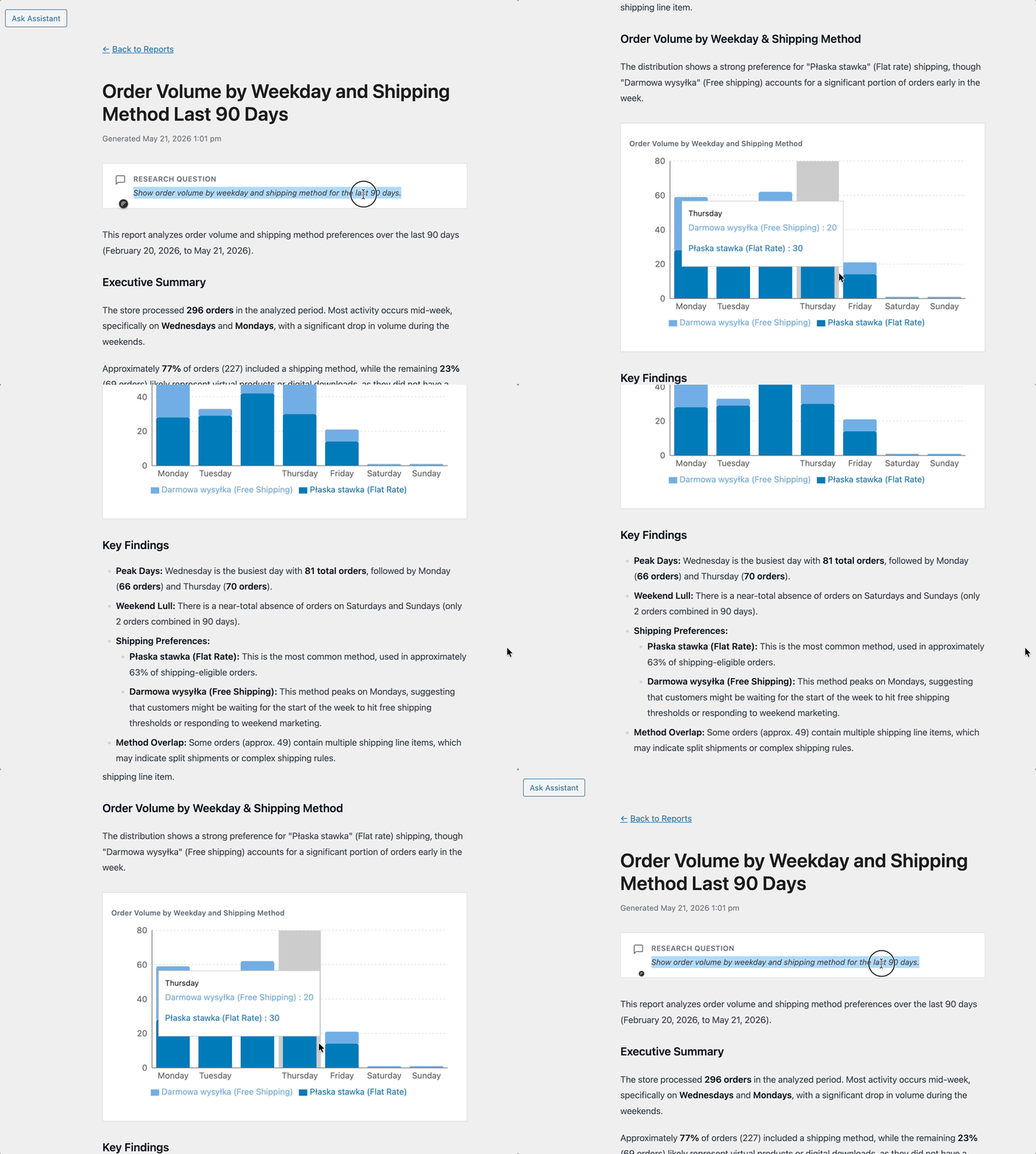
Clicking a report title opens the detail view.
Main elements
- Back to Reports link.
- Report header (title + generation date or status).
- Research Question block (original prompt).
- Report content (text, tables, charts).
Report statuses
- Pending / Running: progress view and loading skeleton.
- Completed: full report content.
- Failed: error message with retry/narrow-query guidance.
User feedback
For completed reports (without previously submitted feedback), a feedback module is displayed:
- Rating: Useful, Mixed, Not useful.
- (Optional) Issue tags, for example Incorrect data, Too slow.
- (Optional) Text comment.
After submission, a thank-you message is shown. The module can also be dismissed.
Executed Queries
In report details, you can expand the Executed Queries section:
- it shows SQL queries used to build the report,
- each query can be copied with the Copy button.
7. Working with Reports: Step-by-Step Scenario
- Open Sandra Analyst -> Ask Sandra.
- Enter a question or select a suggested prompt.
- Click Generate report.
- Wait for the result in detail view or go to All Reports.
- Open the report from the list and review findings, tables, and charts.
- (Optional) Rate the report and submit feedback.
8. Example Reports You Can Generate
-
Subscription vs one-time revenue comparison
Example question: "Compare subscription revenue with one-time product revenue from the last 90 days."
Result: side-by-side revenue streams, trend, and percentage share.
-
Largest product revenue increases/decreases
Example question: "Show products with the largest month-over-month revenue increase or decrease."
Result: ranked products by change magnitude with highlighted outliers.
-
Refund analysis by product
Example question: "Group refunds by product for the last 60 days and identify outliers."
Result: product-level refund impact table and risky-item detection.
-
Payment method comparison
Example question: "Compare revenue, failed orders, and refunds by payment method for the last 90 days."
Result: quality comparison of payment channels and their sales impact.
-
Geographic sales snapshot
Example question: "Break down revenue and refund rate by billing country for the last 6 months."
Result: geographic sales distribution with refund risk indicators.
9. Most Common Messages and Their Meaning
- Connect WP Desk Account - no active WP Desk connection or session-related issue.
- Your quota resets on ... - monthly report quota is exhausted; new reports are available after reset.
- I could not create this report... - report generation failed; narrowing date range or scope usually helps.
- No reports yet... - report list is currently empty.
