Contents
Product list
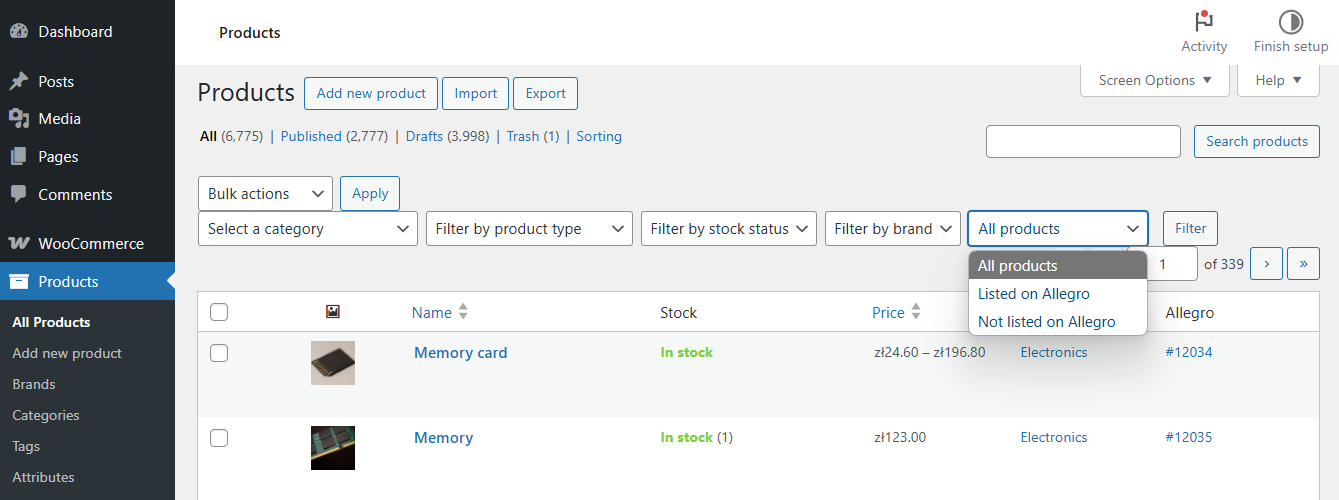
In the WooCommerce Products menu, you’ll see an additional Allegro column. It displays linked Allegro auction numbers for products that have published Allegro auction records in the store.
You can filter products by selecting Listed on Allegro and clicking Filter.
Listing products on Allegro
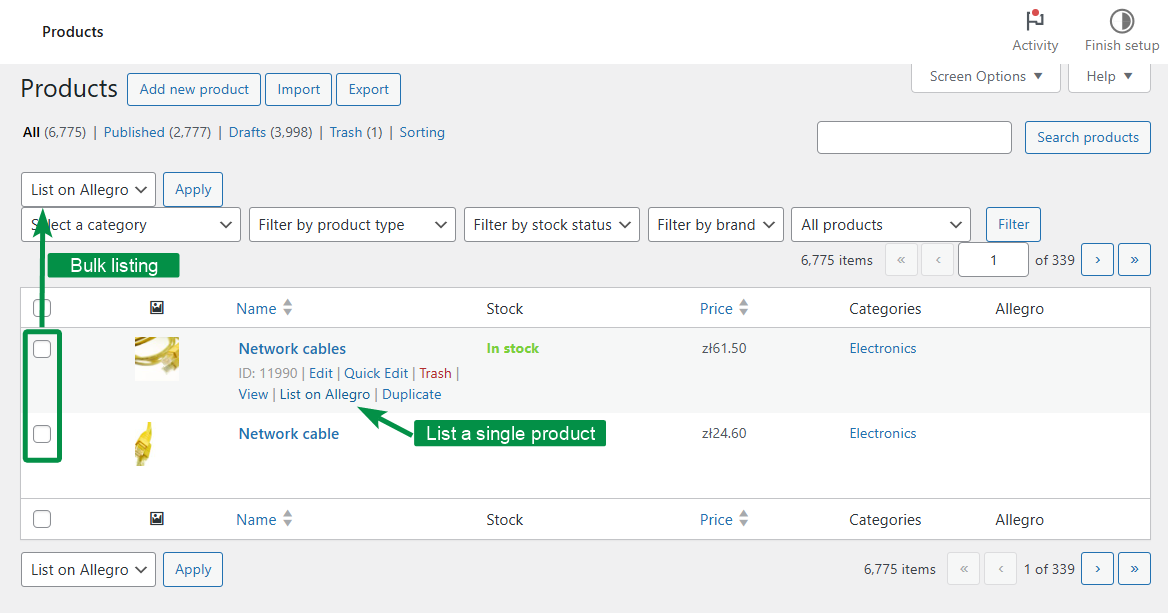
You can list a single product by clicking List on Allegro in the product row actions.
You can also select multiple products and list them using the bulk actions menu by choosing List on Allegro.
Product editing
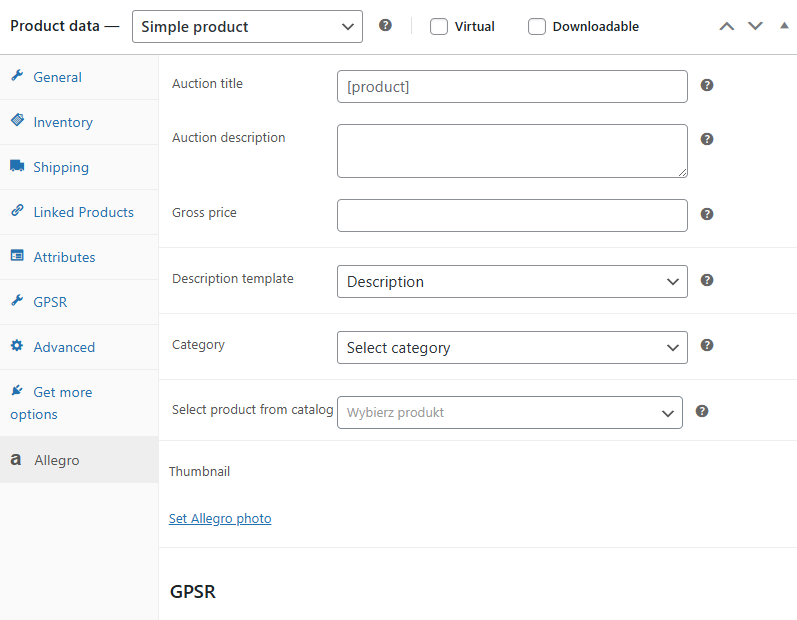
Go to the product edit screen and select the Allegro tab in Product data to configure product-level auction settings.
Auction title – enter a custom auction title independent of the WooCommerce product name. Use the
Auction description – enter a custom auction description if you do not want to use the standard product description. You can use the
[variant_description] shortcode to display the variation description and the [short_product_description] shortcode to display the product’s short description.Gross price – enter a separate gross price for the Allegro auction, independent of WooCommerce tax settings. Auction price settings apply only if price synchronization is not enabled. If price synchronization is enabled, the auction price field is read-only and the synchronized WooCommerce product price is used.
Description template – select one of the available description templates. If the list is empty, add a template first in the Description Templates menu.
Category – select an Allegro category defined in the plugin category settings. After selecting a category, the plugin displays the related Allegro category fields. Fill in all required fields before listing the product.
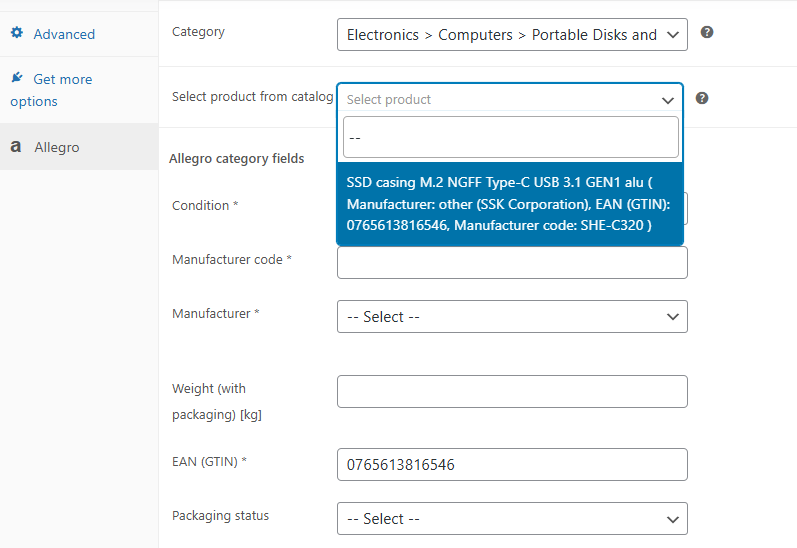
Select product from catalog – link the WooCommerce product with a product from the Allegro catalog. This helps meet Allegro catalog requirements for offers.
Thumbnail – select an additional main image for the auction. For variable products, assign an image to each variation. The thumbnail will be used together with the variation image. If no variation image is set, the plugin will use the product thumbnail and main image.
GPSR – use the product-level GPSR fields when required for the offer. You can mark the product as Marketed before GPSR, add contact details for the manufacturer, add contact details for the person responsible for the offer, and provide safety-related information or attachments.
Save and Save and list auction – after filling in the product-level Allegro data, you can save the settings or save them and continue directly to listing the product on Allegro. When listing the product, you’ll proceed to select an auction template used for publishing the auction on Allegro.
Adding products from the Allegro catalog
Allegro requires offers to be linked to products in the Allegro catalog where a catalog product is available or required. The Allegro WooCommerce plugin lets you connect a WooCommerce product with a corresponding Allegro catalog item.
To link a product, go to Product data → Allegro. In the Category field, select an Allegro category that has already been added in the plugin settings.
In the Select product from catalog field, search for a product from the Allegro catalog. The plugin suggests matching products within the selected category as you begin typing the product name.
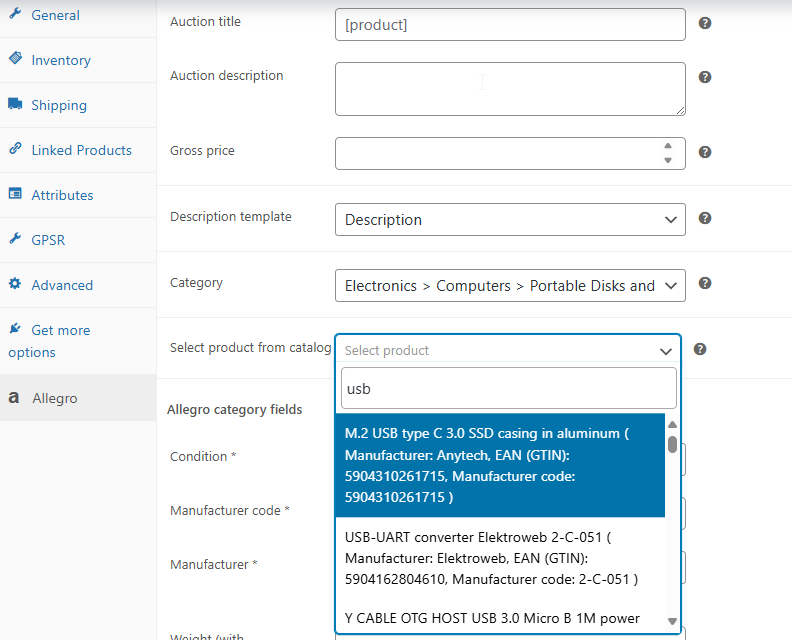
You can also link a WooCommerce product to the catalog using its EAN code. If the EAN is correct and Allegro returns a matching catalog item, the plugin can suggest it during the search.
If you cannot find the catalog product during auction setup, continue with the next step. When you list the auction, the plugin can try to create or link the product in the Allegro catalog based on the product data sent with the offer.
