Contents
Delivery price lists
WooCommerce Allegro uses delivery price lists created in your Allegro account. The plugin does not create or edit delivery price lists in WooCommerce. First, create the price list in Allegro, and then assign it to an auction template or auction in the plugin.
To create or edit a delivery price list, go to your Allegro account. Go to Allegro delivery settings.
Adding and editing a price list in Allegro
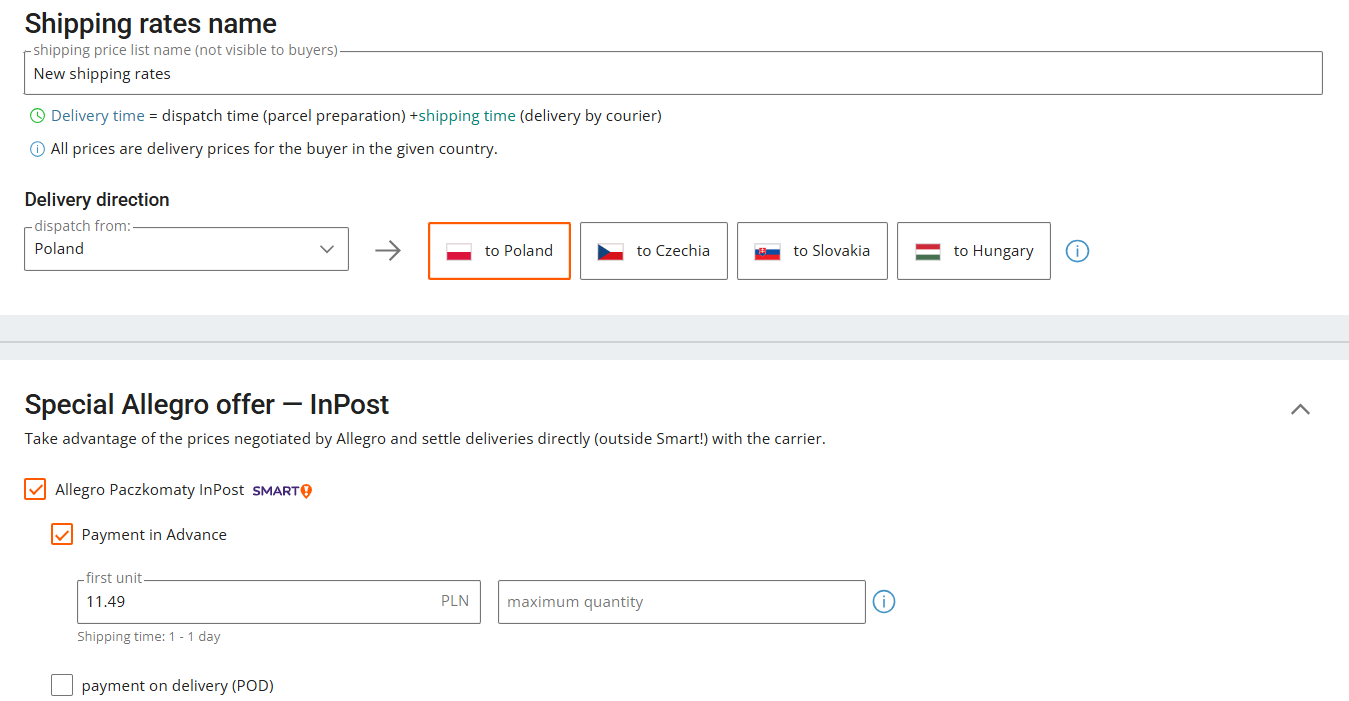
To add a new price list in Allegro, click the Add new price list button:

In the price list settings, choose the delivery methods that should be available for buyers. You can also set the delivery cost for the first item and limit the number of items per package. This controls how Allegro calculates delivery costs for buyers.
Assigning a delivery price list to an auction template
To assign a delivery price list:
- Go to Allegro → Auction Templates.
- Add a new auction template or edit an existing one.
- In the Delivery and payment section, find the Select delivery price list field.
- Select one of the delivery price lists imported from the connected Allegro account.
- Save the auction template.
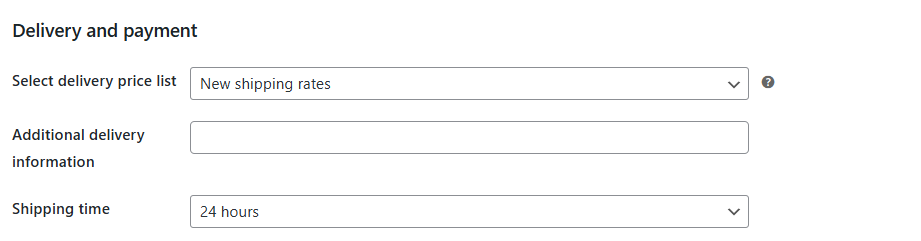
The selected delivery price list will be used when you list an auction with this template.
If no delivery price list is available, check whether the Allegro account is authorized in the plugin settings, whether the selected marketplace matches the price list, and whether the delivery price list exists in your Allegro account.
