

A slow WooCommerce checkout process can lead to high cart abandonment rates and lost sales. Optimizing checkout speed improves customer experience and boosts conversions. In this guide, you'll learn actionable ways to speed up your WooCommerce checkout and create a seamless shopping experience for customers.
Contents
- How to speed up WooCommerce checkout: Best optimization practices to increase conversions
- Tips to speed up WooCommerce
- 1. Why is your WooCommerce checkout slow?
- 2. Measuring the speed of your WooCommerce site
- 3. Choosing a fast hosting provider
- 4. Optimize WooCommerce database for faster checkout
- 5. Reduce plugin load on the checkout page
- 6. Optimize images for a faster loading checkout page
- 7. Enable one-page checkout for a seamless experience
- 8. Use a fast and reliable payment methods
- 9. Implement caching and minification
- 10. Disable unnecessary scripts and styles on checkout
- 11. Optimize WooCommerce cart and session handling
- 12. Optimize WooCommerce theme for speed
- 13. Enable guest checkout to speed up transactions
- 14. Optimize WooCommerce checkout fields for faster processing
- 15. Monitor and improve checkout performance
- Customize the WooCommerce Checkout Page: Tips & Tools for Success
- WooCommerce checkout add-ons: 20 plugins for better checkout
- 5 essential WooCommerce tips to boost your sales
- Enable WooCommerce guest checkout plus 3 small tips to get more customers
- WooCommerce Checkout - Settings, Shortcode & Configuration Guide
How to speed up WooCommerce checkout: Best optimization practices to increase conversions
The site's speed is one of the most important factors that can impact the performance of your WooCommerce store online. Why? Slow site means worse user experience thus fewer orders.
Design and checkout flow are one of the main reasons users abandon carts (according to Baymard Institute's research).
So, making the checkout form simple with clear instructions can help you speed up the WooCommerce checkout process.
Let's see some tips to speed up WooCommerce checkout. You can also scroll and see how to remove some fields and optimize checkout communication and processing.
Tips to speed up WooCommerce
- Why is your WooCommerce checkout slow?
- Measuring the speed of your WooCommerce site
- Choosing a fast hosting provider
- Optimize WooCommerce database for faster checkout
- Reduce plugin load on the checkout page
- Optimize images for a faster loading checkout page
- Enable one-page checkout for a seamless experience
- Use a fast and reliable payment methods
- Implement caching and minification
- Disable unnecessary scripts and styles on checkout
- Optimize WooCommerce cart and session handling
- Optimize WooCommerce theme for speed
- Enable guest checkout to speed up transactions
- Optimize WooCommerce checkout fields for faster processing
- Monitor and improve checkout performance
1. Why is your WooCommerce checkout slow?
A slow WooCommerce checkout page frustrates customers and impacts sales.
Several factors contribute to slow checkout speeds, including:
heavy themes, unoptimized plugins, unnecessary scripts, slow server, too many checkout fields, and excessive database queries.
To improve performance, it's essential to identify the bottlenecks and apply optimization techniques.
2. Measuring the speed of your WooCommerce site
Before optimizing, it's important to measure the speed of your WooCommerce checkout page. Use a speed test tool, for example, PageSpeed Insights or Pingdom to identify issues affecting checkout performance.
Pingdom allows choosing the place to test the page load, so you can see the potential delays if you don't have CDN. Then, you can see what elements of the site have the highest impact on site's performance.
Of course, testing regularly helps track improvements and ensures your site remains fast.
For example, after installing a lot of plugins, enabling a new theme, adding custom code, or importing a lot of data.
3. Choosing a fast hosting provider
The right hosting provider plays a crucial role in WooCommerce checkout speed. Why?
Because shared hosting can slow down your WooCommerce site, especially during high-traffic periods.
What's more, you have limited resources (memory, connection to database) for script execution. As a result, you can't be sure the store will run smoothly.
Consider switching to a WooCommerce-optimized hosting provider with high-speed servers, caching, and database optimization.
4. Optimize WooCommerce database for faster checkout
A cluttered database can slow down your WooCommerce checkout process. Cleaning up database queries, transients, and old order data helps speed up WooCommerce checkout.
Using a plugin for optimization, for example, WP-Optimize can help automate this process and improve performance.
5. Reduce plugin load on the checkout page
Too many active plugins can slow down your WooCommerce site, including the checkout process.
Disable unnecessary plugins on the checkout page to reduce load time.
First, use a performance optimization plugin to see which plugins influence the site's speed most.
Then, think about disabling/ changing plugins that slow down WooCommerce and removing those you don't need.
6. Optimize images for a faster loading checkout page
Large images can significantly slow down your WooCommerce checkout page. Optimize images using compression tools like ShortPixel or Smush to reduce file sizes without affecting quality.
Implement lazy load techniques to improve checkout speed.
You can also use a WordPress plugin to compress images, for example, Converter for Media.
7. Enable one-page checkout for a seamless experience
A multi-step checkout process increases abandonment rates.
Implementing one-page checkout speeds up the process by reducing clicks and form fields.
You may also redirect users directly to the checkout page (without cart page) with a custom code or a plugin, for example this extension.
8. Use a fast and reliable payment methods
A slow payment gateway can delay transactions and frustrate customers.
Choose fast payment gateways like Stripe, PayPal Express, or WooCommerce Payments for quick and secure transactions.
Enabling digital wallets like Apple Pay and Google Pay further speeds up checkout.
Additional payment methods also increase the user experience.
9. Implement caching and minification
Caching speeds up WooCommerce checkout by storing static content and reducing server load.
Use a caching plugin, for example a free WordPress extension, like
WP Fastest Cache or W3 Total Cache to optimize performance.
Minifying CSS, JavaScript also reduces page load times.
10. Disable unnecessary scripts and styles on checkout
Many themes and plugins load unnecessary scripts on the WooCommerce checkout page, slowing down performance.
You can disable non-essential scripts or defer JavaScript to eliminate render-blocking code with a caching plugin.
11. Optimize WooCommerce cart and session handling
First, consider WooCommerce settings for the Add to cart behaviour:

Making cart faster (or jumping right to the checkout) can also improve speed and purchasing process. More about that in point 7.
You may reduce AJAX requests and widgets available in the cart or checkout.
Finally, by implementing session expiration settings you can also help prevent unnecessary load on your server.
12. Optimize WooCommerce theme for speed
A bloated WooCommerce theme can slow down your checkout process.
Choose a lightweight, WooCommerce-optimized theme, for example, Astra or GeneratePress.
Avoid themes with excessive built-in features that you don’t need.
Try not to use a lot of widgets and scripts that require additional requests and time.
13. Enable guest checkout to speed up transactions
Forcing users to create an account before purchasing adds friction to the checkout process.
Enabling guest checkout allows customers to complete their purchases faster.
This reduces checkout time and improves conversion rates.
You may enable guest checkout in WooCommerce settings:

14. Optimize WooCommerce checkout fields for faster processing
An overloaded checkout form slows down the purchasing process.
Too many fields create unnecessary friction, leading to increased cart abandonment rates.
Removing or modifying unnecessary fields can significantly speed up checkout.
Fields you can disable or modify to speed up the checkout process:
- Company Name – Most customers don’t need this field unless selling to businesses.
- Address Line 2 – Not always necessary, removing it reduces friction.
- Order Notes – Extra notes slow down checkout; keep it only when required.
- Phone Number – Optional for digital products, mandatory only if shipping is involved.
- State/Region – Some WooCommerce setups can auto-detect this field.
- Postcode/ZIP Code – In some cases, this can be auto-filled based on geolocation.
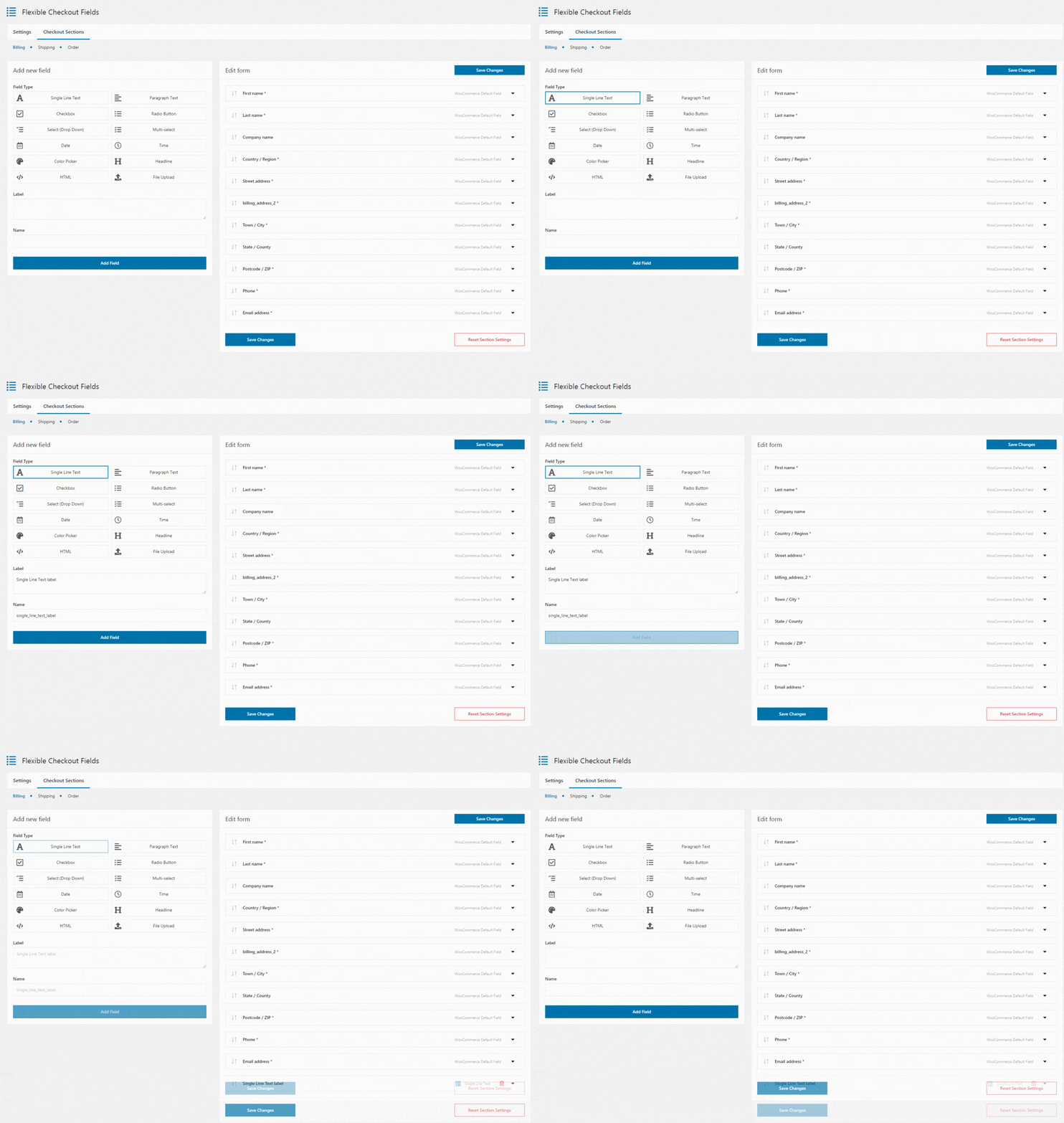
Flexible Checkout Fields PRO allows you to remove, reorder, and modify these fields to optimize checkout speed.
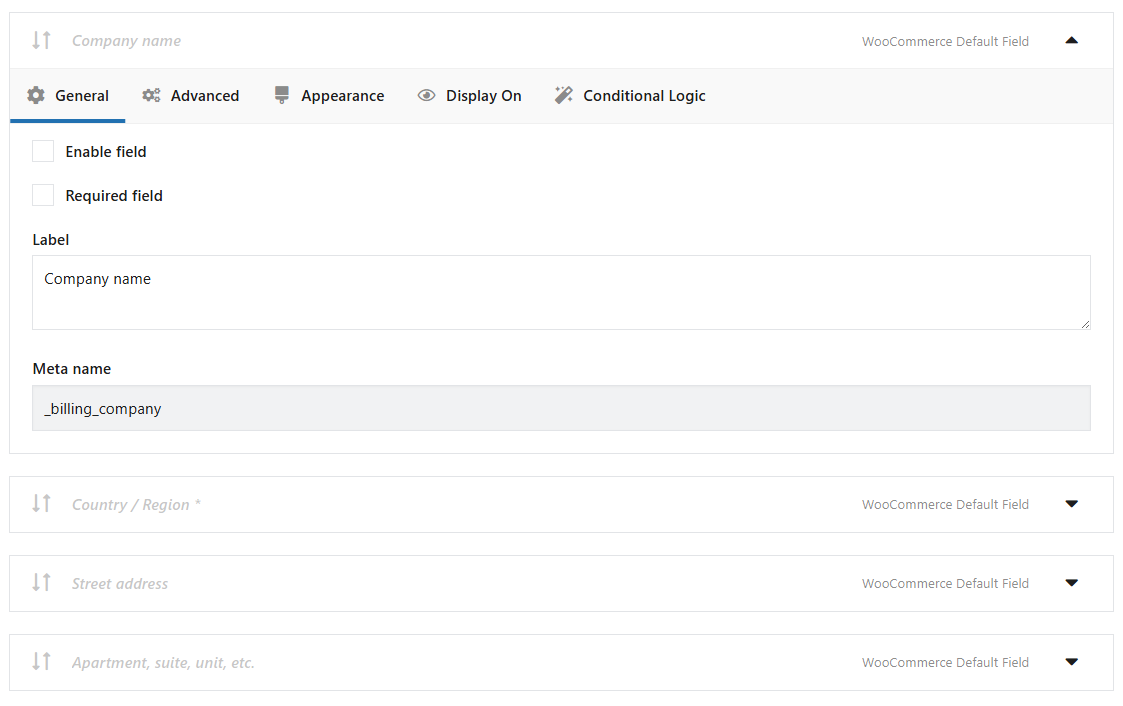
A well-structured and clean form leads to a smoother, faster experience.
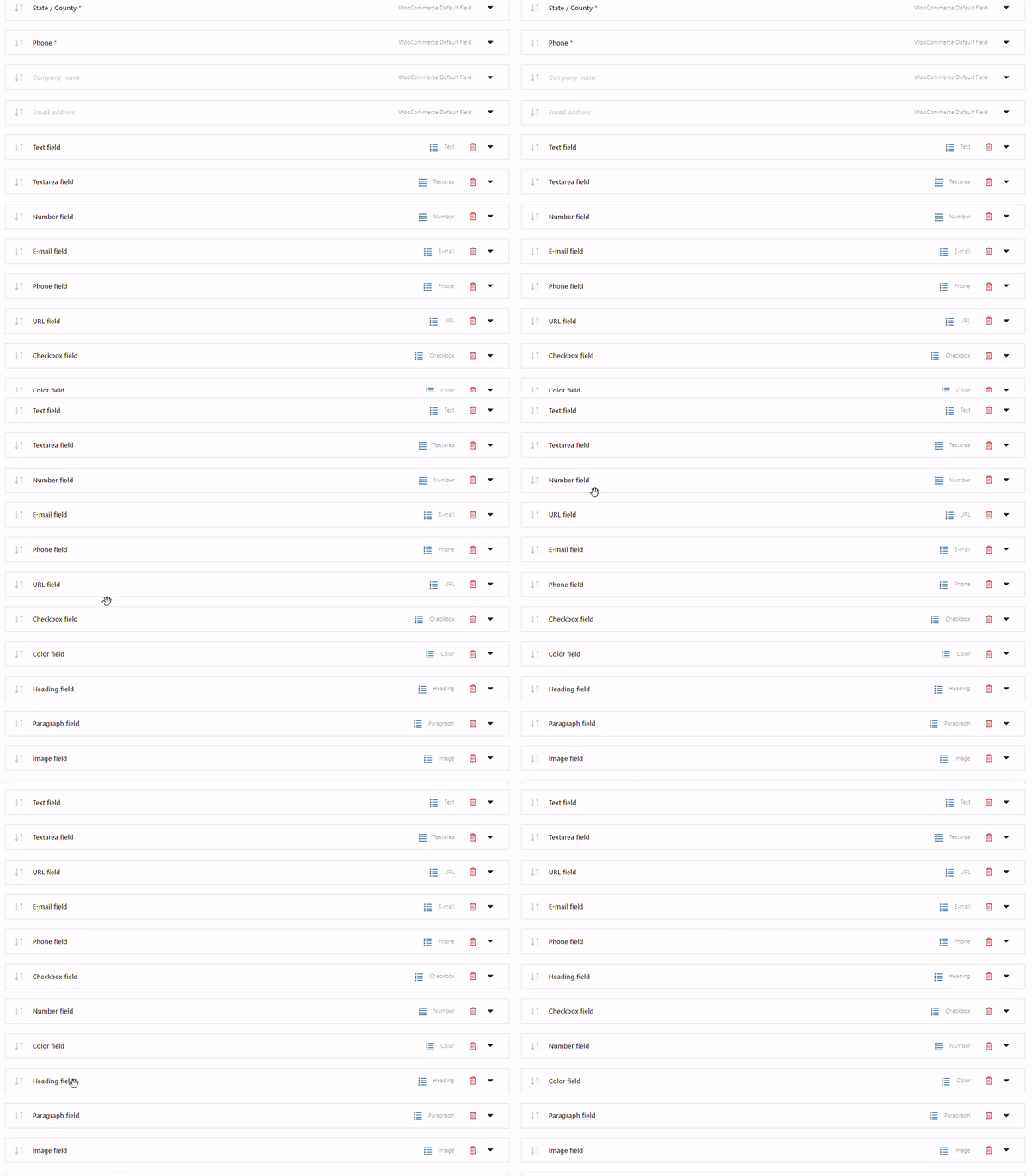
You may also add custom fields with placeholders and labels for a better UX.
Free checkout field manager for WooCommerce
Flexible Checkout Fields WooCommerce
Edit, add new or hide unnecessary fields from the WooCommerce checkout form. Add pricing to fields and use conditional logic. It's all about conversions and better user experience. NEW: now you can set multiple conditions (OR) under one or more condition groups (AND).
💾 Active Installations: 80,000+ | WordPress Rating:
15. Monitor and improve checkout performance
Optimizing WooCommerce checkout speed is an ongoing process.
Regularly monitor checkout performance using website speed test tools.
Keep plugins and themes updated.
Finally, test checkout speed after implementing changes to ensure optimal performance.
Key Takeaways
- Think about the performance of your WooCommerce: A slow WooCommerce checkout can lead to lost sales and high abandonment rates.
- Test the speed and find out what things slow down your site: Use speed test tools to identify performance issues.
- Page speed matters: Choose a high-performance WooCommerce website hosting provider for your online store.
- Site speed and performance that can slow down your website: Optimize the WooCommerce database for faster checkout processing.
- Use best plugins for WordPress and WooCommerce: Reduce unnecessary plugins, scripts, and styles on the checkout page.
- Make the purchase process better: Implement one-page checkout and enable guest checkout for faster transactions.
- Image optimization: Optimize images, enable caching, and minify CSS and JavaScript files to make pages load faster.
- Optimize your WooCommerce: Select fast and reliable payment gateways for a smooth checkout experience.
- Improve the speed of the checkout form: Remove unnecessary checkout fields to speed up the purchase process.
- Speed as a ranking factor: Make the checkout form simpler for SEO speed optimization.
- Speed and reliability: Speed up your WooCommerce store and make your WooCommerce user-friendly.
- Use Flexible Checkout Fields free/ PRO: Customize and streamline checkout forms with fewer fields or add new custom fields.
- Is WooCommerce speed optimization working?: Continuously monitor and improve checkout speed to maintain optimal performance.
- Ways to speed up WooCommerce: Look for best WooCommerce tips and solutions that help speeding up the checkout process and the website itself.
Summary & more about eCommerce optimization
Speeding up your WooCommerce checkout process enhances the shopping experience and increases conversions. Implement these best practices to keep your WooCommerce store running efficiently.


Leave a Reply