Checkout Fields for Blocks - Additional Fields
Checkout Fields for Blocks - Additional Fields adds four field types to the WooCommerce block checkout: Radio, Multiselect, Color, and File upload.
Contents
Contents
- Requirements
- Installation and activation
- Adding a field
- Common field settings
- Field types
- Customer and admin result
- Compatibility with other add-ons
- Troubleshooting
Requirements
You need the following to use the add-on:
- the active Checkout Fields for Blocks plugin,
- a WooCommerce block-based checkout,
- WordPress 6.4 or newer,
- WooCommerce 10.9 or newer,
- PHP 7.4 or newer.
Checkout Fields for Blocks - Additional Fields must be used with a compatible version of Checkout Fields for Blocks. If you see a compatibility notice, update both plugins.
Installation
Subscription activation
Adding a field
- Go to Pages → All Pages.
- Open the page assigned as the WooCommerce checkout page.
- In the block editor, select the checkout block or one of its child blocks, such as Checkout fields, Billing address, or Shipping address.
- Open the block inserter and search for Radio, Multiselect, Color, or File upload.
- Add the field in the selected checkout location.
- Configure the field in the panel on the right.
- Save the page.
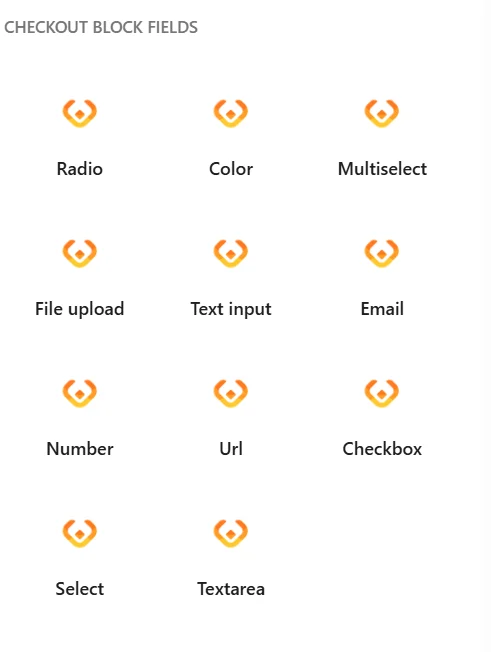
The add-on registers these fields as checkout blocks. You can place them in the checkout, contact information, billing address, shipping address, shipping method, and pickup options blocks.
Common field settings
All Additional Fields types use the common settings provided by Checkout Fields for Blocks.
General Settings
Field name - the internal field name used by the checkout configuration.
Meta name - the unique identifier used to save the field value in the order. The identifier is locked after you finish editing the field name.
Label - the label visible to the customer. Add a label before publishing the field.
Help text - additional information displayed below the field.
Validation
Required - check this option to require a valid field value before the customer can place the order.
Display on
Choose where the saved value should be displayed:
- Order confirmation - the order confirmation page,
- Admin order - the order edit screen in the WordPress dashboard,
- My Account - order - the order details in the customer account,
- Order e-mail - order-related emails.
Field types
Radio
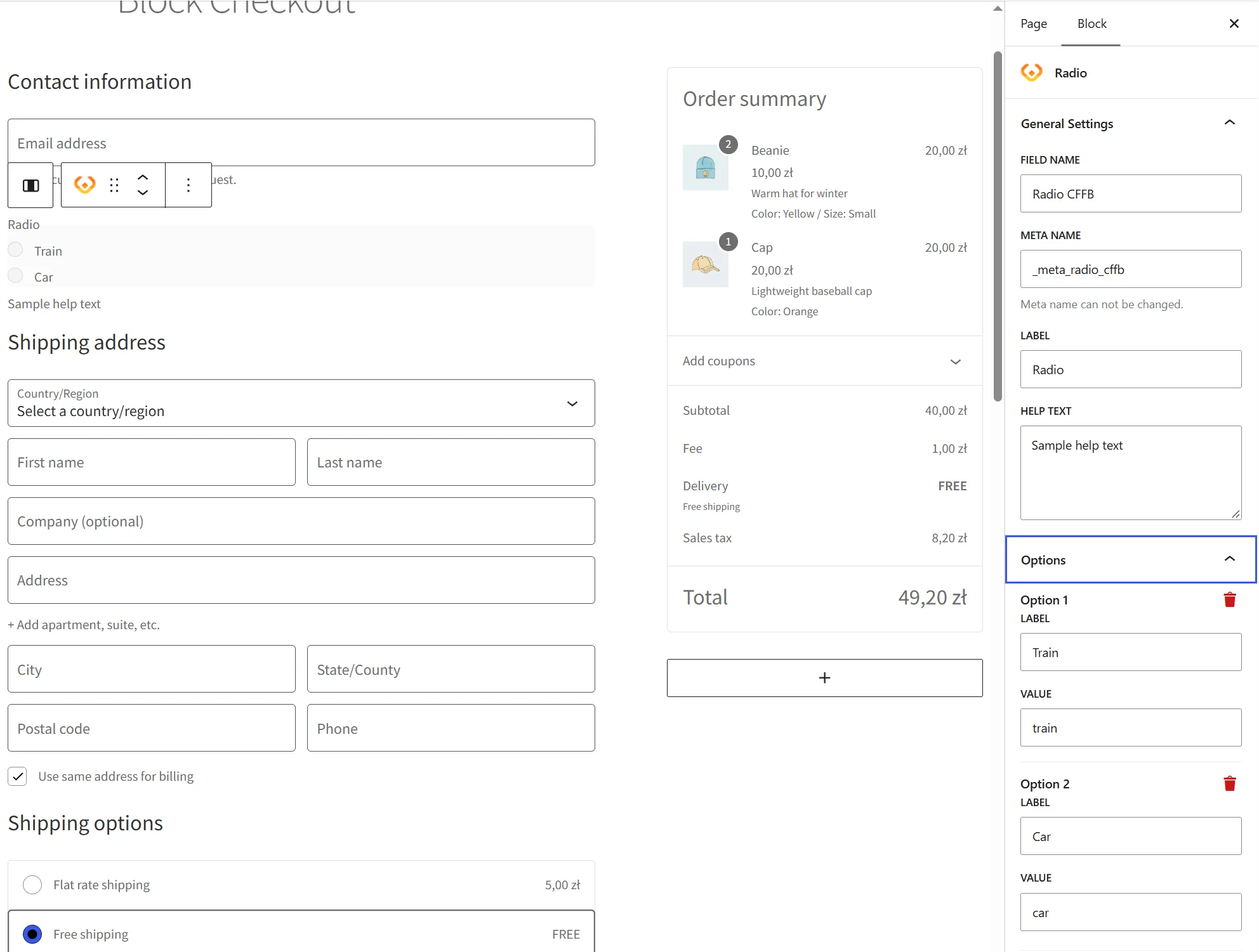
The Radio field lets the customer select one option from a list.
Use the Options section to add options. Each option has a Label visible to the customer and a Value saved in checkout data and the order. Option values must be non-empty and unique. If the field is required, the customer must select one option.
Multiselect
The Multiselect field lets the customer select multiple options. Selected values are displayed as removable items.
Placeholder - the text displayed when no option has been selected.
Options - the available choices. Each option must have a non-empty and unique Label and Value. If the field is required, the customer must select at least one option. In the order, selected options are displayed as labels separated by commas.
Color
The Color field lets the customer choose a color with the native color picker or enter a six-digit hexadecimal value.
The supported format is #RRGGBB, for example #3366CC. The Clear button removes the selected color. If the field is required, the customer must choose a color before placing the order.
File upload
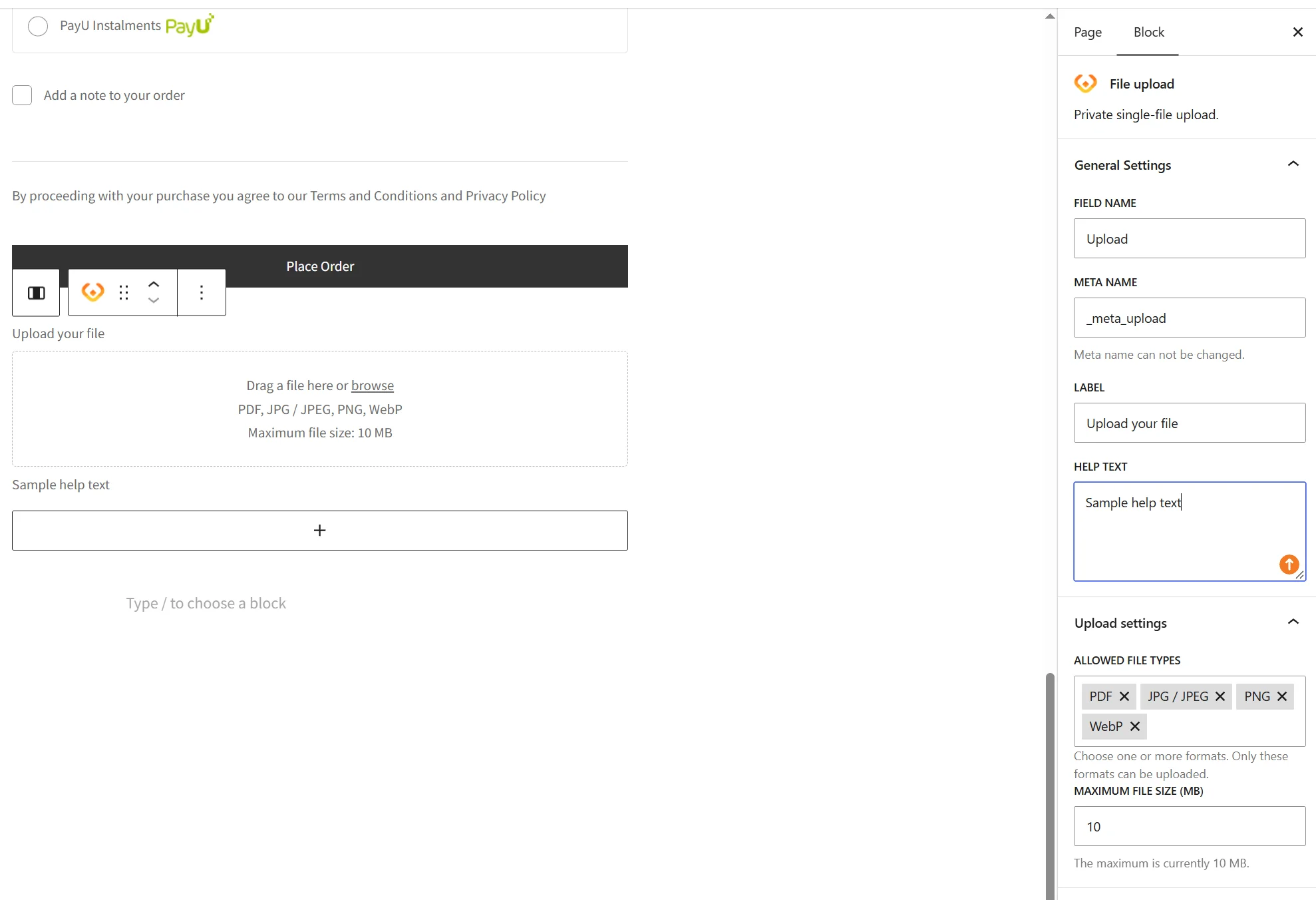
The File upload field lets the customer upload one file during checkout.
Allowed file types - choose the formats that customers can upload. The available formats are PDF, JPG / JPEG, PNG, and WebP.
Maximum file size (MB) - set the maximum file size from 1 to 10 MB. The add-on supports a maximum of 10 MB.
The customer can drag a file into the field or choose it with the browse button. After the upload, the file name is displayed. The customer can remove the file before placing the order.
The file is stored temporarily first. After the order is placed, it is attached to the order and available to an authorized user through a protected link. Files are removed with the order files when the order is deleted.
Please note:
- the customer can upload only one file for a field,
- the file must use an allowed format and fit within the configured size limit,
- if the upload session expires, the customer must choose the file again,
- the upload must finish before the customer places the order.
Customer and admin result
The customer sees the field in the selected checkout location. If Required is enabled, checkout displays a validation message and prevents the order from being placed until the field is completed correctly.
Depending on the Display on settings, field values can be displayed on the order confirmation page, in the order details in the dashboard, in the customer account, and in order emails.
For File upload, an authorized administrator or customer sees the file name as a protected download link. If the file is no longer available, the File unavailable message is displayed.
Compatibility with other add-ons
Pricing for Fields
Pricing for Fields can add a surcharge or discount to Additional Fields:
- for Radio and Multiselect, you can configure a separate price for each option,
- for Color and File upload, you can configure a price for the whole field.
After enabling Pricing Settings, select the calculation method, enter the Price Value, and choose the Tax Class. See Pricing Add-on documentation for details.
Conditional Logic for Fields
Conditional Logic for Fields can control the visibility and required status of Additional Fields.
For field-based rules, Radio and Multiselect provide their configured options, Color lets you compare the selected color value, and File upload provides the Uploaded and Not uploaded conditions.
See Conditional Logic for Fields documentation for details.
Troubleshooting
The new field types are not available in the block inserter
Check that Checkout Fields for Blocks and Additional Fields are active and that their versions are compatible. Also make sure that you are editing a block-based WooCommerce checkout page.
Check that Checkout Fields for Blocks is active, that the field has a label, and that at least one allowed file type is selected.
The file cannot be uploaded
Check the file format and size. Only formats selected in Allowed file types are supported, and the maximum size is 10 MB. If the upload has expired, choose the file again.
The field value is not displayed in the order or email
Open the field settings and check Display on. Enable the location where the value should appear, then save the checkout page.
