Contents
Auction form
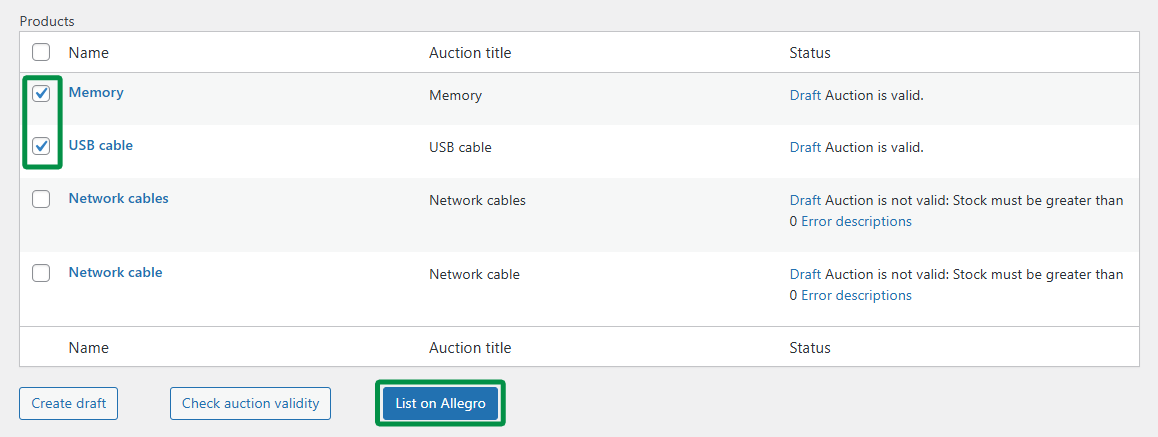
Select a product or multiple products in the WooCommerce product list and click List on Allegro.
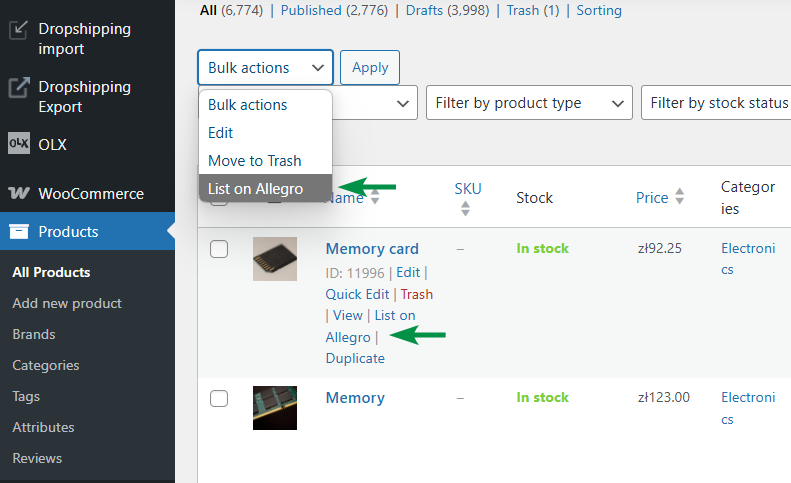
You’ll be redirected to the List on Allegro form. You can also access this form from the single product edit screen in the Product data → Allegro tab by clicking Save and list auction.
Listing products
To list selected products, choose one or more auction templates and decide when the auction should start.
The form uses the plugin configuration you prepared earlier, including default categories, auction templates, and description templates.
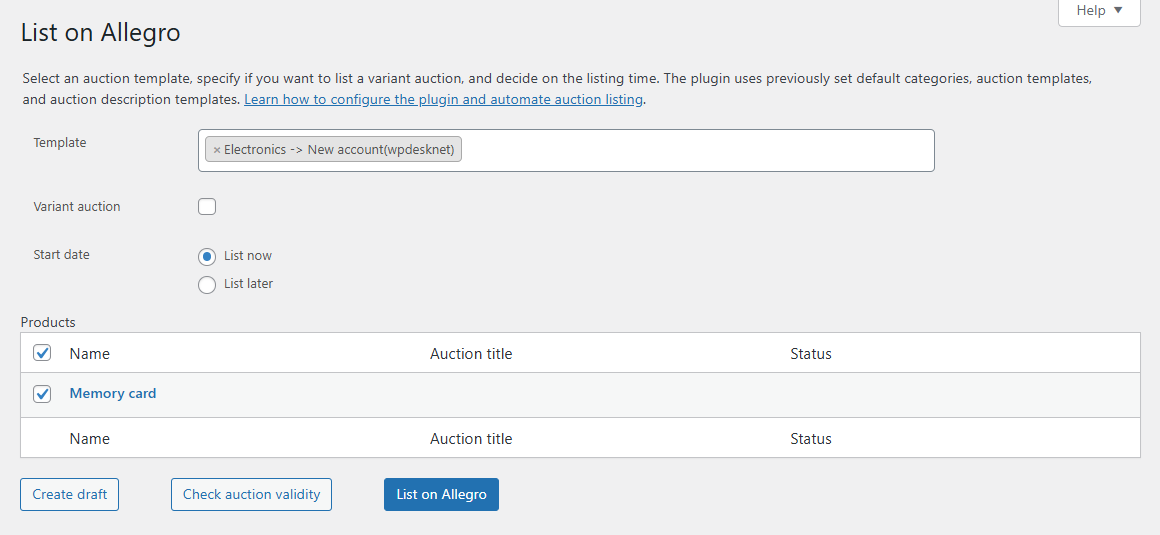
Template — choose the auction template that should be used for listing. If you select multiple templates, the plugin will create listings based on each selected template. The Allegro account is taken from the selected auction template.
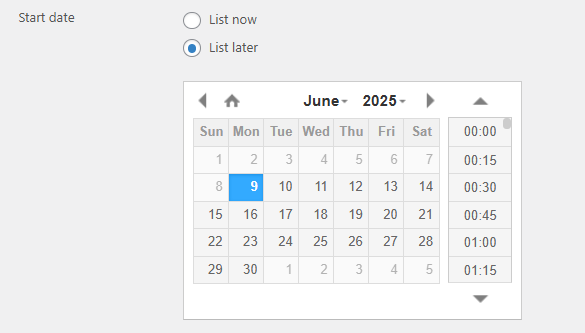
Start date — choose List now to list the auction immediately or List later to schedule the listing for a later time.
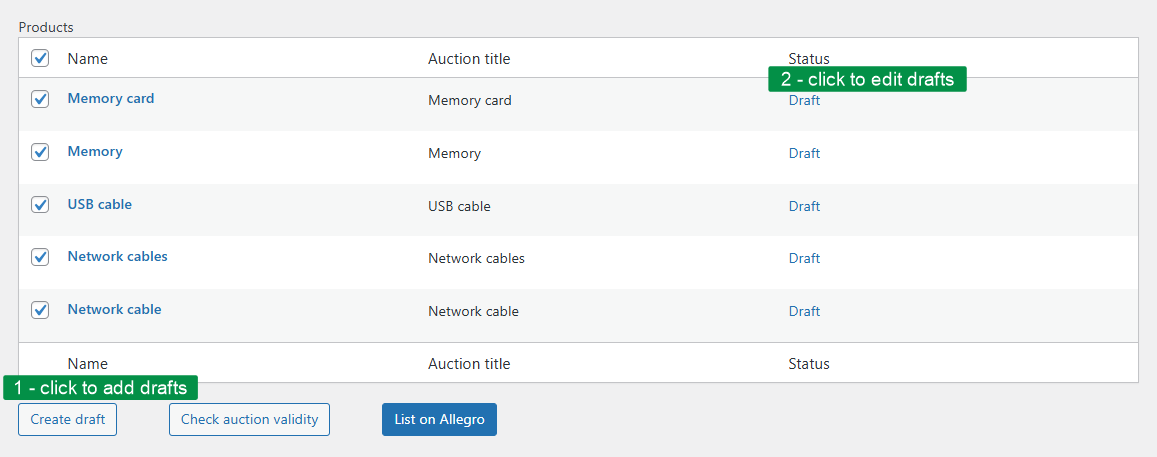
Products — select the products that should be listed. The table shows the product name, generated auction title, and listing status.
You can use three actions:
- Create draft — create auction drafts without listing them immediately.
- Check auction validity — validate the auction data before listing.
- List on Allegro — create and list the auctions on Allegro.
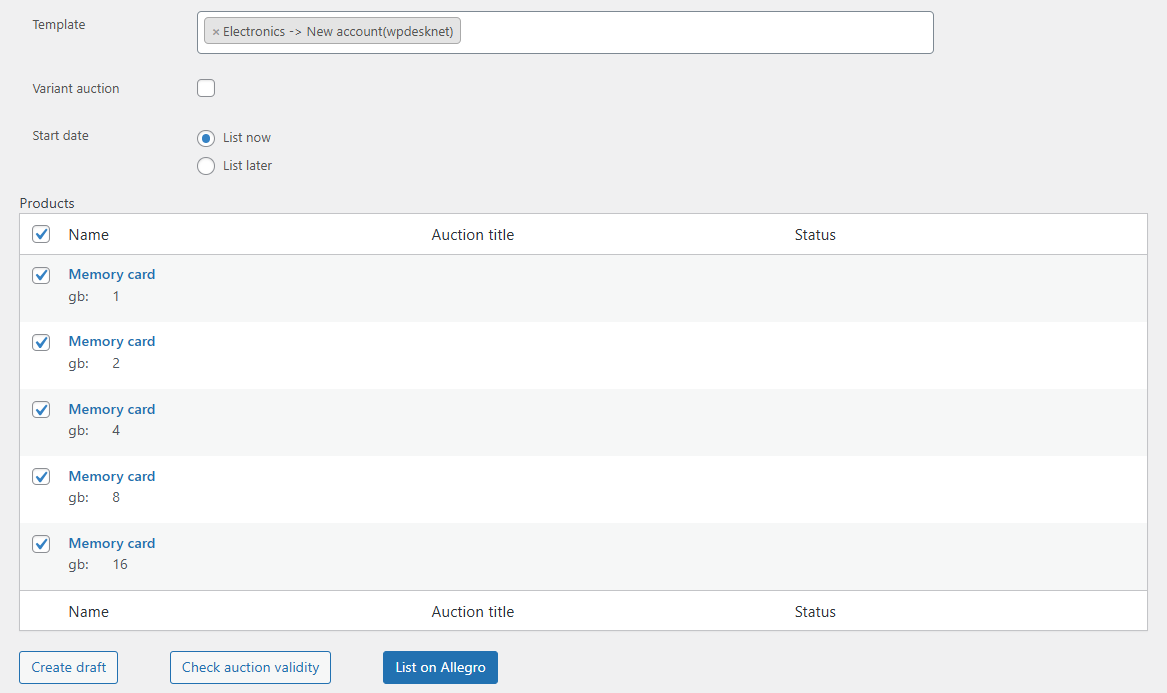
Catalog products for variations
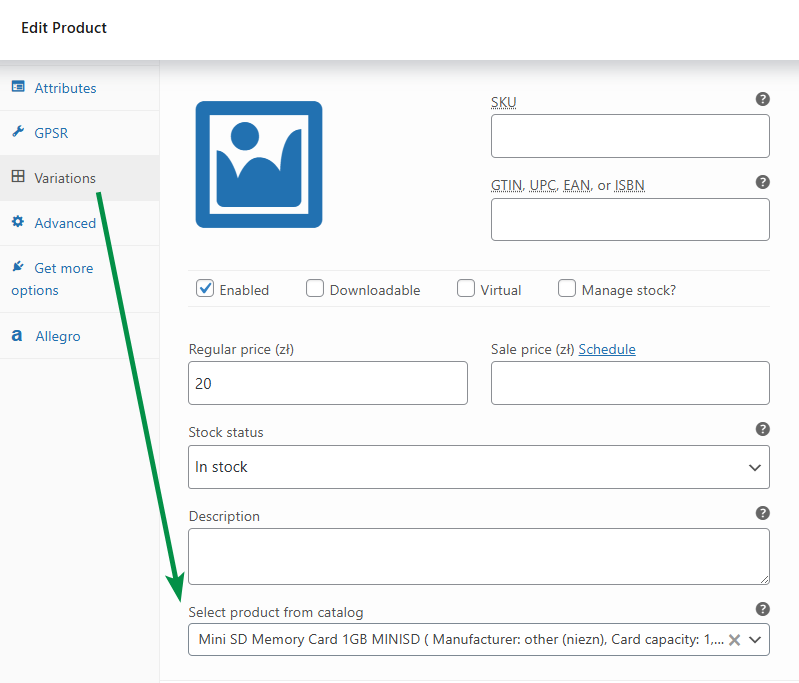
For variable products, you can select products from the Allegro catalog for individual variations in the product edit screen. This helps link each variation with the correct Allegro catalog item before listing.
List later
You can schedule auctions for a later time by selecting List later in the Start date field and choosing the date and time.
Drafts
You don’t need to list products immediately. Click Create draft to save auction drafts and manage them later in the Allegro → Auctions menu. You can open a draft from the Status column.
You can validate draft auctions before listing them. If an auction contains errors, the error message appears in the Status column. If the auction is correct, the status will show Auction valid.
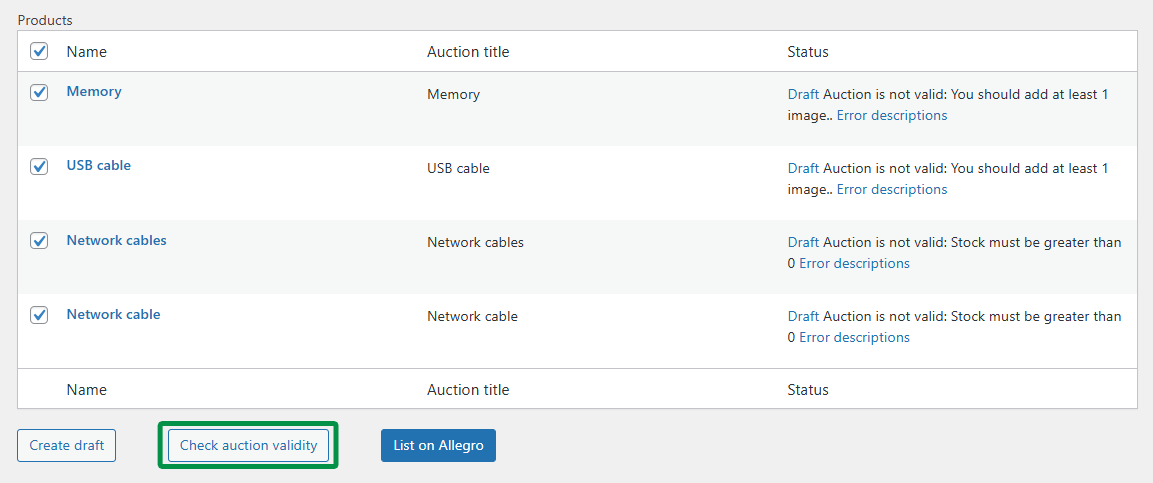
After validation, you can still decide which drafts to list. Select them from the list and choose List auction.
Auction management
Auction list
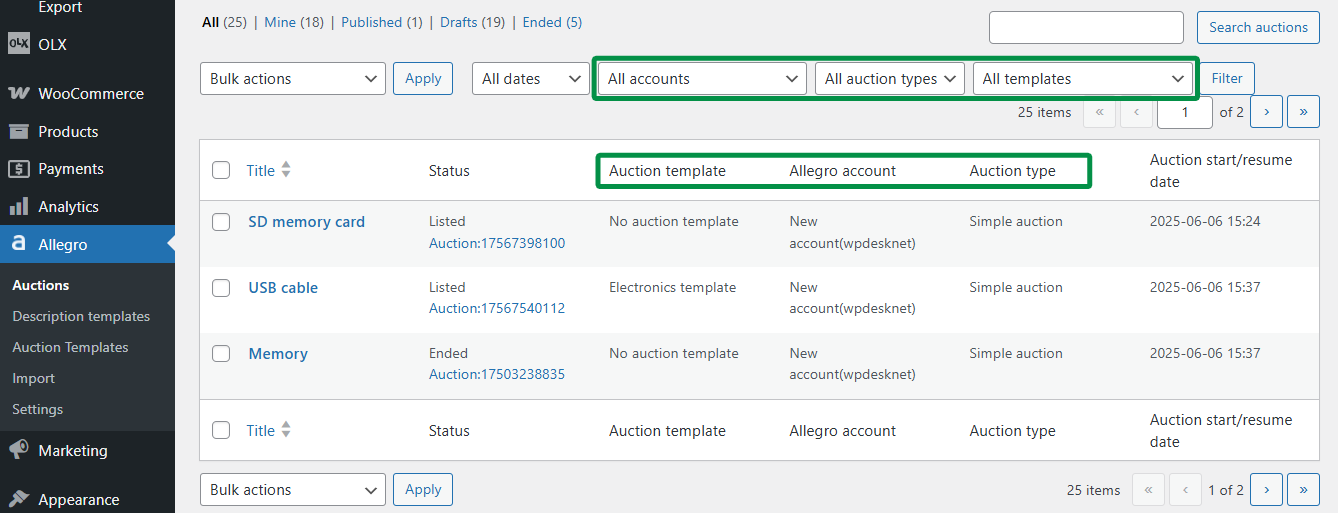
Go to Allegro → Auctions to manage auction drafts, listed auctions, and ended auctions.
On the auction list, you can use the submenu to view:
- Published — auctions that are already listed on Allegro.
- Drafts — auctions that are not listed yet or need correction.
- Ended — auctions that have ended.
The Status column shows current auction information. For listed auctions, it displays the Allegro auction number. For draft auctions, it can show validation results or error messages.
You can also filter auctions by:
- date range,
- Allegro account used for the listing,
- auction template used.
Auction drafts
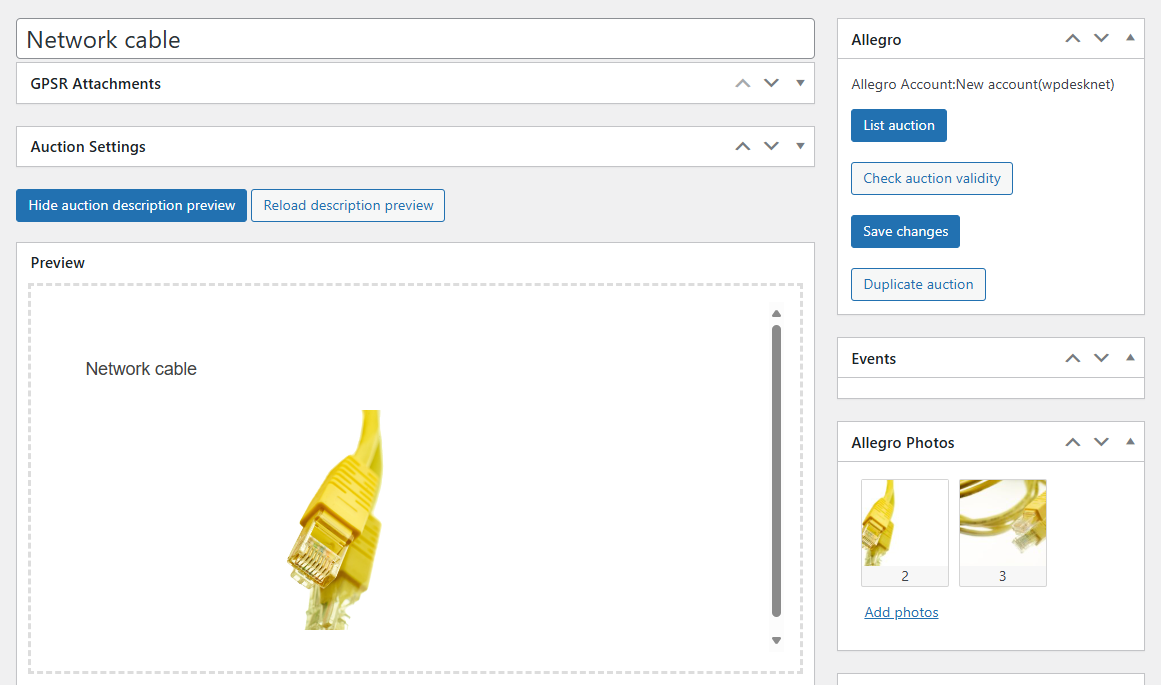
If an auction wasn’t listed because of an error, open the draft, correct the data, and try listing it again.
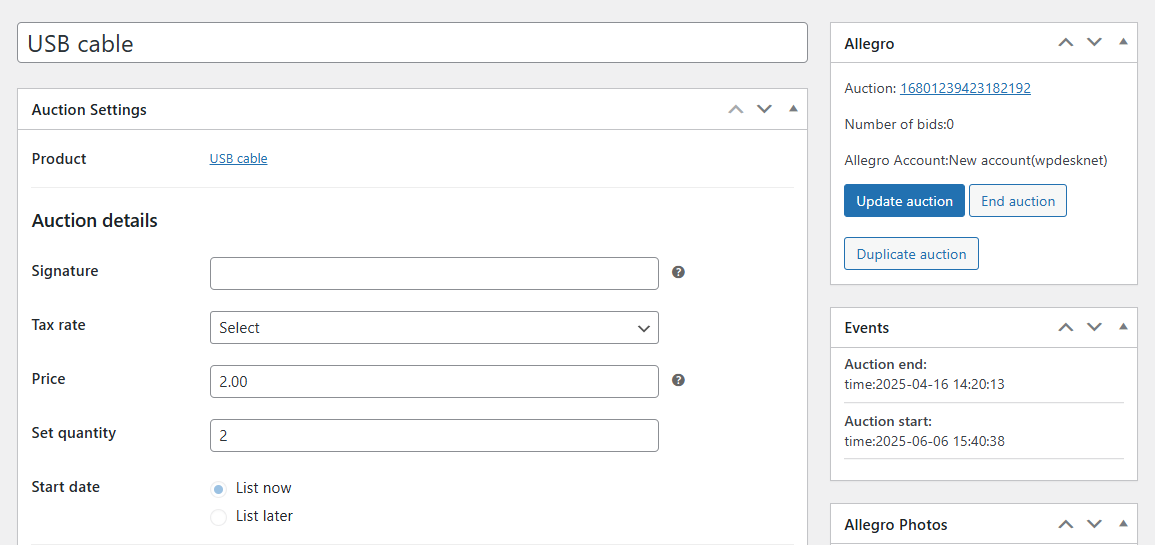
In an auction draft, you can manage auction settings, parameters, description, and photos. To preview the description, click Auction description preview.
Auction settings
The auction edit screen includes the Auction Settings metabox. Depending on the auction status and selected template, you can configure:
- Select marketplace — choose the Allegro marketplace where the auction will be listed.
- Additional percentage margin for foreign markets — add a margin for foreign marketplaces.
- Signature — add an internal product identifier.
- Tax rate — choose the tax rate used for the auction.
- Price — set the gross auction price. Manual price editing is available only when price synchronization is disabled.
- Set quantity — set the auction quantity.
- Start date — choose whether to list now or later.
- Category — select an Allegro category.
- Item features — fill in required Allegro category parameters.
- Product catalog — select a product from the Allegro catalog.
- Photos and item description — select or update the description template.
- Sales formats — configure the offer type and duration.
- Invoice options — define invoice availability for the offer.
- Delivery and payment — choose the delivery price list, add delivery information, and set shipping time.
- Offer conditions — select complaints, return conditions, warranties, additional services, and wholesale price list.
- GPSR — provide required product safety and responsible party information where applicable.
Auction photos
Allegro allows you to upload up to 16 images in JPG or PNG format. More details are available on Allegro’s website.
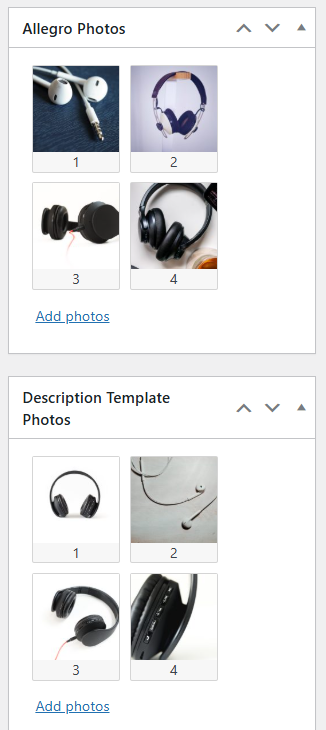
Auction photos are pulled from two sources:
- Allegro photos — product photos from WooCommerce.
- Description Template Photos — photos added in the description template.
For example, if the product has 16 images and the template has 2 images, the last two photos in the draft can come from the template.
Editing auctions
You can edit ongoing auctions according to Allegro’s guidelines. Once a product is listed, its draft becomes an active auction that can be edited under Allegro → Auctions.
To update a listed auction, click Update auction.
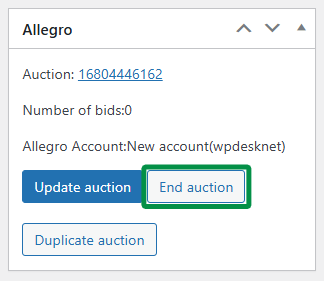
To end an auction immediately, click End auction.
To validate changes before updating the auction, use the validation option available in the auction actions.
To create a new draft from an existing auction, click Duplicate auction.
In the Events metabox, you can check auction events, such as listing, ending, resuming, or stock updates.
Editing auction description
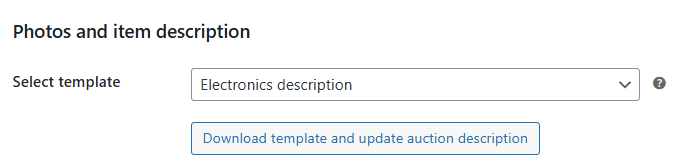
You can change the description template for drafts and listed auctions. Select a new template from the Select template dropdown and click Download template and update auction description. The plugin will update the auction description using the selected template.
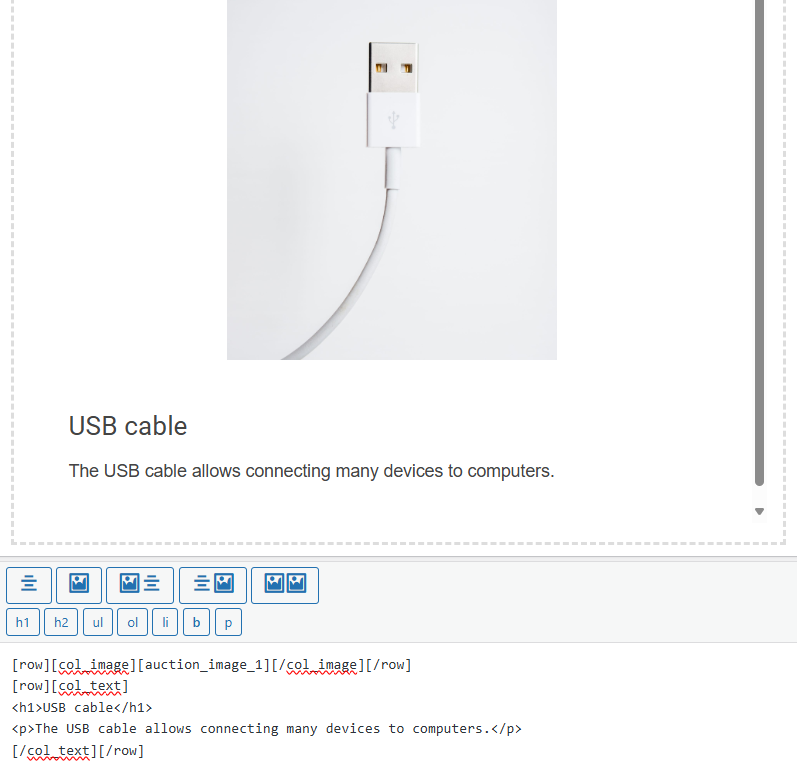
You can format the description and structure it as in description templates. To preview how the description will look, click Auction description preview or Reload preview.
Ending auctions
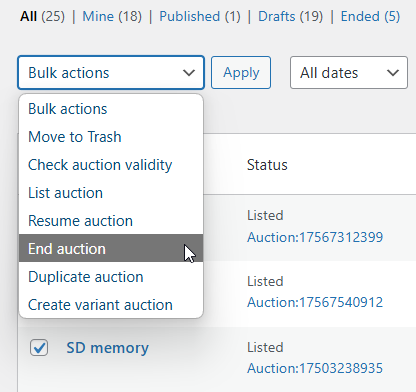
You can end active auctions directly from the plugin. To end one or more auctions at once, use Bulk actions on the auction list. Select the auctions, choose End auction, and click Apply.
You can also end a single auction from the auction edit screen.
Resuming auctions
The plugin allows you to resume ended auctions. A resumed auction keeps its original Allegro number and URL.
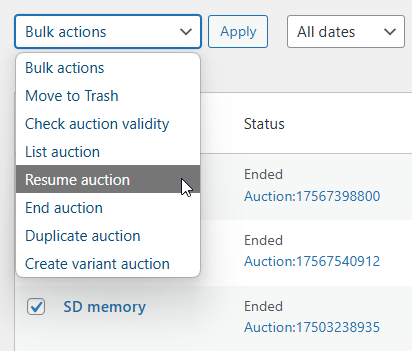
You can only resume auctions with the Ended status. To resume one or more auctions at once, use Bulk actions on the auction list. Select ended auctions, choose Resume auction, and click Apply.
You can also resume a single auction from the auction edit screen.
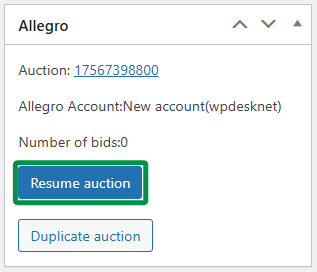
After resuming, you’ll see a confirmation message.
Duplicating auctions
You can create new drafts from active or ended auctions. Select auctions on the auction list, choose Duplicate auction from Bulk actions, and click Apply.
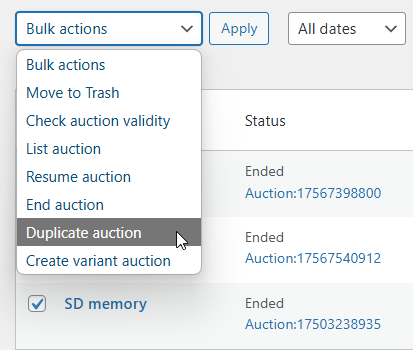
A new draft will be created. The product quantity is updated based on the current WooCommerce stock, and other auction settings are copied from the original auction.
You can edit the draft before listing it or use Bulk actions → List auction to list it directly.
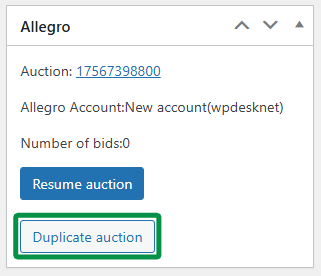
You can also duplicate an auction from the auction edit screen using the Duplicate auction button in the Allegro metabox.
Linking a product with the Allegro catalog
Allegro requires offers to be linked to products in the Allegro catalog where a matching catalog product is available or required for the selected category. The plugin lets you select a catalog product directly in the auction edit screen.
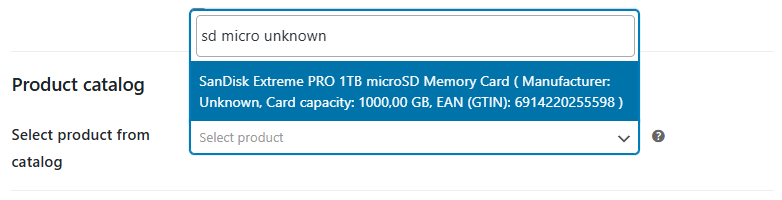
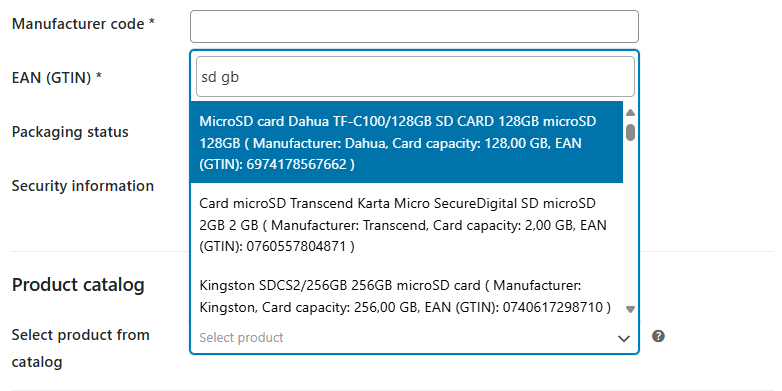
In the Product catalog section, use the Select product from catalog field to search for a matching product from the Allegro catalog. The plugin suggests catalog items available for the assigned category.
If the product has an EAN and Allegro returns a matching catalog item, the plugin can suggest it during the search.
If you can’t find a matching product while creating the auction, you can continue listing. The plugin will try to create or link the product in the Allegro catalog based on the data sent with the offer.
The plugin also displays additional catalog-related parameters when they are available for the selected category.