
The max_execution_time exceeded error means a PHP script used more execution time than its configured limit allows. It can interrupt large imports, backups and resource-heavy plugins. This guide covers four ways to raise the limit, from php.ini to your hosting provider, and explains how to check whether a change took effect.
Contents
- How to fix the max_execution_time WordPress error (Quick Guide)
- What is the max_execution_time error in WordPress?
- Why does WordPress throw the max_execution_time error?
- How to increase the max_execution_time in WordPress?
- Can plugins help fix the max_execution_time error?
- 4. How to fix the max_execution_time error with your hosting provider
- How to prevent max_execution_time errors in the future?
- Summary
- FAQ: execution time and memory in WordPress
- How to speed up & optimize WooCommerce checkout (15 tips)
- Fixing WordPress Emails Going to Spam (in 5 steps)
- Configure your WordPress email settings & Complete guide to sending email
- WordPress 5.3 Overview
How to fix the max_execution_time WordPress error (Quick Guide)
You can change the PHP configuration, call a PHP function from wp-config.php, use .htaccess on a compatible setup, or ask your host to adjust the setting.
Example: If your server currently allows only 30 seconds, 300 seconds (5 minutes) may allow a legitimate long-running task to finish. It will not fix inefficient code or a separate server timeout.
4 ways to address the max_execution_time WordPress error:
- Increase PHP max_execution_time through your php.ini file.
- Or modify the wp-config.php file to increase the execution time.
- Or add the limit to .htaccess if your Apache or LiteSpeed configuration supports PHP overrides.
- Alternatively, contact your hosting provider if the error still appears.
What is the max_execution_time error in WordPress?
If your WordPress site runs into the max_execution_time exceeded error, it means a script took too long to execute. The limit is a PHP setting used by the server running WordPress. This error happens in WordPress quite often when sites have more plugins, tasks, users, or traffic.
Every WordPress site should avoid such errors because they can harm, for example, user experience or a WooCommerce business.
Once this time limit is exceeded, you’ll see this error. This is common with tasks like large imports, backups, or any process that requires a lot of resources.
How to confirm in WordPress max_execution_time issue?
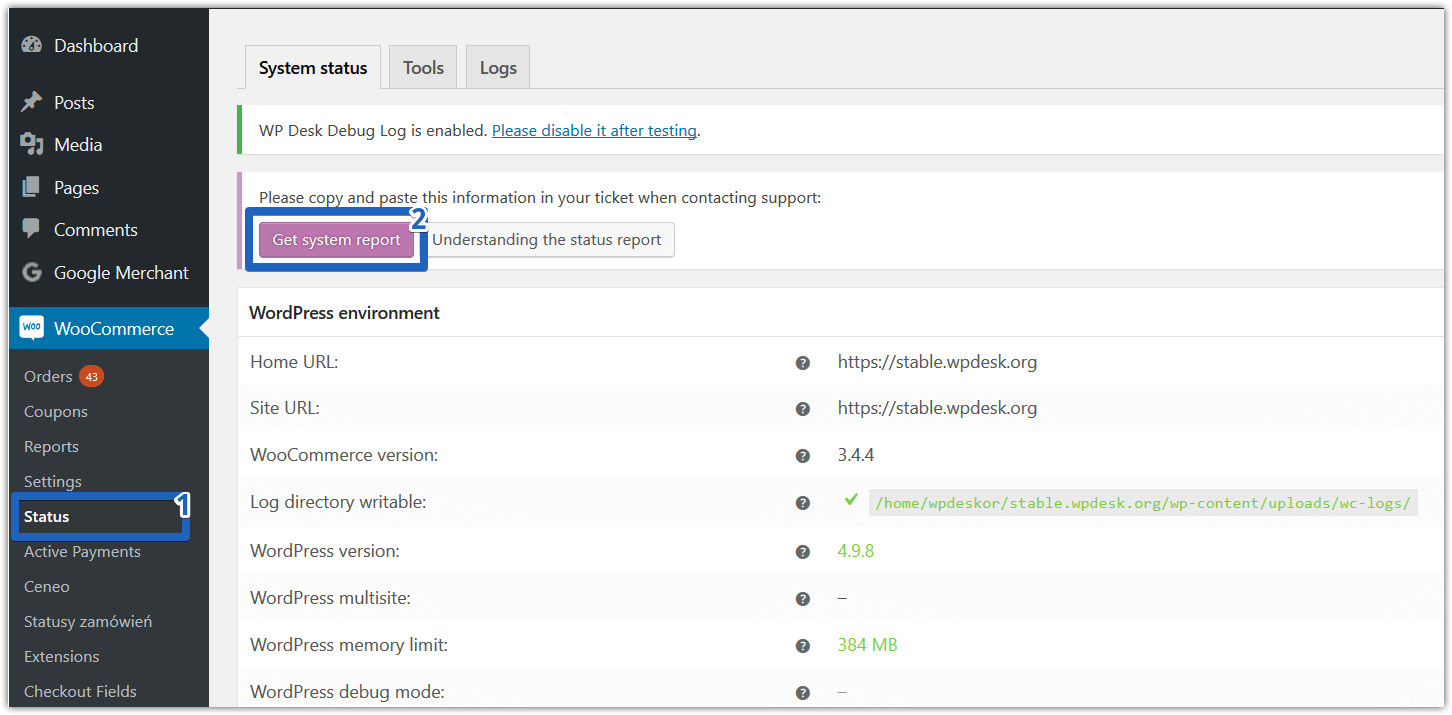
To know whether max_execution_time is causing the issue, check your PHP error logs for messages like “maximum execution time exceeded.” If you have WooCommerce installed, go to WooCommerce → Status → Logs to see if there are any error notifications.
Once you have confirmed the cause, choose a configuration method supported by your host and check the effective value after changing it.
Why does WordPress throw the max_execution_time error?
The max_execution_time error usually occurs when WordPress tries to process a large or complex task, and the server doesn’t have enough time to complete it. Here are a few common reasons:
- Large media files (images, videos) taking too long to upload or process.
- Heavy plugins or complex themes using up a lot of resources.
- Extended operations like importing/exporting products, especially in WooCommerce.
- Traffic spikes that use specific scripts
Time limit in WordPress
PHP commonly starts with a 30-second execution limit, although hosts can configure a different value. Imports, updates and backups may need more time than an ordinary page request.
If media processing triggers this error, check the failing task before raising the limit. Upload size restrictions and other request timeouts are separate settings.
Maximum execution time for WP plugins
You may also try deactivating plugins one by one or switching to a default theme (like Twenty Twenty-Five or Storefront) to check if a particular plugin or theme is causing the issue.
Now that you know why this happens, let’s move on to fixing the issue by increasing your max_execution_time.
How to increase the max_execution_time in WordPress?
There are several ways to increase PHP max_execution_time. Here are three configuration methods. Use the one your host supports; contacting the provider is the fourth option, described below.
Before you change anything
Back up the files you will edit and keep file-manager or SFTP access available so you can undo a change if WordPress stops loading. Try one method at a time and check both the effective setting and the original failing task.
1. php.ini File Method
Set this value in the active php.ini for the PHP version serving your website:
max_execution_time = 300
Apply the change through your hosting panel or reload the relevant PHP service if your setup requires it. A full server reboot is not normally necessary.
This increases the time limit to 300 seconds (5 minutes), as an example value to test with your workload.
Where to Find the php.ini File:
The location of php.ini depends on the server and PHP handler. Use your hosting panel’s PHP settings editor, such as cPanel’s MultiPHP INI Editor, or ask the host which file applies to your website.
Creating php.ini in the WordPress directory does not guarantee PHP will read it. Some setups use a per-directory .user.ini instead; follow your host’s instructions.
2. wp-config.php method
Add this line to your wp-config.php file before "That's all, stop editing!" line:
if (function_exists('set_time_limit')) {
    set_time_limit(300);
}
This calls a standard PHP function, not a WordPress-specific setting. Hosts may disable the function or restrict runtime changes. On PHP 8+, a disabled function is normally undefined, so calling it without a check can cause an error. The guard above skips the call when it is unavailable; it does not prove that the limit changed. Verify the effective value and check the logs. A separate web-server or PHP worker timeout can still end the request earlier.
Where to Find wp-config.php:
You’ll find the wp-config.php file in your WordPress root directory. Access it via FTP or cPanel.
3. .htaccess method
Use this method only if your host supports PHP overrides in .htaccess. Apache with mod_php can support them; compatible LiteSpeed configurations can too. The server name alone is not enough to establish support. Add this line outside the WordPress-generated rewrite block in the existing .htaccess file:
php_value max_execution_time 300On a compatible setup, the override normally applies to subsequent requests without a server restart. On an unsupported PHP handler, including many Apache PHP-FPM setups, even this correctly written line can cause a 500 error. Remove the added line or restore your backup if that happens. Nginx itself does not read .htaccess; use the PHP settings route your host provides instead.
WP Desk's August 2026 telemetry reported LiteSpeed on 32.7% and nginx on 9.9% of the WooCommerce stores in its sample. These figures describe that sample, not the proportion of stores where this directive will work.
If you cannot see .htaccess, enable hidden-file display in your file manager. Before creating a missing file, confirm with the host that this method is supported and which directory it should apply to.
Can plugins help fix the max_execution_time error?
Plugins can help diagnose the cause, but they cannot bypass hosting restrictions. Upload-limit plugins should not be assumed to change execution time. Use Query Monitor to inspect PHP environment information, errors and slow operations. It is a diagnostic tool, not a way to raise the limit.
If a runtime change is unavailable or ineffective, use the hosting panel, the supported PHP configuration file or your hosting provider.
4. How to fix the max_execution_time error with your hosting provider
If none of the above solutions work, your hosting provider may be able to help.
Some hosting providers apply strict max_execution_time limits to prevent server overload, especially on shared hosting environments.
Ask whether your plan permits a higher execution time limit. Send the error message and describe the failing task; the provider may need to check a separate PHP worker, web-server or proxy timeout.
Increase the PHP time limit by hosting provider
Contact your hosting provider and ask them to increase the max_execution_time for your WordPress site.
Sometimes, your host may offer additional tools or resources to optimize performance and prevent time-related errors. You may describe the issues you encounter so they can understand what to fix.
With the limit raised, the next step is making sure the error does not come back.
How to prevent max_execution_time errors in the future?
To ensure this error doesn’t keep happening, here’s what you can do:
1. Optimize plugins and themes
- Disable unnecessary plugins that consume resources.
- Use lightweight themes that don’t overload the server.
- Keep WordPress and WooCommerce up to date.
- Use a supported PHP version compatible with your plugins and theme; test the upgrade before applying it to the live site.
The PHP version deserves attention too. WP Desk telemetry covering 19,803 WooCommerce stores in August 2026 found 17.5% running PHP 7.4. That branch stopped receiving upstream security updates in 2022. Moving to a supported version can improve performance, but the result depends on the application and should be measured.
The same sample found 21.3% of stores with less than 512 MB of PHP memory. This does not mean every store needs 512 MB. Memory and execution time are separate limits; imports and backups can encounter either, so check the actual error message and resource use before changing them.
2. Break up large tasks
If you’re running large imports or backups, break them into smaller tasks to avoid exceeding the time limit. For example, updating a lot of products can overload the server.
3. Upgrade your hosting
Consider upgrading to managed WordPress hosting or VPS for better performance and higher execution time limits compared to shared hosting.
4. Reduce the load with caching
You may also use caching plugins like W3 Total Cache or LiteSpeed Cache to optimize performance and reduce server load.
Caching can reduce repeated work for cacheable page requests. It does not usually shorten an import, backup or other uncached background task; those may need batching or changes to the responsible plugin.
Summary
Here’s a quick recap of what you can do to fix the max_execution_time WordPress error:
- Increase max_execution_time in php.ini, wp-config.php or a supported .htaccess configuration.
- Optimize plugins and themes to reduce resource consumption.
- Use diagnostics to identify slow operations and confirm the effective limits.
- Contact your hosting provider if the error persists.
- Optimize your site for better long-term performance.
After each change, retry the failing operation and check the logs. If the configured limit increases but the request still stops early, ask your host to investigate other timeouts.
FAQ: execution time and memory in WordPress
1. What causes memory issues in WordPress?
Memory issues can arise from:
- Heavy plugins or poorly optimized themes.
- Large media files like images or videos consuming too much memory.
- Outdated plugins or WordPress versions using more resources than necessary.
- Shared hosting environments, where server resources are limited.
2. What happens if memory runs out?
When memory runs out, it can lead to:
- Slow page load times, negatively affecting user experience and SEO.
- A failed PHP request, which may interrupt a page load or background task.
- Error messages like fatal errors or memory limit exceeded.
- Losing users.
3. How to maintain a fast WordPress site?
To maintain a fast site:
- Use caching plugins like W3 Total Cache or LiteSpeed Cache.
- Optimize images with tools like Smush or Converter for Media.
- Limit the number of plugins.
- Regularly clean your database.
4. How much memory does WordPress and WooCommerce need?
Memory requirements depend on the theme, plugins and workload. There is no single memory figure that suits every WordPress site. Current WooCommerce server recommendations specify a WordPress memory limit of 256 MB or greater. Large imports or complex stores may need more, subject to the host's available resources.
Step-by-step instructions for both settings are in our documentation: checking and setting the memory limit and raising the maximum execution time.
Do not treat 300 seconds or 512 MB as universal requirements. Use the logs and workload measurements to choose a limit, and distinguish a memory-exhaustion error from an execution-time error.
You may also track current execution limit and memory usage with the Query Monitor plugin.



Leave a Reply