Contents
Key plugin features
Flexible Product Fields - Multistep Configuration is an add-on for Flexible Product Fields Pro. It helps you organize product fields into clear steps on the WooCommerce product page.
After enabling the Enable multistep option for a field group, the group is displayed as a numbered accordion section. The step title uses the field group name, and all fields assigned to that group appear inside the same step. The first step is open by default, while customers can expand the next steps when they need them.
You can use this add-on when a product requires many configuration fields, for example personalized products, made-to-order items, product bundles, or forms split into logical sections such as product details, engraving, delivery preferences, and additional options. Groups without multistep enabled stay in the standard field layout, so you can mix regular fields and step-based sections on the same product page.
The plugin also improves validation messages. If a customer misses a required field or enters an invalid value, the message includes both the field name and the step name. This helps the customer find the section that needs correction before adding the product to the cart.
Installation
Move the plugin folder to wp-content/plugins/, activate it in the WordPress admin panel, and check whether your installation meets the requirements:
- WordPress 6.2 or newer
- WooCommerce at least version 9.0 (or compatible with your store)
- Flexible Product Fields Pro 2.10 or higher
- PHP 7.4+
Without these, the multistep layout options will not appear in the product editor.
Activation and linking with the main plugin
The plugin works as an extension of Flexible Product Fields Pro. After activation, make sure the main plugin is enabled and has an active license — only then will the new toggles appear and can be saved.
If everything works properly, you don’t need to do anything else in the panel — the configuration will appear right away when editing field groups.
Enabling step-by-step mode
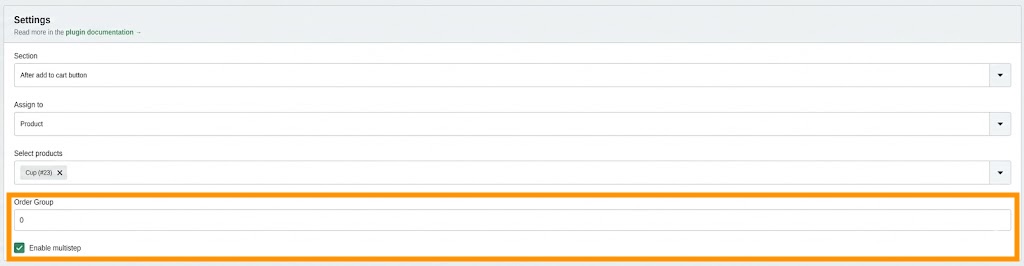
In the product editing screen, each field group now features a new toggle labeled “Enable multistep” (or similar). Check it for the groups that should appear as separate steps.
Each step receives a number and the group title, while its contents are placed inside a collapsible panel. If needed, you can assign additional fields to the same group — they will be displayed within that step.
This allows you to divide the form into logical sections grouped in an accordion layout, without changing the field order in the editor.
Customer view on the product page

On the product page, the fields with multistep enabled are arranged in an accordion:
- The first step is open by default.
- Subsequent steps can be expanded with a single click.
- Each header shows the step number, group name, and an arrow indicating expansion.
- The content inside includes all associated fields.
Groups not marked as steps remain in their original position — without the accordion, just like before.
This way, shoppers see a clear form structure, aren’t overwhelmed by all fields at once, and can easily return to a previous step.
What the user sees in case of errors
If something requires correction, error messages include both the field name and the step name. This helps pinpoint which part of the form needs to be completed.
Restoring the standard view
Unchecking the “Enable multistep” toggle for a group restores the classic layout, displaying fields in a single block.
Save your changes so that the new settings become visible immediately. If you still see the old layout after editing, refresh the product page or clear your cache.
