Flexible Cookies Styles Addon – Documentation
Contents
Key plugin features
Flexible Cookies Styles Addon extends the Flexible Cookies plugin with additional styling options for the cookie consent bar. Use it when you want the cookie banner, buttons, preferences window, and consent overlay to match your WooCommerce store design more closely.
The plugin adds options for the cookie bar position, entrance animation, custom cookie icon, title color, spacing, borders, rounded corners, and shadow. It also lets you adjust button labels and style primary, secondary, and tertiary buttons separately, including text color, background color, hover colors, padding, margins, borders, corners, and shadow.
You can also customize the preferences window backdrop by setting its color and blur. If you enable Force consent, the page content will be blurred and blocked until the visitor makes a cookie decision.
The addon is useful when you need a cookie consent interface that fits your storefront branding, when the default Flexible Cookies appearance is too basic, or when you want to preview visual changes before applying them on the live site.
Learn how to configure and customize the cookie consent bar on your website using Flexible Cookies Styles Addon.
Table of Contents
Installation
- Install and activate the Flexible Cookies plugin from the WordPress repository or by uploading the ZIP file.
- Install and activate Flexible Cookies Styles Addon.
- Go to Settings → Flexible Cookies to start the configuration.
Flexible Cookies Styles Addon requires Flexible Cookies 1.2 or newer.
General Settings
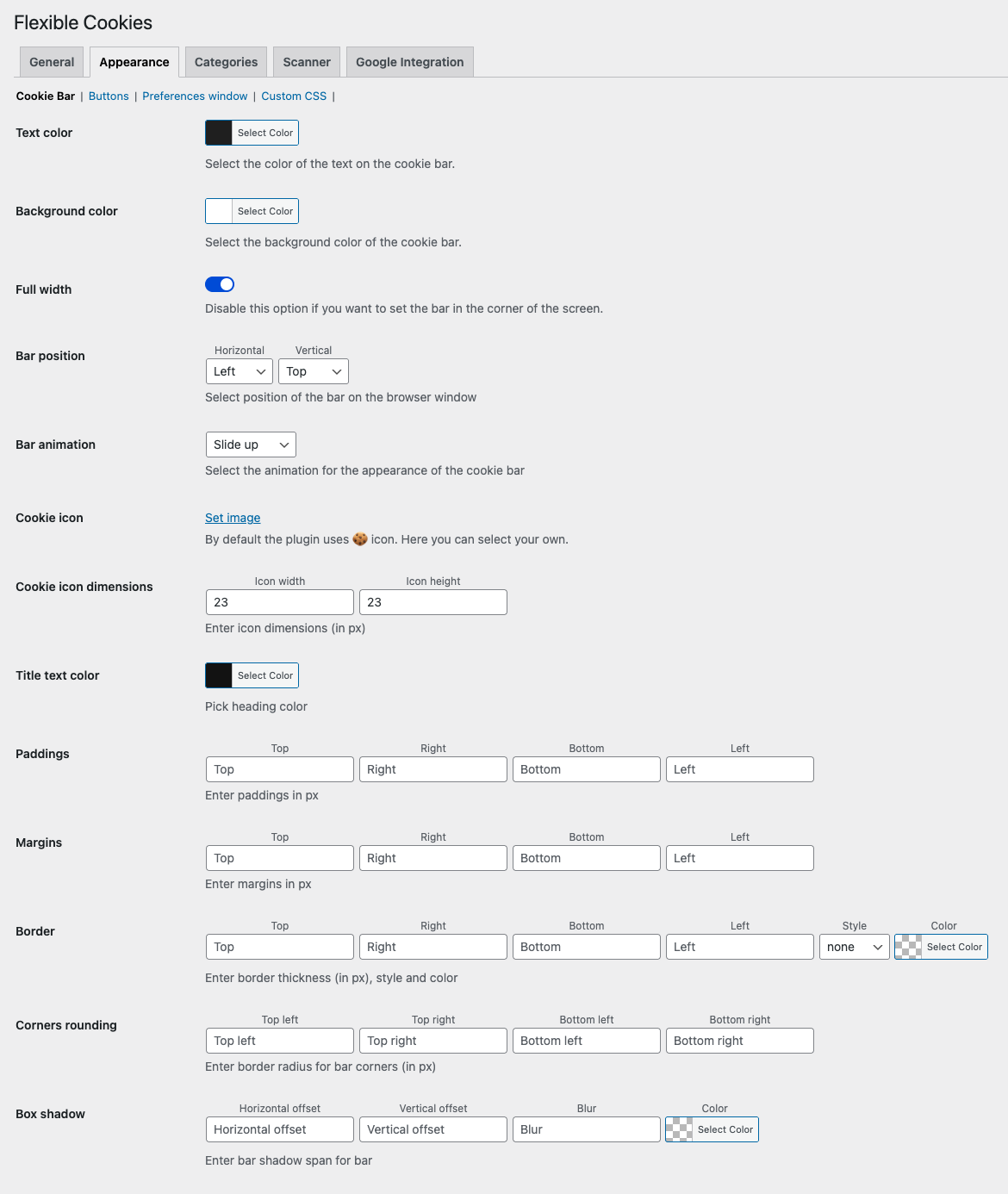
Navigate to the Appearance → Cookie Bar tab to configure the basic look of the cookie bar.
- Text color – color of the text displayed on the bar.
- Background color – background color of the bar.
- Full width – option to stretch the bar to full screen width.
- Bar position – horizontal and vertical position of the bar in the browser window.
- Bar animation – animation for how the bar appears, such as “Fade in”, “Slide up”, or “Slide down”.
- Cookie icon – option to set a custom cookie icon.
- Cookie icon dimensions – width and height of the icon in px.
- Title text color – color of the bar heading.
- Paddings / Margins / Borders – spacing and border settings.
- Corners rounding – corner radius of the bar.
- Box shadow – shadow of the bar, including offset, blur, and color.
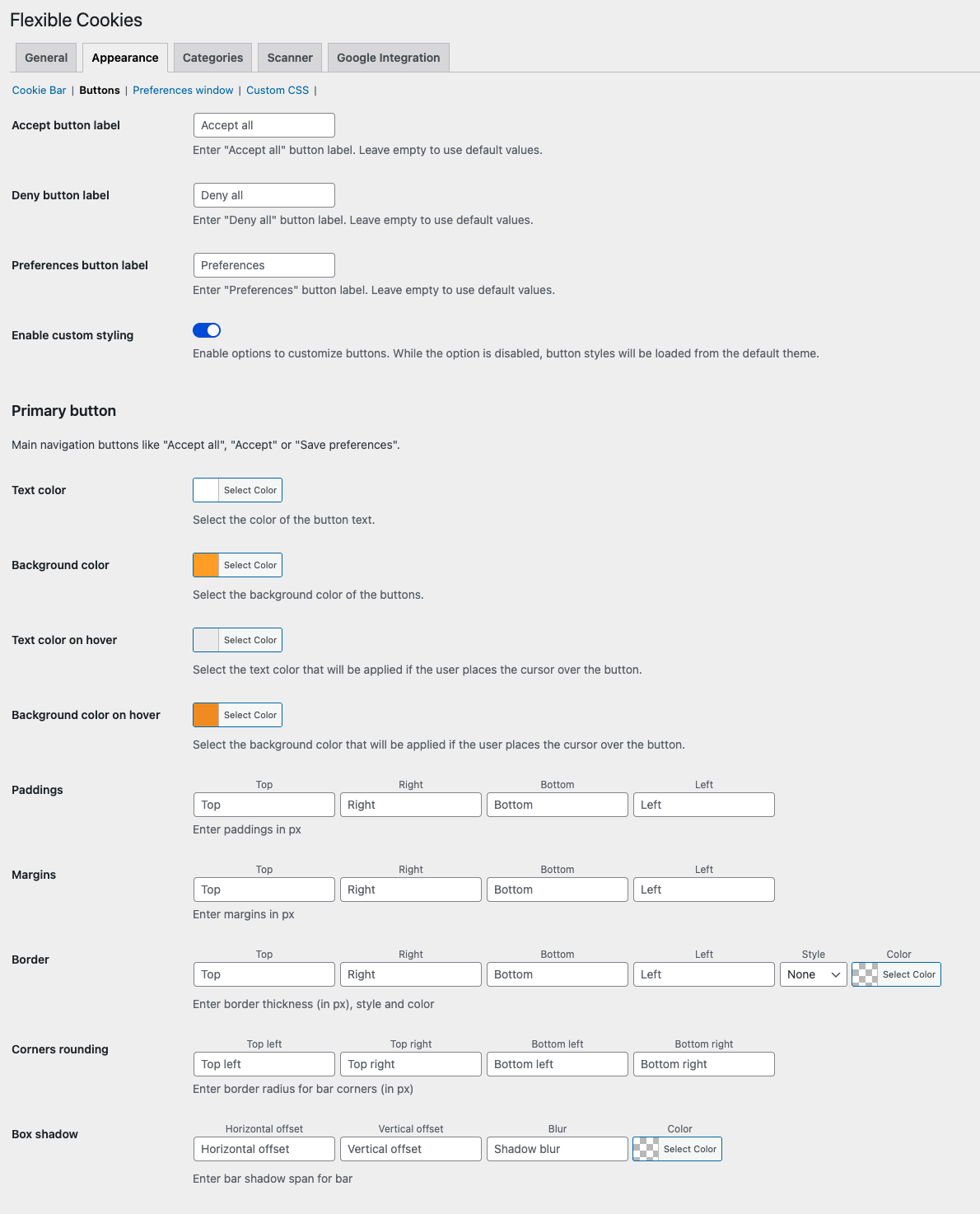
In the Appearance → Buttons tab, you can configure button labels and button styling.
- Accept button label – label for the “Accept all” button.
- Deny button label – label for the “Deny all” button.
- Preferences button label – label for the “Preferences” button.
- Enable custom styling – enable custom styling for buttons.
After enabling custom styling, you can configure three button types separately:
- Primary button – used for main actions such as “Accept all”, “Accept”, or “Save preferences”.
- Secondary button – used for actions such as “Deny all”.
- Tertiary button – used for other actions, such as opening preferences.
- Text color – text color of the button.
- Background color – background color of the button.
- Text color on hover – text color on hover.
- Background color on hover – background color on hover.
- Paddings / Margins / Borders – spacing and border of the button.
- Corners rounding – corner radius of the button.
- Box shadow – button shadow.
- Text color – text color of the button.
- Background color – background color of the button.
- Text color on hover – text color on hover.
- Background color on hover – background color on hover.
- Paddings / Margins / Borders – spacing and border of the button.
- Corners rounding – corner radius of the button.
- Box shadow – button shadow.
- Text color – text color of the button.
- Background color – background color of the button.
- Text color on hover – text color on hover.
- Background color on hover – background color on hover.
- Paddings / Margins / Borders – spacing and border of the button.
- Corners rounding – corner radius of the button.
- Box shadow – button shadow.
Preferences Window
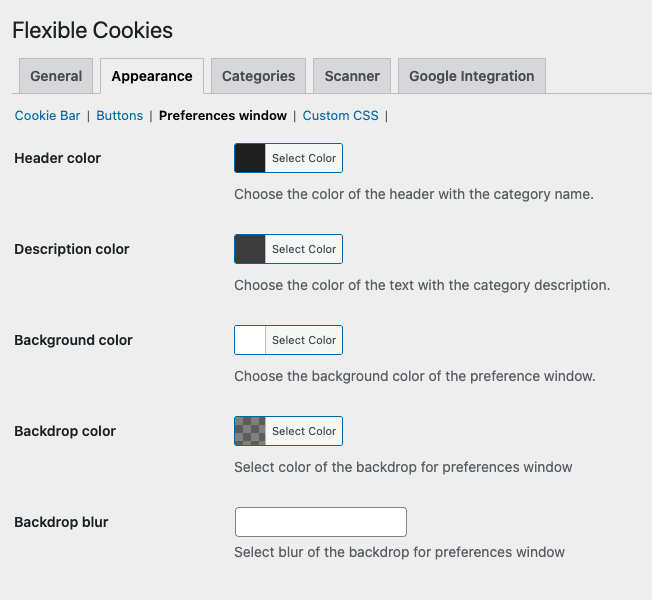
The Appearance → Preferences window tab lets you customize the look of the user preferences popup.
- Header color – color of category headers.
- Description color – color of category descriptions.
- Background color – background color of the preferences window.
- Backdrop color – color of the background overlay.
- Backdrop blur – blur level for the background overlay.
Consent behavior
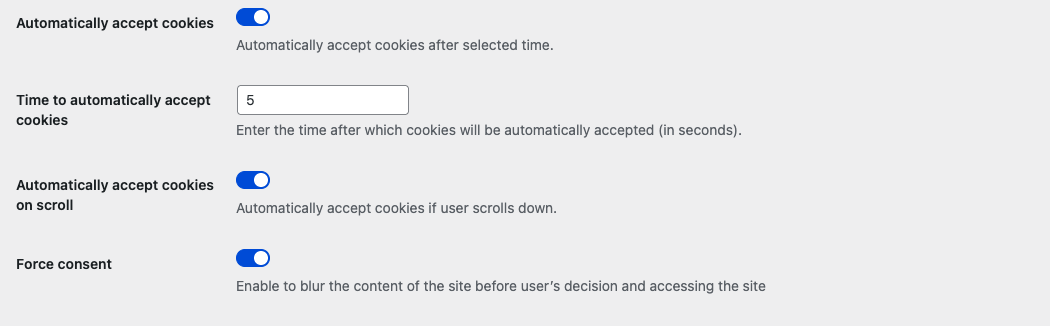
Flexible Cookies Styles Addon adds the Force consent option in the General tab.
- Force consent – blurs and blocks the site content until the visitor makes a cookie decision.
Other automatic consent options, such as accepting cookies after a delay or after scrolling, belong to the main Flexible Cookies plugin.
Need Help?
Contact our technical support team if you need further assistance.
