Contents
Introduction
Checkout Fields for Blocks - Conditional Logic for Fields adds conditional rules to checkout fields created for the WooCommerce block checkout. Use it to show, hide, or require fields only when selected checkout conditions are met.
Key plugin features
The plugin supports conditions based on the cart total, products in the cart, product categories, product type, number of cart items, selected shipping method, selected payment method, user role, date, and values entered in other checkout fields. If Flexible Product Fields is active, the plugin can also use selected product field values in conditional rules.
You can create separate rules for field visibility and field requirement. Conditions can be combined with AND logic inside one rule group and OR logic between groups.
Requirements
The Checkout Fields for Blocks - Conditional Logic Add-on plugin requires the free Checkout Fields for Blocks plugin in version 1.1 to work.
Installing the Plugin

To get started with the plugin, follow these steps:
- Download the Plugin from My Account.
- Upload the Plugin:
- Navigate to the Plugins section in your WordPress admin panel.
- Click on Add New > Upload Plugin and select the ZIP file.
- Click Install Now and then Activate the plugin.
Overview
Conditional logic allows you to show, hide, or require checkout fields based on specific conditions. This means you can create dynamic checkout forms that adapt to the customer’s selections, cart content, user role, date, or values entered in other checkout fields.
Setting Up Conditional Logic
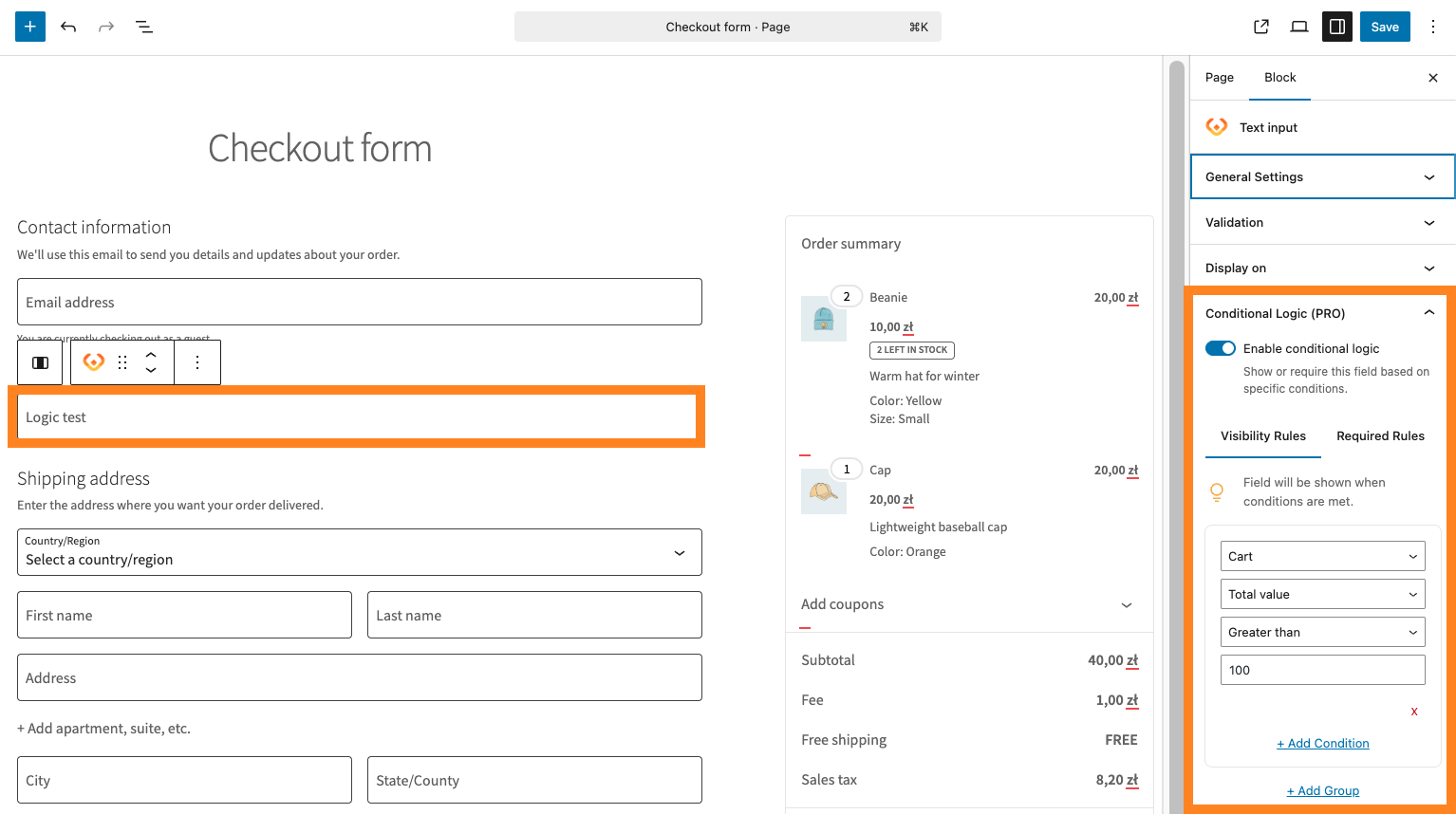
- Navigate to Checkout Site edition: Go to Pages > Page Name.
- Choose checkout form field to edit.
- Enable Conditional Logic: For each field you want to apply conditional logic to, check the box labeled Enable Conditional Logic.
- Configure the rules: Use Visibility Rules to decide when the field should be shown. Use Required Rules to decide when the field should be required.
Types of Conditions
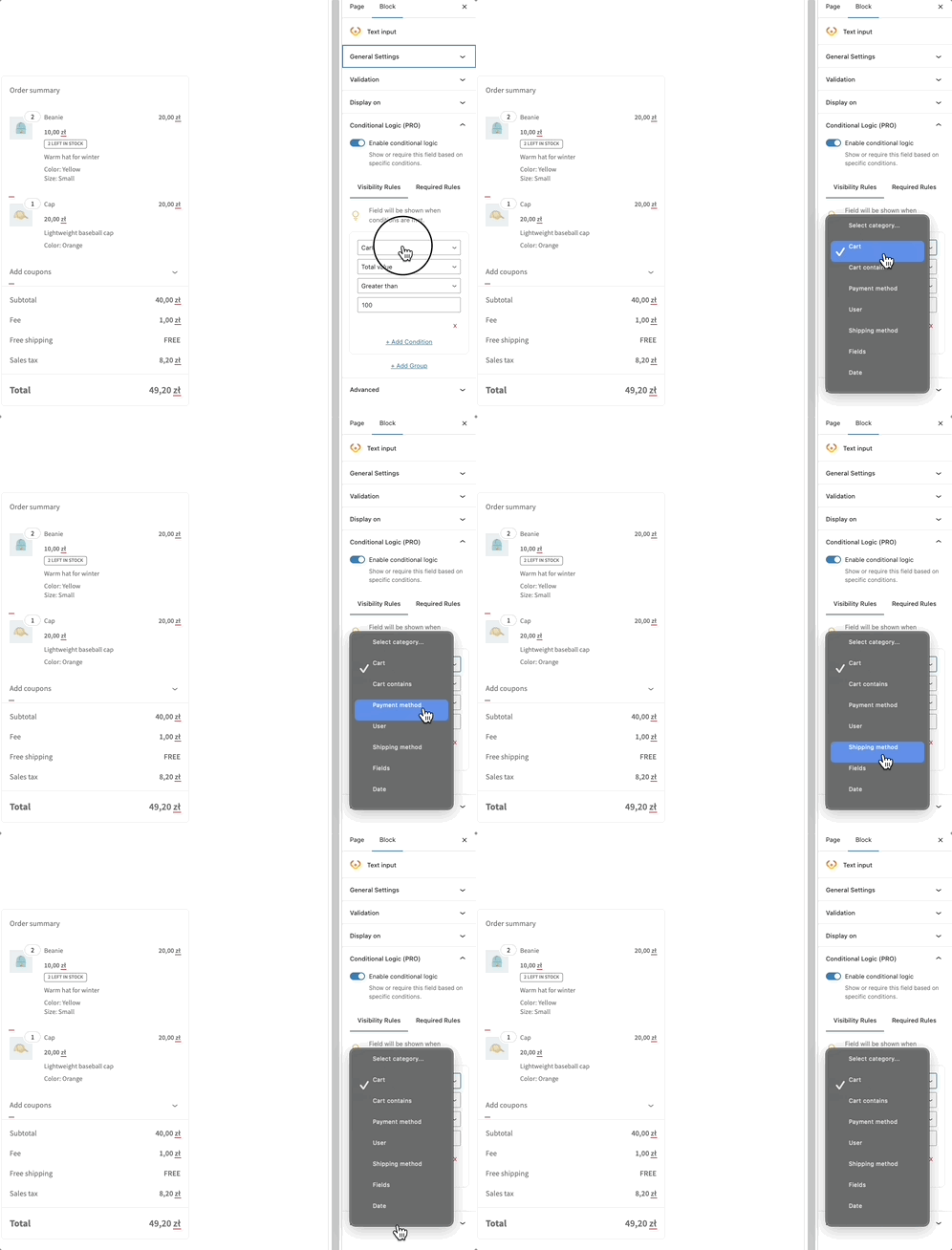
The plugin allows you to create various conditions that control whether a field should be visible or required. Here are the most common types of conditions:
1. Product-Based Conditions
Condition: Show or require the field if a specific product is in the cart.
Example: Only display a gift message field if a certain product is in the cart.
Operator:
- Which is: Applies the rule when the cart contains the selected product.
- Which is not: Applies the rule when the cart does not contain the selected product.
2. Shipping Method Conditions
Condition: Show or require the field if a specific shipping method is selected.
Example: Only display a "Rush Processing" field if the customer selects the express shipping option.
Operator:
- Is: Applies the rule when a specific shipping method is selected.
- Is not: Applies the rule when the selected shipping method is not the one specified.
3. Payment Method Conditions
Condition: Show or require the field based on the selected payment method.
Example: Display an additional field only if the customer selects a specific payment method.
Operator:
- Is: Applies the rule when the chosen payment method matches the selected one.
- Is not: Applies the rule when the chosen payment method does not match the selected one.
4. Cart Total Conditions
Condition: Show or require the field based on the cart total.
Example: Only show the "Add a note" field if the cart total exceeds a certain amount.
Operator:
- Is: Applies the rule when the cart total matches the entered value.
- Greater than: Applies the rule when the cart total is greater than the entered value.
- Less than: Applies the rule when the cart total is less than the entered value.
5. User Role Conditions
Condition: Show or require the field if the customer is logged in and has a specific role.
Example: Display a special field only for users with the “VIP” role.
Operator:
- Is: Applies the rule when the logged-in user has the specified role.
- Is not: Applies the rule when the user does not have the specified role.
6. Date Conditions
Condition: Show or require the field based on the current date.
Example: Display a special promotion field only during a selected date range.
Operator:
- From: Applies the rule from the selected date.
- Until: Applies the rule until the selected date.
7. Field-Based Conditions
Condition: Show or require the field based on the value of another field on the checkout page.
Example: Only display an additional field when the customer selects a specific billing country, shipping state, or custom checkout field value.
Operator:
- Is: Applies the rule when the selected field value matches the specified value.
- Is not: Applies the rule when the selected field value does not match the specified value.
8. Cart Contains Specific Category Conditions
Condition: Show or require the field if the cart contains a product from a specific category.
Example: Display a warranty field if a product from the "Electronics" category is added to the cart.
Operator:
- Which is: Applies the rule when the cart contains a product from the selected category.
- Which is not: Applies the rule when the cart does not contain a product from the selected category.
9. Cart Contains Product Type Conditions
Condition: Show or require the field if the cart contains a selected product type.
Example: Display an additional field only when the cart contains a virtual or downloadable product.
Operator:
- Which is: Applies the rule when the cart contains the selected product type.
- Which is not: Applies the rule when the cart does not contain the selected product type.
10. Cart Item Count Conditions
Condition: Show or require the field based on the number of items in the cart.
Example: Show a delivery note field only when the cart contains more than 3 items.
Operator:
- Is: Applies the rule when the number of items matches the entered value.
- Greater than: Applies the rule when the number of items is greater than the entered value.
- Less than: Applies the rule when the number of items is less than the entered value.
11. Product Field Conditions
Condition: Show or require the field based on selected product field values.
Example: Display an additional checkout field when the customer selects a specific product option.
This condition is available when the Flexible Product Fields plugin is active.
Operator:
- Is: Applies the rule when the selected product field value matches the specified value.
- Is not: Applies the rule when the selected product field value does not match the specified value.
Operators in Conditional Logic
Here is a list of the available operators that you can use to create conditions:
1. Is
Checks whether the selected value matches the condition value.
2. Is not
Checks whether the selected value is different from the condition value.
3. Greater than
Checks whether the numeric value is greater than the entered value.
4. Less than
Checks whether the numeric value is less than the entered value.
5. Which is
Checks whether the cart contains the selected product, product category, or product type.
6. Which is not
Checks whether the cart does not contain the selected product, product category, or product type.
7. From
Applies date-based logic from the selected date.
8. Until
Applies date-based logic until the selected date.
Combining Conditions with AND/OR Logic
You can combine multiple conditions to create more complex logic using AND and OR operators.
- AND: All conditions in one group must be true for the rule to apply.
Example: Show a field only if both a product is in the cart and a specific shipping method is selected. - OR: The rule applies if at least one condition group is true.
Example: Show a field if either the cart contains a specific product or the total exceeds a set amount.
Example Use Case
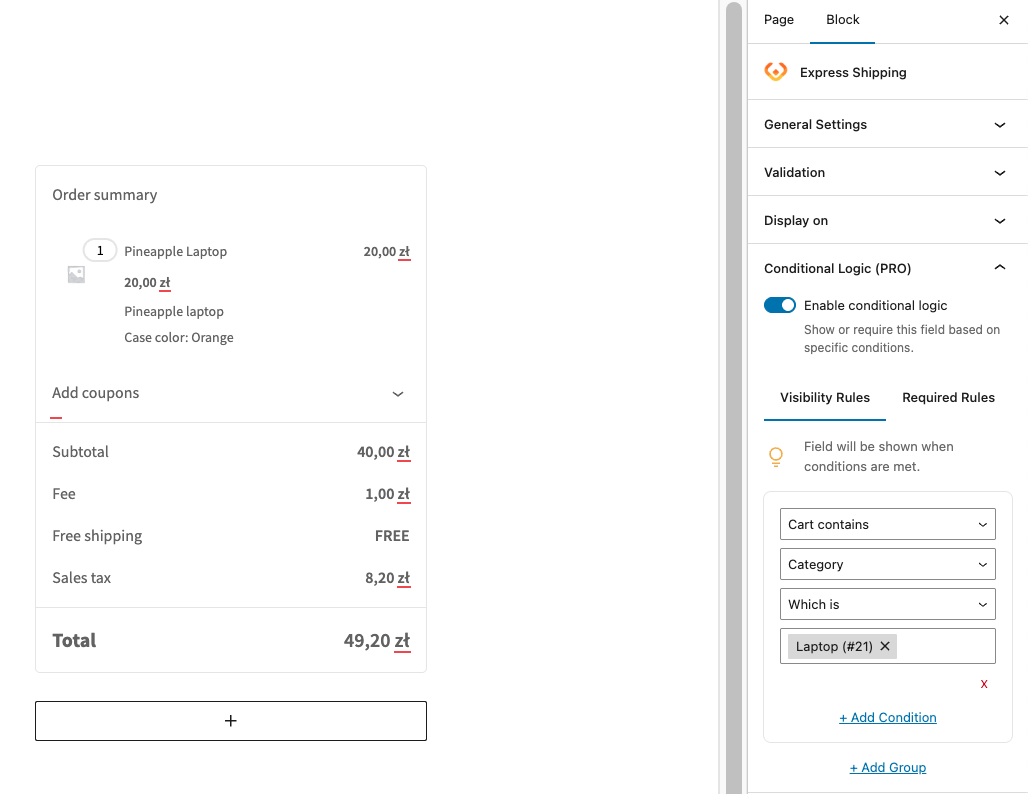
Imagine you have a WooCommerce store selling electronics. You can create the following conditional logic:
- If the cart contains a product from the “Laptop” category and the customer selects “Express Shipping”, show a checkbox asking if they want to add extended warranty for a fee.
Troubleshooting
Issue: Checkout Fields Are Not Displaying
Solution: Ensure that the fields are enabled and that conditional logic is correctly set. Check if there are any conflicts with other plugins.
