

If you're running a WooCommerce store, you've probably wondered: "How do I remove the shipping section from the checkout page?" Maybe you're offering digital products, in-person services, or want to streamline the checkout experience. Whatever the reason, this article walks you through 5 practical, ready-to-use methods to remove shipping from WooCommerce checkout.
You’ll also discover how to fully customize your checkout fields without touching a line of code, using a free plugin. Let’s dive in.
Contents
- When should you hide or disable shipping (or offer free shipping)?
- 5 ways to remove shipping from WooCommerce checkout
- 1. Disable shipping completely (for digital products or services)
- 2. Hide shipping using a code snippet (for developers)
- 3. Use a plugin to hide shipping methods when free shipping is available
- 4. Create a custom shipping zone with no methods
- 5. Remove shipping fields from the checkout using Flexible Checkout Fields
- Flexible Checkout Fields WooCommerce
- How to optimize your WooCommerce checkout and shipping experience?
- Flexible checkout fields: customize WooCommerce checkout without coding
- Pro features of Flexible Checkout Fields PRO
- Summary
When should you hide or disable shipping (or offer free shipping)?
Removing or modifying the shipping section in WooCommerce isn't just a technical tweak - it’s a strategic decision. Here are a few scenarios where disabling or hiding shipping fields makes perfect sense:
- Selling digital products, like eBooks or downloads, where no physical delivery is needed.
- Offering in-person services (coaching, courses) that don’t require shipping.
- Local pickup only, where customers collect their order directly.
- Subscription-based models where the shipping is either free or charged only for the first delivery.
- Free shipping promotions, where hiding shipping costs improves conversion.
When your shipping fields are irrelevant, they can create friction in the checkout process. Streamlining this experience can improve your cart abandonment rates and boost customer satisfaction.
First, you may, for example, make cart and checkout lighter with these settings:
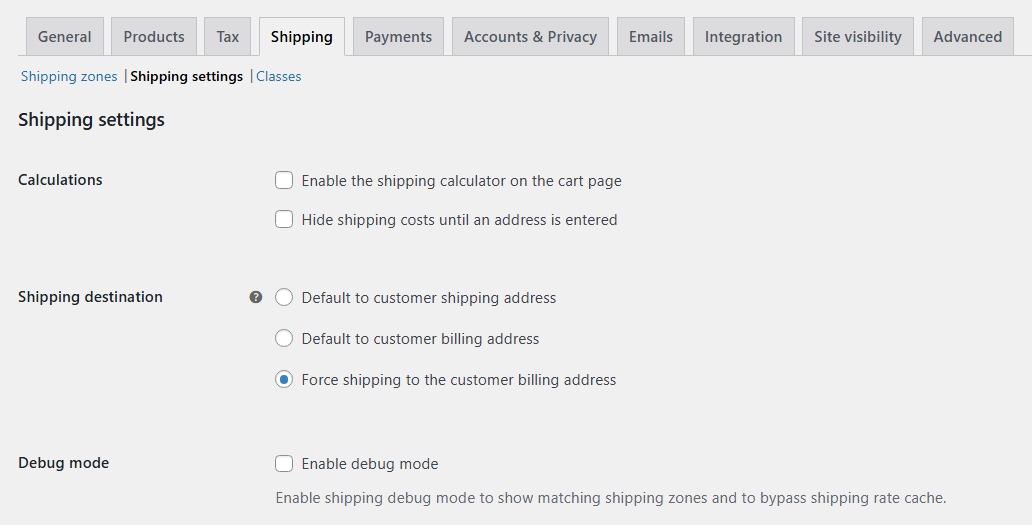
Let's take a look now on how to disable or hide shipping methods (or fields) in WooCommerce.
5 ways to remove shipping from WooCommerce checkout
There are several ways to get rid of the shipping section - some manual, some plugin-based. Let’s go through 5 effective options, with step-by-step instructions.
1. Disable shipping completely (for digital products or services)
WooCommerce lets you define whether a product requires shipping. Here’s how to remove shipping for digital items:
Step-by-step:
- Go to Products → Edit your product.
- In the Product data panel, check Virtual (this disables shipping) and/or Downloadable.
- Save the product.
Done. This product will no longer trigger the shipping section during checkout.
2. Hide shipping using a code snippet (for developers)
If you're comfortable with editing your theme files, add the following snippet to your child theme's functions.php file or via a plugin like Code Snippets:
add_filter( 'woocommerce_cart_needs_shipping', '__return_false' );This forces WooCommerce to behave as if shipping is not required.
Of course you could use additional conditions to disable shipping, for example, per specific countries.
3. Use a plugin to hide shipping methods when free shipping is available
Sometimes you still need shipping. But want to hide it when free shipping is active.
You may try the Hide Shipping Method for WooCommerce plugin.
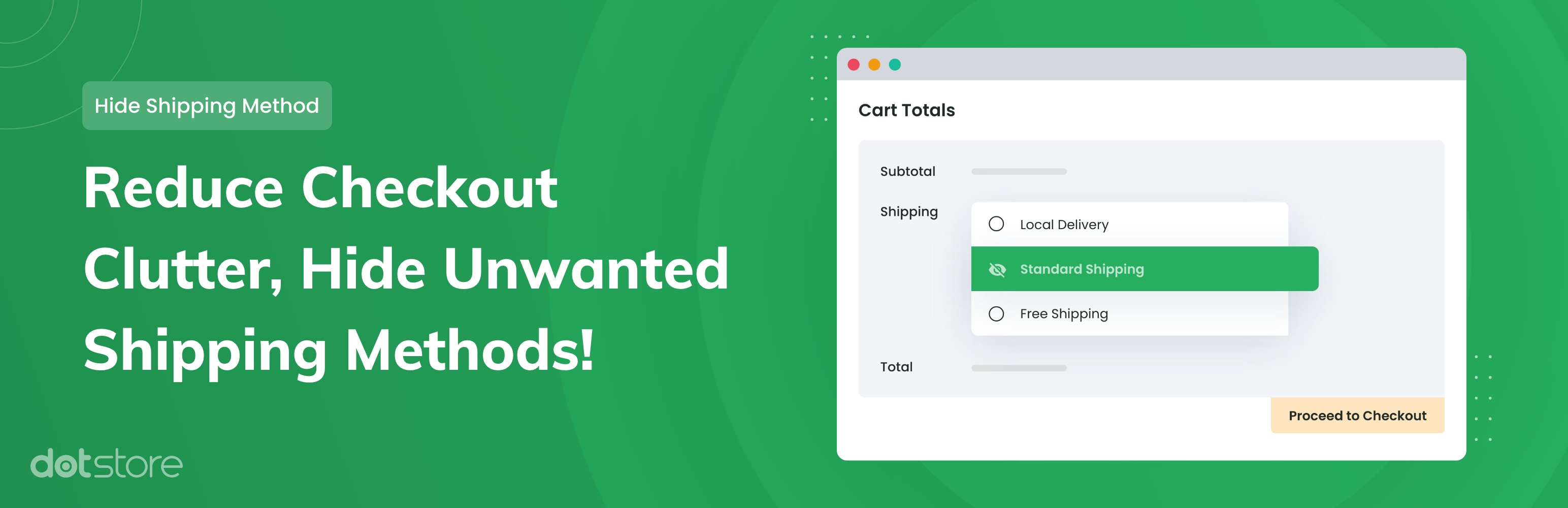
source: https://wordpress.org/plugins/hide-shipping-method-for-woocommerce/
How to set it up:
- Install and activate the plugin from the Plugins menu.
- Go to WooCommerce → Hide Shipping.
- Choose to hide other shipping options when Free Shipping is available.
- You may also hide all shipping methods from the cart page.
- Or hide specific shipping methods per country in a new settings tab.
This is especially useful for promotions or subscription renewals with free delivery.
4. Create a custom shipping zone with no methods
Another clean method is to set up a zone without shipping methods, applied to specific regions or customers.
Step-by-step:
- Go to WooCommerce → Settings → Shipping.
- Add a new shipping zone, name it (e.g. "No Shipping Zone").
- Set the region or country.
- Don’t add any shipping methods.
Customers from this zone won’t see shipping options at all. But they will be informed there are no shipping methods available.
You can add a filter to change the default no shipping methods text in the checkout.
function change_no_shipping_message( $text ) {
	return __( 'We cover that' );
}
add_filter( 'woocommerce_no_shipping_available_html', 'change_no_shipping_message' );

5. Remove shipping fields from the checkout using Flexible Checkout Fields
Flexible Checkout Fields is a free plugin that allows you to edit, disable, or remove fields from the checkout page without coding.
Flexible Checkout Fields WooCommerce
Edit, add new or hide unnecessary fields from the WooCommerce checkout form. Add pricing to fields and use conditional logic. It's all about conversions and better user experience. NEW: now you can set multiple conditions (OR) under one or more condition groups (AND).
💾 Active Installations: 80,000+ | WordPress Rating:
Let’s say you’ve disabled shipping for virtual products, but shipping address fields still appear. Here’s how to remove them.
How to do it:
- Install the Flexible Checkout Fields plugin.
- Go to WooCommerce → Checkout Fields.
- Switch to the Shipping tab.
- Click the fields you want to hide (e.g. Address 1, City, Postcode).
- Disable the fields and save changes.
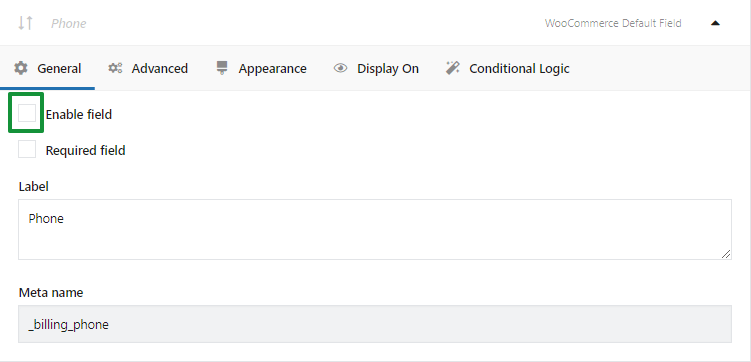
That’s it! You now have a simplified checkout page.
How to optimize your WooCommerce checkout and shipping experience?
Now that you've seen how to remove shipping from checkout, here are a few extra tips to improve the overall experience:
- Use conditional logic to show/hide fields based on user actions (e.g. billing country, product type).
- Offer free shipping only when certain conditions are met (like minimum cart value).
- Customize checkout fields to reduce clutter and focus on what matters.
- Test your checkout regularly - on desktop and mobile.
A clutter-free checkout builds trust. Customers are more likely to complete their order when only relevant fields are shown.
Flexible checkout fields: customize WooCommerce checkout without coding
Flexible Checkout Fields is a free plugin that lets you edit, add, hide, or rearrange checkout fields - right from your WordPress dashboard.
Whether you're removing shipping fields, adjusting billing fields, or tailoring the order notes section, this plugin gives you full control without needing custom code.
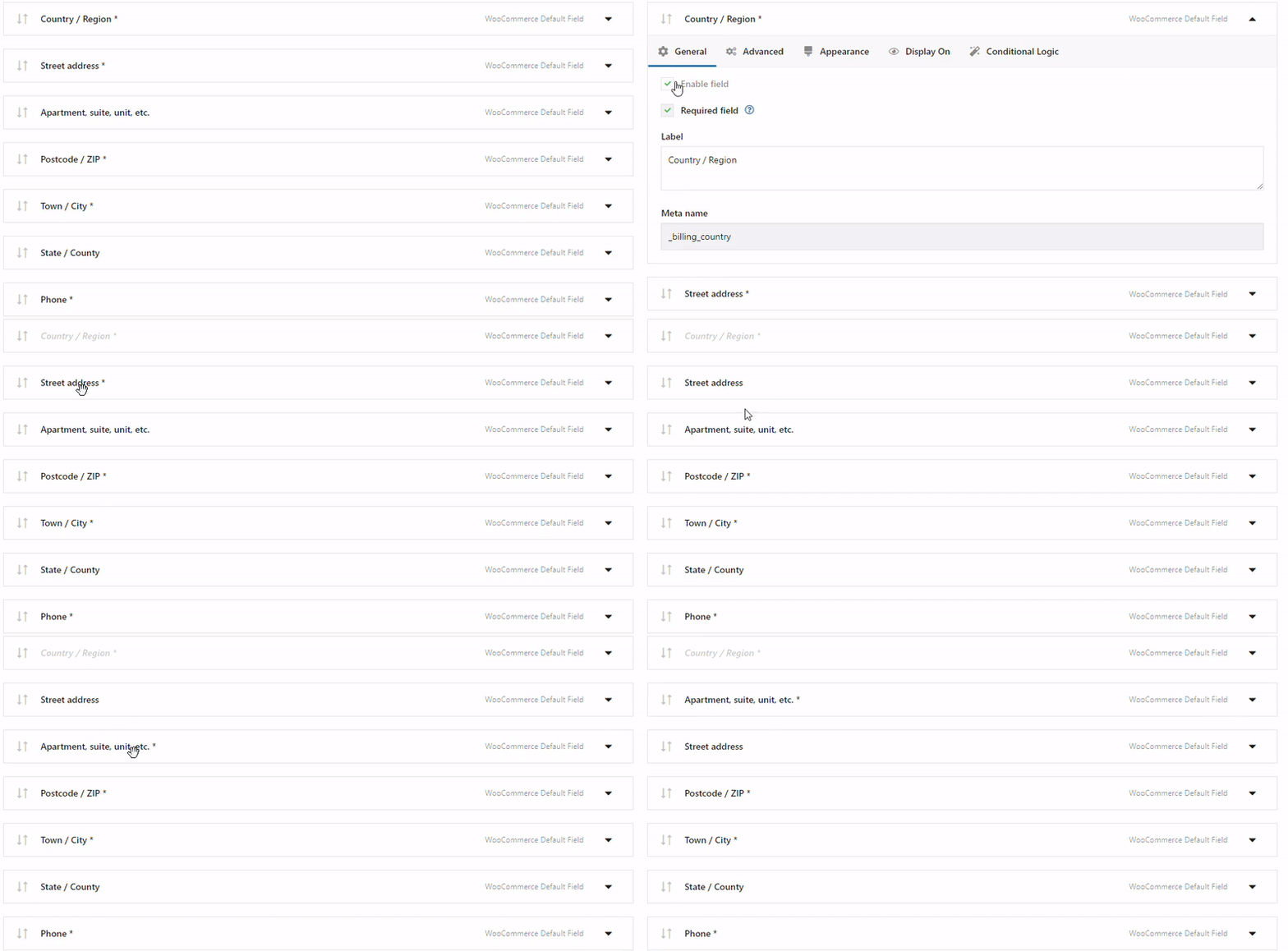
Top uses:
- Hide shipping address when selling digital products.
- Rearrange billing fields for better flow.
- Rename fields to match your audience's language.
- Add extra fields like checkboxes, dropdowns, or text inputs.
It works with the Classic Checkout and integrates well with most themes and payment gateways.
Pro features of Flexible Checkout Fields PRO
While the free version is powerful, Flexible Checkout Fields PRO gives you even more control. Here are the standout features:
- Conditional logic – Show or hide fields based on cart contents, user role, selected shipping method, or billing country.
- Price fields – Add extra fees or discounts with price-related fields at checkout.
- Multilingual support – Fully compatible with WPML and Polylang for global stores.
- Advanced field types – Use date pickers, color pickers, file uploads, and more.
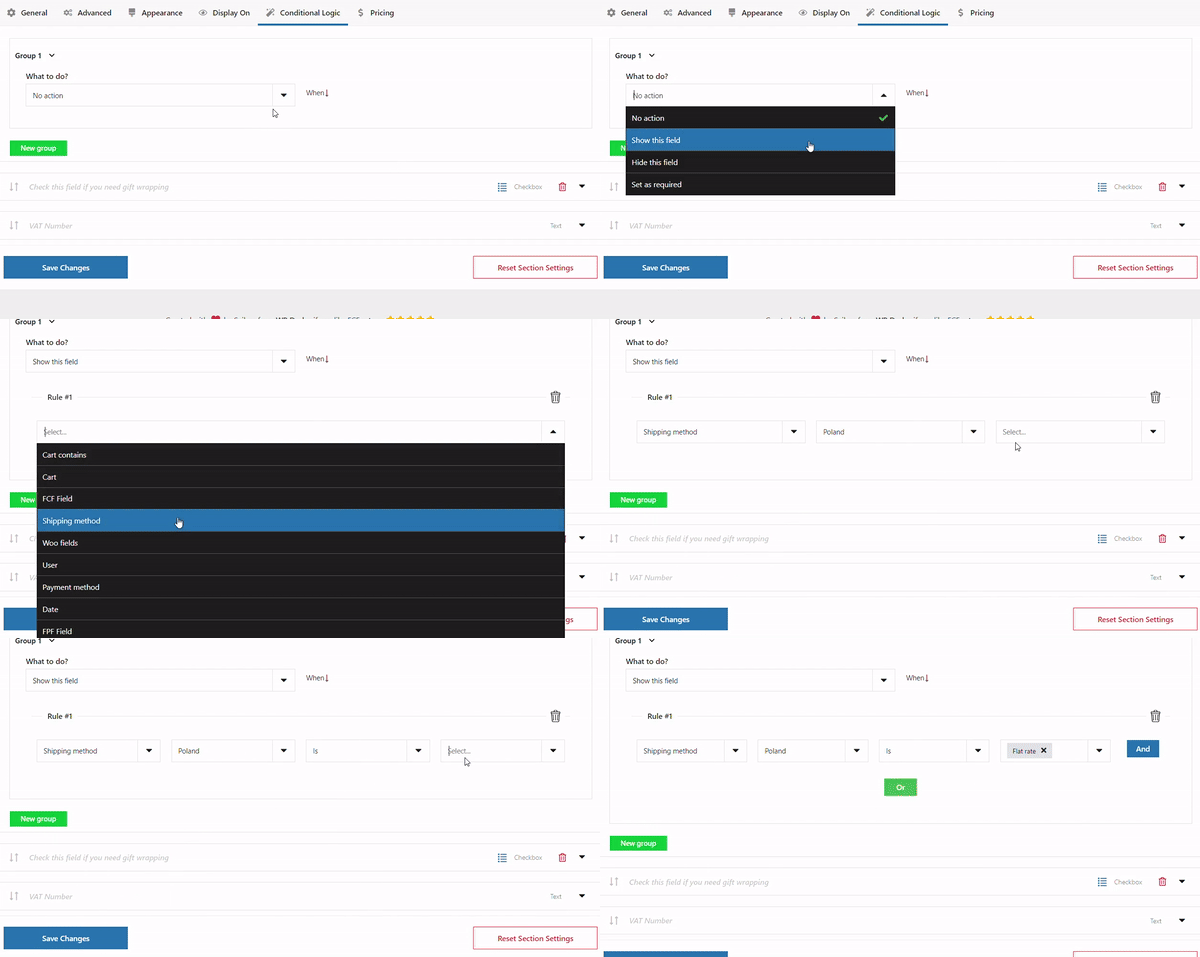
Explore all the Flexible Checkout Fields PRO features.
Summary
- Removing shipping from checkout is easy - and improves UX for digital or service-based stores.
- You can disable shipping via product settings, code snippets, plugins, or custom zones.
- For total control over checkout fields, use the Flexible Checkout Fields plugin.
- Upgrade to PRO to unlock conditional logic, advanced field types, and pricing fields.
✅ Simplified checkout = more conversions.
Looking to take your WooCommerce checkout to the next level? Give Flexible Checkout Fields a try today.


Leave a Reply