
A customer asks at 11:40 PM whether a jacket is still available in medium. You're asleep. By morning, they've bought it somewhere else. Flexible Chat is a new plugin from WP Desk that adds an AI chat to your WooCommerce store. It answers questions about products, prices, stock and store policies, day and night. Want proof before you read on? Open wpdesk.net and talk to the chatbot in the bottom-right corner. It runs on Flexible Chat.
Contents
- What Is Flexible Chat and How Does a WooCommerce AI Chatbot Work?
- Which AI Agents Can You Build with Flexible Chat?
- What Does Your Store Gain from an AI Chat?
- How Do You Match the Chat to Your Brand?
- How Do You Control What the Chatbot Knows?
- How Much Does the Flexible Chat AI Chatbot Cost?
- How Do You Set Up Flexible Chat in 4 Steps?
- Summary
- FAQ
What Is Flexible Chat and How Does a WooCommerce AI Chatbot Work?
Flexible Chat is a WordPress and WooCommerce plugin that adds a lightweight, customizable chat widget to your site. The chatbot's "brain" is n8n, a workflow automation platform the plugin connects to through a webhook.
Here's the flow:
- A visitor types a message in the chat window.
- The plugin sends it to your n8n workflow, along with extra context such as the current page.
- n8n passes the question to an AI model, which can look up data in your store when needed.
- The answer streams back into the chat window as it's generated.
You set everything up from the WordPress dashboard. No coding, no developer.
Which AI Agents Can You Build with Flexible Chat?
The plugin lets you run chatbots with different jobs:
- General answering agent: a simple AI assistant that remembers the context of the customer's latest conversation.
- Conversation-remembering agent: logs chats so returning visitors can pick up where they left off.
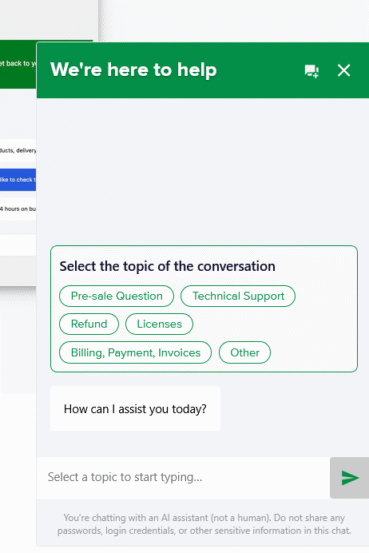
- Agent with predefined topics: visitors choose a topic, such as sales or complaints, before chatting, and the assistant replies within that context.
- Smooth replying agent: streams answers word by word, just like ChatGPT, so the chat feels faster.
- Agent that knows your site: answers questions about blog posts, guides, policies and info pages using the WordPress and WooCommerce API.
- WooCommerce advisory agent: answers questions about products, prices, categories and availability by checking your store through WooCommerce MCP tools.
What Does Your Store Gain from an AI Chat?
- Answers around the clock. "Is this in stock?", "When will it ship?", "How do returns work?" The chatbot handles the repetitive questions so you can focus on the ones that need a human.
- Conversations routed to the right place. A welcome screen with predefined topics lets visitors say upfront whether they need help with an order, an offer or a complaint. You can route each topic to a different n8n automation, so the answer is more relevant from the first message.
- Smarter context for the AI. Send custom JSON metadata with every message, such as customer type, subscription plan or traffic source. Your bot can then talk differently to a loyal customer than to someone who just clicked an ad.
- Insight into what customers ask. The History panel in your dashboard lists past conversations on the left and shows the selected chat on the right. It's a goldmine for spotting gaps in your product descriptions and FAQ. Built-in 👍/👎 ratings show which answers work and which need tuning.
- File uploads. Customers can attach files, for example a photo of a damaged item, and you control which file types are allowed.
How Do You Match the Chat to Your Brand?
Your chat shouldn't look bolted on. In the Appearance settings you can adjust:
- the primary color, window background, and bot and user message backgrounds (the plugin automatically handles contrast and accessibility, and generates hover states for you),
- font size, corner radius and spacing (px, rem or em),
- window width and height (we recommend 350–500 px wide and 500–700 px tall), plus the floating button size (small, normal or large).
Every piece of text can be changed too:
- the window title and subtitle,
- the input placeholder,
- the AI disclosure note,
- your welcome messages.
The chat window is fully responsive, so it works just as well on mobile.
How Do You Control What the Chatbot Knows?
Got expired promotions or discontinued products on your site? Knowledge exclusions let you keep them out of the chatbot's reach:
- exclude a single post, page or product with one toggle in the editor,
- exclude a whole group of content by category or tag, for example "Archived offers".
Excluded content stays published and visible in your store. The bot simply doesn't use it, and excluded products won't show up in its product search. All exclusions are listed in one place: go to Flexible Chat → Knowledge exclusion in your WordPress dashboard.
How Much Does the Flexible Chat AI Chatbot Cost?
Flexible Chat comes in three plans:
- START: €9/month, 100 messages per month,
- PRO: €29/month, 250 messages per month,
- MAX: €49/month, 500 messages per month.
Every plan covers one site, includes updates and support, and comes with a 30-day money-back guarantee.
How Do You Set Up Flexible Chat in 4 Steps?
- Install the plugin from your WordPress dashboard.
- Go to Flexible Chat → Settings → General and paste your n8n webhook URL.
- Turn on what you need: welcome screen, persistent chat history, streaming responses.
- Customize the look and text to match your brand, save, and you're live.
Want to see it in action? Watch our video walkthrough of the Flexible Chat setup:
Summary
Flexible Chat gives your WooCommerce store an AI assistant that fits your brand and knows your catalog, policies and content, while you decide what's off-limits. It streams answers in real time, remembers conversations, routes visitors to the right topic and shows you what customers actually ask about. Setup takes minutes and needs no developer.
FAQ
Do I need to code to use Flexible Chat?
No. You configure everything in the WordPress dashboard. The only technical step is pasting your n8n webhook URL.
Can the chatbot check product availability in my store?
Yes. The WooCommerce advisory agent checks products, prices, categories and availability using WooCommerce MCP tools.
Can I hide certain content from the chatbot?
Yes. You can exclude individual posts, pages or products with a toggle in the editor, or exclude entire categories and tags. The content stays visible in your store.
Is chat history GDPR-friendly?
Persistent chat history is stored in the browser's localStorage, so mention it in your privacy policy. You can switch history off in the settings. You can also add a compliance notice such as "You are talking with AI. Avoid sharing confidential information."
Does the chat work on mobile?
Yes. The chat window is fully responsive and shows up as a floating button when closed.

