
• Skip to primary navigation
  • Skip to main content
  • Skip to primary sidebar
  • Skip to footer
WP Desk = premium plugins for WordPress & WooCommerce
  • Plugins
        • Checkout & OrdersMake your work easier and automate the orders. Adjust the order form to your needs and make it more useful to your customers. Print order labels directly from WooCommerce. Put the orders in order using our plugins. Find out how to streamline the procurement process in your store.
          • Flexible Checkout Fields
          • Active Payments
          • Automatic Payment Status
          • One Click Return for WooCommerce
          • Print Orders and Address Labels
          • Flexible Subscriptions Recurring Shipping
          • Flexible Subscriptions Payment Retry
          • Flexible Subscriptions Stock Management
        • ProductsThese plugins will help you manage your WooCommerce products. Here you will find the plugins to import and update products from XML or CSV files. Then you can change the product unit of measure, show the lowest price in the last 30 days (Omnibus Directive), or let customers name the product price!
          • Flexible Product Fields
          • Dropshipping Import Products
          • Dropshipping FTP Import Products
          • Dropshipping Export Products
          • Custom Price
          • WP Desk Omnibus
          • Flexible Quantity Calculator
          • Dropshipping Orders Export
        • MarketingPromote your store online. Add products from your shop to price comparison websites directly from WooCommerce. Acquire new customers and communicate with your existing ones. Build a customer base and communicate with clients using one of the most effective marketing tools, namely e-mail marketing. Check out our promotional tools!
          • Flexible Pricing
          • Flexible Wishlist - Analytics & Emails
          • OLX WooCommerce
          • Flexible PDF Coupons
          • ShopMagic
          • Flexible Invoices
  • Bundle🔥
  • WP Desk Care
  • Support
  • Blog
  • My Account
  • 0

More results

How to Import Dropshipping Products via FTP into WooCommerce Automatically

WooCommerce import products

patrycja.wojas4 minutes readUpdated: 2026-11-10Updated: 2026-11-05
blog category heading image

Many dropshipping suppliers do not publish a product file at a public address. They put it on an FTP server and overwrite it once or twice a day, often because their export process has worked that way for years. This guide shows how to import that file into WooCommerce automatically, what to check before you automate anything and why the first full import needs a look at your server limits.

Contents

  • How to import dropshipping products from an FTP server into WooCommerce?
  • What an automated FTP import does
  • How to set it up
    • Step 1: Collect the connection details
    • Step 2: Check the file before automating anything
    • Step 3: Map the fields
    • Step 4: Set the schedule
    • Step 5: Check the server limits before the first full import
  • What to monitor afterwards
  • Summary
  • Frequently asked questions
    • Can WooCommerce import products from an FTP server automatically?
    • How often should the import run?
    • What happens if the supplier changes the file structure?
    • Should I use FTP or FTPS?

How to import dropshipping products from an FTP server into WooCommerce?

Use the FTP Import add-on for Dropshipping Import Products PRO. It logs into the supplier's FTP or FTPS server with the details they give you, downloads the CSV or XML file and passes it to the regular import, on a schedule you set.

Get the full file address, login and password from the supplier, check the file structure once by hand, map the fields carefully and set the schedule to match the supplier's updates.

If your supplier publishes the file at a public web address, you do not need the add-on: Dropshipping Import Products PRO imports it from a URL with the same field mapping.

What an automated FTP import does

The store has current prices and stock levels without anyone opening an FTP client. The difference matters most for stock: a product that sold out at the wholesaler yesterday should not still be available in your store tonight.
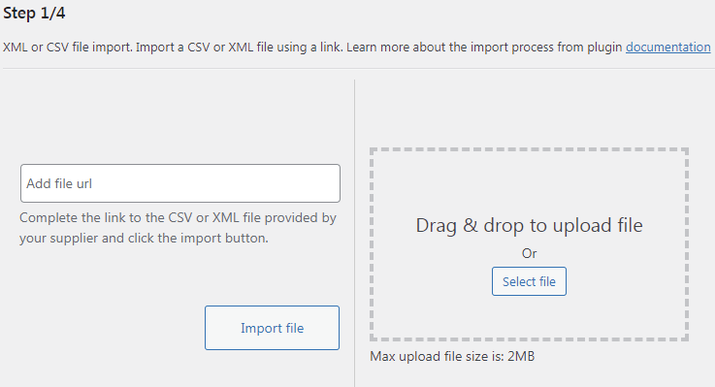
Product import from an FTP server in Dropshipping Import Products for WooCommerce

How to set it up

The setup takes five steps.

Step 1: Collect the connection details

You need the full file address with the protocol, for example ftp:// or ftps://, the domain and the path to the file, as well as the login and password. The add-on works with FTP and FTPS servers. If the supplier offers only SFTP, ask them for FTP or FTPS access.

Step 2: Check the file before automating anything

Download the file once by hand and look at its structure: column names, character encoding, decimal separators and the field with the unique product identifier. Suppliers change these without notice, and that is the most common reason why a working import breaks.

Step 3: Map the fields

Map the SKU, name, price, stock quantity, category and images to WooCommerce fields. The identifier matters most, because it decides whether the next import updates an existing product or creates a duplicate.

In this video we point the plugin at a supplier file, choose the element that holds a single product and map it to WooCommerce fields. The same steps apply when the file comes from an FTP server instead of a URL.

We also have videos on mapping fields to WooCommerce, updating stock and prices without overwriting your own descriptions and the first plugin configuration.

Step 4: Set the schedule

Match the schedule to how often the supplier updates the file. Importing every hour from a file refreshed once a day wastes server resources, while importing once a day from a file refreshed every hour means selling products that ran out in the morning.

Step 5: Check the server limits before the first full import

Importing a catalogue with images puts a heavy load on the server. WP Desk telemetry data from 19,803 stores (August 2026) shows that 21.3% of them have less than 512 MB of PHP memory and 17.5% still run PHP 7.4. With such settings, a large first import can stop halfway and leave the catalogue partly updated. If that happens, check the error log: depending on the error, raise max_execution_time or the PHP memory limit.

What to monitor afterwards

After each run, check how many products were updated, how many were skipped and whether any field suddenly arrived empty. An import that has silently stopped updating stock looks exactly like one that works, until the first order for a product you no longer have.

To limit such orders, turn on stock management in WooCommerce and set the out of stock threshold in the inventory settings, so the store stops selling a product a little before the supplier runs out.

DROPSHIPPING IMPORT PRODUCTS PRO
FTP Import add-on
Connect to the supplier's FTP server, collect the product file and run the import on a schedule you set.
See the add-on »

Summary

The FTP Import add-on for Dropshipping Import Products PRO imports a supplier's CSV or XML file from an FTP or FTPS server into WooCommerce on a set schedule. You need the full file address with the protocol and path, the login and the password. Check the file structure once by hand, map the fields with the product identifier as the most important one and match the schedule to the supplier's updates. Before the first full import, check the PHP memory and execution time limits, and after each run monitor the number of updated and skipped products.

Frequently asked questions

Answers to common questions about FTP imports.

Can WooCommerce import products from an FTP server automatically?

Not on its own. WooCommerce has no FTP client, so it needs an import tool that can log into the server and run on a schedule.

How often should the import run?

As often as the supplier updates the file, and no more often. If you import many products with images, consider updating only stock and prices in each run and leaving descriptions unchanged.

What happens if the supplier changes the file structure?

The import stops or writes wrong data, so watch for a sudden change in the number of updated products.

Should I use FTP or FTPS?

If the supplier offers both, choose FTPS. Plain FTP sends the login and password unencrypted, while FTPS encrypts the connection. The add-on supports both protocols.

4 minutes read100 views

patrycja.wojas

Product Content Hero

LinkedIn Profile

Patrycja has 14 years of experience in copywriting and SEO. She is one of the few specialists in Poland who writes with equal confidence about mor...

Powered by WP Desk

WP Desk brings you great WooCommerce plugins. We strive to save your time and money by speeding up your processes. Use our plugins to build a better store. Awesome support included in the package.

Premium WooCommerce Plugins →
WP Desk › Blog › WooCommerce products › WooCommerce import products › How to Import Dropshipping Products via FTP into WooCommerce Automatically

Primary Sidebar

Contents

  • How to import dropshipping products from an FTP server into WooCommerce?
  • What an automated FTP import does
  • How to set it up
    • Step 1: Collect the connection details
    • Step 2: Check the file before automating anything
    • Step 3: Map the fields
    • Step 4: Set the schedule
    • Step 5: Check the server limits before the first full import
  • What to monitor afterwards
  • Summary
  • Frequently asked questions
    • Can WooCommerce import products from an FTP server automatically?
    • How often should the import run?
    • What happens if the supplier changes the file structure?
    • Should I use FTP or FTPS?

Dropshipping FTP Import Products for WooCommerce £39

Add-on for Dropshipping Import Products WooCommerce PRO. Import products from XML and CSV files directly from FTP or upload the file via the WordPress dashboard.

💾 Active Installations: 4000+ | 🔄 Last update: 2026-10-21

Add to cart or View Details
WP Desk
Plugins used by 239,811+ shops
Last Updated: 2026-10-21
Works with WooCommerce 10.9 - 11.2

Stay updated on our how-to articles

WP Desk news, WooCommerce tips, promo codes - right to your inbox.

By entering your e-mail, you agree to our Terms & Conditions and Privacy Policy.

By entering your e-mail, you agree to our Terms & Conditions and Privacy Policy.

Footer

WP Desk - WooCommerce Plugins

At WP Desk we create great WooCommerce plugins with awesome support. Save time and money with our e-commerce solutions. See how we can help you improve your e-store →

Secured by Comodo

WP Desk

  • About us
  • Giving Back
  • Blog
  • Get Support
  • Contact us

Products

  • Premium Plugins
  • WP Desk Care
  • Documentation
  • WooCommerce Invoices
  • Email Marketing
  • PDF Coupons

Legal

  • Terms & Conditions
  • Refund Policy
  • Support Policy
  • Privacy Policy

© 2026 WP Desk

We value your privacy

We use necessary cookies to make our site work. We'd also like to set additional cookies to understand site usage, enhance your browsing experience, and serve personalized ads or content. By clicking ‘Accept All,’ you consent to our use of additional cookies.

Functional Always active
The technical storage or access is strictly necessary for the legitimate purpose of enabling the use of a specific service explicitly requested by the subscriber or user, or for the sole purpose of carrying out the transmission of a communication over an electronic communications network.
Preferences
The technical storage or access is necessary for the legitimate purpose of storing preferences that are not requested by the subscriber or user.
Statistics
The technical storage or access that is used exclusively for anonymous statistical purposes. Without a subpoena, voluntary compliance on the part of your Internet Service Provider, or additional records from a third party, information stored or retrieved for this purpose alone cannot usually be used to identify you. The technical storage or access that is used exclusively for anonymous statistical purposes. Without a subpoena, voluntary compliance on the part of your Internet Service Provider, or additional records from a third party, information stored or retrieved for this purpose alone cannot usually be used to identify you.
Marketing
The technical storage or access is required to create user profiles to send advertising, or to track the user on a website or across several websites for similar marketing purposes.
  • Manage options
  • Manage services
  • Manage {vendor_count} vendors
  • Read more about these purposes
View preferences
  • {title}
  • {title}
  • {title}