

Managing a WooCommerce store with a large product catalog or a dropshipping model means working with big volumes of product data. While WooCommerce offers standard fields, many businesses still need more specific information to stand out. Advanced Custom Fields (ACF) lets you add custom data fields to WooCommerce products, such as technical specifications, material details, or warranty information.
Manually filling these custom fields for hundreds or thousands of products takes a lot of time and leads to errors. You might receive a new product feed from a supplier with updated specifications and need to paste each value into the right field. Updating every product manually wastes hours and makes mistakes more likely. Automating the import of ACF fields from XML feeds changes how you manage data, boosts efficiency, and improves accuracy.
In this guide, you will learn how to automatically import Advanced Custom Fields (ACF) into WooCommerce products directly from XML feeds. You will also see how to use Dropshipping XML for WooCommerce Pro to map XML data to ACF fields with a simple drag-and-drop interface and streamline product data management.
Contents
- The Challenge of Manual Custom Field Entry in WooCommerce
- Introducing the Solution: Automated ACF Import with Dropshipping XML for WooCommerce
- Step‑by‑Step Guide: Importing ACF Fields from XML to WooCommerce
- Why WP Desk’s Dropshipping XML for WooCommerce Is the Ideal Choice
- Common Pitfalls and Troubleshooting Tips
- Frequently Asked Questions (FAQ)
The Challenge of Manual Custom Field Entry in WooCommerce
Many e‑commerce managers balance detailed product data with efficient daily work. WooCommerce’s default fields are robust, but they still do not cover every unique requirement that different products or business models have. Custom fields fill this gap and let you tailor product data to the exact needs of your store.
Why ACF Is Crucial for Detailed Product Data
Advanced Custom Fields (ACF) is a WordPress plugin that lets you add custom fields to posts, pages, and custom post types, including WooCommerce products. These fields can be text areas, numbers, dropdowns, image galleries, and more. An electronics store might define ACF fields for “Processor Speed” or “RAM Capacity”. A fashion store can use ACF for “Material Composition” or “Care Instructions”. Detailed product information helps customers decide, improves product pages, and supports SEO.
The Pain Points of Manual Data Population
ACF is flexible, but filling custom fields by hand for large product catalogs creates serious problems:
- Time‑Consuming: Copying data into each field for every product slows down your workflow and blocks more valuable tasks.
- Prone to Errors: Manual entry leads to typos, inconsistent values, or empty fields, which harms data quality and customer trust.
- Lack of Scalability: When your catalog grows or suppliers often change feeds, manual work stops being realistic and limits growth.
- Updates and Synchronization: When suppliers refresh product data, updating each ACF field manually becomes overwhelming and leads to outdated information.
You need an automated solution that connects XML feeds and WooCommerce custom fields in a reliable and repeatable way.
Introducing the Solution: Automated ACF Import with Dropshipping XML for WooCommerce
Automation is the best way to solve the manual data entry problem for custom fields. A dedicated WooCommerce import plugin transforms how you manage product data, improves accuracy, and saves time so your store can grow.
How a Dedicated Import Plugin Streamlines the Process
A plugin like Dropshipping XML for WooCommerce is built for complex import scenarios. It connects to supplier XML feeds and maps their data to WooCommerce product fields and Advanced Custom Fields. You configure mapping once and reuse it later. For example, you can map the XML element <item><specifications><weight> to the field acf_product_weight. The plugin then imports data into this ACF field for each product.
Key Benefits of Automating ACF Imports
Automating ACF imports brings clear benefits and solves the issues described above:
- Efficiency Gains: Automation cuts data entry time and frees your team for marketing, UX, and other strategic work.
- Enhanced Accuracy: Data comes directly from the XML feed, which reduces human error and keeps values consistent.
- Scalability: You can handle large catalogs and frequent updates without expanding your team or slowing releases.
- Up‑to‑Date Information: Automatic synchronizations keep ACF fields and other product data aligned with supplier feeds.
- Richer Product Pages: Consistently filled ACF fields make product pages more helpful and attractive to customers.
Want to automatically populate WooCommerce custom fields from supplier feeds? Try Dropshipping XML for WooCommerce and map XML data to ACF fields with drag‑and‑drop mapping.
Step‑by‑Step Guide: Importing ACF Fields from XML to WooCommerce
Below you will find the basic workflow for automatic ACF imports with Dropshipping XML for WooCommerce. The process is simple enough for store managers without deep technical knowledge.
Step 1: Preparing Your XML Feed and Plugin Setup
Before you begin, install and activate the Advanced Custom Fields plugin (free or Pro) and Dropshipping XML for WooCommerce Pro. If you want to test the integration, you can use the free Dropshipping XML for WooCommerce plugin from WordPress.org.
- Obtain Your XML Feed URL: Ask your supplier for an XML file URL with product data, usually starting with
http://orhttps://. - Navigate to the Import Section: In WordPress go to Dropshipping → Imports and click “Add new” to create an import profile.
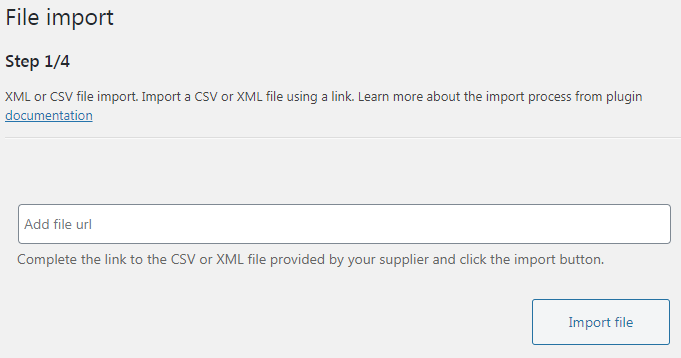
- Add File URL: On the “File import” screen (Step 1/4) paste the XML file URL into the field and confirm.
- Initiate Download: Click “Import file” so the plugin can download the XML file and check if everything works correctly.
Pro Tip: If you plan to import files from FTP or a local drive, use the FTP Import add‑on for Dropshipping XML WooCommerce. You can also check other ways to import product feeds for more flexibility.
Step 2: Configuring the Import and Previewing Data
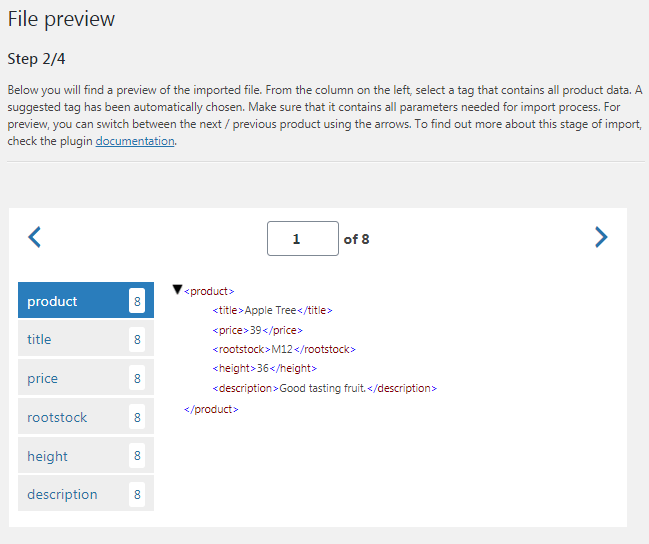
After download, the plugin moves you to Step 2, the “File preview” screen. This screen shows how the XML feed is structured and helps you choose the main tag that represents a single product.
- Select Product Tag: Use the preview to select the tag that stores data for one product, for example
<product>or<item>. - Review Data Structure: Look through the preview and identify where key values for your WooCommerce products and ACF fields are stored.
Step 3: Mapping XML Fields to WooCommerce and ACF
On the “Product mapper” screen (Step 3/4) you connect XML fields to WooCommerce fields and ACF fields. This is the key step that decides where each piece of supplier data goes.
- Name Your Import: Use a descriptive name such as “Supplier X Product Feed with ACF” so you can find the profile later.
- Enable ACF Fields Integration: On the “Import options” page, check “ACF fields” to display ACF groups assigned to products.
- Drag‑and‑Drop Mapping: Use the visual editor with XML data on one side and WooCommerce fields on the other to create mappings.
- For standard fields like Product Title, Description, Price, or SKU, drag the right XML tag, for example
{//item/title}, to the correct WooCommerce field. - For ACF fields, select the ACF group and drag the matching XML tag, for example
{//item/specs/title}, to the ACF key likeacf_title. Dropshipping XML saves this data in post meta and callsupdate_field()when it is available.
What to watch out for with ACF:
- The plugin imports only fields from ACF groups that target
post_type=product. Other groups stay hidden in the mapper. - Supported ACF field types include
text,textarea,number,select,checkbox,radio,true_false,email,url,password,wysiwyg,image,file,gallery,oembed, andcolor_picker. Complex types likerepeaterorflexible_contentare usually skipped. - Nested fields are flattened and receive a group label prefix, which makes them easier to identify during mapping.
post_type=product so they show up in the mapper.Step 4: Handling Categories, Images, and Other Product Data
Besides ACF fields, you also need to configure core product data like categories, images, and variations. These options control how your catalog looks and behaves in WooCommerce.
- Category Mapping: You can choose one default category or map supplier categories to existing WooCommerce categories. Dropshipping XML can also create new categories and support nested category structures.
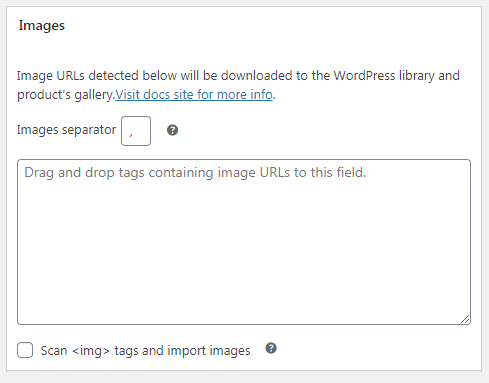
- Image Mapping: Decide how to import product images from the feed. You can map single or multiple URLs, define separators for multiple images, and select whether to download images to the media library or only attach them to products. Excluding some images can speed up imports.
You can also add rules for external or affiliate products, pricing modifiers, and other options that control how imported data behaves in your store.
Step 5: Automating Future Imports (Synchronization)
The last step is to automate imports, so WooCommerce product data and ACF fields stay synchronized with supplier XML feeds.
- Cron Schedule: Dropshipping XML for WooCommerce Pro lets you configure a cron schedule with daily, hourly, or custom times. With a proper schedule, prices, stock levels, and product specifications stay fresh.
- Import Manager: The “Import Manager” view shows a list of import profiles, their status, and last run times. From here you can run, clone, edit, or delete imports.
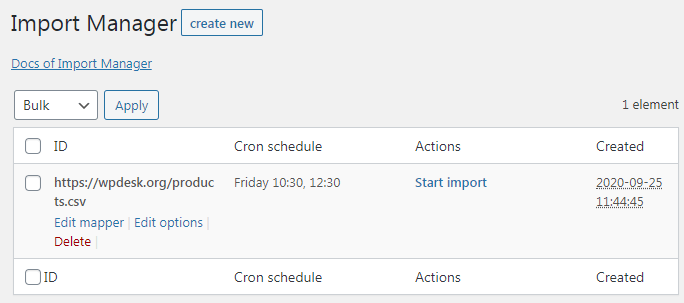 Use the Import Manager to schedule imports and keep WooCommerce synchronized with supplier data.
Why WP Desk’s Dropshipping XML for WooCommerce Is the Ideal Choice
Store owners care most about reliability, scalability, and real business results. Dropshipping XML for WooCommerce focuses on these areas and offers deep integration with WooCommerce.
- Full Compatibility with WooCommerce: The plugin is built by WooCommerce specialists and minimizes conflicts with other extensions.
- Ease of Installation and Configuration: The drag‑and‑drop interface makes complex mapping tasks possible even for non‑technical users.
- Real Business Impact: Automated ACF imports improve data quality, strengthen product pages, reduce cart abandonment, and support higher conversion rates.
- Comprehensive Support and Documentation: WP Desk offers extensive documentation and support, including the Dropshipping XML for WooCommerce documentation.
- Scalability for Growth: The plugin can handle product catalogs ranging from a few hundred to tens of thousands of items.
Dropshipping XML for WooCommerce not only imports ACF custom fields but also manages simple and variable products, categories, and images. It provides a stable base to scale your WooCommerce store.
Many dropshipping workflows also require order exports to suppliers. WP Desk offers additional add‑ons that handle these export tasks.
Want to automatically populate WooCommerce custom fields from supplier feeds? Try Dropshipping XML for WooCommerce and map XML data to ACF fields with drag‑and‑drop mapping. This setup helps your WooCommerce business grow while keeping product data accurate and up to date.
Common Pitfalls and Troubleshooting Tips
Even with an intuitive tool, import issues can occur. Below you will find common problems related to ACF imports and ways to solve them.
- ACF Group Not Appearing in Mapper: Check if the ACF field group targets the “Product” post type (
post_type=product), because other targets are hidden in product imports. - ACF Field Value Not Importing: Verify the XML tag mapping and confirm that the XML path is correct for each field.
- Unsupported ACF Field Types: Dropshipping XML for WooCommerce supports simple field types like text, numbers, selects, and checkboxes. Complex types such as “Repeater” or “Flexible Content” may require a different design or preprocessing.
- ACF PRO
update_field()Function Issues: If you encounter problems, confirm that ACF PRO is active and that no plugin or server setting blocks calls toupdate_field(). - Inconsistent XML Structure: Supplier feeds sometimes change structure, so use “File preview” to review current data and update mappings.
When you understand typical problems and use these troubleshooting tips, automated ACF imports will run smoothly. For more ideas on growing your store, check out these WooCommerce plugins that help increase sales.
Import ACF fields to Products
Import and synchronize wholesale products with WooCommerce products. Add margin to the prices of imported products. Use conditional logic. Make your work easier.
💾 Active Installations: 700+ | WordPress Rating:
When is this solution not for you?
This approach works best for stores that already use Advanced Custom Fields and receive structured product data from suppliers in XML or CSV format. If you only manage a small catalog and update products manually a few times per year, setting up automated ACF imports may not bring a noticeable time saving.
It is also not an ideal fit when your suppliers do not provide consistent feeds or change their XML structure very often. In that case you might spend more time maintaining mappings than you save on automation, and a simpler import or manual update process can be a better option.
Finally, if your ACF setup relies heavily on complex field types such as Repeater or Flexible Content, this solution can still help with basic fields but will not cover every advanced scenario. You may need a custom integration or to simplify your ACF field groups before you fully automate imports.
Frequently Asked Questions (FAQ)
How do I import ACF fields into WooCommerce products?
To import ACF fields into WooCommerce products, use a dedicated plugin such as Dropshipping XML for WooCommerce. After activation, enable ACF integration in the mapper and connect XML tags to ACF fields with drag‑and‑drop mapping.
Can I import XML feed into WooCommerce with custom fields?
Yes, you can import XML feeds into WooCommerce with custom fields. Dropshipping XML for WooCommerce maps XML data to standard fields, product attributes, and Advanced Custom Fields (ACF) so you keep full control over imports.
Which WooCommerce import plugin for custom fields is best?
Dropshipping XML for WooCommerce is a strong choice for importing WooCommerce custom fields and ACF fields. It offers a user‑friendly drag‑and‑drop interface and advanced mapping features for complex feeds.
How can I automate WooCommerce product data import with ACF?
To automate WooCommerce product imports with ACF, map XML fields to ACF in Dropshipping XML for WooCommerce and then configure a cron schedule. The plugin will synchronize WooCommerce products with the supplier feed at the intervals you choose.
Are there limitations to the types of ACF fields I can import?
Yes, Dropshipping XML for WooCommerce focuses on simple ACF field types such as text, number, select, checkbox, radio, email, URL, and image. Complex fields like Repeater or Flexible Content often require other solutions.
What if my XML feed has nested custom field data?
If your XML feed contains nested custom field data, Dropshipping XML for WooCommerce flattens the structure and adds a prefix based on the ACF group label. This approach keeps nested fields clear and easy to map.
How often can I synchronize my ACF fields with the XML feed?
With Dropshipping XML for WooCommerce Pro, you can synchronize ACF fields and other product data on a cron schedule. You can run imports daily, hourly, or at custom times that fit your business.

