Contents
Key plugin features
Flexible Product Fields - Booking Addon extends Flexible Product Fields PRO with booking options for WooCommerce product fields. It helps you sell products or services that depend on a selected date, date range, or time slot, such as appointments, rentals, classes, room bookings, or other limited-capacity offers.
The plugin adds booking settings to the Date field, including daily capacity, date range selection, and adjacent bookings for scenarios where one booking can start on the same day another one ends. It also adds a Time Slots field, where you can define available days of the week, start and end times, and capacity for each slot.
Customers select a date or time slot on the product page. The plugin checks availability and prevents customers from adding unavailable dates or slots to the cart or completing checkout with an overbooked selection. Fully booked dates can also be hidden from the date picker.
The add-on stores reservation data with WooCommerce orders. Store admins can see reservation details in the order item details and use the additional reservations column and date filters on the order list to find bookings more easily.
Booking fields can also use Flexible Product Fields PRO pricing and conditional logic. This means you can add fixed or percentage-based field prices, calculate prices by booked days or selected time slots, and show booking fields only when selected conditions are met.
The frontend script loads automatically only on product pages and handles AJAX communication with the availability module.
User Requirements
Flexible Product Fields Bookings add-on requires Flexible Product Fields PRO version 2.8 or higher.
New Options in the Date Field
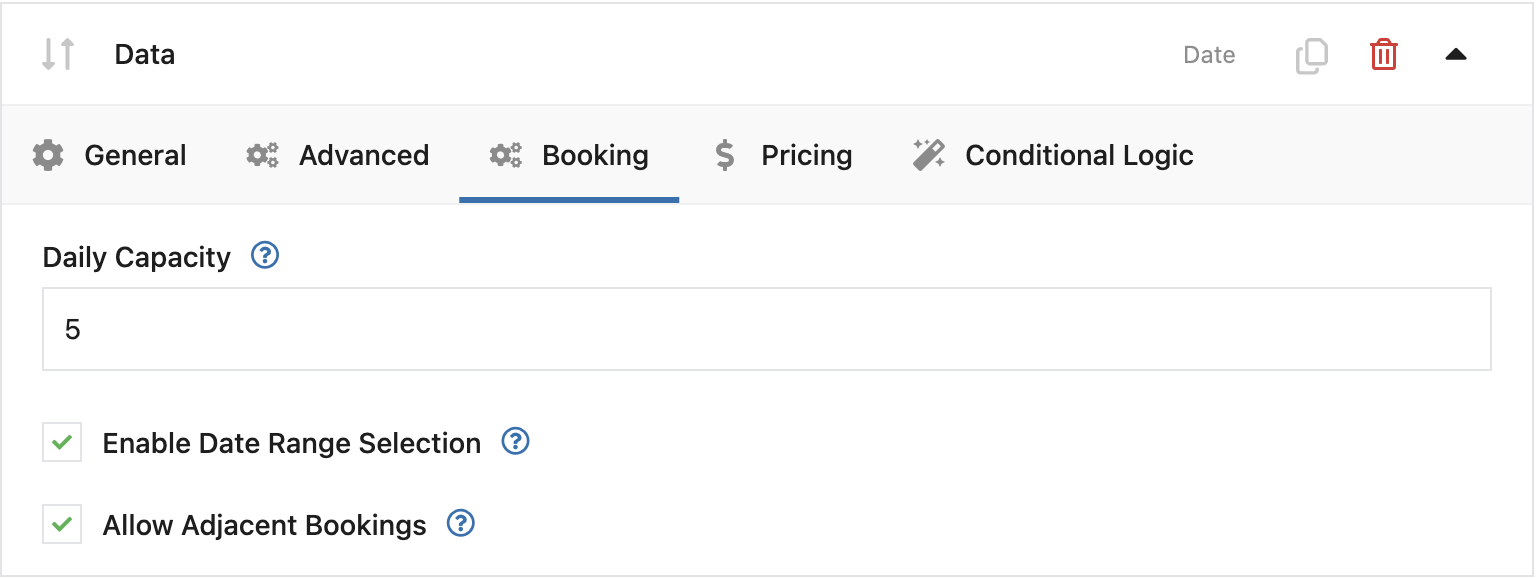
The Flexible Product Fields Bookings add-on adds a new tab to the Date field called Bookings. This tab includes the following fields:
- Daily Capacity – set how many spots you want to sell each day.
- Enable date range selection – enable if you sell date ranges (e.g. consecutive days).
- Allow overlapping bookings – allow bookings on the same day another booking ends.
Time Slots – Configuration
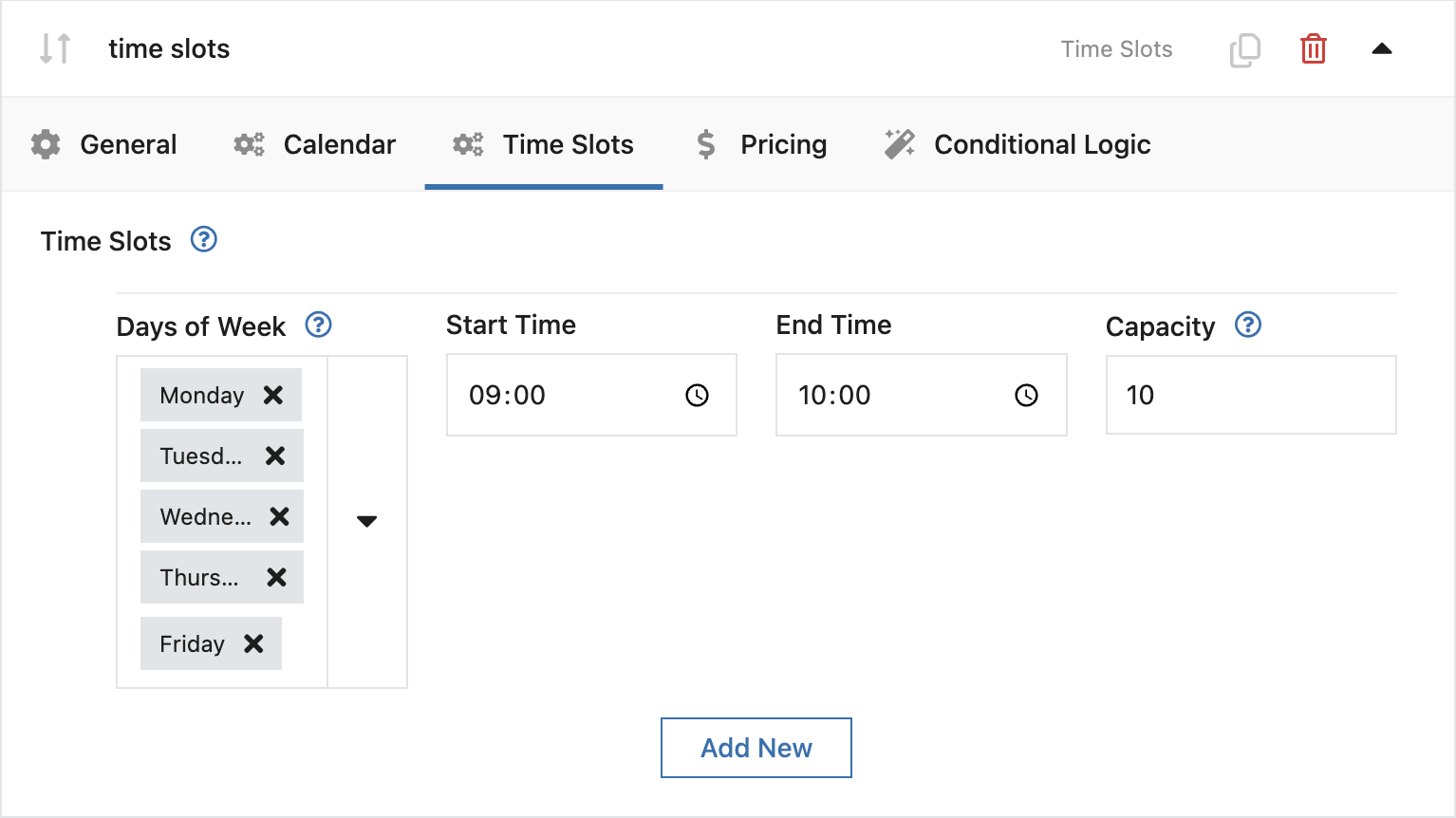
Add a new field of type Time Slots, which allows you to define the day of the week, start/end time, and capacity for each slot.
Field Pricing
You can enable field price calculation based on:
- Fixed – allows adding a fixed price value.
- Percent – allows calculating the price as a percentage of the product price.
- Based on days quantity / Based on time slot quantity – allows price calculation based on the number of time slots.
Conditional Logic
The behavior of the tab is analogous to other Flexible Product Fields, which you can read more about
here.
In short, the tab allows you to create rules for when to display a field.
Customer Experience
- The customer selects a date, and the slot component retrieves availability via AJAX; if no slots are available or configured, it displays clear messages (Checking availability…, No time slots available…) and availability statuses: Full availability, Limited availability, Available.
- When a customer tries to add a restricted date to the cart, the validator immediately returns an error Selected time slot(s) is not available, or Selected date(s) is not available, preventing overbooking.
- Date fields automatically hide days that are fully booked in the calendar, based on the order history for the next 12 months ahead.
- When an order is created, the system saves each selected time range in a dedicated table and assigns identifiers to the items.
Order List
The order list includes a Reservations column summarizing dates/times. This view also allows filtering by booking date range using two date fields above the table.
Order Editing
In the order view, under each item, you will see a Booking Details section with a description and the number of spots.
