Contents
What the plugin does?
Flexible Subscriptions for WooCommerce lets you create and manage subscription products in WooCommerce. You can sell simple subscription products and variable subscription products, define recurring billing rules, and manage created subscriptions from a dedicated admin panel.
Use the plugin for products and services that should be billed on a repeated schedule, for example memberships, service plans, digital access, subscription boxes, rentals, or other recurring products.
Key plugin features
Flexible Subscriptions adds subscription product types to WooCommerce and handles the recurring order flow after a customer buys a subscription product.
The main features include:
- Simple and variable subscription products.
- Recurring billing schedules based on days, weeks, months, or years.
- Optional sign-up fee for subscription products.
- Optional free trial period.
- Billing cycle limit, after which the subscription can expire automatically.
- Automatic renewal order creation for active subscriptions.
- Manual renewal support when enabled in payment settings.
- Subscription list and subscription edit view in the WordPress admin panel.
- Customer subscription list and subscription details in My Account.
- Customer cancellation action for subscriptions that are not finalized.
- Support for WooCommerce classic checkout and WooCommerce Cart and Checkout Blocks.
- Recurring totals and future renewal information shown during checkout.
- Recurring shipping information when the subscription needs shipping.
- Custom button text for subscription products and subscription checkout.
First steps
Install and activate the plugin. After activation, go to Flexible Subscriptions. The plugin adds two main admin sections:
- Subscriptions - a list of created subscriptions and their details.
- Settings - plugin settings for products, payments, and customer account endpoints.
To create a working subscription product:
- Go to Products and add or edit a WooCommerce product.
- In Product data, select Subscription or Variable Subscription.
- Set the product price, billing schedule, optional sign-up fee, optional free trial, and billing cycles.
- Publish or update the product.
Subscriptions
Go to Flexible Subscriptions to view the subscription list. This screen shows created subscriptions and helps the shop manager check their current state, customer, products, payment schedule, and related orders.
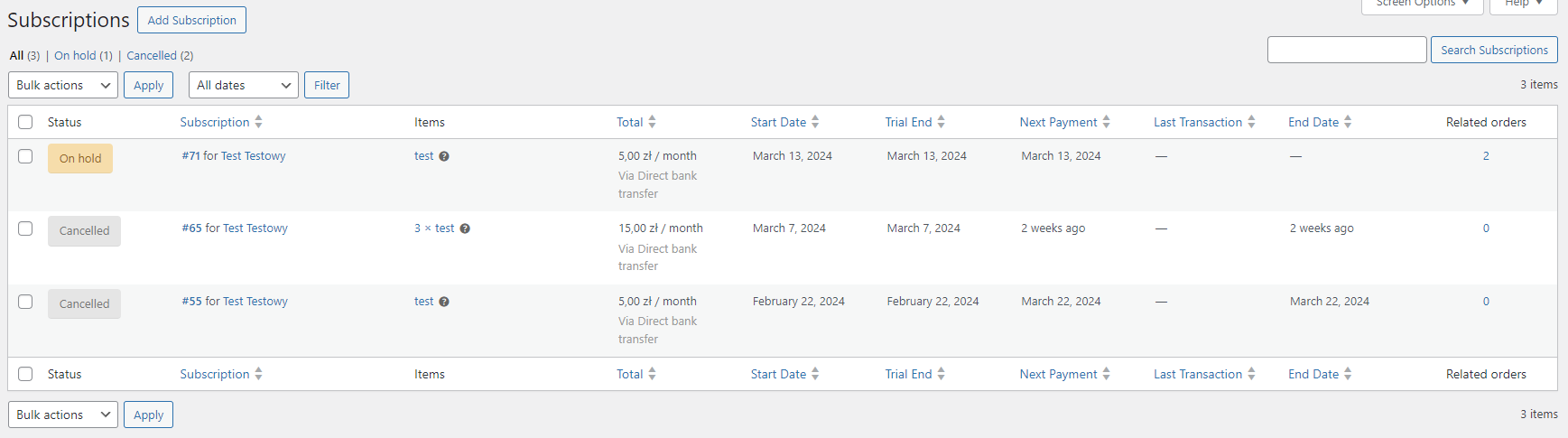
The subscription table can include the following information:
- Status - the current subscription status. The plugin supports statuses such as Pending, Active, On hold, Pending Cancellation, Cancelled, Expired, Switched, and Trashed.
- Subscription - the subscription number and basic customer details.
- Items - products included in the subscription.
- Total - subscription cost, billing frequency, and payment method.
- Start date - when the subscription started.
- Trial end - when the trial period ends, if a trial is configured.
- Next payment - the next scheduled payment date.
- Last transaction - the latest related payment date.
- End date - when the subscription ends, if an end date is set.
- Related orders - parent and renewal orders connected with the subscription.
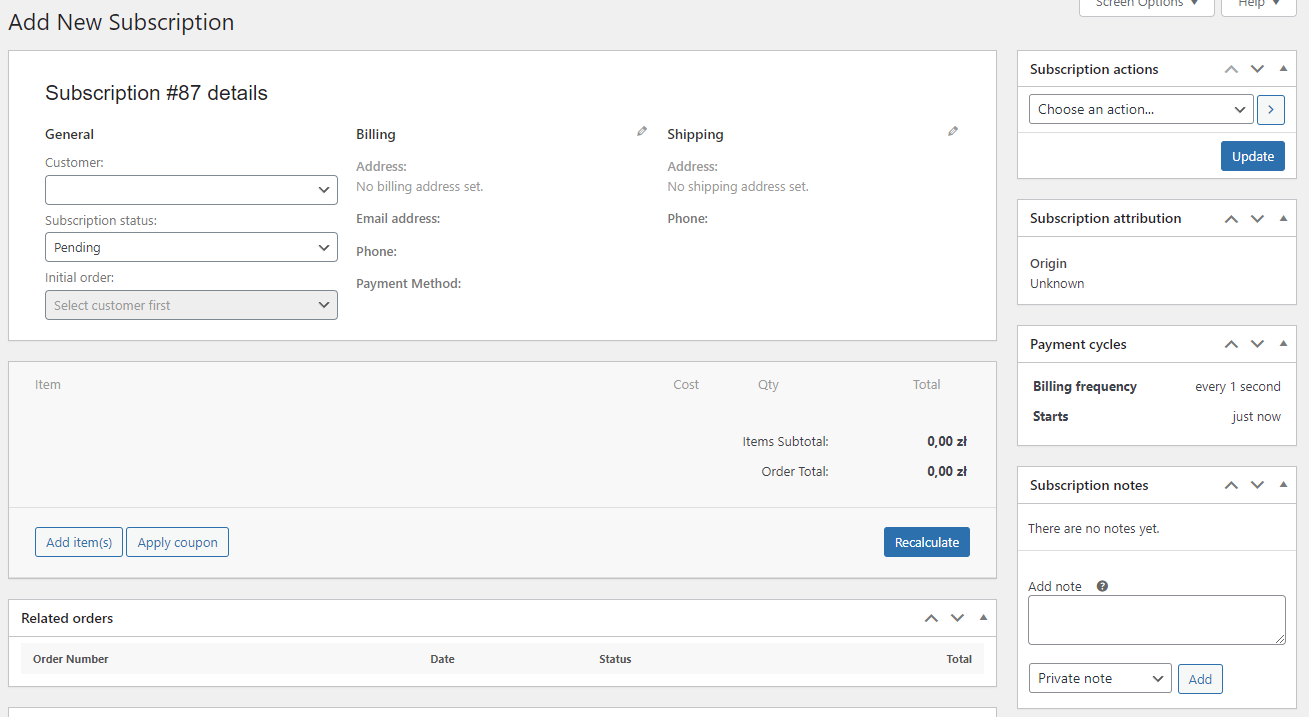
The subscription edit screen contains the subscription details, customer data, billing and shipping data, subscribed items, related orders, payment cycle details, and subscription notes.
Settings
Go to Flexible Subscriptions -> Settings to manage plugin settings.
The settings page contains the following tabs:
- Products - button text settings.
- Payments - payment method behavior for subscriptions.
- Account - customer account endpoints.
Products
Use the Products tab to change button labels used for subscription products and subscription checkout.
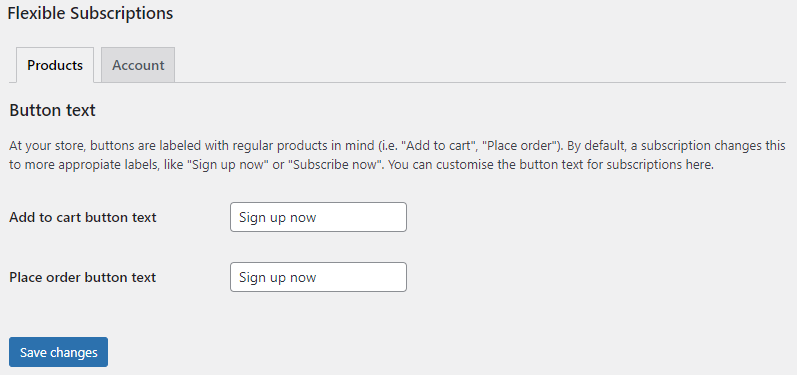
Add to cart button text - changes the button label for subscription products. The default value is Sign up now.
Place order button text - changes the checkout button label when a subscription is in the cart. The default value is Sign up now.
Click Save changes after editing these fields.
Payments
Use the Payments tab to decide how payment methods are collected and which gateways can be used for subscriptions.
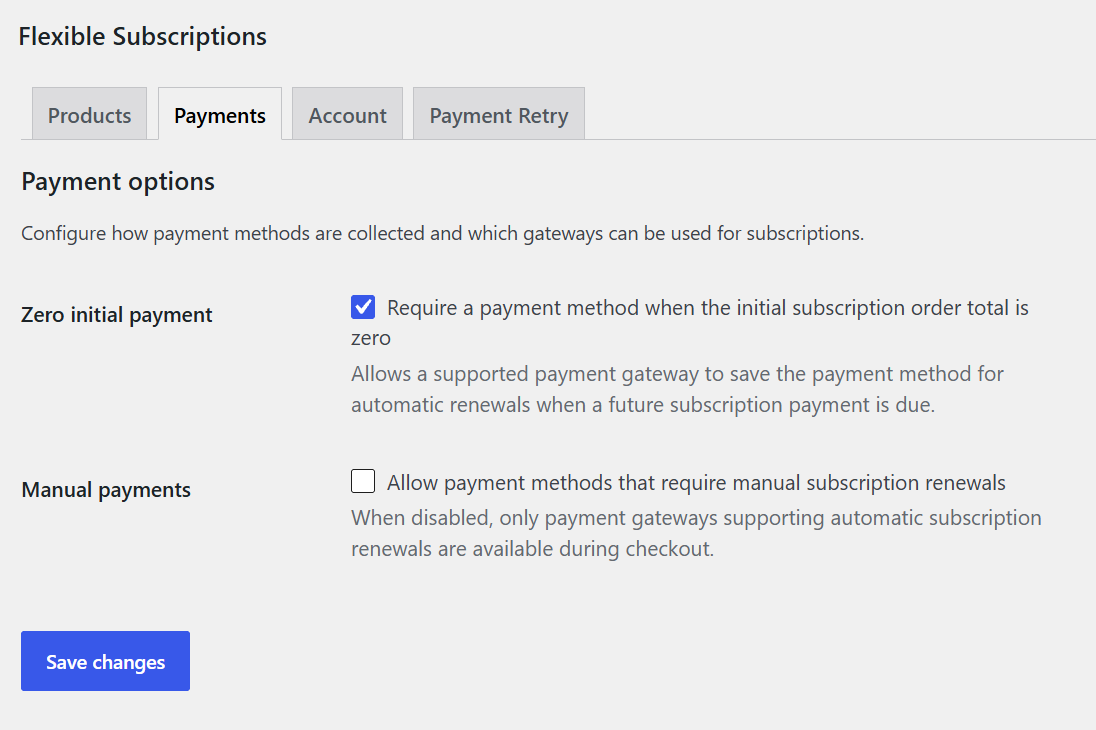
Zero initial payment - require a payment method when the initial subscription order total is zero. Use this option when a customer starts with a free trial or another zero-total first order, but future renewals should be charged automatically.
When this option is enabled, a supported payment gateway can save the customer's payment method for future automatic renewals.
Manual payments - allow payment methods that require manual subscription renewals. When this option is disabled, checkout shows only payment gateways that support automatic subscription renewals.
Click Save changes after changing payment settings.
Account
Use the Account tab to set endpoints for subscription pages in the customer's My Account area.
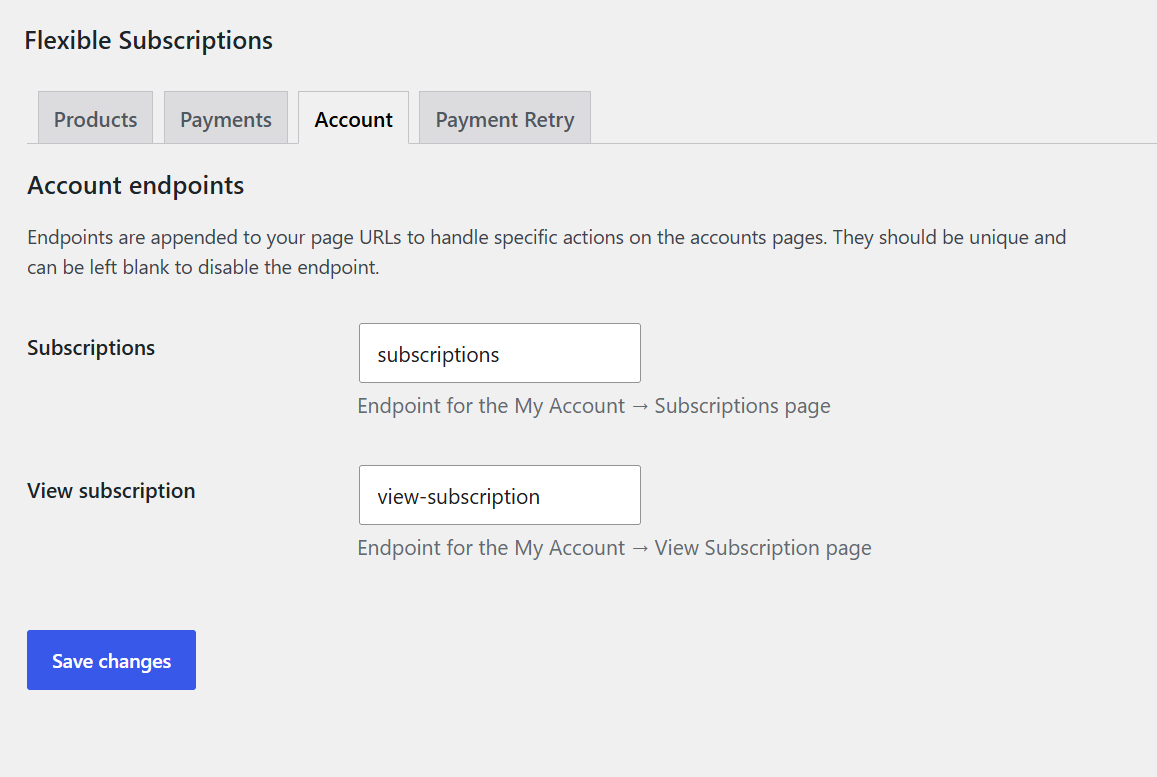
The available endpoints are:
- Subscriptions - endpoint for the My Account subscription list. The default value is subscriptions.
- View subscription - endpoint for the single subscription details page. The default value is view-subscription.
Endpoints should be unique. You can leave an endpoint empty to disable it.
Edit product subscription
Subscription product settings are available in the standard WooCommerce product edit screen. Go to Products, add or edit a product, and select Subscription or Variable Subscription in Product data.
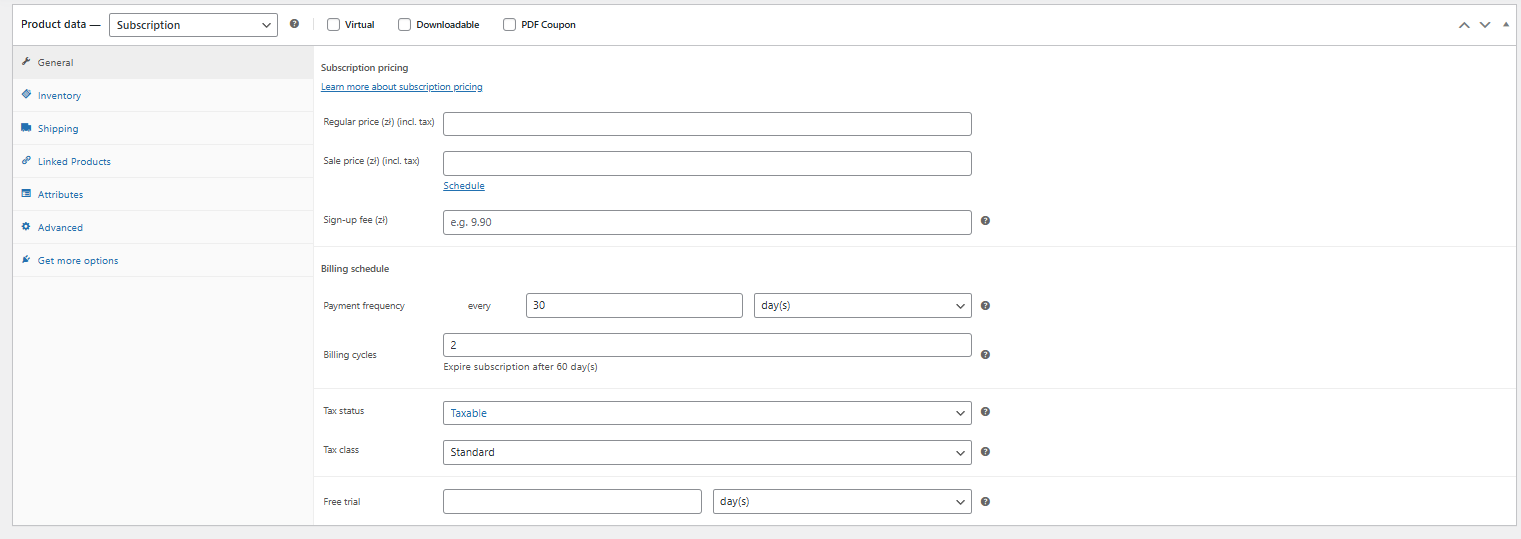
Simple subscription product
For a simple subscription product, configure the regular WooCommerce product price and the subscription-specific fields.
Sign-up fee - an optional one-time fee charged when the customer starts the subscription.
Payment frequency - defines how often the subscription renews. Set the interval and period, for example every 1 month, every 2 weeks, or every 30 days.
Billing cycles - defines how many billing cycles the subscription should run before it expires. Enter 0 if the subscription should not expire because of a billing cycle limit.
Free trial - defines an optional trial period in days, weeks, months, or years. If the trial makes the initial order total zero, use the Zero initial payment setting if you want to collect a payment method for future automatic renewals.
Variable subscription product
For a variable subscription product, configure subscription settings separately for each variation. Each variation can have its own price, sign-up fee, payment frequency, billing cycles, and free trial.
This is useful when you sell the same subscription in different plans, quantities, versions, or service levels.
Cart and checkout
Flexible Subscriptions supports the classic WooCommerce cart and checkout and WooCommerce Cart and Checkout Blocks.
When a subscription product is in the cart, the checkout can show the amount due today and information about future renewals. In WooCommerce Blocks, the order total label can change to Total due today when future subscription payments exist.
The checkout can also display recurring totals, including subtotal, shipping, taxes, discounts, fees, total, first renewal date, and billing frequency.
If the subscription requires shipping, the plugin can show recurring shipping options for future renewals when they differ from the initial order shipping options.
Payment gateways
Flexible Subscriptions can use payment gateways that support WooCommerce subscription renewals. When manual renewals are disabled, the plugin filters checkout payment methods and shows only gateways that declare subscription support.
If more than one subscription is in the cart, the gateway must support multiple subscriptions.
In WooCommerce -> Settings -> Payments, the plugin can indicate whether a payment method supports automatic renewals.
Please note that WooPayments is currently not available when a Flexible Subscriptions product is in the cart. The payment method can still be used for regular WooCommerce products.
If no compatible payment method is available, customers will see a message that no payment methods are available for subscriptions. Store administrators will see a message with a link to WooCommerce documentation about enabling payment gateways for subscriptions.
Customer account
The plugin adds a subscription section to the customer's My Account area.
On the subscription list, the customer can see:
- subscription number,
- status,
- next payment date,
- payment method for automatic renewals,
- subscription total,
- View action.
On the single subscription page, the customer can see subscription status, dates, payment method, subscription totals, products, billing and shipping details, and related payment requests.
If the subscription is not finalized, the customer can use the Cancel action from the subscription details page. The plugin saves a subscription note when the customer cancels the subscription.
Renewals and subscription lifecycle
Flexible Subscriptions creates renewal orders for active subscriptions based on their billing schedule. After a renewal is paid, the plugin advances the subscription billing period and sets the next payment date.
The plugin can also:
- move a subscription to On hold while a renewal is waiting for payment,
- expire a subscription when it reaches its configured end date,
- schedule cancellation at the end of the current billing period,
- cancel related subscriptions when the initiating order is fully refunded.
Compatibility notes
Flexible Subscriptions supports High Performance Order Storage (HPOS) and WooCommerce Cart and Checkout Blocks.
The plugin includes compatibility functions for integrations that expect WooCommerce Subscriptions-style functions and hooks. Compatibility depends on how a payment gateway or external plugin implements subscription support.
WooPayments is treated as incompatible with Flexible Subscriptions for subscription checkouts and is removed from available payment methods when a subscription product is in the cart.
