Contents
Table of contents
- Installation and launch
- Allegro connection authorization
- App settings
- Creating an Allegro listing from a Shopify product
- Detailed description of listing form fields
- Listings and next actions
Installation and launch
The app runs inside Shopify Admin and provides three main areas:
- Home (onboarding),
- Listings,
- Settings.
To get started:
- Install the app in your Shopify store.
- Open the app from the Apps list in Shopify Admin.
- Go to Settings to connect your Allegro account.
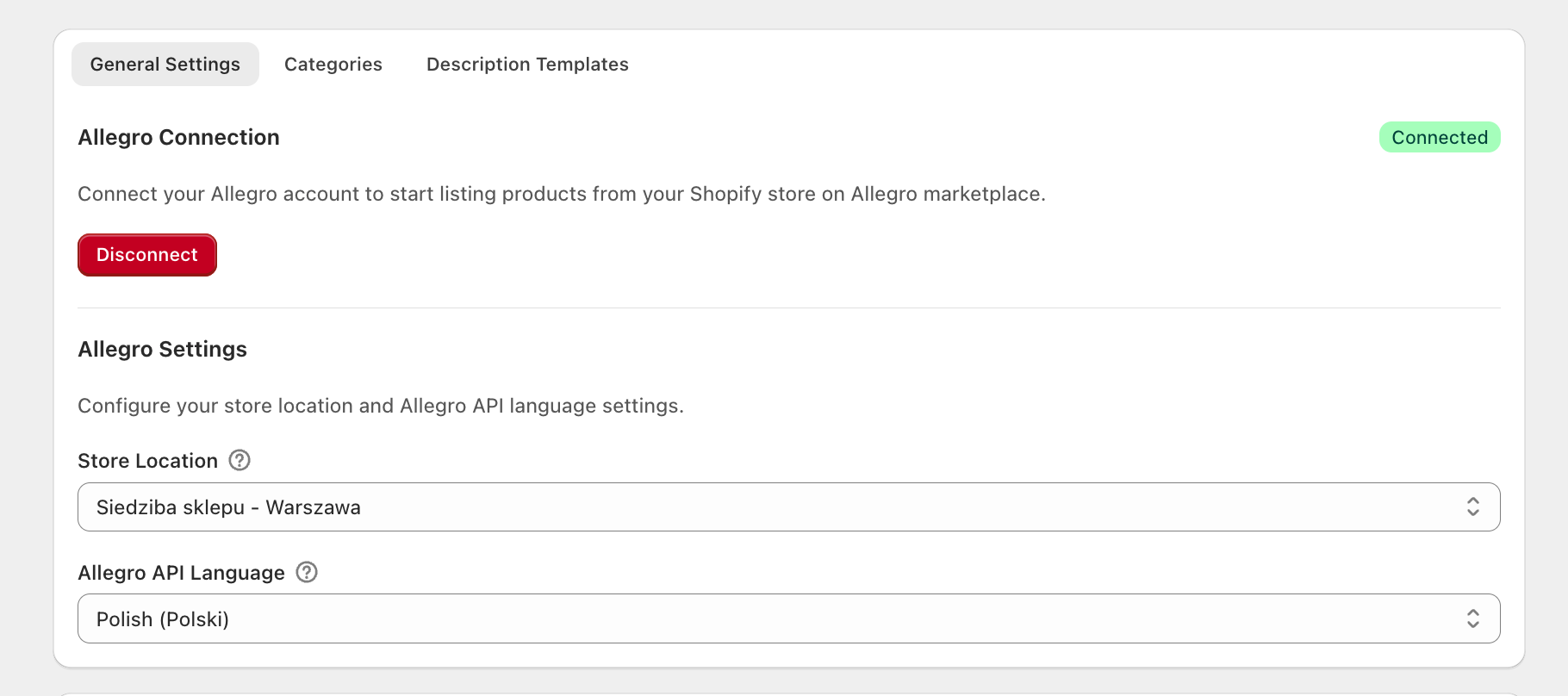
You connect Allegro in Settings → General Settings.
- In the Allegro Connection section, click Connect Allegro Account.
- An Allegro popup window opens (oauth flow).
- Sign in to Allegro and grant app access.
- After successful authorization, the popup closes automatically and the status changes to Connected.
What the user sees
- connection status: Connected / Not Connected,
- button Connect Allegro Account or Disconnect,
- success or error message after authorization.
Disconnecting the account
- In the same section, click Disconnect.
- The app removes OAuth tokens and disconnects the Allegro channel in the app.
App settings
This area configures the Allegro connection and the data used to build listings. Proper setup reduces listing time and validation errors.
The Settings view has 3 tabs.
1. General Settings
This tab is used to manage OAuth connection and core app behavior. You set the store location and Allegro API language here.
- Allegro Connection (connect/disconnect),
- Store Location (active Shopify location used for Allegro listings),
- Allegro API Language (Polish (Polski) or English),
- button Save Settings (visible when changes exist).
2. Categories
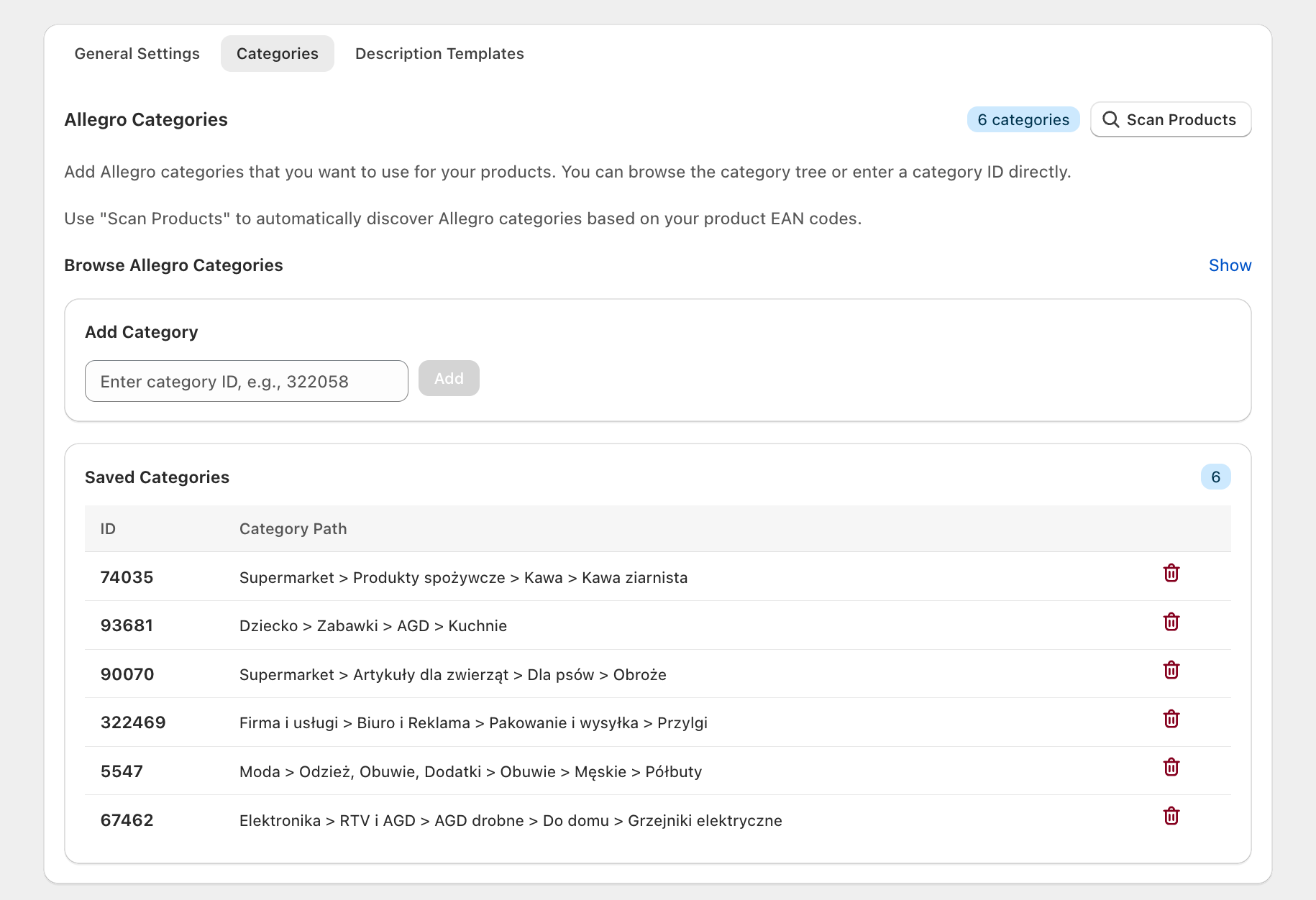
In this section you build the list of Allegro categories used later in listing forms. Categories can be added manually or discovered automatically by EAN scan.
- add Allegro categories manually by ID,
- browse category tree and pick leaf categories,
- save category list with Save Categories,
- Scan Products.
- scans Shopify products by EAN,
- shows discovered categories,
- lets you select and add discovered categories to settings.
3. Description Templates
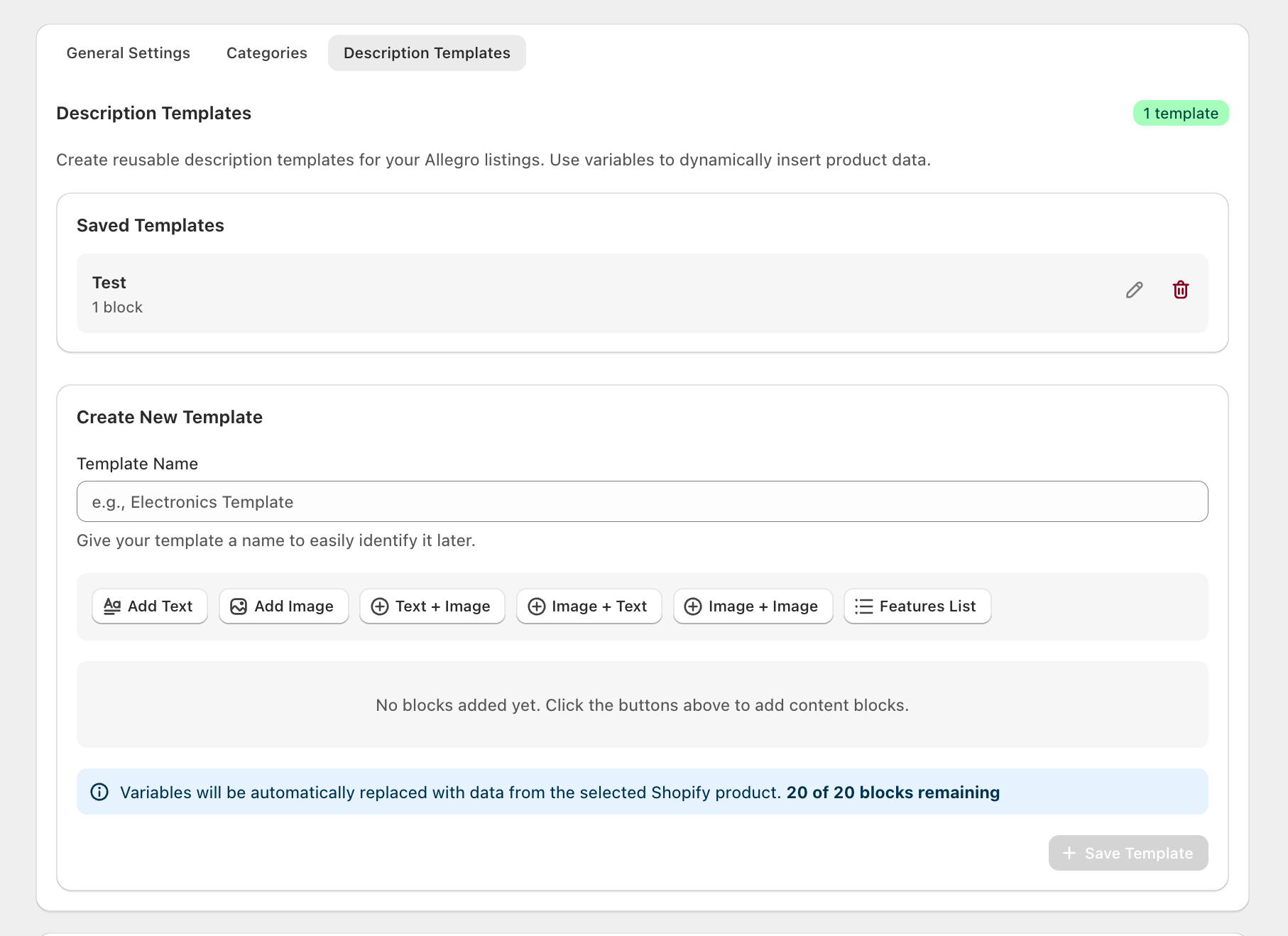
This tab lets you prepare reusable listing descriptions so you do not build content from scratch for every product. Templates support dynamic Shopify variables.
- create reusable description templates,
- content blocks: text, image, text + image, features list,
- use Shopify variables (for example title, description, price, SKU, EAN),
- save changes with Save Changes.
Creating an Allegro listing from a Shopify product
Go to Listings and click Create Listing.
The form is split into sections:
- Product Source
- Category & Specifications
- Auction Parameters
- Description & Images
- Delivery & Payment
- Policies
- GPSR
Typical flow:
- Select a Shopify product and variant.
- Verify or complete EAN.
- If catalog matches are found, click Fetch from catalog.
- Select category and specification parameters.
- Fill title, price, stock, and listing duration.
- Verify description and image gallery.
- Configure delivery, payment, and policies.
- Save a draft, optionally run Validate with Allegro, then Publish to Allegro.
Detailed description of listing form fields
Section: Product Source
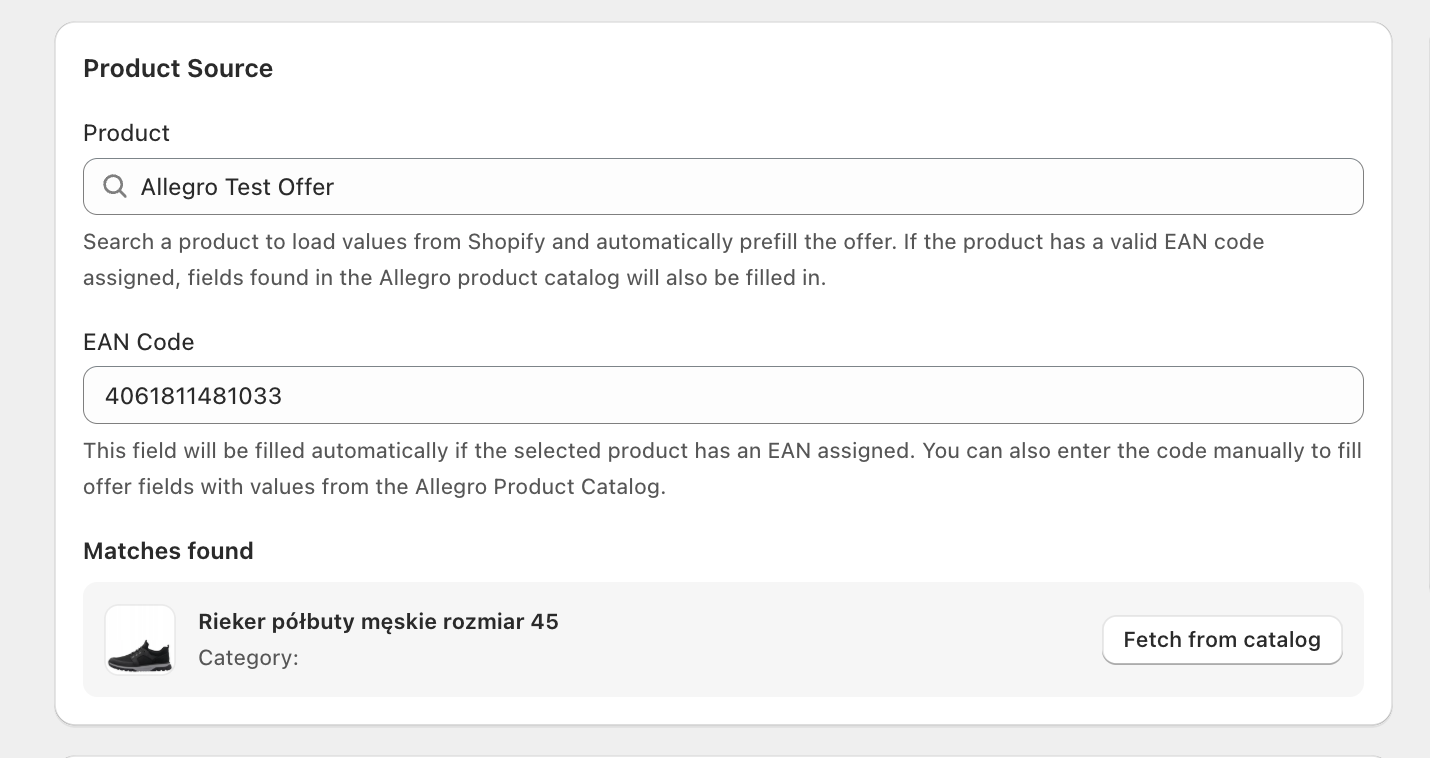
This section selects the Shopify product/variant used as the listing base. It can also pull Allegro catalog data from EAN.
| Field | Behavior | Required |
|---|---|---|
| Shopify Product | Product search input. After selecting variant, the app auto-fills listing name, price, stock, EAN, product metadata, and images. | Yes (variant) |
| Selected product card | Shows thumbnail, variant, SKU, price, and stock; Change clears current selection. | No |
| EAN Code | Auto-filled from variant barcode when available; can also be entered manually. | Recommended |
| Catalog Matches | EAN-based match list. Fetch from catalog sets category, fills some parameters, and merges catalog images into gallery. | No |
Section: Category & Specifications
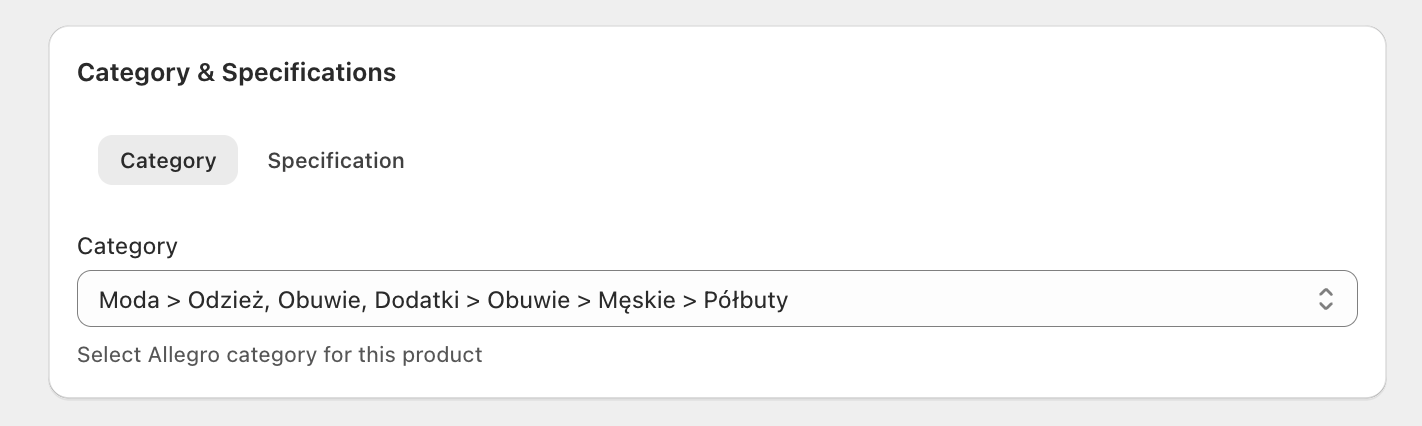
This section defines Allegro category and required category-specific attributes. Correct values are critical for successful publication and offer visibility.
| Field | Behavior | Required |
|---|---|---|
| Category | Select from categories configured earlier in Settings. | Yes |
| Required parameters | Category parameters from Allegro. Input types include dictionary (select), text, integer, and float. | Depends on category |
| Optional parameters | Additional parameters (first 10 shown by default). | No |
Notes:
- Required dictionary parameters may be auto-filled with the first available value when empty.
- Changing category resets previously selected parameters.
Section: Auction Parameters
This section sets core selling conditions: title, price, stock, and duration. It is one of the key sections for form validation and publishing.
| Field | Behavior | Required | Validation |
|---|---|---|---|
| Offer Title | Listing title published to Allegro. | Yes | 12-75 chars, min. 3 words, no excessive spaces |
| Price | Selling price (usually PLN or account currency). | Yes | Positive number, max 2 decimal places |
| Stock Quantity | Available quantity in offer. | Yes | Integer > 0 |
| Listing Duration | 3/5/7/10/20/30 days or Unlimited (GTC). | Yes | ISO 8601 format in API payload |
| Automatically republish when ended | Automatic relist option. | No | Availability depends on selected duration |
Section: Description & Images
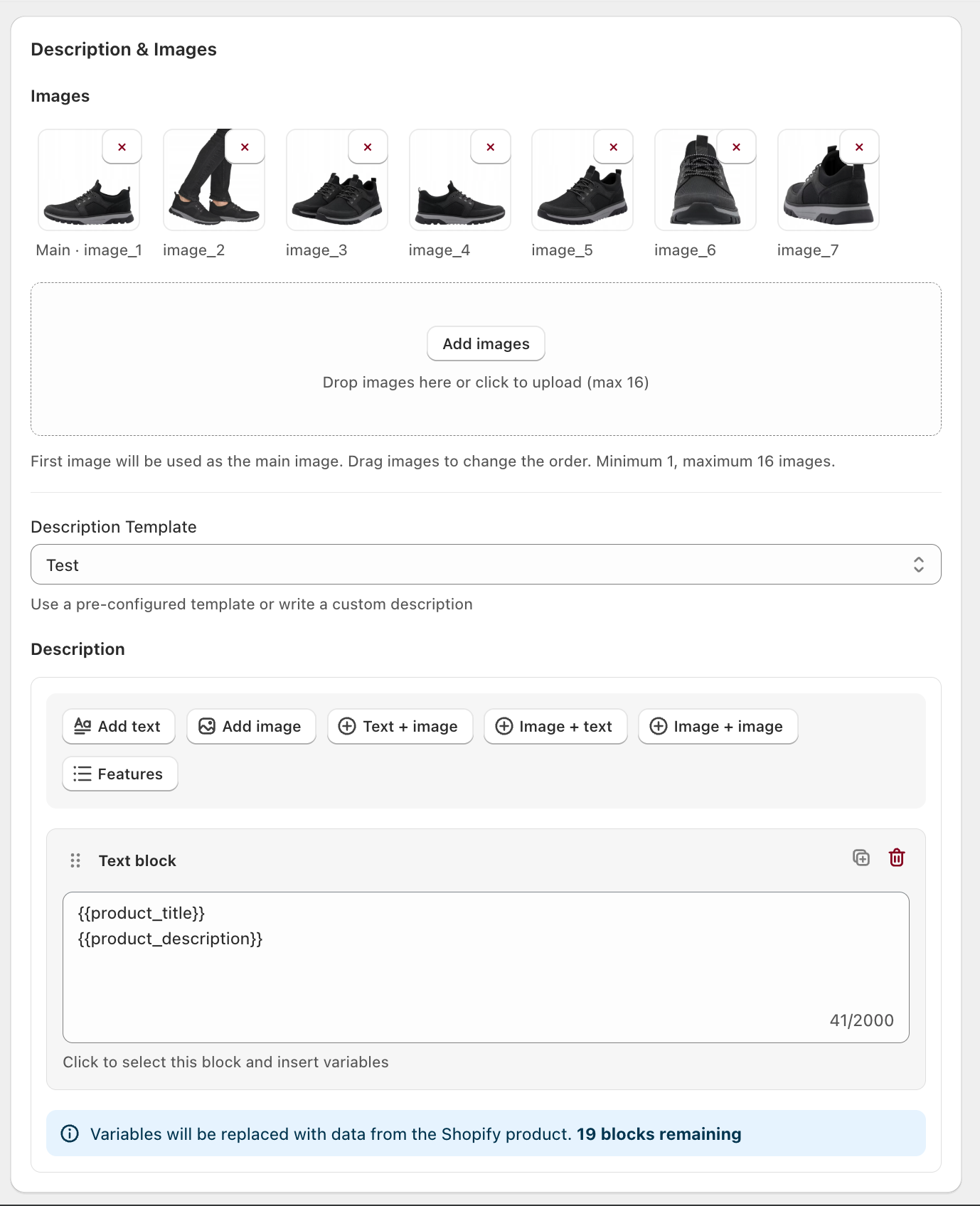
This section controls product presentation on Allegro: image gallery and description content. You can apply a template or build description blocks manually.
| Field | Behavior | Required | Validation |
|---|---|---|---|
| Images (gallery) | Minimum 1, maximum 16 images. Drag and drop reorders images. First image is main (image_1). | Yes | 1-16 images |
| Image upload | Upload your own images to gallery. | No | Maximum 16 |
| Description Template | Select a saved template. | No | - |
| Description block editor | Create description with blocks (text/image/features). | Yes | Description cannot be empty |
| Image slots in description (image_1...image_16) | Description blocks can reference images from gallery. | Conditional | Referenced slots must exist in gallery |
Section: Delivery & Payment
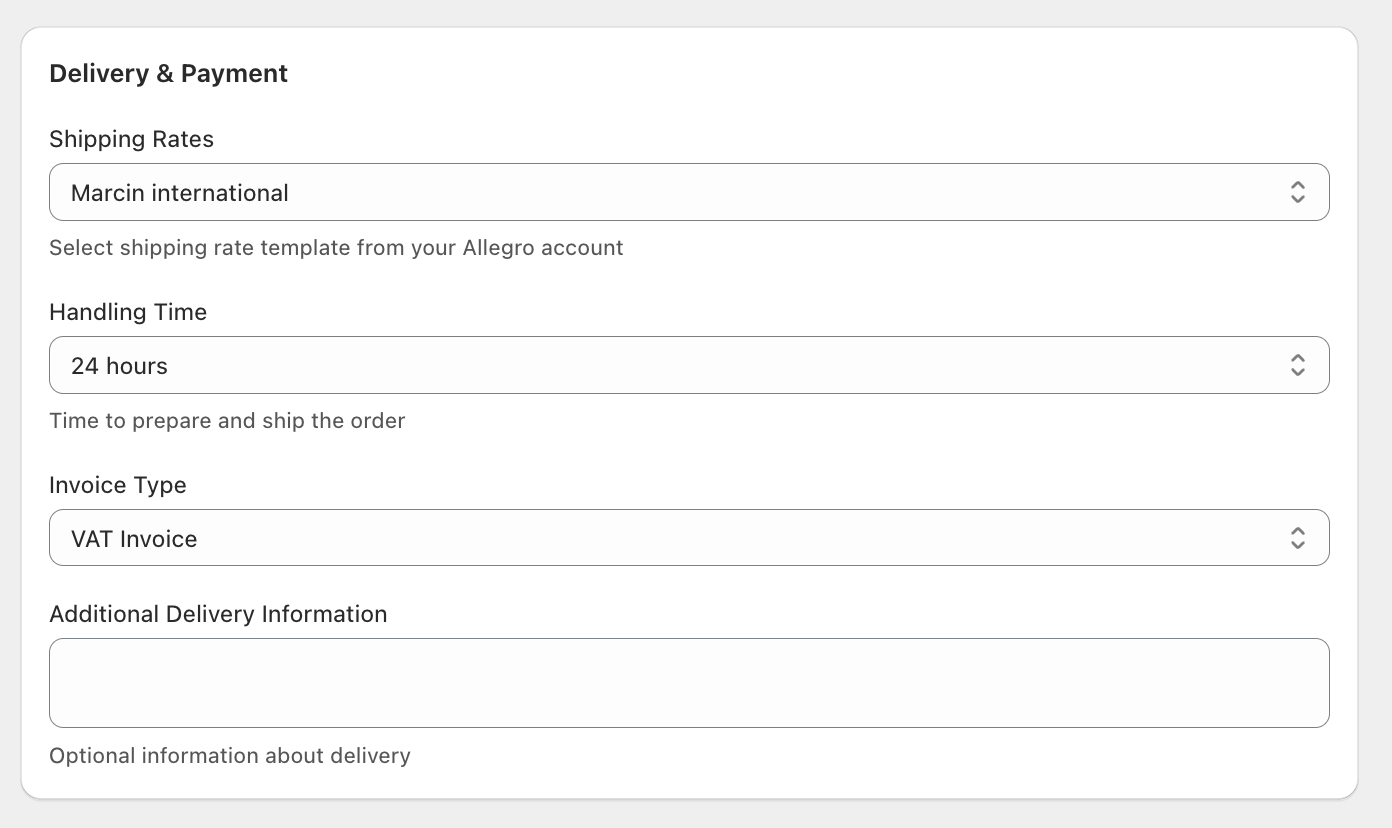
This section configures shipping and invoice settings for the offer. Values are based on your Allegro account setup.
| Field | Behavior | Required |
|---|---|---|
| Shipping Rates | Select a shipping rate template from Allegro account. | Yes |
| Handling Time | Same day, 24 hours, 48 hours, 3/5/7/14/21/30 days. | Yes (default value set) |
| Invoice Type | VAT Invoice, VAT Margin Invoice, Without VAT, No Invoice. | Yes (default: VAT Invoice) |
| Additional Delivery Information | Free-text delivery note. | No |
Section: Policies
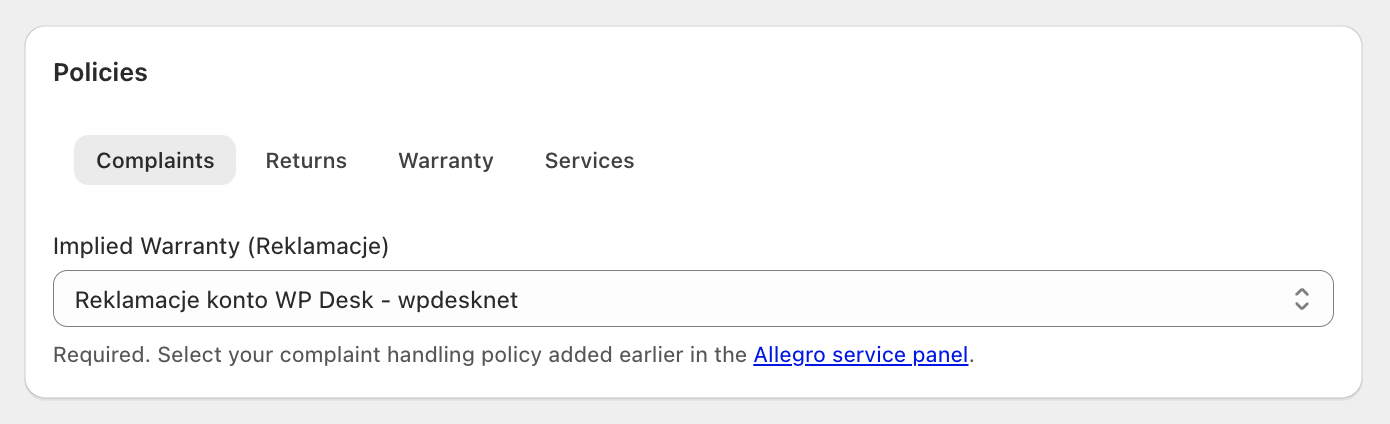
This section contains Allegro post-sale policies required for listing. You can also attach warranty terms and additional services.
| Field | Behavior | Required |
|---|---|---|
| Implied Warranty (Reklamacje) | Select complaints policy from Allegro account. | Yes |
| Return Policy (Zwroty) | Select returns policy from Allegro account. | Yes |
| Warranty (Gwarancja) | Select warranty terms from Allegro account. | No |
| Additional Services | Select additional services from Allegro account. | No |
Section: GPSR
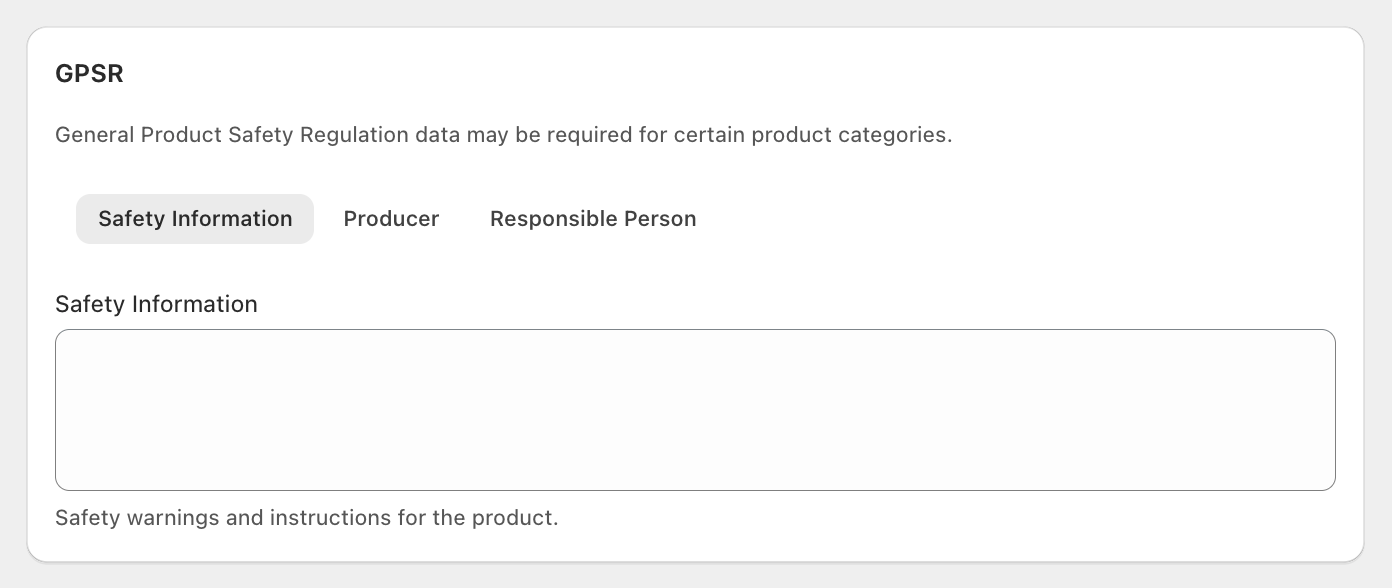
This section covers product safety information required by GPSR for selected categories/products. You can assign or create responsible entities directly here.
| Field | Behavior | Required |
|---|---|---|
| Safety Information | Safety warnings and product instructions text. | Depends on category/product |
| Responsible Producer | Select a producer from Allegro account or create a new one. | Depends on category/product |
| Responsible Person in EU | Select a responsible person or create a new one. | Often required for products from outside EU |
Form: new producer (GPSR)
Fields:
- Producer Name (internal),
- Trade Name,
- Country,
- Postal Code,
- City,
- Street,
- Phone,
- Email.
Form: new responsible person (GPSR)
Fields:
- Internal Name,
- Person/Company Name,
- Country,
- Postal Code,
- City,
- Street,
- Phone,
- Email.
Listings and next actions
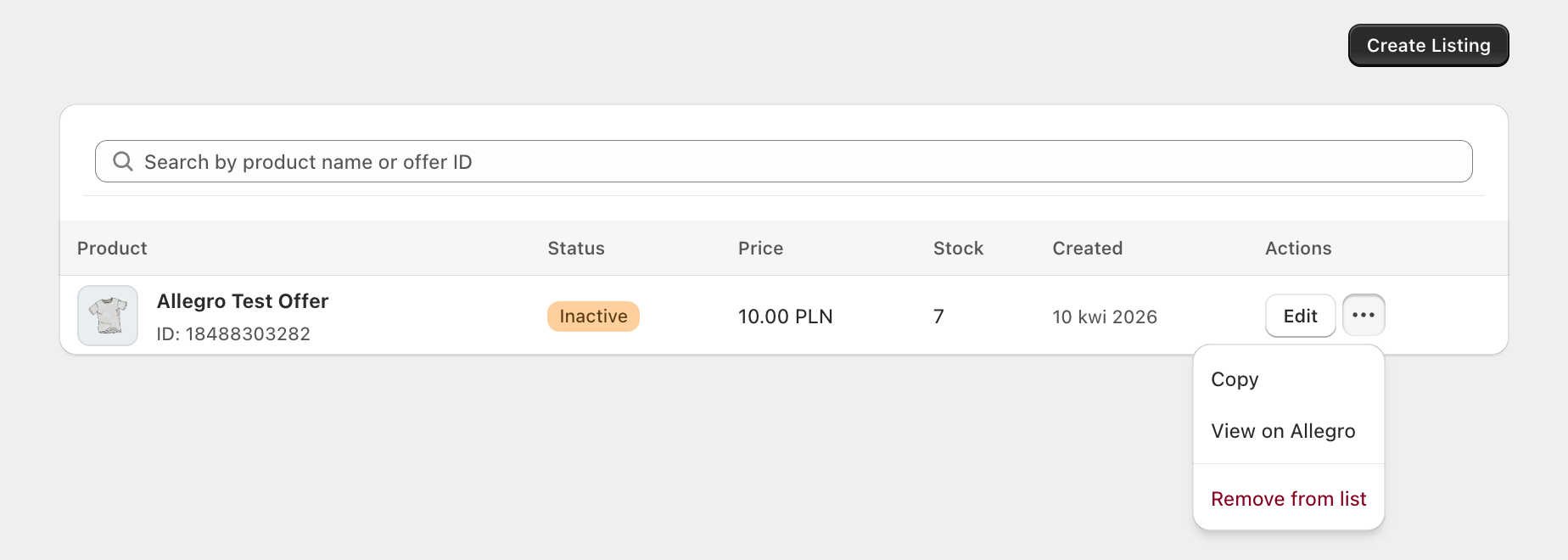
In Listings you get:
- listings table (product, status, price, stock, created date, actions),
- search by product name or offer ID,
- statuses: Draft, Activating, Active, Inactive, Ended.
Available actions per listing:
- Edit,
- End Auction,
- Renew Auction,
- Copy,
- View on Allegro,
- Remove from list.
Actions in listing editor sidebar:
- Save Draft / Update Draft / Update Auction,
- Validate with Allegro,
- Publish to Allegro,
- optional: Copy as new.
