
Imagine managing a large WooCommerce store where every product is perfectly optimized for Google without touching each page manually. In this guide, you will learn how to automatically fill WooCommerce product Yoast SEO fields using data from an XML feed, so your titles and descriptions update themselves during every import. As a result, instead of rewriting hundreds of meta tags by hand, you will set up one smart integration that keeps your catalog SEO‑ready at scale.
When you automatically fill WooCommerce meta Yoast SEO fields from an XML feed, you connect your supplier’s data source with Yoast SEO fields like meta title, meta description, canonical URL and social tags. During each import, the plugin reads attributes from the feed and saves them directly into Yoast meta fields for every product, new or updated. In this way, your store maintains consistent, keyword‑rich metadata without repetitive manual work and, consequently, builds stronger visibility in search engines over time.
For growing dropshipping and wholesale stores, this approach turns SEO into a repeatable process instead of a one‑time clean‑up. Moreover, by combining Dropshipping XML for WooCommerce with Yoast SEO, you can define once how to automatically fill WooCommerce meta Yoast SEO fields and let the integration handle thousands of products in the background. As a result, you gain more search visibility, higher CTRs and more time for strategic marketing instead of editing single product pages.
Automating Yoast SEO fields from an XML feed means defining how product data from an external source (like a dropshipping supplier) is automatically transformed and saved into the respective Yoast SEO fields within your WooCommerce products during the import process. In other words, you create a direct, rule-based connection between your feed and your on-page SEO. This powerful synergy ensures that every product, whether newly imported or updated, arrives with pre-optimized meta titles, descriptions, and social media data. As a result, you eliminate the need for tedious manual optimization.
The business benefit is profound: it significantly reduces the time and effort spent on SEO, ensures consistent, high-quality metadata across your entire product range, and ultimately improves search engine rankings and organic traffic. Dzięki temu możesz skupić się na strategicznym rozwoju zamiast na powtarzalnych zadaniach. Furthermore, it gives your team a clear, predictable workflow instead of ad‑hoc SEO fixes, which in turn supports long-term scaling.
Contents
- The SEO Challenge for Growing WooCommerce Stores
- Unlock Scalable SEO: Why Automate Yoast Meta with XML Feeds?
- Seamless WooCommerce Yoast SEO Integration: A Step-by-Step Guide
- Beyond Meta: Leveraging Automation for Comprehensive WooCommerce SEO
- Transform Your WooCommerce Business with Smart SEO Automation
- FAQ: WooCommerce Yoast SEO Automation
The SEO Challenge for Growing WooCommerce Stores
As your WooCommerce store expands, so does the complexity of managing its SEO. For businesses handling thousands of products, especially in a dropshipping model, the sheer volume of data makes manual optimization a bottleneck. Every product needs a unique meta title, a compelling meta description, and often, specific Open Graph and Twitter Card data for social sharing. However, neglecting these elements means sacrificing visibility, losing out on potential customers, and leaving money on the table.
The pain points are palpable: endless hours spent crafting individual meta tags, inconsistencies creeping into your catalog, and the constant worry that your WooCommerce Yoast SEO products aren't performing to their full potential. This manual grind isn't just inefficient; it actively hinders your ability to scale. In addition, it diverts your team from strategic marketing and customer engagement, trapping them in a cycle of repetitive, low-value tasks.
Unlock Scalable SEO: Why Automate Yoast Meta with XML Feeds?
The solution lies in automation. Instead of managing SEO field by field, you can let a well-configured import process do the heavy lifting. Imagine a world where your product SEO is a set-and-forget operation, consistently updated and perfectly optimized without human intervention. This is precisely the promise of integrating your XML product feed with Yoast SEO through a robust import solution. By automating the population of Yoast meta fields, you:
- Reclaim invaluable time: Free your team from manual data entry, allowing them to focus on high-impact marketing strategies, customer service, or product development. As a result, your marketing pipeline becomes more dynamic and less constrained by routine work.
- Ensure unparalleled accuracy and consistency: Eliminate human error. Every product's metadata will adhere to your predefined rules and pull directly from the source of truth – your supplier's XML feed. Consequently, your catalog remains cleaner and easier to maintain.
- Boost search engine visibility: Consistently optimized meta titles and descriptions lead to better click-through rates (CTR) in search results, driving more organic traffic to your store. In addition, high-quality snippets increase user trust before they even click.
- Streamline social sharing: Automatically generate Open Graph and Twitter Card data, ensuring your products look professional and inviting when shared across social media platforms. In turn, this coherence between SEO and social presentation strengthens your brand image.
This isn't just about saving time; it's about building a resilient, scalable e-commerce operation. It’s about transforming your product data from a static list into a dynamic, SEO-optimized asset. Therefore, if you want to grow without multiplying manual work, automation becomes a necessity rather than a bonus. To start this journey of automation and elevate your store's SEO, you'll need a powerful tool like Dropshipping XML for WooCommerce.
Seamless WooCommerce Yoast SEO Integration: A Step-by-Step Guide
Ready to transform your SEO workflow? Here’s how you can achieve powerful WooCommerce SEO automation by integrating your XML feed with Yoast SEO using Dropshipping XML for WooCommerce. Each step builds on the previous one, so following them in order will give you a smooth setup process.
Step 1: Prepare Your XML Feed and Activate Yoast SEO
Before diving into the import, ensure your supplier's XML feed is accessible and contains the data you wish to map to your Yoast SEO fields. In addition, verify that key attributes like titles, descriptions and image URLs are present in the feed. Crucially, Yoast SEO must be active on your WooCommerce store. The Dropshipping XML for WooCommerce plugin checks for the WPSEO_VERSION constant or the activity of wordpress-seo/wp-seo.php. Without Yoast SEO active, the dedicated fields won't appear in the mapper, which means you cannot configure the integration properly.
Step 2: Initiate the Import Process with Dropshipping XML for WooCommerce
Begin by creating a new import in Dropshipping XML for WooCommerce. To do this, navigate to the plugin settings and select “Add New Import”. You'll start by providing the URL to your XML feed. This initial step is the gateway to unlocking automated efficiency for your entire product catalog, because every subsequent rule will build on this feed connection.
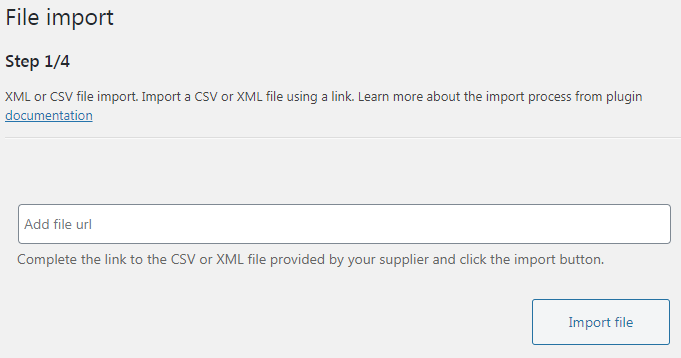
This powerful plugin allows you to seamlessly integrate external product data, a core component of scaling your e-commerce business. Moreover, it reduces the risk of inconsistent product information between your supplier and your store. For more insights into essential tools that boost sales, explore our comprehensive guide on WooCommerce plugins to increase sales.
Step 3: Enable Yoast SEO Fields in Import Options
Once you've set up your basic import, proceed to the “Import options” step. Here, you'll find a list of fields to synchronize. It is vital to check the "Yoast SEO fields" box. This action unlocks a dedicated section in the mapping interface, specifically designed for Yoast SEO attributes. Otherwise, you will not see the Yoast-related options later in the process. As a result, enabling this option early helps you avoid confusion when you reach the mapping stage.
Step 4: Map Your XML Data to Yoast SEO Fields
This is where the magic of Yoast SEO WooCommerce product meta automation truly happens. Go to the mapping section of the import settings. At this point, you'll see a dedicated “Yoast” tab, which is further divided into intuitive sections. Thanks to this structure, it is easier to decide where each feed attribute should go.
- SERP: For meta title and meta description, which directly influence how your products appear in search results.
- Analysis: For readability and keyword analysis (though typically not mapped from XML), which can still guide your content improvements later.
- Canonical: To define the canonical URL, helping search engines understand the primary version of a page.
- Facebook (Open Graph): For social sharing on Facebook, improving how your products look when shared.
- Twitter: For social sharing on Twitter Cards, ensuring consistent visuals across platforms.
Drag and drop the relevant tags from your XML file preview directly to the corresponding Yoast meta-keys. For example, this simple mapping can completely automate how titles and descriptions are filled:
- To map your product's SEO title: drag
{//item/yoast_title}to_yoast_wpseo_title. - For the meta description: drag
{//item/yoast_meta_desc}to_yoast_wpseo_metadesc. - To set a canonical URL: drag
{//item/yoast_canonical}to_yoast_wpseo_canonical. - For Open Graph images: drag
{//item/og_image/wp}to_yoast_wpseo_opengraph-image-url.
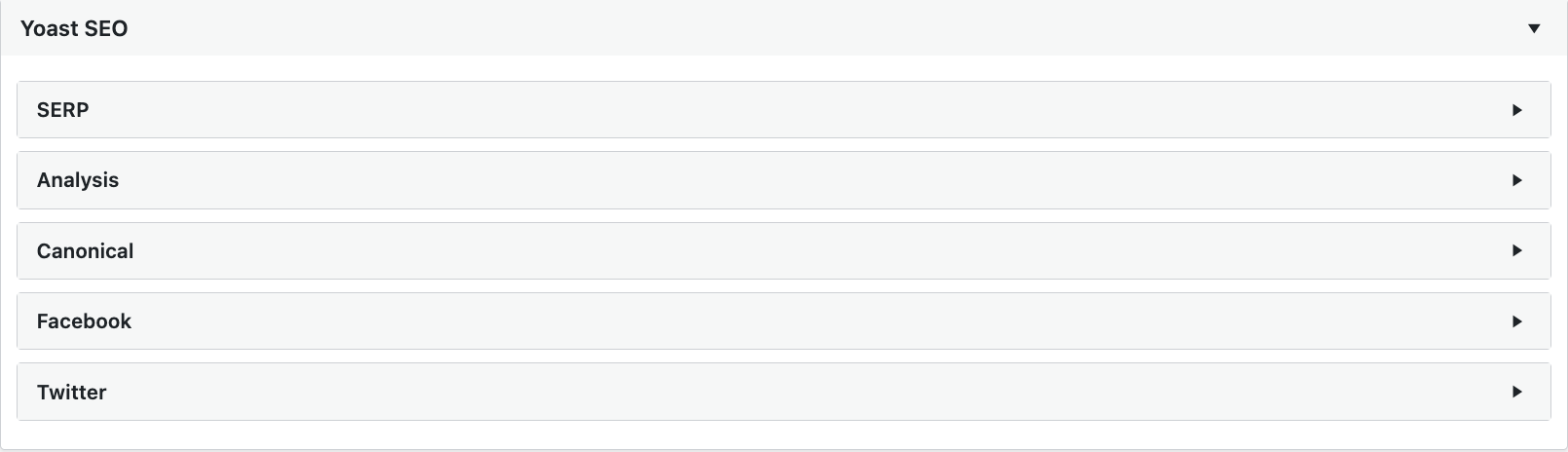 Visually map XML attributes directly to Yoast SEO fields for seamless product optimization during import.
Important considerations for seamless mapping:
Pro Tip: Full Image URLs for Social Media: When importing Open Graph or Twitter Card images, ensure the URLs in your XML feed are complete (e.g., starting with https://). Otherwise, Yoast SEO may fail to generate correct social media previews.
Pro Tip: Add Constant Prefixes for Clarity: Consider adding constant prefixes to your SEO titles, like "Brand Name | {item/title}". As a result, you help users recognize your brand in SERPs and maintain consistent naming across the catalog.
Troubleshooting: Empty Meta Titles: If a meta title isn't overwriting, the XML tag might be empty. To avoid this, implement a fallback logic (e.g., {//item/name}|{//item/id}) to ensure a value is always present, even when the preferred tag is missing.
Troubleshooting: Canonical URL Issues: If the canonical URL remains empty, double-check that the XPath path in your mapping accurately targets the correct node in your XML structure. Additionally, review the “File preview” step to verify that the URL is actually present in the feed.
Step 5: Save and Automate Your SEO Updates
Once your mapping is complete, save your import settings. From this point forward, every time the Dropshipping XML for WooCommerce plugin runs an import, it will automatically populate and update the specified Yoast SEO fields for your products. Consequently, your product SEO will stay aligned with your supplier’s data without manual intervention. This establishes a powerful, automated workflow for Yoast SEO WooCommerce product optimization, ensuring your product listings are always fresh and search-engine-ready.
Beyond Meta: Leveraging Automation for Comprehensive WooCommerce SEO
Automating Yoast SEO fields is a monumental step, but the power of automation extends far beyond. In fact, once you see the benefits on the metadata level, it becomes natural to ask how you can automate other parts of your WooCommerce setup. Consider how you can integrate other critical aspects of your e-commerce operations to create a truly optimized and scalable business. For instance, generating product feeds for platforms like Google Merchant Center is another area ripe for automation.
Just as you've automated your on-page SEO, you can streamline your product data submissions to Google, ensuring your products are visible in Google Shopping and other services. This not only boosts traffic but also enhances your overall digital footprint. Furthermore, it keeps your offer synchronized across multiple channels. Learn more about how to integrate Google Merchant XML with WooCommerce, further enhancing your visibility.
Moreover, think about the downstream effects of every order. With a growing volume, manually processing orders can become overwhelming. Therefore, automating order exports can significantly reduce administrative overhead and improve fulfillment efficiency. Dzięki temu możesz skupić się na rozwoju biznesu zamiast na powtarzalnych czynnościach.
Import Product Yoast SEO fields
Import values right from your CSV or XML files to your WooCommerce
Check the plugin out or View DetailsTransform Your WooCommerce Business with Smart SEO Automation
For the mid-sized e-commerce manager, the vision of scaling a WooCommerce store without the nightmare of manual SEO is now within reach. By implementing a robust WooCommerce Yoast SEO integration with Dropshipping XML for WooCommerce, you're not just saving time; you're building a foundation for sustained growth and increased profitability. In addition, you are standardizing processes that would otherwise depend on individual team members. You're transforming your business from a reactive entity that walczy z bieżącymi problemami into a proactive, optimized powerhouse ready to dominate its niche.
Embrace the power of automation. Let your tools work for you, freeing up your valuable time and resources to focus on what truly matters: strategic development, customer engagement, and expanding your market reach. As a result, your team can invest more energy in testing new channels and campaigns. The future of your WooCommerce store is scalable, efficient, and brilliantly optimized.
Start automatically filling Yoast SEO fields during product import and optimize hundreds of products at once. This isn't just a feature; it's a strategic investment in the future of your e-commerce success. Ultimately, the earlier you introduce automation, the easier it becomes to grow without compromising on quality.
FAQ: WooCommerce Yoast SEO Automation
How to add SEO meta to WooCommerce products automatically?
You can automatically add SEO meta to WooCommerce products by using a plugin like Dropshipping XML for WooCommerce. This tool allows you to map attributes from an XML product feed directly to Yoast SEO fields during import, thereby automating the process for your entire catalog.
How can I import meta title and description to WooCommerce using an XML feed?
To import meta title and description, use Dropshipping XML for WooCommerce. In the import settings, enable “Yoast SEO fields”, then in the mapping section, drag the XML tags for your meta title and description to their respective Yoast SEO meta-keys. In this way, every new import refreshes your metadata automatically.
Can I automatically generate WooCommerce product meta tags for thousands of products?
Yes, absolutely. By integrating Dropshipping XML for WooCommerce with Yoast SEO, you can set up a one-time mapping that will automatically generate and update meta tags for thousands of products every time your XML feed is imported or synchronized. Consequently, large catalogs become much easier to maintain.
What are the benefits of WooCommerce dropshipping SEO automation?
WooCommerce dropshipping SEO automation offers significant benefits, including saving countless hours on manual data entry, ensuring consistent and accurate SEO metadata across your catalog, improving search engine rankings, and boosting organic traffic and sales. Moreover, it reduces the risk of human error and keeps your product data aligned with your supplier.
How do I map XML feed attributes to Yoast SEO fields in WooCommerce?
Within Dropshipping XML for WooCommerce, after enabling “Yoast SEO fields” in import options, navigate to the Yoast tab in the mapper. Here, you can drag and drop specific XML tags from your feed preview to corresponding Yoast meta-keys like _yoast_wpseo_title or _yoast_wpseo_metadesc. As a result, each import applies the same consistent SEO rules.
What if my XML tag for the meta title is empty during import?
If an XML tag for a meta title is empty, Yoast SEO might not overwrite the existing field, leaving it blank. To prevent this, use fallback logic in your mapping, such as {//item/name}|{//item/id}, to ensure a default value is always provided, even when some feed fields are missing.
Does Yoast SEO need to be active for this integration to work?
Yes, Yoast SEO must be actively installed and enabled on your WooCommerce store. Dropshipping XML for WooCommerce checks for Yoast's presence, and without it, the dedicated Yoast SEO fields will not appear in the import mapper. Therefore, make sure Yoast is configured before you start setting up imports.

