The Allegro WooCommerce plugin includes an Allegro Delivery module for handling shipments created through “I ship with Allegro”. You can create shipments from the WooCommerce order screen, generate labels, order courier pickup, and automate shipment creation for Allegro orders.
Contents
Requirements and access
- An active and connected Allegro account in Allegro → Settings.
- The order must come from Allegro. Allegro Delivery options are available only for orders that include Allegro order data.
- The user must have permission to edit WooCommerce orders and manage WooCommerce settings.
- WordPress cron or Action Scheduler must run correctly. Automatic shipment processing uses a scheduled task that runs every 5 minutes.
- The server must be able to write files to
wp-content/uploads, because generated labels are stored there.
Allegro account and sender data
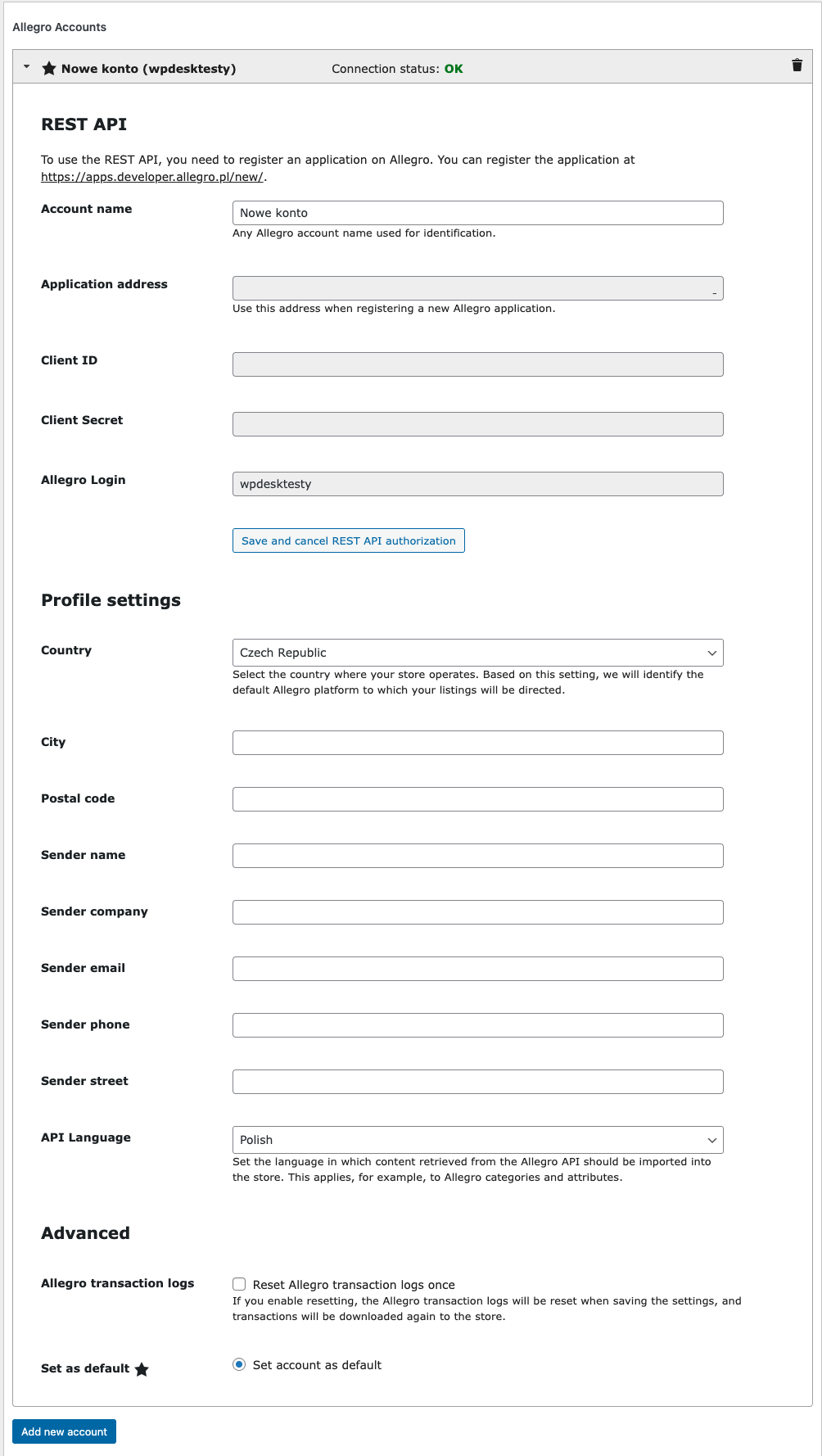
Before creating shipments, make sure your Allegro account is connected and the sender data in the profile is complete.
Go to Allegro → Settings and check the account profile used for shipments.
Allegro Delivery settings
Go to Allegro → Settings → Allegro Delivery to configure automatic shipment creation, label format, package sizes, and sender point mappings.
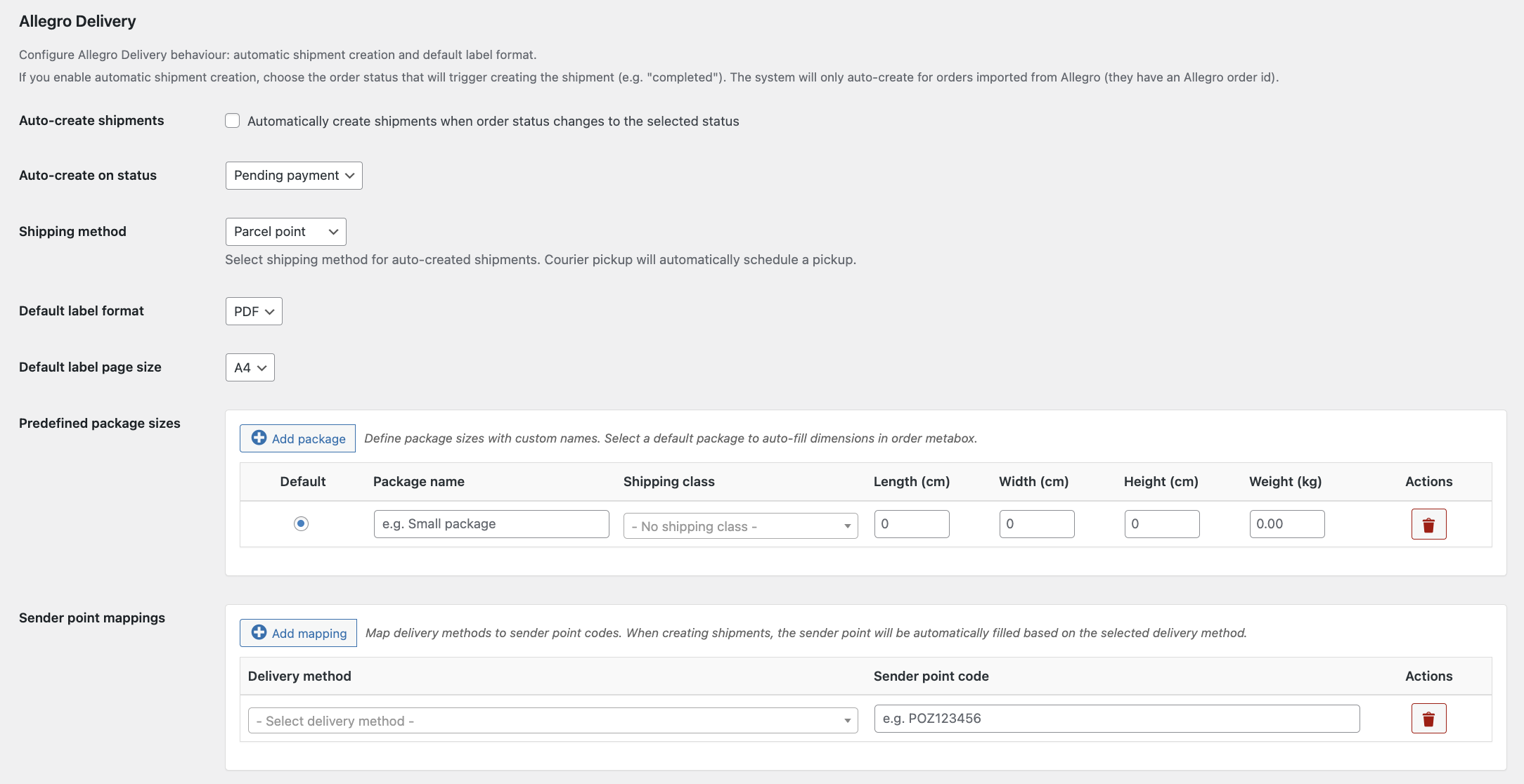
- Auto-create shipments - enable this option if the plugin should automatically create shipments when an Allegro order changes to the selected WooCommerce status.
- Auto-create on status - select the WooCommerce order status that should trigger automatic shipment creation. By default, the plugin uses the completed status.
- Shipping method - choose how automatically created shipments should be sent. Parcel point means that you will bring the package to a drop-off point. Courier pickup means that the plugin will also try to order courier pickup after creating the shipment.
- Pickup date - choose when the courier pickup should be scheduled. Available options include first available date, next business day, in 2 business days, and in 3 business days.
- Preferred pickup time - choose the preferred pickup time. This option is not used when First available date is selected.
- Default label format - choose the default label format: PDF or ZPL.
- Default label page size - choose A4 or A6. For A4 labels, the plugin sends the cut line option by default.
- Allegro profile for delivery - select the Allegro profile that should be used for shipments, or keep Use active profile.
Predefined package sizes
Use Predefined package sizes to save frequently used package dimensions. Each package can include:
- default package marker,
- package name,
- WooCommerce shipping class,
- length, width, and height in centimeters,
- weight in kilograms.
If a package is assigned to a WooCommerce shipping class, the plugin can use it automatically for orders that contain products from that shipping class. If no matching shipping class is found, the default package can be used.
Sender point mappings
Use Sender point mappings to map Allegro delivery methods to sender point codes. This is useful for parcel point shipments, because the plugin can automatically fill the drop-off point code based on the delivery method used in the Allegro order.
Click Add mapping, select the delivery method, and enter the sender point code, for example a parcel locker or pickup point code.
Allegro Delivery metabox in the order
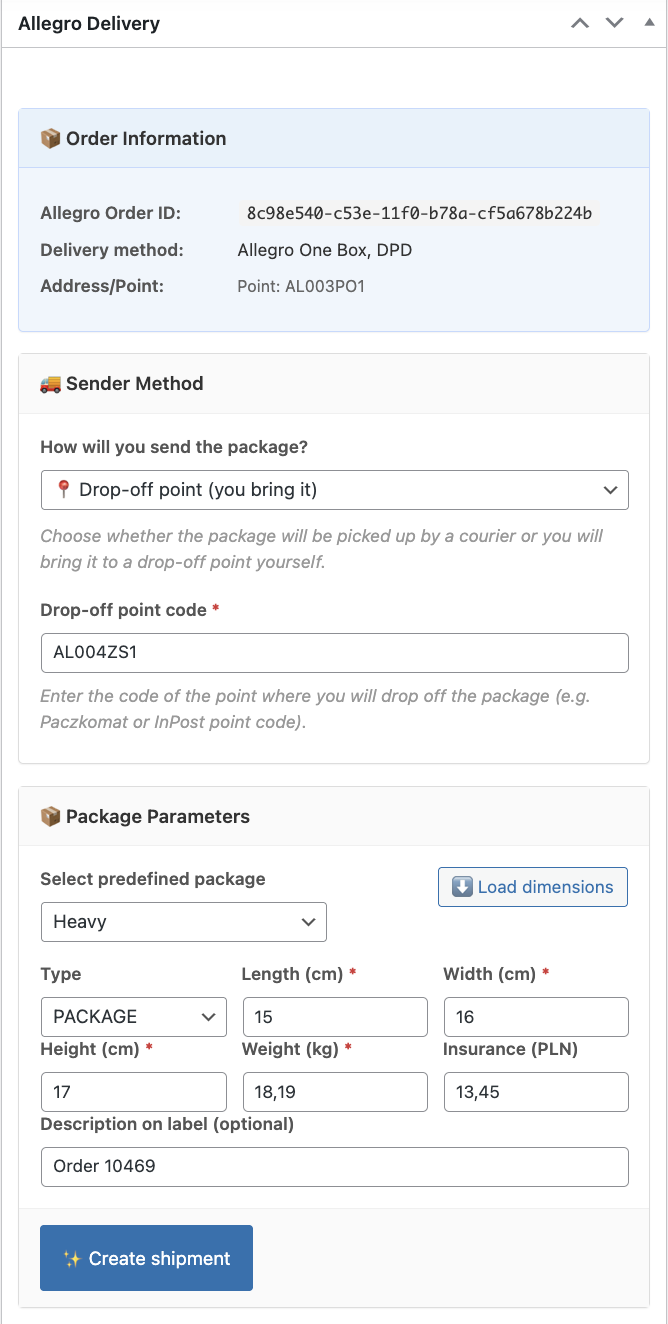
Open an Allegro order in WooCommerce to use the Allegro Delivery metabox. The module is available only for orders imported from Allegro.
The metabox contains the following sections:
- Order Information - shows the Allegro order ID, delivery method, delivery address, and related order information.
- Sender Method - lets you choose how the package will be sent: Courier (pickup from address) or Drop-off point (you bring it). For drop-off point shipments, enter the Drop-off point code.
- Package Parameters - lets you load a predefined package, select the package type, enter dimensions, weight, insurance amount, and optional description on the label.
- Shipments - shows shipment actions and statuses. You can create a shipment, refresh shipment data, generate a label, or cancel a shipment when cancellation is available.
- Order Pickup - appears when courier pickup can be ordered. Use it to get pickup proposals and order pickup for a shipment.
Manual shipment creation
- Open the Allegro order in WooCommerce.
- Check the delivery method and address in the Order Information section.
- In Sender Method, choose Courier (pickup from address) or Drop-off point (you bring it).
- If you choose a drop-off point, enter the Drop-off point code. If sender point mappings are configured, this field may be filled automatically.
- In Package Parameters, select a predefined package or enter package dimensions and weight manually.
- Set optional fields such as insurance and description on label.
- Click Create shipment.
- After the shipment is created, use Generate label to create and download the label file.
- If you selected courier pickup, use Get proposals, choose a pickup proposal, and click Order pickup.
Automatic shipment creation
Automatic shipment creation can be enabled in Allegro → Settings → Allegro Delivery.
When an Allegro order changes to the selected status, the plugin marks it for automatic shipment processing. The scheduled task then processes pending orders every 5 minutes, up to 20 orders at a time.
During automatic processing, the plugin can:
- select package dimensions from predefined package sizes, including shipping class mappings,
- set the package type,
- set the label description using the order ID,
- set the insurance amount based on the order total,
- create the shipment in Allegro,
- order courier pickup if Courier pickup is selected in the settings,
- generate the shipping label.
The result of the automatic process is stored in the order data and can be checked in the Allegro Delivery metabox and status history.
Labels and documents
- Labels can be generated in PDF or ZPL format.
- The default page size can be set to A4 or A6.
- For A4 labels, the plugin sends the cut line option by default.
- Generated label files are saved in monthly folders inside
wp-content/uploads/woocommerce-allegro/labels/YYYY/MM. - Label links are saved in the order, so you can access generated files from the order screen.
Courier pickups
Courier pickup is available for shipments created with the courier sender method.
- Create the shipment first.
- Open the Order Pickup section in the Allegro Delivery metabox.
- Select the ready date and click Get proposals.
- Select one of the available pickup proposals.
- Click Order pickup.
If the shipment uses InPost, the plugin may use the first available pickup date instead of showing standard pickup time slots.
Troubleshooting
- If the Allegro Delivery metabox is not available, check whether the order was imported from Allegro.
- If shipment creation fails, check the sender data in the Allegro profile and the package dimensions in the order.
- If courier pickup fails, check whether the sender address includes all required fields, including email and phone number.
- If labels are not generated or cannot be downloaded, check whether the server can write files to
wp-content/uploads. - If automatic shipment creation does not run, check whether WordPress cron or Action Scheduler is working correctly.
